Compress PDF for SuperOps: Keep Ticket Attachments, Asset Reports, and MSP Docs Small Without Losing Clarity
To compress a PDF for SuperOps, upload the final ticket attachment, asset report, quote backup, onboarding packet, or internal MSP PDF to LifetimePDF's Compress PDF tool, start with Medium compression, and keep the smaller copy only if screenshots, device details, line items, and notes still read clearly.
For most SuperOps workflows, under 2MB is a strong target for short text-heavy PDFs, while screenshot-heavy, scan-heavy, and mixed handoff packets usually land better around 2MB to 5MB after light cleanup.
SuperOps files rarely stay in one place. A ticket attachment becomes part of an escalation, a quote backup is reopened during approval, an asset report gets revisited during troubleshooting, or a client handoff packet needs to open cleanly on mobile. The real goal is not to crush a PDF until it looks cheap. It is to make the file smaller without breaking the details people still need when they open it fast.
Fastest path: run the SuperOps PDF through LifetimePDF's Compress PDF tool on Medium, then do one quick readability check before you attach, send, archive, or reuse the smaller copy.
Need the short version? Jump to Quick start: compress a PDF for SuperOps in under 2 minutes.
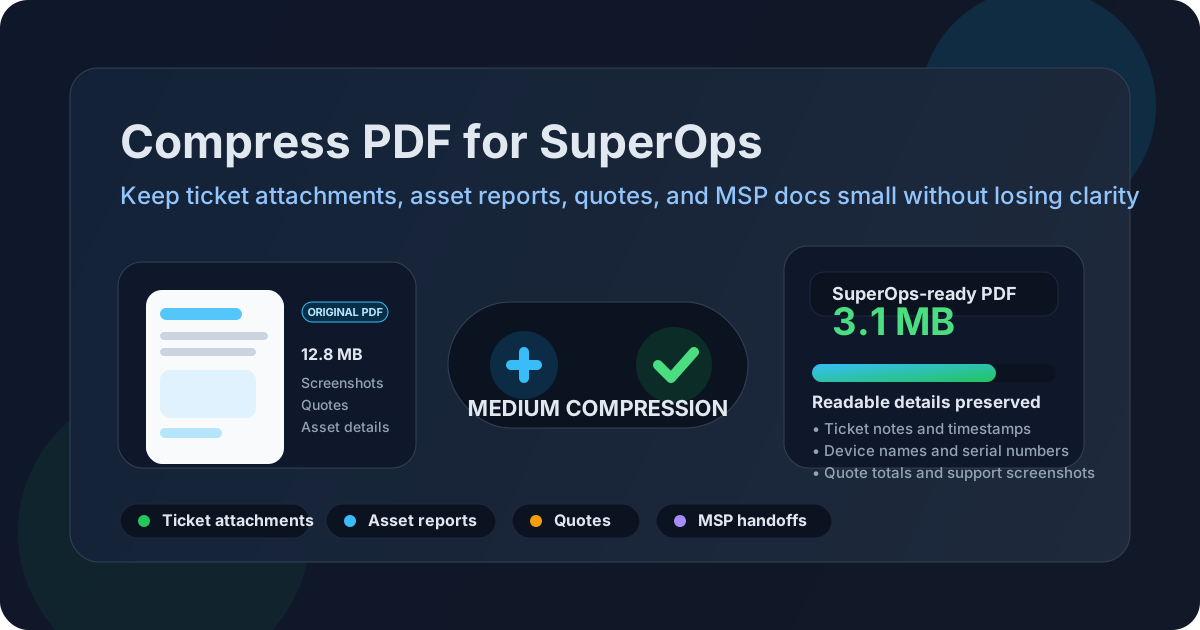
Table of contents
- Quick start: compress a PDF for SuperOps in under 2 minutes
- Why smaller PDFs help in SuperOps workflows
- What file size should you aim for?
- Which compression level should you choose?
- Step-by-step: shrink a SuperOps PDF with LifetimePDF
- Best strategy for common SuperOps PDF types
- What if the PDF is still too large?
- How to keep screenshots, device details, and totals readable
- Workflow habits that reduce PDF bloat
- Related LifetimePDF tools and useful reading
- FAQ (People Also Ask)
Quick start: compress a PDF for SuperOps in under 2 minutes
If your real goal is simply make this SuperOps PDF smaller so it is easier to upload, review, or send, this workflow is usually enough:
- Open Compress PDF.
- Upload the ticket attachment, asset report, quote backup, onboarding checklist, invoice support file, client handoff, or SOP you actually plan to use.
- Choose Medium compression first.
- Download the smaller result and compare the new size with the original.
- Open it once and check the details that matter most: screenshot text, device names, serial numbers, timestamps, notes, line items, and signatures.
Why smaller PDFs help in SuperOps workflows
SuperOps work moves quickly. A technician may need to attach a troubleshooting document now, a dispatcher may need a cleaner handoff five minutes later, and a client may open the same PDF on a phone with limited bandwidth. Bulky PDFs slow all of that down. Smaller ones feel easier to trust because they open faster, travel faster, and create less friction when a file keeps getting reused.
Compression is not only about storage. It is about reducing drag in the daily workflow. The same PDF might be attached to a ticket, linked to an asset record, reviewed during escalation, reused in billing support, and archived for later. Trimming that file once makes every later step smoother.
Why smaller PDFs work better in SuperOps
- Faster ticket handling: easier when you need to add evidence, approvals, screenshots, or instructions without turning one update into a waiting game.
- Cleaner internal handoffs: the next technician, dispatcher, service manager, or account manager can review the document quickly during reassignment or escalation.
- Better client experience: lighter PDFs are less annoying for customers to open on email, mobile, or slower connections.
- Smoother quoting and billing workflows: quote backups, invoice support, approvals, and attached documentation stay easier to move between teams.
- Less repeat friction: if the same runbook, onboarding packet, or report gets reused often, compressing it once keeps paying off.
What file size should you aim for?
There is no perfect universal target because a one-page approval form behaves very differently from a screenshot-heavy troubleshooting packet, an asset report, a scanned vendor document, or a multi-page customer handoff. Still, practical ranges make it easier to decide whether the file is already fine or worth cleaning up more.
| Use case | Recommended target | Why it works |
|---|---|---|
| Very lightweight ticket or client attachments | < 2MB | Best for quick previews, mobile review, and low-friction client sharing |
| Everyday support docs, reports, quotes, and handoffs | 2MB-5MB | Usually the best balance between readability and convenience |
| Long, screenshot-heavy, or scan-heavy packets | 5MB-10MB | Still manageable if the detail is important and the file has already been cleaned up well |
The best target is not the smallest number. It is the smallest file that still preserves the details the next person actually depends on. In SuperOps, that usually means screenshot labels, device names, serial numbers, timestamps, approval boxes, quote totals, invoice lines, and support notes.
Which compression level should you choose?
Most people should start with Medium compression. It usually cuts enough size to make the PDF easier to handle while protecting the fine details that matter in service documentation. If you start too aggressively, you often save a little more space but lose the trustworthiness of the file.
| Compression level | Best for | Watch out for |
|---|---|---|
| Low | Fine print, signatures, dense tables, detailed screenshots, and documents that already are not very large | You may not save enough space if the file is bloated for structural reasons |
| Medium | Most SuperOps tickets, reports, quotes, SOPs, and client-facing documents | Always check the smallest screenshot text and narrow table columns once before replacing the original |
| High | Scan-heavy packets, oversized evidence files, and PDFs where size matters more than perfect visual polish | Tiny text, screenshots, and faint form fields can become harder to read |
When in doubt, do not compress harder first. Remove waste first. Blank pages, repeated appendices, wide scan borders, and pages nobody needs are often a bigger problem than the compression setting itself.
Step-by-step: shrink a SuperOps PDF with LifetimePDF
- Start with the final file. Use the PDF you truly plan to attach, send, or archive instead of compressing an earlier draft with extra pages.
- Open Compress PDF.
- Upload the document. That could be a ticket attachment, asset report, quote backup, invoice support packet, onboarding PDF, customer guide, or internal SOP.
- Choose Medium compression first. In most SuperOps use cases, it is the best starting point.
- Download the smaller result. Compare size before and after so you know whether the change was actually worth it.
- Review the weakest details once. Zoom in on screenshot labels, device names, serial numbers, timestamps, line items, signatures, and any support notes in small text.
- Only get more aggressive if needed. If the PDF is still heavy, remove extra pages, crop scan waste, or split the file before trying stronger compression.
If you want the safest default: compress once on Medium, review once, and stop there unless the file is still clearly heavier than it needs to be.
Best strategy for common SuperOps PDF types
Different PDFs fail in different ways. A scan-heavy form wants a different approach than a screenshot-heavy troubleshooting guide or a quote backup with tiny line items. Start with the use case, not just the file size.
Ticket attachments with screenshots
Start with Medium compression and pay extra attention to small interface labels, error text, timestamps, and tiny visual clues in screenshots. If one attachment contains ten pages of evidence but only two matter, extracting the useful pages usually helps more than pushing compression harder.
Asset reports and device documentation
These often include dense tables, serial numbers, model names, IP addresses, warranty details, or narrow columns. If the important values become even slightly difficult to scan, the smaller file is not worth it. Low or Medium compression is usually safer than High here.
Quote backups and invoice support packets
Financial PDFs need line items, totals, tax amounts, approvals, and signatures to stay crystal clear. If the packet includes a lot of irrelevant appendix pages, trim first. Do not accept a tiny file if it makes a total or signature field harder to trust.
Onboarding packets and customer handoffs
These are often read by non-technical people on email or mobile. That makes convenience important, but readability matters just as much. Medium compression plus sensible page cleanup is usually the sweet spot.
Scanned forms and signed paperwork
Scanned pages are often large because every page behaves like an image. Before trying stronger compression, crop empty borders, delete blank pages, and remove duplicate scans. That usually saves space with less quality loss.
What if the PDF is still too large?
If the file is still bulky after one sensible compression pass, that usually means the document has a structure problem, not just a compression problem. Instead of repeatedly squeezing the same full PDF, make it smaller in a more deliberate way.
- Extract only the pages that matter: use Extract Pages if the next person only needs part of the packet.
- Delete obvious waste: blank pages, duplicate scans, old appendix pages, and repeated exports add size without adding value.
- Split one giant file into cleaner parts: use Split PDF if the same packet is trying to do too many jobs at once.
- Crop scan borders: oversized margins and scanner shadows can add unnecessary weight on every page.
- OCR when needed: if a scan is mainly text, OCR PDF can make it easier to search, review, and reuse.
In other words, if your first compression pass does not get you where you want, it is often smarter to make the PDF cleaner before trying to make it smaller again.
How to keep screenshots, device details, and totals readable
The easiest mistake is checking only that the PDF opens. A file can open fine and still be bad for real work. Before you replace the original, review the weakest details that another human will actually depend on.
- Zoom in on the smallest screenshot text.
- Check device names, serial numbers, tags, and other asset identifiers.
- Review timestamps, ticket notes, and narrow table columns.
- Confirm quote totals, line items, invoice values, and signatures remain sharp enough to trust.
- Open the PDF on a laptop and, if possible, on mobile too if clients often read it that way.
Workflow habits that reduce PDF bloat
Teams often keep fighting oversized PDFs because the bloat gets introduced upstream. A few cleaner habits make later compression much easier.
- Export only the needed pages instead of sending the entire packet by default.
- Avoid re-scanning digital documents when you already have a native PDF.
- Keep client-facing and internal versions separate if one packet is carrying too many audiences at once.
- Archive the original, share the cleaned copy when you need a lighter file but still want the untouched source available.
- Remove hidden baggage such as metadata or stale revisions if they no longer help the workflow.
Most PDF headaches in SuperOps are not caused by one bad compression setting. They come from files that were allowed to grow without anyone asking whether every page still serves a purpose.
Related LifetimePDF tools and useful reading
If you want cleaner SuperOps PDFs, these tools usually work well together:
- Compress PDF for the main size reduction step.
- Extract Pages when only part of a packet is worth sharing.
- Delete Pages to remove appendix clutter, duplicate scans, or blanks.
- Split PDF for oversized mixed-purpose files.
- Crop PDF to cut scan borders and wasted page area.
- Redact PDF before sharing documents that include sensitive internal data.
- PDF Metadata Editor to clean up hidden document details before external sharing.
If you work across similar MSP platforms, these guides may also help: Compress PDF for Syncro, Compress PDF for Atera, Compress PDF for HaloPSA, and Compress PDF for Hudu.
FAQ: Compress PDF for SuperOps
How do I compress a PDF for SuperOps?
Upload the SuperOps-ready PDF to a PDF compressor, start with Medium compression, and keep the smaller copy only if screenshots, device details, notes, line items, and timestamps still look clear. Medium is the safest first pass for most SuperOps workflows because it usually reduces size without making service documents harder to review.
What file size should I aim for before using a PDF in SuperOps?
Under 2MB is a strong target for short text-heavy PDFs, while screenshot-heavy reports, scan-heavy packets, and mixed handoff documents usually work best around 2MB to 5MB. The right target is the smallest file that still keeps the important details easy to read.
Will compression make SuperOps screenshots or device details blurry?
It can if you compress too aggressively. That is why Medium compression is usually the safest place to start. Always check the smallest screenshot text, asset names, serial numbers, timestamps, line items, and signatures before replacing the original file.
Should I split a large SuperOps PDF instead of compressing it harder?
Often, yes. If one PDF mixes client-facing pages, internal notes, repeated evidence, billing backup, scanned approvals, and long appendices, splitting it usually works better than forcing stronger compression across the whole file.
Which LifetimePDF tools pair best with SuperOps workflows?
Compress PDF is the main starting point. Extract Pages, Delete Pages, Split PDF, Crop PDF, OCR PDF, Redact PDF, and PDF Metadata Editor are especially useful when you want smaller, cleaner MSP documents without carrying extra pages, scan waste, hidden metadata, or sensitive details forward.
Bottom line: for most SuperOps documents, one Medium compression pass plus a quick readability check is the sweet spot.