Compress PDF for SuccessFactors: Keep Resumes, Cover Letters, and Supporting PDFs Small Without Losing ATS-Friendly Clarity
To compress a PDF for SuccessFactors, upload your final resume or supporting file to LifetimePDF's Compress PDF tool, start with Medium compression, and keep the smaller copy only if names, headings, dates, bullet points, links, and contact details still look clear.
For most SuccessFactors uploads, aim for under 2MB for resumes and cover letters, and roughly 2MB to 5MB for transcripts, certificates, portfolios, or other scan-heavy supporting PDFs.
SAP SuccessFactors application flows often ask one file to do two jobs at once: upload cleanly for the portal and still read well when a recruiter opens the document later. A bulky PDF gets in the way of both. It slows down replacements when you tailor a resume, makes candidate-profile steps feel clumsy, and adds one more chance for frustration in a process that already has enough of it. The goal is not to crush the file until it looks fragile. It is to make the PDF lighter, cleaner, and easier to work with while preserving the details that help you look credible.
Fastest path: run the SuccessFactors file through LifetimePDF's Compress PDF tool on Medium, then do one quick readability and parser-sanity check before uploading the lighter copy.
Need the short version? Jump to Quick start: compress a PDF for SuccessFactors in under 2 minutes.
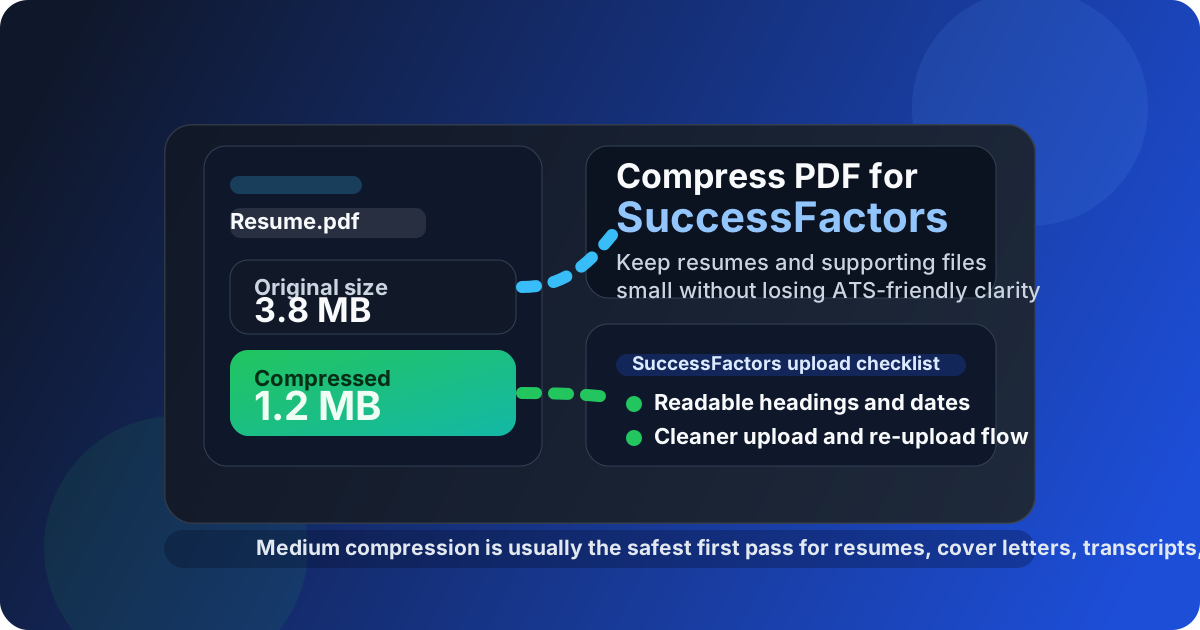
Table of contents
- Quick start: compress a PDF for SuccessFactors in under 2 minutes
- Why smaller PDFs help in SuccessFactors workflows
- What file size should you aim for?
- Which compression level should you choose?
- Step-by-step: shrink a SuccessFactors PDF with LifetimePDF
- Best strategy for common SuccessFactors file types
- What if the PDF is still too large?
- How to keep SuccessFactors files readable and parser-friendly
- Privacy and document-cleanup habits before you upload
- Related LifetimePDF tools and internal links
- FAQ (People Also Ask)
Quick start: compress a PDF for SuccessFactors in under 2 minutes
If your goal is simply make this PDF smaller so the SuccessFactors upload goes through cleanly, this workflow is usually enough:
- Open Compress PDF.
- Upload the final resume, cover letter, transcript, certificate, portfolio, or supporting PDF you actually plan to submit.
- Choose Medium compression first.
- Download the smaller result and compare the new size with the original.
- Open it once and check the details that matter most: your name, contact info, section headings, dates, bullet points, links, and any fine text inside certificates or work samples.
- If the file is still heavier than you want, use Extract Pages, Delete Pages, or Crop PDF before trying stronger compression.
Why smaller PDFs help in SuccessFactors workflows
SuccessFactors is often used in employer-branded hiring flows where applicants create profiles, upload resumes for parsing, and attach extra documents in separate steps. In that kind of workflow, oversized PDFs are rarely catastrophic, but they are annoying in all the ways that matter. They take longer to upload, feel slower to replace when you update a tailored resume, and make it harder to tell whether the real issue is file size, file quality, or both.
Smaller PDFs help because they remove unnecessary friction from a task that is already repetitive. They are easier to reuse across multiple applications, easier to send again if a recruiter asks for an updated version, and easier to archive after the process ends. If you are applying on a normal home connection, shared Wi-Fi, mobile data, or an older laptop, that lighter file can also save you from pointless upload delays at the worst possible moment.
Why compression usually helps
- Faster uploads: useful when the application flow already includes several steps and extra profile fields.
- Cleaner replacements: smaller PDFs are easier to swap in when you revise a resume for a specific role.
- Better recruiter previews: lean files open faster and feel more intentional than bloated scans or over-exported documents.
- More portable documents: if the PDF behaves well in SuccessFactors, it usually behaves well in email and other ATS platforms too.
That does not mean every file needs aggressive compression. It means the best SuccessFactors PDF is usually the smallest version that still feels easy to trust when someone opens it at normal zoom.
What file size should you aim for?
There is no universal file-size rule that covers every SuccessFactors implementation, because employers can configure their hiring workflows differently. The practical approach is simpler: make the document comfortably light while protecting the details that matter to a recruiter and any resume parser reading the same file.
| Document type | Good target | Why it works |
|---|---|---|
| Resume or CV | Under 2MB | Usually enough room for clean formatting while keeping uploads and replacements quick. |
| Cover letter | Under 1MB to 2MB | Mostly text, so a heavier file often means unnecessary design weight or export bloat. |
| Transcript or certificate | About 2MB to 5MB | These are often scan-heavy, so the goal is readability first and lightness second. |
| Portfolio or work sample | As small as practical while preserving visuals | Portfolios need enough quality for charts, layouts, screenshots, or design samples to stay credible. |
| Combined supporting packet | Prefer separate files when allowed | Separate uploads are usually easier to manage than one oversized attachment with extra pages. |
For most job seekers, the sweet spot is not a magic number. It is a file that uploads without hesitation and still looks calm, readable, and professional when opened on a recruiter's screen.
Which compression level should you choose?
The safest habit is to use the lightest level that gets you where you need to go. That is why Medium compression is the best default for most SuccessFactors uploads. It usually trims enough weight to make the file easier to handle without softening text or flattening detail so much that the document feels sloppy.
Low compression
Use Low when the PDF is already close to your target size or when it contains detailed charts, polished portfolio pages, or design-heavy work samples that should stay crisp. It will not remove as much weight, but it keeps more of the original look.
Medium compression
Medium is the best first pass for most resumes, cover letters, transcripts, and certificates. It usually lowers size enough to make uploads smoother while preserving headings, dates, bullet points, and contact details. If you only try one setting first, make it this one.
High compression
High compression is useful when a file is still stubbornly large after cleanup or when the PDF is mainly made of scans. Use it carefully. It can help, but it also makes it more important to review the final copy for washed-out text, fuzzy seals, or thin lines that become harder to read.
Step-by-step: shrink a SuccessFactors PDF with LifetimePDF
Here is the most reliable workflow for getting a SuccessFactors file smaller without turning it into a document you no longer trust:
- Start with the final file. Use the exact resume, cover letter, transcript, certificate, or portfolio PDF you actually plan to upload.
- Open Compress PDF.
- Choose Medium compression. It is the safest starting point for most hiring documents.
- Download the smaller result. Compare the new file size with the original so you know whether compression actually solved the problem.
- Review the final copy once. Check your name, email, phone number, headings, dates, bullet points, hyperlinks, and any fine print inside supporting documents.
- Upload only after a quick trust check. If the document still feels solid at normal zoom, it is probably ready.
That last review matters more than many people expect. The file can be technically smaller and still be a worse application document if important details become faint or awkward to read.
Best strategy for common SuccessFactors file types
Resume or CV
Resumes usually respond well to Medium compression because they are mostly text. If the file is much larger than expected, the extra weight often comes from decorative elements, embedded images, or a messy export rather than the text itself. A clean PDF made from Word, Google Docs, or another text-based source is almost always easier for SuccessFactors to handle than a resume made from screenshots.
Cover letter
Cover letters should usually end up fairly small. If yours is still bulky, look for oversized logos, image backgrounds, or unnecessary design flourishes. The goal is a neat, readable letter that uploads instantly and feels polished, not overproduced.
Transcript or certificate
These documents are often the heaviest because they come from scans or image-based exports. Compress them, but also watch the smallest details: grades, issue dates, signatures, stamp marks, or certificate IDs. If those fine elements start to blur, reduce the compression level or clean the scan before trying again.
Portfolio or work sample
Portfolios are where people most often over-compress. If your PDF includes screenshots, layouts, charts, or design samples, use the lowest compression level that gives you a practical size. A lighter portfolio is helpful, but not if it makes the work itself harder to judge.
Combined supporting document packet
If SuccessFactors gives you separate upload slots, use them. Separate files are easier to name, easier to replace, and less likely to turn into one bloated packet with irrelevant pages. If you truly need one combined attachment, keep only the pages that matter and compress the final packet after cleanup.
What if the PDF is still too large?
Compression helps, but it is not always the only fix. Some PDFs stay large because the source itself is inefficient. When that happens, cleanup usually works better than just pushing the compression harder.
- Delete extra pages: remove instructions, duplicates, blank pages, or unused samples with Delete Pages.
- Extract only what you need: send a smaller subset with Extract Pages instead of uploading an entire packet.
- Crop scanner waste: oversized margins and dark borders add file weight without adding value. Use Crop PDF.
- OCR old scans: if the source is a rough image-only document, OCR PDF can make the file more usable before or after compression.
- Rebuild from the source file: for resumes and cover letters, exporting a fresh PDF from the editable source is often cleaner than compressing the same bloated copy repeatedly.
How to keep SuccessFactors files readable and parser-friendly
Compression alone is usually not what breaks resume parsing. The bigger problem is a PDF that was hard to read before you compressed it: screenshot text, unusual columns, decorative labels, or fancy layouts that look sharp to humans but confuse parsers.
If your resume is meant to feed a candidate profile inside SuccessFactors, keep the source document boring in the best possible way. Straightforward structure is helpful. Real text is helpful. Clear headings are helpful. Compression should support that clarity, not try to rescue a file that was already difficult.
Check these details before uploading
- Your full name, email address, and phone number
- Section headings such as Experience, Education, and Skills
- Dates, job titles, and employer names
- Bullet points and line spacing
- Hyperlinks to portfolios, LinkedIn, or project pages
- Small transcript text, certificate details, signatures, or seals
Privacy and document-cleanup habits before you upload
File size is only part of the story. Application documents can also carry hidden details you may not want to send everywhere: metadata, comments, old revisions, irrelevant pages, or personal information that was useful in one context but unnecessary in another.
Before uploading, take a quick privacy pass. If the PDF contains an old address, comments, reference details, or pages the employer never asked for, clean those first. If you want to inspect hidden document properties, use PDF Metadata Editor. If a supporting file includes sensitive identifiers or information that should not travel further than needed, use Redact PDF before submission.
If you want a safer archive copy after applying, you can also protect the version you keep for yourself with PDF Protect. That step is for your records, not for the SuccessFactors upload itself.
Related LifetimePDF tools and internal links
If you work with SuccessFactors uploads regularly, these tools usually pair well with compression:
- Compress PDF for the first size-reduction pass
- Word to PDF for cleaner resume exports
- Extract Pages for smaller application-friendly subsets
- Delete Pages for duplicate scans, blank pages, and irrelevant extras
- Crop PDF for scanner borders and wasted margins
- OCR PDF when a cleaned scan also needs searchable text
- Redact PDF for removing details the employer does not need
These related guides may also help if you want companion coverage around the same workflow:
- Compress PDF for SuccessFactors: Upload Resume and Job Application Files Faster
- Compress PDF for SuccessFactors Without Monthly Fees
- Compress PDF for Workable
- Compress PDF for Taleo
- Compress PDF for Ashby
- Best PDF Creator for Resumes and Cover Letters
- Compress PDF Online Free
Bottom line: for most SuccessFactors uploads, start with Medium compression, review readability once, and trim page weight before using stronger compression.
FAQ (People Also Ask)
How do I compress a PDF for SuccessFactors?
Upload the PDF to a compressor, start with Medium compression, and keep the smaller copy only if names, headings, dates, bullet points, links, and contact details still look clear. Medium compression is usually the safest first pass because it reduces size without making the application look careless.
What PDF size should I aim for on SuccessFactors?
Under 2MB works well for resumes and cover letters. Scan-heavy transcripts, certificates, or portfolios can land higher, but staying around 2MB to 5MB usually makes uploads and previews smoother without creating unnecessary friction.
Will compression hurt resume parsing in SuccessFactors?
Usually not if you start with Medium compression and the source file already contains real selectable text. The bigger risk is a PDF built from screenshots, scans, or overly decorative layouts instead of clean text-based pages.
Should I upload one combined PDF or separate files in SuccessFactors?
Only if the application flow truly expects one file. If the SuccessFactors workflow provides separate upload fields, keeping files separate is usually cleaner than creating one oversized combined packet.
Which LifetimePDF tools pair best with SuccessFactors uploads?
Compress PDF is the main starting point. Word to PDF, Extract Pages, Delete Pages, Crop PDF, OCR PDF, Redact PDF, and PDF Metadata Editor are all useful when you want smaller, cleaner application files without oversharing extra pages or hidden metadata.