Compress PDF for SparkToro: Keep Audience Research Reports, Creator Lists, and Insight PDFs Easy to Share
To compress a PDF for SparkToro, upload the final audience research report, creator list, podcast shortlist, or stakeholder recap to LifetimePDF's Compress PDF tool, start with Medium compression, and keep the smaller copy only after site names, creator handles, percentages, channel labels, notes, and screenshot callouts still look clean in the real SparkToro workflow, planning review, or handoff step where the file gets reopened.
For most SparkToro PDFs, under 2MB is a strong target for short audience snapshots, workshop handouts, and one-page recaps, while creator lists, podcast shortlists, demographic exports, and multi-page insight decks usually work best around 2MB to 5MB after light cleanup.
SparkToro PDFs usually matter because they help someone make a decision. They often combine website lists, podcast suggestions, social accounts, audience affinity charts, screenshot proof, and a few lines of strategic interpretation. That makes them useful, but it also makes them surprisingly easy to bloat. Good compression removes the drag without flattening the evidence that made the research worth sharing in the first place.
Fastest path: compress the final SparkToro PDF with Medium compression first, then clean up page structure only if the file is still heavier than the next review, handoff, or archive really needs.
Short on time? Jump to Quick start: compress a SparkToro PDF in under 2 minutes.
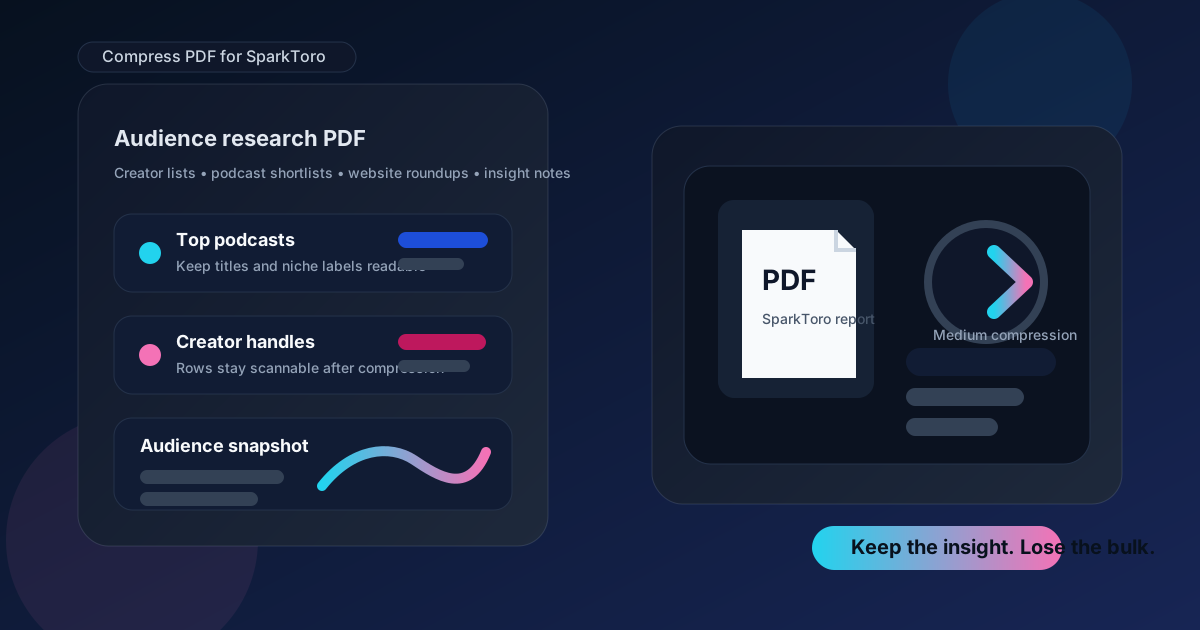
Table of contents
- Quick start: compress a SparkToro PDF in under 2 minutes
- Why smaller PDFs help in SparkToro workflows
- What file size should you aim for?
- Which compression level should you choose?
- Step-by-step: shrink a SparkToro PDF with LifetimePDF
- Best approach for common SparkToro PDF types
- What if the PDF is still too large?
- How to keep lists, percentages, and screenshots readable
- Workflow habits that reduce PDF bloat
- Related LifetimePDF tools and useful reading
- FAQ (People Also Ask)
Quick start: compress a SparkToro PDF in under 2 minutes
If your real goal is simply make this SparkToro PDF smaller so it is easier to send, review, and store, this workflow is usually enough:
- Open Compress PDF.
- Upload the SparkToro PDF you actually plan to share, such as an audience research summary, creator list, podcast shortlist, website roundup, content briefing appendix, or stakeholder recap.
- Choose Medium compression first.
- Download the smaller copy and compare the size reduction.
- Check the weakest details once: site names, account handles, percentages, platform labels, screenshot callouts, chart legends, and any page where the recommendation depends on tiny text.
- If the file is still bulky, use Extract Pages, Split PDF, or Delete Pages before forcing stronger compression across the whole report.
Why smaller PDFs help in SparkToro workflows
SparkToro research gets shared across a lot of decision points. A quick audience snapshot might go into a content brief. A creator list might support PR outreach. A podcast shortlist might help partnership planning. A demographic recap might show up in a client presentation or internal strategy deck. None of those handoffs benefit from a bloated PDF that opens slowly, feels messy, or makes people hunt for the page that actually matters.
Smaller PDFs help because they lower friction without changing the underlying insight. Teams are more likely to open the file, skim it, forward it, and reuse it when it feels light and clean. Compression also helps when a SparkToro export is only part of a larger packet that already includes screenshots from other tools, narrative commentary, or approval pages.
- Faster review: stakeholders open a lighter PDF sooner and are more willing to revisit it later.
- Cleaner handoffs: outreach, editorial, SEO, and strategy teams often need the same insight in slightly different contexts.
- Better archives: smaller PDFs are easier to keep with campaign notes, research folders, and client history.
- Lower sharing risk: lighter files are less likely to hit upload limits when the report gets attached to other documents.
What file size should you aim for?
There is no perfect SparkToro number. The better question is how small the file can be without making the least readable page feel unreliable. In most cases, that means compressing enough to remove waste, not crushing the report until every list looks fragile.
| Common SparkToro PDF type | Useful size target | Why that target works |
|---|---|---|
| One-page audience summary or workshop handout | Under 2MB | Usually enough for quick sharing while keeping charts, percentages, and short notes sharp. |
| Creator list, podcast shortlist, or website roundup | 2MB to 3MB | Gives table rows, handles, and source labels more room to stay readable. |
| Stakeholder recap or strategy appendix | 2MB to 5MB | Better for multi-page exports that mix screenshots, commentary, and research evidence. |
| Screenshot-heavy deck with multiple evidence pages | 4MB to 6MB | Sometimes the smarter move is modest compression plus cleanup, not an aggressive quality drop. |
Which compression level should you choose?
The right setting depends on what the SparkToro PDF contains. Dense lists of creators, websites, or podcasts behave differently from a short narrative memo with one or two screenshots.
- Light compression: good when the file is only slightly too large and already looks tidy.
- Medium compression: best default for most SparkToro PDFs because it usually cuts enough size without undermining list readability.
- Strong compression: use only after trimming extras if the document is still too heavy. It can be useful for screenshot-heavy decks, but it is risky for small tables and labels.
If you are unsure, do not guess from the original file size alone. Guess from the smallest important detail in the document. In SparkToro work, that is often a creator handle, website name, category label, demographic percentage, or a short note beside a screenshot.
Step-by-step: shrink a SparkToro PDF with LifetimePDF
1. Use the share-ready version, not the working draft
Start with the PDF you actually plan to send or store. Working drafts often include repeated screenshots, old appendix pages, internal comments, or backup research that no longer needs to travel with the final report.
2. Compress before you reorganize everything
Open Compress PDF and run Medium compression first. Many SparkToro PDFs shrink enough at this step that you never need a more complicated cleanup pass.
3. Review the weakest page once
Do not just check the cover page or a big screenshot. Open the busiest page in the file and verify the details that matter most:
- creator handles and website names
- audience percentages and category labels
- podcast, social, or domain lists
- small screenshot callouts
- the note or conclusion that explains why the page matters
4. Trim structure if the PDF is still too heavy
If the file remains bulkier than you want, remove what adds weight without adding meaning. That often means cutting duplicate screenshots, splitting backup pages into a separate appendix, or extracting the summary section for the people who only need the decision-ready version.
5. Keep the lighter copy only if it still feels trustworthy
SparkToro reports usually support a recommendation. If the compressed PDF makes someone hesitate because labels look fuzzy or table rows feel fragile, the smaller file is not actually the better file.
Best approach for common SparkToro PDF types
Audience research summary
These are usually the easiest to compress. They often contain a few charts, short written takeaways, and one or two screenshots. Medium compression is normally enough.
Creator lists, podcast shortlists, and website roundups
These need more care because the rows do the work. If the PDF includes small handles, domain names, or category labels, preserve readability first and size second. If the file is long, splitting the appendix often works better than switching straight to stronger compression.
Stakeholder recap decks
These often mix narrative commentary with screenshot evidence. Crop empty margins, remove repeated proof slides, and keep only the screenshots that support the recommendation. That usually saves more space than trying to crush every page equally.
Outreach or editorial briefing appendices
If the PDF exists mainly to support a content, PR, or creator outreach plan, consider separating the core summary from the raw backup pages. The summary travels more often. The appendix can stay available without making every share heavier than it needs to be.
What if the PDF is still too large?
When compression alone does not get you where you need to be, the next move is usually structural cleanup, not blind quality loss.
- Use Extract Pages to keep only the decision-ready section.
- Use Split PDF when the appendix is the real size problem.
- Use Delete Pages to remove repeated exports, backup pages, or old screenshots.
- Use Crop PDF if screenshots include large empty margins or browser chrome that adds noise more than value.
- Use PDF Metadata Editor when you want a cleaner final file before sharing or archiving.
How to keep lists, percentages, and screenshots readable
The easiest way to judge a compressed SparkToro PDF is to inspect the details another person would actually question. If those still look clean, the file is usually good enough.
- Check the smallest list rows: website names, social handles, and podcast titles should remain easy to scan.
- Check the evidence labels: percentages, category labels, and captions should not blur into each other.
- Check screenshots for context: a screenshot that loses its key callout is just visual weight.
- Check one busy page on mobile: if it is unreadable on a smaller screen, it may frustrate the next person who opens it quickly.
- Check the recommendation page last: the conclusion still needs to feel confident and professional after compression.
Workflow habits that reduce PDF bloat
The cleanest compression results usually start before you even export the PDF. A few habits make SparkToro research easier to shrink without hurting quality:
- Create a share version that removes research fragments nobody else needs.
- Keep the summary separate from the appendix when audiences have different needs.
- Replace full-page screenshots with tighter crops around the evidence that matters.
- Avoid packing several similar exports into one document just because they came from the same research session.
- Run a final one-minute readability check before forwarding the compressed copy to anyone else.
Related LifetimePDF tools and useful reading
If you work with research, strategy, and audience insight PDFs often, these tools usually pair best with SparkToro workflows:
- Compress PDF for the first size reduction pass.
- Split PDF when the appendix is the real problem.
- Extract Pages for summary-only handoffs.
- Crop PDF to remove wasted screenshot space.
- PDF Metadata Editor for cleaner archives and external sharing.
Useful related reading:
Need the quickest fix? Compress the final SparkToro PDF first, then clean up structure only if the file is still too heavy.
FAQ (People Also Ask)
How do I compress a PDF for SparkToro?
Upload the final PDF to a compressor, start with Medium compression, download the smaller copy, and test it in the real SparkToro workflow before replacing the original. Medium is usually the safest first pass because it lowers file size without making site names, creator lists, demographic percentages, notes, or screenshots harder to trust.
What file size should I aim for in SparkToro?
For short audience snapshots, workshop handouts, and stakeholder one-pagers, under 2MB is a strong target. Creator lists, podcast shortlists, demographic exports, and multi-page research decks usually work best around 2MB to 5MB as long as the smallest useful detail still reads clearly.
Will PDF compression blur creator lists, percentages, or channel labels in SparkToro documents?
It can if you compress too aggressively. That is why Medium compression is the best place to start. Always check site names, account handles, percentages, channel labels, screenshot callouts, and the busiest page before you keep the smaller file.
Should I split a large insight deck instead of compressing it harder for SparkToro?
Often, yes. If one PDF combines the executive summary with screenshots, long creator lists, appendix pages, old exports, or internal notes, splitting it usually creates a cleaner SparkToro workflow than forcing the whole bundle through aggressive compression.
Which LifetimePDF tools pair best with SparkToro?
Compress PDF is the main starting point. Extract Pages, Delete Pages, Split PDF, Crop PDF, and PDF Metadata Editor are especially useful when you want smaller, cleaner SparkToro documents without carrying extra pages, screenshot waste, hidden metadata, or bulky appendices forward.
Published by LifetimePDF - Pay once. Use forever.