Compress PDF for SharePoint: Keep Library Uploads, Approval PDFs, and Team Files Small Without Breaking Preview
To compress a PDF for SharePoint, upload the final file to LifetimePDF's Compress PDF tool, start with Medium compression, and keep the smaller copy only if browser preview, signatures, table text, and scanned details still look clear.
For most SharePoint PDFs, under 2MB feels great for lightweight sharing, while reports, contracts, onboarding packs, and approval packets usually land best around 2MB to 5MB.
SharePoint will store big PDFs, but that does not mean big PDFs are pleasant to work with. Heavy files slow down uploads, make browser preview feel clumsy, drag on mobile, and turn synced folders, Teams tabs, approvals, and document libraries into more friction than they need to be. The real goal is not to win a smallest-file contest. It is to make the PDF lighter while keeping the parts people actually need to read, sign, review, search, and forward.
Fastest path: run the SharePoint PDF through LifetimePDF's Compress PDF tool at Medium, then extract pages, crop scan waste, or run OCR only if the file is still heavier than the next teammate needs.
Need the short version? Jump to Quick start: compress a SharePoint PDF in about 2 minutes.
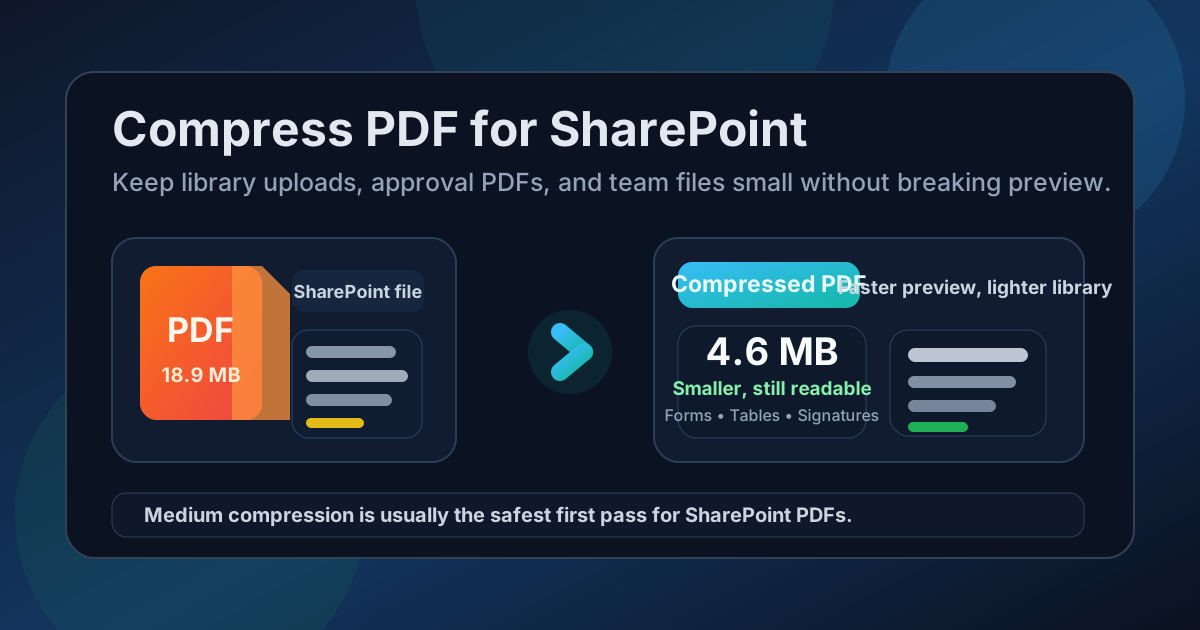
Table of contents
- Quick start: compress a SharePoint PDF in about 2 minutes
- Why SharePoint PDFs get heavy so quickly
- What file size should you aim for?
- Which compression level should you choose?
- Step-by-step: shrink a SharePoint PDF with LifetimePDF
- Best strategy for common SharePoint PDF types
- What if the file is still too large?
- How to protect preview quality and readability
- Library habits that keep SharePoint PDFs lighter
- Related LifetimePDF tools and useful reading
- FAQ (People Also Ask)
Quick start: compress a SharePoint PDF in about 2 minutes
If your real goal is simply make this SharePoint PDF smaller without making it harder to open or approve, this workflow is usually enough:
- Open Compress PDF.
- Upload the final report, policy, contract, scanned form, approval packet, onboarding file, or handoff PDF you actually plan to store in SharePoint.
- Choose Medium compression first.
- Download the smaller result and compare the new size with the original.
- Preview the weakest details once: signatures, initials, form boxes, chart labels, table text, stamps, and scan quality.
- If the PDF is still bulkier than you want, extract only the needed pages, delete duplicates, crop empty borders, or OCR scans before compressing harder.
Why SharePoint PDFs get heavy so quickly
SharePoint files often become larger than expected because one PDF is trying to do several jobs at once. The same document may be a policy archive, approval packet, sign-off record, browser-preview file, mobile-download file, and external-share attachment at the same time. Compression helps, but it works best when you stop treating every draft, appendix, and scan artifact as if it belongs in the final version.
In many SharePoint workflows, the real size problem is not the core document. It is the extra weight around it: duplicate versions inside the same file, large scan borders, sideways pages, unnecessary appendices, repeated attachments, or screenshots saved at much higher resolution than the next reader needs.
What usually adds weight
- Scan-heavy pages: each page behaves more like an image than a text document.
- Long approval packets: covers, signatures, backup pages, attachments, and old drafts living together in one PDF.
- Screenshot-heavy reports: browser captures, dashboards, training guides, and audit evidence stacked at full size.
- Unused appendices: archived pages and support material that the next reviewer will never open.
- Duplicate versions: earlier revisions left inside the PDF instead of stored separately through version history.
What file size should you aim for?
There is no single perfect number for every SharePoint PDF, but practical ranges keep you from over-compressing:
| Type of SharePoint PDF | Good target | Why it works |
|---|---|---|
| Lightweight policies, forms, and quick-reference docs | Under 2MB | Fast preview, easy mobile access, and minimal sync friction |
| Contracts, approval packets, onboarding docs, and normal reports | 2MB to 5MB | Usually the best balance between readability and convenience |
| Longer scan-heavy or screenshot-heavy files | 5MB to 10MB | Still workable if the file needs the detail, but worth trimming if people open it often |
| Over 10MB | Compress again or split it | Often larger than necessary for ordinary document-library workflows |
Which compression level should you choose?
LifetimePDF keeps the decision simple: Low, Medium, or High. For SharePoint, the question is not just file size. It is whether the result still works in preview, approvals, mobile viewing, and routine team downloads.
Low compression
- Best when visual quality matters more than aggressive size reduction.
- Useful for polished board packs, design-heavy reports, or PDFs that may still be printed.
- Usually not the best first choice unless the file is already close to the size you want.
Medium compression
- Best starting point for most SharePoint workflows.
- Reduces size meaningfully while keeping signatures, form fields, text, tables, and normal screenshots clear.
- Usually the safest choice for contracts, HR packets, policies, SOPs, and approval files.
High compression
- Best when the file is still too large after a sensible first pass.
- More useful for disposable sharing copies than for archival or detail-sensitive records.
- Should always be followed by a quick readability check before you replace the original.
Step-by-step: shrink a SharePoint PDF with LifetimePDF
- Start with the right version. Use the final file people are meant to open, not a bloated master copy that still contains dead drafts and old appendices.
- Open Compress PDF.
- Upload the file. This could be a policy, contract, approval packet, invoice pack, onboarding guide, quality checklist, scanned form, or project handoff.
- Select Medium compression. That is usually the best balance for SharePoint preview and team sharing.
- Download the smaller file. Compare the file size and note whether the result is already “good enough.”
- Preview the weakest details once. Look at signatures, initials, line items, form labels, footnotes, stamps, screenshots, and light scan text.
- Clean extra weight only if needed. Extract important pages, crop wasted scan borders, delete duplicates, or OCR scan-heavy files before trying stronger compression.
Good SharePoint workflow: compress first, then clean what is still obviously unnecessary. That keeps the file smaller without wrecking the copy people actually need to read.
Best strategy for common SharePoint PDF types
Not every file should be treated the same way. The best compression choice depends on what the PDF is doing in the library.
Policies, SOPs, and text-heavy team docs
These usually compress well. Medium compression is often enough to get a noticeably smaller file while keeping headings, bullet lists, table text, and reference links clear in preview.
Contracts, signatures, and approval packets
Keep a close eye on signatures, initials, date fields, and small margin notes. The file does not need to be huge, but it does need to remain trustworthy when someone zooms into the signed parts.
Scanned HR forms, invoices, and procurement paperwork
These are usually heavier than they look because each page is an image. Crop empty edges, rotate awkward pages, remove blank sheets, and consider OCR PDF if you also want the file to be searchable inside document workflows.
Reports with screenshots, dashboards, or training captures
These often need a little more visual quality. Start with Medium, then check chart labels, highlighted comments, and screenshot text before deciding whether stronger compression is acceptable.
Large archive bundles
If a PDF exists mainly because several unrelated parts were stapled together, splitting it is usually smarter than compressing it harder. SharePoint version history can keep separate files organized without forcing every reader through one giant packet.
What if the file is still too large?
If one compression pass is not enough, do not assume the next step is simply “crush it harder.” In SharePoint workflows, the better move is often to remove weight the next reader does not need.
- Use Extract Pages to keep only the section the next person needs.
- Use Delete Pages to remove duplicate drafts, blank scans, or oversized appendices.
- Use Crop PDF to trim empty scan borders.
- Use OCR PDF when scan-heavy pages are large and you also want searchability.
- Split giant files by stage, department, or purpose instead of treating one monolithic PDF as the only option.
How to protect preview quality and readability
Before you replace the original in SharePoint, check the details people are most likely to rely on in real work:
- Signatures and initials: still clearly visible and not broken into artifacts
- Table text: small rows, line items, and totals still readable
- Form lines and boxes: visible enough for future reference or completion checks
- Scanned stamps and seals: still legible when previewed in the browser
- Screenshot text: readable without intense zooming
- Charts and legends: labels do not blur together
This review does not need to be long. One smart preview pass is usually enough. The mistake is skipping the check completely and discovering later that the PDF is smaller but functionally worse.
Library habits that keep SharePoint PDFs lighter
Good PDF hygiene matters more than people think. If SharePoint libraries feel bloated, the problem is often workflow habit, not just one oversized file.
- Store archival master copies separately from lightweight team-facing versions.
- Let SharePoint version history track revisions instead of bundling several drafts into one PDF.
- Remove blank pages and giant scan borders before files start spreading across teams.
- Use shorter approval or review packets when the full appendix is not necessary.
- OCR scan-heavy files when searchability matters.
- Redact sensitive information before wider sharing instead of passing around one oversized all-access copy.
- Compress before the file starts getting duplicated across libraries, emails, and Teams tabs.
These habits reduce friction. They also make document libraries easier to trust, because the file people open is closer to the version they actually need.
Related LifetimePDF tools and useful reading
If you regularly store PDFs in SharePoint, approvals, Teams tabs, or Microsoft 365 workflows, these tools and guides pair well with the core compression workflow:
- Compress PDF for the main size-reduction step
- Extract Pages for approval-only or review-only packets
- Delete Pages to remove duplicate drafts and blank sheets
- Crop PDF to cut wasted scan borders
- OCR PDF for searchable scan-heavy files
- Compress PDF for SharePoint: Upload and Share Team Files Faster
- Compress PDF for SharePoint Without Monthly Fees
- Compress PDF for Microsoft Teams for lighter chat and channel sharing
- Compress PDF for Google Drive for adjacent cloud-file workflows
If you handle SharePoint files often: a pay-once PDF workflow is usually more practical than paying a monthly fee just to compress, crop, OCR, split, and clean library documents over and over.
FAQ (People Also Ask)
How do I compress a PDF for SharePoint?
Upload the SharePoint-ready file to a PDF compressor, start with Medium compression, and keep the smaller copy only if preview quality, signatures, tables, and small text still look clear. Medium is usually the safest first pass for most SharePoint PDFs.
What file size should I aim for before uploading a PDF to SharePoint?
Under 2MB is a strong target for lightweight policies, forms, and quick-reference files. Reports, contracts, onboarding docs, and approval packets usually work best around 2MB to 5MB, especially when people will preview them often.
Will compression hurt SharePoint preview quality?
It can if you compress too aggressively. That is why Medium compression is usually the best starting point. Always check signatures, initials, form lines, table text, chart labels, and scan-heavy pages before you replace the original file.
Should I split a large SharePoint PDF instead of compressing it harder?
Often, yes. If one PDF contains several approval stages, archived drafts, long appendices, or unrelated sections that different readers do not all need, splitting it usually works better than forcing stronger compression across everything.
Which LifetimePDF tools are most useful alongside Compress PDF?
Extract Pages, Delete Pages, Crop PDF, OCR PDF, Redact PDF, and Merge PDF are the most useful companions. They help you remove dead weight, keep the necessary pages, and make the final SharePoint file easier to preview and manage.