Compress PDF for SEOmator: Keep SEO Audit Reports, White-Label Audits, and Client PDFs Small Without Losing the Details
To compress a PDF for SEOmator, export the finished report, upload it to LifetimePDF's Compress PDF tool, start with Medium compression, and keep the smaller copy only if scores, screenshots, issue labels, URLs, and recommendations still look clear.
For most SEOmator PDFs, under 2MB is a strong target for short lead audits, while white-label reviews, screenshot-heavy reports, and larger client handoff packs usually work best around 2MB to 5MB after light cleanup.
SEOmator PDFs usually become the version that travels farther than the live audit itself. They get attached to proposals, pasted into client threads, dropped into internal reviews, and saved as a snapshot of what the site looked like at a specific moment. Smaller files help because they remove friction without stripping away the proof that makes the audit useful in the first place. The goal is not to make every file tiny. The goal is to make it lighter, easier to send, and still trustworthy when somebody zooms in on issue labels, screenshots, scores, and action items.
Fastest path: run the SEOmator export through LifetimePDF's Compress PDF tool on Medium, then use Extract Pages only if the PDF still includes appendix material or repeated screenshots the next reader does not actually need.
Need the short version? Jump to Quick start: compress an SEOmator PDF in under 2 minutes.
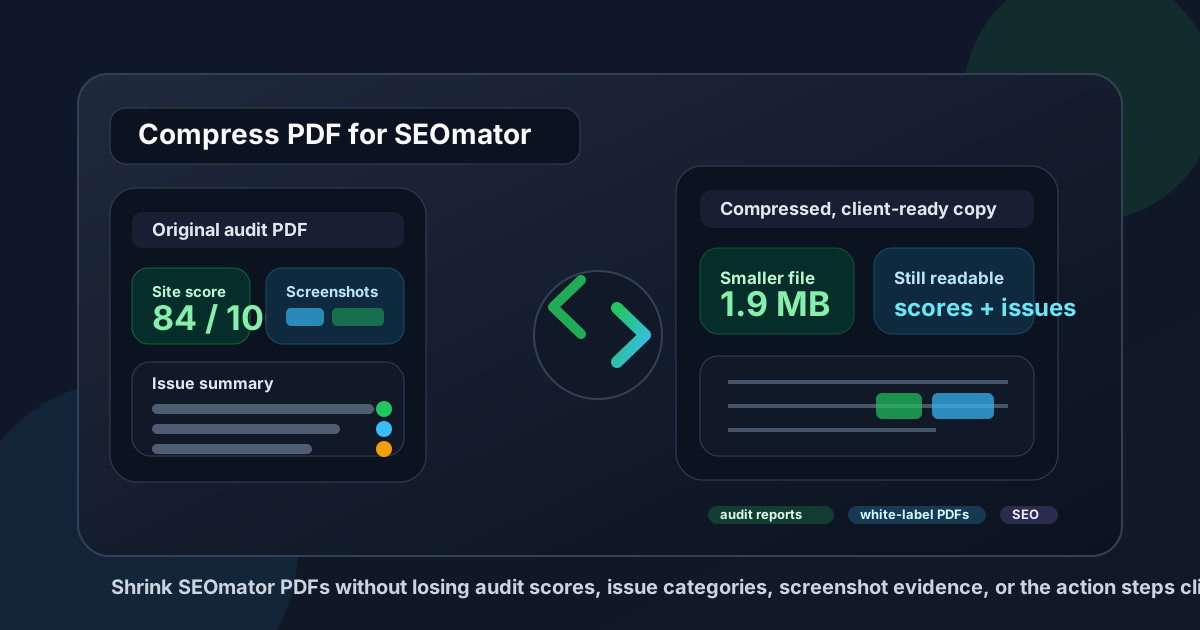
Table of contents
- Quick start: compress an SEOmator PDF in under 2 minutes
- Why SEOmator PDFs get heavy so quickly
- What file size should you aim for?
- Which compression level should you choose?
- Step-by-step: shrink an SEOmator PDF with LifetimePDF
- Best strategy for common SEOmator PDF types
- What if the PDF is still too large?
- How to protect score, screenshot, and issue-list readability
- Workflow habits that keep SEOmator exports cleaner
- Related LifetimePDF tools and useful reading
- FAQ (People Also Ask)
Quick start: compress an SEOmator PDF in under 2 minutes
If your real goal is simply make this SEOmator PDF smaller so it is easier to send and easier to read, this workflow is usually enough:
- Open Compress PDF.
- Upload the audit PDF, white-label report, lead snapshot, or client handoff file you actually plan to share.
- Choose Medium compression first.
- Download the smaller result and compare the size difference.
- Open it once and check the weak spots: score cards, issue headings, screenshot labels, URLs, tables, and recommendation bullets.
- If the file is still bulkier than it should be, extract only the needed sections, remove repeated screenshots, or split appendix pages before trying stronger compression.
Why SEOmator PDFs get heavy so quickly
SEOmator PDFs often get larger than necessary because one export is trying to serve several audiences at once. The same file may be used as a lead magnet, a client-facing audit, a technical review, an internal checklist, and a before-and-after archive copy. That is how a clean audit turns into a bulky document full of screenshots, repeated issue examples, supporting appendix pages, and extra sections that the next reader does not actually need.
Compression helps, but the real win usually comes from understanding what is adding weight. Score blocks, issue summaries, URLs, charts, and recommendation text do not behave the same way as screenshot-heavy evidence or repeated comparison pages. A balanced approach works best: compress the file, keep the proof that carries meaning, and remove the pages that only exist out of habit.
What usually adds weight
- Screenshot-heavy evidence: page captures and issue examples add size much faster than plain text sections.
- Appendix sprawl: extra supporting pages, repeated exports, or duplicate issue groups quietly bloat the file.
- Before-and-after comparisons: useful for proving progress, but often heavier than the summary itself.
- Prospect plus client versions in one PDF: combining the short pitch and the full technical review creates a file that is bigger than either audience needs.
- Wide layouts and full-page captures: oversized screenshots and large margins add weight without adding much clarity.
What file size should you aim for?
There is no single perfect size for every SEOmator PDF, but a few practical ranges keep you from compressing harder than necessary:
| PDF type | Good target | Why it works |
|---|---|---|
| Lead snapshot or short audit summary | Under 2MB | Easy to attach to outreach, proposals, and follow-up emails without creating friction. |
| White-label audit for a client | 2MB to 4MB | Usually enough room for score sections, issue examples, and screenshots while still sharing cleanly. |
| Technical review with lots of evidence | 3MB to 5MB | Lets you keep screenshot proof and issue detail without over-compressing everything into blur. |
| Archive or before-and-after reference pack | As small as practical, but readability first | Archive copies still need to be readable later when somebody reopens them to verify what changed. |
The right target depends on what the next person needs to do with the file. If the goal is a quick decision, smaller is usually better. If the goal is proving an issue with screenshots and exact page references, a slightly larger PDF is worth it.
Which compression level should you choose?
Most SEOmator reports respond well to a conservative first pass:
- Low compression: best when the PDF already looks efficient and you only need a modest reduction.
- Medium compression: the best default for most SEOmator audits because it usually cuts enough size while keeping screenshots, URLs, and issue blocks readable.
- High compression: use only when the file absolutely must shrink more and you are willing to check every screenshot and small text element carefully.
Step-by-step: shrink an SEOmator PDF with LifetimePDF
- Export the final report. Use the exact audit, white-label review, or client PDF you intend to send.
- Open LifetimePDF's compressor. Go to Compress PDF.
- Upload the file. Wait for the PDF to finish processing.
- Start with Medium compression. That is usually the safest balance for SEO-heavy reports with a mix of text and image evidence.
- Download the smaller version. Compare the new file size with the original.
- Review the fragile parts once. Check scores, issue headings, screenshot labels, URLs, chart text, and recommendation bullets.
- Only clean up more if needed. If the file is still too large, remove repeated pages, extract the summary, or split the appendix instead of forcing heavy compression across the entire report.
Best strategy for common SEOmator PDF types
Lead snapshots and sales follow-ups
Keep these lean. The next reader usually wants the headline problems, not every supporting screenshot. Compress the report, trim appendix pages, and aim for a fast-opening PDF that makes the pain points obvious.
White-label client audits
These need a better balance. The file should feel polished and still include enough proof to support the recommendations. Medium compression plus small cleanup is usually better than aggressive shrinking because client-ready reports lose credibility when screenshots and score areas look soft.
Technical issue reviews
If the PDF is full of issue examples, screenshots, and page-level detail, keep readability ahead of file size. A technical report is only useful if someone can still read the labels and understand what they are looking at.
Recurring client check-ins
These often benefit from splitting the summary from the backup evidence. Send the small summary PDF first, then keep the heavier reference version separate for anyone who wants to dig deeper.
What if the PDF is still too large?
If a first compression pass does not get the file where you need it, do not jump straight to harsher settings. Usually the better move is removing pages that do not belong in the handoff version.
- Use Extract Pages to keep only the executive summary or client-facing sections.
- Use Delete Pages to remove repeated screenshots, blank pages, or bulky appendix sections.
- Use Split PDF to separate the short handoff copy from the technical backup pack.
- Use Crop PDF if oversized margins or wasted space are inflating screenshots.
How to protect score, screenshot, and issue-list readability
Before you replace the original PDF, check the details most likely to break first:
- Score blocks: make sure numbers, labels, and category names still read clearly.
- Issue headings: confirm the reader can still spot what the problem is without zooming excessively.
- Screenshot evidence: review browser captures, highlighted problem areas, and captions.
- URLs and paths: tiny text often gets soft before the rest of the page does.
- Recommendation bullets: these should stay crisp enough to skim quickly.
If any of those elements feel fuzzy, use a lighter compression level or reduce the page count instead. The report only works if people can trust what they are seeing.
Workflow habits that keep SEOmator exports cleaner
- Export only the version you need: do not send the same full PDF to every audience.
- Separate sales and technical copies: prospects and implementers rarely need the exact same file.
- Avoid repeated screenshots: one good example is usually enough to make the point.
- Archive heavy backups separately: keep them for reference, but do not force them into every client handoff.
- Compress after final edits: otherwise you may keep regenerating and recompressing nearly identical PDFs.
Small habits like these make compression work better because you start with a cleaner document. That usually leads to a smaller final file without sacrificing clarity.
Related LifetimePDF tools and useful reading
SEOmator reports are rarely the only PDFs in your workflow. These tools and related guides help when you need a cleaner handoff:
- Compress PDF for the main size reduction step.
- Split PDF for separating summary pages from technical appendix material.
- Extract Pages for building a short prospect or client-facing version.
- Compare PDFs for before-and-after audits or change tracking.
- Compress PDF for Screaming Frog if your crawl exports and audit PDFs are part of the same reporting flow.
- Compress PDF for SE Ranking if you also send ranking and SEO performance reports to clients.
Need an all-in-one setup? Lifetime access makes it easier to keep compression, splitting, extraction, and comparison in one repeatable workflow instead of hopping between one-off tools.
Explore LifetimePDF AccessFAQ (People Also Ask)
How do I compress a PDF for SEOmator?
Export the SEOmator report as a PDF, upload it to a compressor, start with Medium compression, and keep the smaller copy only if scores, issue labels, screenshots, URLs, and recommendations still read clearly. Medium compression is usually the safest first pass because it reduces file size without making the audit hard to trust.
What file size should I aim for with SEOmator PDFs?
Under 2MB is a strong target for short lead snapshots and focused audit summaries. White-label audits, screenshot-heavy client reviews, and multi-section technical reports usually work best around 2MB to 5MB as long as the smallest useful text and screenshots still read clearly.
Will compression make SEOmator screenshots or issue sections blurry?
It can if you compress too aggressively. That is why Medium compression is usually the best starting point. Always review score cards, issue categories, screenshot captions, URLs, chart labels, and recommendation text before you replace the original file.
Should I split a large SEOmator report instead of compressing it harder?
Often, yes. If one PDF combines an executive summary, prospect-facing pages, technical findings, screenshot evidence, and appendix material for different readers, splitting it usually works better than forcing stronger compression across the whole file.
Which LifetimePDF tools pair best with SEOmator workflows?
Compress PDF is the main starting point. Split PDF, Extract Pages, Delete Pages, Crop PDF, Compare PDFs, and Merge PDF are especially useful when you want smaller, cleaner, client-ready SEO reporting packs.