Compress PDF for Reflect: Keep Daily-Note Attachments, Reading Files, and Reference Docs Lighter
To compress a PDF for Reflect, upload the final reading file, meeting deck, scan, or reference document to LifetimePDF's Compress PDF tool, start with Medium compression, and keep the smaller copy only if text, diagrams, and screenshot detail still look clean.
For most Reflect workflows, aim for under 5MB for ordinary text-heavy PDFs and roughly 5MB to 15MB for heavier manuals, slide decks, scanned paperwork, or image-rich reference files.
Reflect works best when your notes stay easy to move through and your attached material stays useful without becoming ballast. Giant PDFs quietly create drag: slower uploads, bulkier storage, more awkward mobile reopening, and a general feeling that the supporting files are getting louder than the notes themselves. The goal is not to make every document tiny at any cost. The goal is to make each PDF light enough that it stays practical while still preserving the pages you actually need.
Fastest path: run the PDF through LifetimePDF's Compress PDF tool on Medium, then review one text-heavy page and one visual page before you replace the original copy.
Want the short version? Jump to Quick start: compress a PDF for Reflect in under 2 minutes.
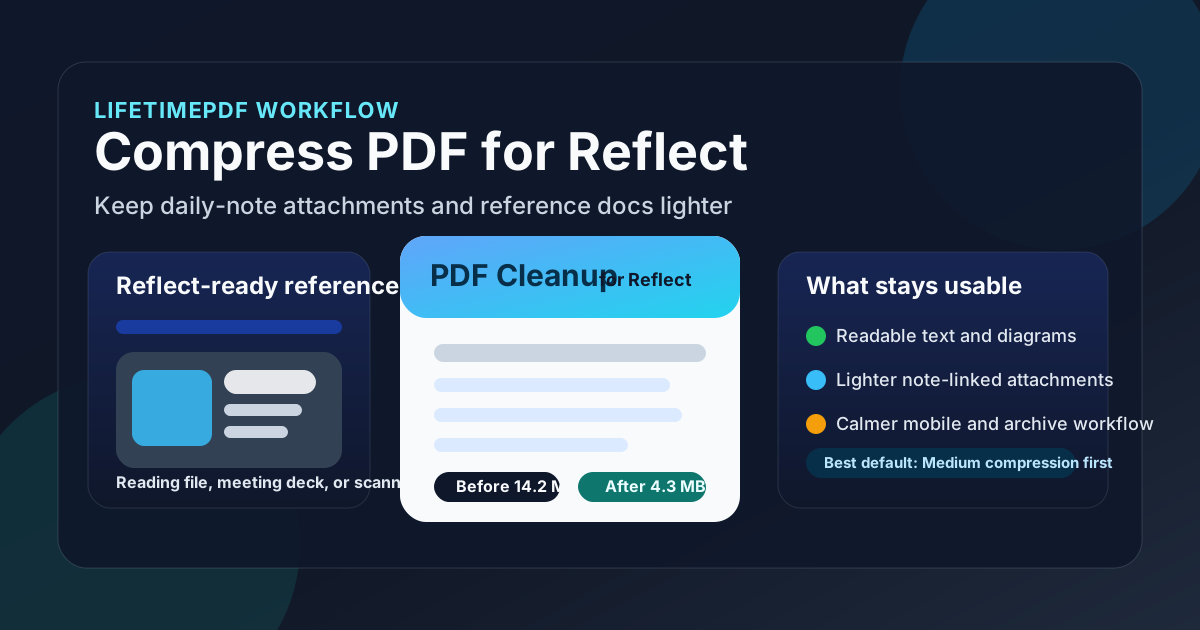
Table of contents
- Quick start: compress a PDF for Reflect in under 2 minutes
- Why smaller PDFs help in Reflect
- When to keep the full PDF and when to trim it
- What file size should you aim for?
- Which compression level should you choose?
- Step-by-step: shrink a Reflect PDF with LifetimePDF
- Best strategy for common Reflect PDF types
- What if the PDF is still too large?
- How to keep PDFs useful in a note-driven workflow
- Related LifetimePDF tools and internal guides
- FAQ (People Also Ask)
Quick start: compress a PDF for Reflect in under 2 minutes
If your real goal is simply make this PDF lighter before it lives next to my notes, this workflow is usually enough:
- Open Compress PDF.
- Upload the final file you actually plan to keep: a paper, meeting deck, project brief, scan, handbook, or reference PDF.
- Choose Medium compression first.
- Download the smaller PDF and compare the new file size with the original.
- Check one dense paragraph, one image or diagram page, and one page you expect to revisit later.
- If the file is still bulkier than it should be, use Extract Pages, Delete Pages, or Crop PDF before trying a harsher setting.
Why smaller PDFs help in Reflect
Notes apps are most useful when supporting material stays supportive. Once PDFs grow heavier than they need to be, the friction shows up in dull but real places: slower uploads, bulkier cloud storage, awkward reopening on a phone, and a growing pile of attachments you keep because they matter but quietly resent because they feel oversized. A smaller, cleaner PDF often fixes that without changing the substance of the file.
Why lighter PDFs usually work better around your notes
- Less storage drag: dozens of oversized reference PDFs add up faster than most people expect.
- Easier mobile use: lighter files are less annoying to reopen when you are away from your main machine.
- Cleaner note attachments: the supporting document stays available without feeling like digital luggage.
- Faster sharing and exporting elsewhere: a smaller file is easier to email, upload, or reuse outside your notes app too.
- Better long-term organization: keeping a right-sized copy now is easier than cleaning up a bloated archive later.
Compression is not just about saving space. It is about keeping the file quiet enough that your attention stays on the idea, project, or meeting note it belongs to.
When to keep the full PDF and when to trim it
Not every PDF deserves the same treatment. Some files are worth preserving intact. Others make more sense as a smaller excerpt that only keeps the part your notes actually depend on.
| Keep the full PDF when... | Trim or extract pages when... |
|---|---|
| The original structure, page numbers, appendix, or visual layout matters. | You only need one chapter, one section, or one appendix and the rest is dead weight. |
| The file works as a long-term reference you expect to reopen several times. | The document is a huge bundle but your note only points to a small part of it. |
| It contains forms, signatures, detailed diagrams, or source formatting you want intact. | It has giant covers, duplicate scans, blank pages, or scanner waste you will never need. |
A lot of bloated PDFs are not hard to compress because of image quality alone. They are hard to compress because they contain too much unnecessary stuff. Trimming the document structure is often a better fix than squeezing the whole file more aggressively.
What file size should you aim for?
There is no magic number that fits every file. A 12-page typed article behaves very differently from a scan-heavy report or a slide deck with a lot of screenshots. Still, practical ranges help.
| PDF type | Comfortable target | What that usually means |
|---|---|---|
| Text-heavy reading files, briefs, notes, articles | Under 5MB | Usually small enough to reopen easily while keeping normal text crisp. |
| Meeting decks, project docs, mixed text-plus-image PDFs | 5MB to 12MB | Still practical if screenshots, labels, and charts remain readable. |
| Scanned paperwork, manuals, image-rich references | 8MB to 15MB | These usually benefit from cropping, OCR, or page extraction in addition to compression. |
| Large packets or mixed-topic binders | Split if possible | Several clean files often work better than one giant attachment. |
Think of these as comfort ranges, not purity tests. A 7MB PDF that stays readable and useful is better than a 2MB PDF that becomes irritating every time you reopen it.
Which compression level should you choose?
The right setting depends on what kind of detail you still need to trust after the file gets smaller. Most people do best by starting in the middle instead of trying to guess perfectly on the first pass.
Low compression
Use Low when the PDF already feels fairly clean and you only want a modest size reduction. This is the safer choice for diagrams, tables, small labels, or screenshots where fine detail matters.
Medium compression
Use Medium as the default. It usually gives the best tradeoff for Reflect-adjacent PDFs because it saves enough space to matter while keeping ordinary reading, zooming, and scanning behavior comfortable.
High compression
Use High only when the file is still awkwardly heavy after smarter cleanup. It can help with bloated source exports or throwaway references, but it deserves a real check afterward. Tiny text, pale scans, and screenshot labels are where trouble appears first.
Step-by-step: shrink a Reflect PDF with LifetimePDF
- Start with the final file. Do not optimize an older export if you are about to replace it anyway.
- Open Compress PDF.
- Choose Medium compression first. This is usually the safest starting point.
- Download the smaller copy. Compare the new size with the original so you know whether the change was meaningful.
- Review the pages that matter most. Check one dense paragraph, one visual page, one page with tiny labels, or one scan-heavy section.
- Replace only when the result feels trustworthy. If the smaller PDF still reads comfortably, keep it. If not, back off to a lighter setting or change the structure of the file instead.
- Escalate only when there is a real problem. If the PDF is still too heavy, trim pages, crop borders, split the file, or run OCR before forcing stronger compression.
Most good workflows are pleasantly boring. You want clean source file - compress once - check once - keep moving, not a long ritual every time a PDF enters your notes stack.
Best strategy for common Reflect PDF types
Reading PDFs and articles
These are usually easy wins. Start on Medium, then check a dense paragraph, footnotes, and any chart or figure captions. If the PDF is mostly there for reference while your real thinking lives in notes, a lighter copy is almost always enough.
Meeting decks and project briefs
These often contain screenshots, diagrams, brand colors, and dense slides. Compress them, but review chart labels and screenshot text before you commit. If the file still feels large, removing extra appendix pages or old versions is often smarter than harsher compression.
Scanned paperwork and document captures
Scans are where compression gets punished fastest. If the original is already faint or crooked, stronger compression can make it miserable to use. In those cases, Crop PDF and OCR PDF often help more than simply trying to make the file smaller.
Manuals, handbooks, and reference docs
These can stay useful for a long time, which makes file weight more important than it first appears. If you only need one chapter or section, use Extract Pages instead of dragging the full manual around forever. If you need the whole file, compress it conservatively and keep the visuals readable.
Mixed-topic packets
One giant PDF that tries to be five different things is rarely the cleanest long-term workflow. Split it into saner pieces if your notes only point to separate sections anyway. A right-sized file structure usually beats brutal compression.
What if the PDF is still too large?
If one compression pass is not enough, do not assume the answer is immediately pushing the quality lower. Often the better answer is changing the shape of the document.
- Keep only the useful pages: use Extract Pages when only part of the file matters.
- Remove dead weight: use Delete Pages for blanks, duplicates, giant cover sheets, or irrelevant appendices.
- Trim scan waste: use Crop PDF to remove useless borders and margins.
- Split oversized files: use Split PDF when one giant packet should really become a few smaller reference files.
- Make scans searchable: use OCR PDF if the file needs better search and text selection in addition to size reduction.
- Clean the source export: sometimes the original PDF was created inefficiently and a better source export helps more than any later compression step.
In a lot of real workflows, a cleaner PDF beats a harsher PDF. Structure matters just as much as megabytes.
How to keep PDFs useful in a note-driven workflow
Compression helps most when it is part of a sane document habit instead of a one-off rescue move. A few small practices make lighter PDFs more useful later.
- Name the file clearly: a smaller document is only helpful if you can still recognize it months later.
- Keep the original when it matters: if the PDF is legal, financial, or otherwise important, save a backup before you replace anything.
- Use OCR when search matters: if you expect to search names, pull quotes, or copy details later, OCR is often more valuable than more compression.
- Clean metadata when appropriate: use PDF Metadata Editor if document properties are messy or too revealing.
- Let the note carry the insight: the PDF should support the note, not replace it. A short summary next to the file is often more valuable than another megabyte of untouched appendix pages.
- Prefer usability over purity: a slightly larger file that still feels comfortable is better than a tiny file you avoid reopening.
That is the broader point here. A compressed PDF is not the final goal. A calmer, more useful working archive is.
Related LifetimePDF tools and internal guides
If you are building a lighter PDF workflow around your notes, these are the most useful next steps:
- Compress PDF - shrink the main file before you keep it.
- Extract Pages - keep only the chapter or section you really need.
- Delete Pages - remove blanks, duplicates, and irrelevant appendices.
- Crop PDF - trim scanner borders and oversized margins.
- Split PDF - break oversized packets into saner files.
- OCR PDF - make scanned PDFs more searchable and easier to work with.
- PDF Metadata Editor - clean document properties before archiving or sharing.
Related guides that fit the same knowledge-work flow: Compress PDF for Obsidian, Compress PDF for Anytype, Compress PDF for Capacities, Compress PDF for Tana, Compress PDF for Notion, and Convert PDF to Markdown.
Simple rule of thumb: compress the PDF enough that it stops being annoying, then stop. If it still feels awkward, change the file structure instead of endlessly squeezing it.
FAQ (People Also Ask)
How do I compress a PDF for Reflect?
Upload the final PDF to a compressor, start with Medium compression, and keep the smaller copy only if text, diagrams, and scan detail still look clean in the version you actually store or link alongside your notes. Medium is usually the safest first step because it reduces weight without making the document unpleasant to reopen later.
What PDF size should I aim for in Reflect?
Under 5MB is a strong target for ordinary text-heavy PDFs. Larger decks, manuals, and scan-heavy files often land in the 5MB to 15MB range and can still be perfectly practical if they remain readable and easy to handle across devices.
Should I keep the full PDF or only the relevant pages?
Keep the whole PDF when pagination, visuals, appendices, citations, or original formatting matter. If your note only depends on one chapter or one section, extracting the useful pages is often cleaner than carrying the entire file forever.
Will compression hurt search or OCR quality?
Usually not if you begin with Medium compression and the source file is already clean, but poor scans can degrade quickly when pushed too hard. If searchability is the real problem, run OCR instead of only trying to make the PDF smaller.
Which LifetimePDF tools pair best with Reflect?
Compress PDF is the main starting point. Extract Pages, Delete Pages, Split PDF, Crop PDF, OCR PDF, and PDF Metadata Editor are the most useful companion tools when you want lighter, cleaner reference files around your notes.
Published by LifetimePDF - Pay once. Use forever.