Compress PDF for Rankability: Keep Content Briefs, Optimization Reports, and Client PDFs Small Without Losing the Details
To compress a PDF for Rankability, export the final Rankability file, upload it to LifetimePDF's Compress PDF tool, start with Medium compression, and keep the smaller copy only if headings, score panels, screenshot labels, and recommendation notes still read clearly.
For most Rankability PDFs, under 1.5MB is a strong target for a single content brief, while broader optimization reviews and client-ready summary packs usually work best around 1.5MB to 5MB after light cleanup.
Rankability PDFs usually appear right when the real work needs to move. A strategist finishes the brief, an editor wants the recommendations, a writer needs the headings and targets, or a client only needs the trimmed summary version. The file does not need to be impressively tiny. It needs to open fast, travel easily, and still keep the parts people rely on: the outline, score context, screenshots, section labels, and next-step notes. Good compression supports that handoff instead of getting in the way.
Fastest path: run the Rankability export through LifetimePDF's Compress PDF tool on Medium, then split or trim appendix pages only if the file still contains more proof than the next reader actually needs.
Need the short version? Jump to Quick start: compress a Rankability PDF in about 2 minutes.
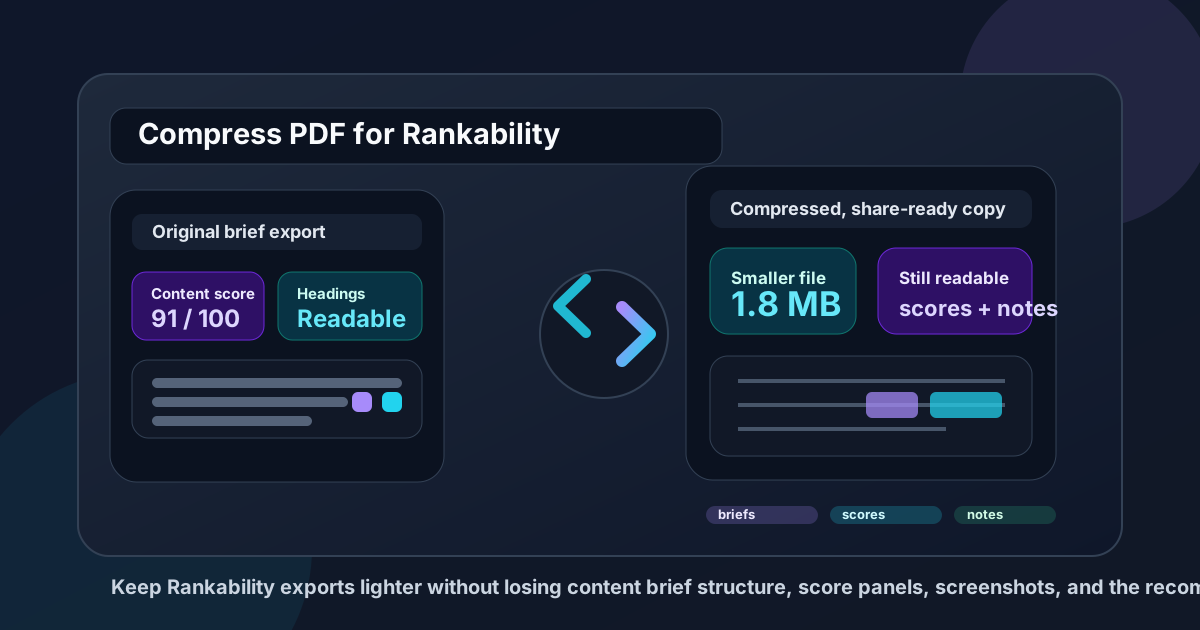
Table of contents
- Quick start: compress a Rankability PDF in about 2 minutes
- Why Rankability PDFs get heavy so quickly
- What file size should you aim for?
- Which compression level should you choose?
- Step-by-step: shrink a Rankability PDF with LifetimePDF
- Best strategy for common Rankability PDF types
- When to split instead of compressing harder
- How to protect headings, scores, and screenshot evidence
- Workflow habits that keep Rankability exports cleaner
- Related LifetimePDF tools and useful reading
- FAQ (People Also Ask)
Quick start: compress a Rankability PDF in about 2 minutes
If your real goal is simply make this Rankability PDF smaller so it is easier to send, upload, and review, this workflow is usually enough:
- Open Compress PDF.
- Upload the exact Rankability file you plan to share, such as a content brief, optimization report, score snapshot, or client recap.
- Choose Medium compression first.
- Download the smaller result and compare the new size with the original.
- Open it once and check the weak spots: headings, section labels, score panels, screenshot callouts, and recommendation notes.
- If the PDF is still bulkier than it should be, extract the summary pages, split the appendix, delete repeated screenshots, or crop wasted margins before trying stronger compression.
Why Rankability PDFs get heavy so quickly
Rankability exports often become oversized because one PDF quietly starts doing several jobs at once. It is not just a brief anymore. It also becomes an optimization review, a screenshot archive, a competitor reference pack, and a client-facing explanation. Each extra job adds pages, images, labels, and detail blocks that make the file heavier than the next reader actually needs.
The issue is rarely just file format. It is packaging. Text-heavy recommendations compress well, but screenshots, multi-column layouts, and repeated evidence pages add weight fast. That is why balanced cleanup plus medium compression usually works better than maximum shrinking alone. A smaller PDF is only useful if the person opening it can still act on what they see.
What usually adds the most weight
- Screenshot-heavy examples: before-and-after proof, SERP examples, and competitor visuals make a PDF heavier very quickly.
- One file for several audiences: a writer, editor, strategist, and client rarely need the same depth of detail.
- Repeated recommendation blocks: multiple versions of similar guidance add size without always adding value.
- Long appendices: research notes, examples, and backup pages often stay attached long after the core brief is done.
- Excess margins and blank space: print-style layouts often carry visual waste nobody needs in a digital handoff.
What file size should you aim for?
There is no single perfect number because a short writer brief behaves differently from a screenshot-heavy client recap. Still, a few practical ranges make it easier to know when to stop compressing.
- Single content brief: aim for roughly 500KB to 1.5MB. That is usually small enough for fast handoffs while keeping structure and notes clear.
- Optimization review or score comparison: 1.5MB to 3MB is a healthy range if score panels, examples, and screenshots still read comfortably.
- Client-ready summary pack: 2MB to 5MB is often realistic because the document usually needs more explanation and proof.
- Large appendix-heavy exports: if you are pushing well beyond 5MB, the first fix is often splitting the file, not compressing harder.
These are not hard limits. They are decision aids. If the file is slightly larger but obviously easier to read, keep the readable version. The best size is the smallest one that still lets the next person do the job quickly.
Which compression level should you choose?
Compression settings matter because Rankability PDFs tend to mix text, screenshots, headings, and highlighted notes in the same document. Different elements break at different speeds.
Low compression
Use this when the PDF is already fairly light and you only need a modest size reduction. It is a safe choice for short briefs with small screenshots or a final document that already looks clean.
Medium compression
This is the best default for most Rankability workflows. Medium compression usually gives you a noticeable drop in file size while keeping headings, score boxes, screenshot labels, and recommendation notes readable at normal zoom. That makes it the right first pass for most briefs, optimization reviews, and client-ready PDFs.
High compression
Use this carefully. It can help when you are dealing with strict upload limits, but it also increases the risk of soft text, muddy screenshots, and less reliable-looking evidence. If you reach for high compression, review the result more carefully than usual.
Step-by-step: shrink a Rankability PDF with LifetimePDF
- Export the final version you really plan to share. Do not compress a draft if you know another revision is coming right away.
- Open Compress PDF.
- Upload the file and start on Medium. That is the safest blend of smaller size and usable detail for most Rankability documents.
- Download the smaller copy. Compare both file size and ease of reading.
- Check the high-risk areas once. Open the compressed file and review headings, content targets, score panels, screenshot labels, and closing recommendations.
- Clean up only if needed. Use Extract Pages, Split PDF, Delete Pages, or Crop PDF before you try stronger compression.
That last step matters. Most oversize Rankability PDFs do not need more compression as much as they need better editing. A trimmed pack is often clearer and smaller at the same time.
Best strategy for common Rankability PDF types
1) Writer-facing content briefs
These usually need the cleanest reading experience. The writer cares about headings, angle, key sections, examples, and the notes that explain what to cover. Compress lightly or at medium, but be more aggressive about removing unused appendix pages. If the brief is meant for a single person, clarity beats squeezing every last kilobyte out of the file.
2) Optimization reports and score snapshots
These often include the small elements that break first: score boxes, labels, highlights, and screenshot annotations. Medium compression is usually the sweet spot. If the report still feels too large, extract just the most decision-relevant pages instead of pushing image quality down.
3) Client-ready strategy packs
Client PDFs usually mix explanation and proof. They benefit from a clean front section, a shorter main narrative, and a separate appendix when the file starts growing. If the document explains the strategy well in the first pages, move the deep evidence into a second PDF rather than forcing everything into one compressed file.
4) Screenshot-heavy research recaps
This is where over-compression hurts fastest. Small labels, highlighted examples, and page captures lose credibility when they look fuzzy. Keep the important screenshots, remove the redundant ones, and crop wasted white space before you try stronger settings.
When to split instead of compressing harder
Splitting is often the better move when the PDF contains different kinds of information for different readers. One person might only need the main brief. Another might need the proof pages. A third might only care about the final summary. Once you notice that kind of mixed audience, a single all-purpose PDF starts working against you.
Use splitting when:
- the first 5 to 10 pages carry most of the real value,
- the appendix is mainly backup evidence,
- you are sending different sections to different people,
- screenshots make up most of the file weight, or
- the compressed version starts looking less trustworthy.
In those cases, Split PDF or Extract Pages usually gives you a cleaner outcome than maximum compression.
How to protect headings, scores, and screenshot evidence
You do not need to inspect every line of the document. You only need to review the details that actually prove the PDF is still useful.
Do one fast readability pass
- Check the main headings and section hierarchy.
- Look at the score panels or comparison boxes at normal zoom.
- Open any page with annotated screenshots and confirm labels still read clearly.
- Review the final recommendations or next-step notes.
- Confirm the PDF still feels comfortable on the device your next reader is most likely to use.
Workflow habits that keep Rankability exports cleaner
The easiest PDF to compress well is the one that was packaged thoughtfully before export. A few habits make a real difference:
- Export only the final version: avoid saving multiple near-identical PDFs during the same review cycle.
- Separate the brief from the appendix: the main handoff file should carry the decision-ready pages first.
- Trim duplicate proof: if two screenshots show nearly the same thing, keep the clearer one.
- Crop wasted margins: it reduces visual dead space and can lower file weight at the same time.
- Use clear file names: rename the final copy with PDF Metadata Editor if you want cleaner search, archiving, and client-facing presentation.
These habits matter because they improve both usability and compression results. A cleaner source file almost always compresses better than a bloated one.
Related LifetimePDF tools and useful reading
If you want a cleaner Rankability handoff workflow, these tools and articles pair well with this task:
- Compress PDF for the first pass.
- Split PDF when one export serves multiple audiences.
- Extract Pages to send only the decision-ready section.
- Delete Pages to remove repeated examples and low-value appendix pages.
- Crop PDF to reduce visual waste.
- Compare PDFs if you want to confirm the final shared version still contains the same important pages.
Useful related reading: Compress PDF for NeuronWriter, Compress PDF for Outranking, Compress PDF for Dashword, Compress PDF for Content Harmony, and Compress PDF for Scalenut.
FAQ (People Also Ask)
How do I compress a PDF for Rankability?
Export the final Rankability PDF, upload it to a compressor, start with Medium compression, and keep the smaller copy only if headings, score panels, screenshots, and recommendation notes still look clear. That is usually the safest way to reduce size without weakening the usefulness of the brief or report.
What file size should I aim for before sharing a Rankability brief?
A practical target is under 1.5MB for a single writer brief. For optimization reviews and client-ready summaries, 1.5MB to 5MB is often more realistic as long as the smallest useful text still reads comfortably.
Will compression hurt screenshot quality in a Rankability PDF?
It can if you compress too aggressively. That is why Medium compression is the safest starting point. Always review any page with small labels, highlights, or proof screenshots before sending the compressed copy onward.
Is it better to split a Rankability PDF than compress it harder?
Often, yes. If the file mixes the main brief, optimization analysis, screenshots, and appendix pages for different readers, splitting usually creates a cleaner and more useful handoff than forcing stronger compression across the whole document.
Which LifetimePDF tools help most besides compression?
Split PDF, Extract Pages, Delete Pages, Crop PDF, Compare PDFs, and PDF Metadata Editor are the most useful companions when you want smaller, cleaner, easier-to-share Rankability PDFs.
Bottom line: the best Rankability PDF is not the smallest possible one. It is the one that opens quickly and still lets the next person use the headings, score context, screenshots, and recommendations without friction.