Compress PDF for Precoro: Keep Purchase Orders, Invoices, and Procurement Documents Small Without Losing the Details
To compress a PDF for Precoro, upload the finished file to LifetimePDF's Compress PDF tool, start with Medium compression, and keep the smaller copy only if supplier names, PO numbers, dates, totals, signatures, and approval notes still read cleanly.
For most Precoro workflows, under 2MB is a strong target for text-heavy purchase orders, vendor quotes, and ordinary procurement support PDFs, while scan-heavy packets, receipt bundles, and mixed approval files usually work best around 2MB to 5MB after light cleanup.
Precoro files usually get heavy for ordinary reasons, not mysterious ones. One purchase order turns into a packet. A quote gets merged with a supplier invoice, a signed approval page, a screenshot, or a receiving note. Then somebody exports, prints, or rescans part of it. The result is a PDF that feels bulkier than the job it actually needs to do. Balanced compression fixes that better than brute-force shrinking alone.
Fastest path: save the final Precoro-ready PDF, run it through LifetimePDF's Compress PDF tool at Medium, then use OCR, page cleanup, or splitting only if the file is still heavier than the next procurement step actually needs.
In a hurry? Jump to Quick start: compress a Precoro PDF in about 2 minutes.
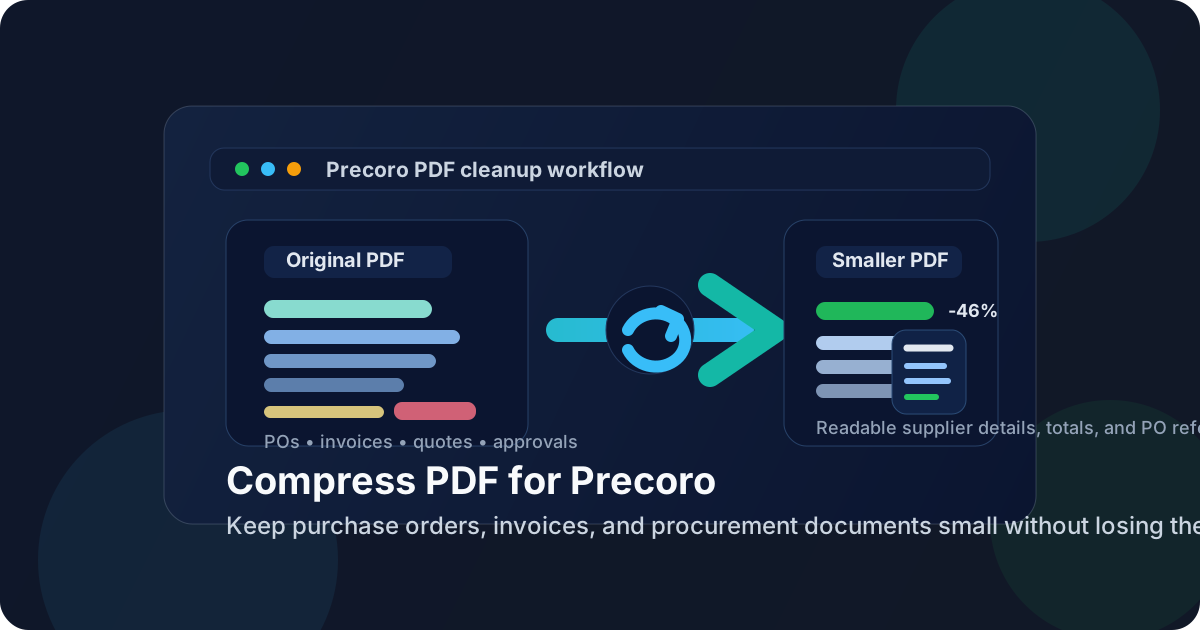
Table of contents
- Quick start: compress a Precoro PDF in about 2 minutes
- Why Precoro PDFs get bulky
- What size should a Precoro PDF be?
- Which compression level should you choose?
- Step-by-step: shrink a Precoro PDF with LifetimePDF
- Best approach for common Precoro document types
- What to clean up before compressing harder
- How to keep procurement details readable
- Workflow habits that reduce PDF bloat
- Related LifetimePDF tools and useful reading
- FAQ (People Also Ask)
Quick start: compress a Precoro PDF in about 2 minutes
If your real goal is simply make this PDF smaller so it is easier to use in Precoro, this workflow is usually enough:
- Save the final purchase order packet, vendor quote, supplier invoice, approval backup, receiving record, or procurement support PDF you actually plan to keep.
- Open Compress PDF.
- Upload the file and choose Medium compression first.
- Download the smaller result and compare the new size.
- Preview the weakest details: supplier names, PO numbers, invoice references, line-item tables, totals, dates, signatures, and faint scan text.
- If the file is still image-heavy or larger than it needs to be, run OCR PDF, crop empty borders, remove duplicate pages, or split the packet before trying stronger compression.
Why Precoro PDFs get bulky
Precoro documents rarely become oversized because one page contains too much information. They usually become oversized because several normal files get stacked together. A supplier quote is joined to a purchase request. A purchase order gets paired with supporting screenshots. An invoice packet picks up receiving proof, signatures, or a phone scan of a stamped page. Every extra export, rescan, or merge can quietly add more image weight than useful content.
That is why harsh compression is not the smartest first move. If the file is bloated because it contains duplicate pages, giant scan borders, image-only pages, or appendices nobody needs for the next step, the better fix is balanced compression plus light cleanup. The goal is a PDF that stays easy to upload and easy to review without turning key procurement details soft or unreliable.
- Multiple attachments merged together: quotes, POs, invoices, receipts, and support pages often end up in one packet.
- Phone scans and rescans: these add large image layers quickly.
- Blank backsides or repeated pages: small mistakes create unnecessary weight.
- Image-only paperwork: scanned pages can stay large while still being harder to search.
- Oversized appendices: sometimes the packet contains more pages than the next reviewer actually needs.
What size should a Precoro PDF be?
There is no single perfect number for every workflow, but practical ranges help. Text-heavy documents usually compress well. Scan-heavy packets need more room. A useful target is the smallest file that still keeps supplier details, line items, dates, and signatures comfortable to review.
- Under 2MB: a strong target for text-heavy purchase orders, supplier quotes, vendor forms, and ordinary invoice-support PDFs.
- 2MB to 5MB: realistic for receipt bundles, receiving records, mixed backup packets, and scan-heavy procurement files.
- Above 5MB: often a sign that the file may still contain oversized scans, unnecessary pages, or extra material worth trimming.
Do not chase a tiny number just because it sounds neat. If shrinking the file further makes line-item tables, approval notes, signatures, or supplier references harder to trust, the PDF is no longer doing its job well.
Which compression level should you choose?
Most people only need one rule here: start in the middle. Medium compression is usually the best balance for Precoro PDFs because it removes obvious weight without flattening important details too aggressively.
Low compression
Low compression makes sense when the source file is already fairly lean or when the packet includes tiny tables, fine signatures, or light gray text that you do not want to touch much. It will not save as much space, but it is the cautious option.
Medium compression
Medium compression is the best starting point for most Precoro workflows. It usually reduces file size enough to improve uploads and sharing while keeping supplier names, PO references, invoice numbers, totals, signatures, and approval notes readable. If you only try one setting first, make it this one.
High compression
High compression is better treated as a rescue option. Use it only when the PDF is still heavier than the workflow allows and you have already checked for unnecessary pages, scan borders, or image-only bloat. Always inspect the faintest text afterward.
Step-by-step: shrink a Precoro PDF with LifetimePDF
- Start with the final file. Work from the PDF that the next reviewer actually needs, not a draft carrying extra appendices or duplicate support pages.
- Open the tool. Go to LifetimePDF Compress PDF.
- Upload the file. Choose the purchase order packet, quote, invoice backup, approval bundle, or receiving file you need to prepare.
- Pick Medium compression. That is usually the safest first pass.
- Download the smaller copy. Compare the new file size and open the result at full zoom.
- Check the weak spots. Review supplier names, PO numbers, invoice references, dates, totals, line-item tables, signatures, and the faintest scanned text.
- Clean the file only if needed. If the PDF is still bulky, use OCR PDF, Crop PDF, or Split PDF before pushing compression harder.
Ready to do it now? Start with the compressor, then use OCR or splitting only if the file still carries more weight than the workflow needs.
Best approach for common Precoro document types
Purchase orders and supplier forms
These are often text-heavy and respond well to Medium compression. In many cases, the bigger issue is not the purchase order itself but the extra support pages attached to it. If the file still feels too large, check whether all appended terms, signatures, and secondary pages are really needed for the next step.
Vendor quotes and supplier invoices
Quotes and invoices usually need supplier names, item descriptions, totals, taxes, dates, and reference numbers to stay crisp. Medium compression is often enough. If the original document came from a scanner rather than a clean export, OCR can help as much as compression because it makes the file easier to search and review later.
Approval packets and mixed backup files
These packets get bloated fastest because they often mix screenshots, emails, signed pages, invoice copies, and supporting scans. If the PDF is stubbornly large, splitting unrelated material or extracting only the pages the approver needs can work better than forcing heavier compression across the entire packet.
Receiving records, receipts, and scanned evidence
This is where scan cleanup matters most. Phone photos, dark scanner backgrounds, empty margins, and duplicate backsides can add a lot of weight without adding value. OCR plus border cleanup often improves these files more than compression alone.
What to clean up before compressing harder
If Medium compression still leaves the file larger than you want, do not jump straight to the strongest setting. First remove the obvious sources of waste.
- Blank pages: common in scanner output and merged packets.
- Duplicate pages: easy to miss when several people contribute support files.
- Oversized borders: a thick black edge or huge white margin adds weight without helping anyone review the document.
- Unneeded appendices: sometimes the next reviewer only needs a few pages, not the entire packet.
- Image-only text pages: OCR can make them more useful before you try harsher compression.
In procurement workflows, sending less PDF is often smarter than squeezing the same bloated packet harder.
How to keep procurement details readable
After compression, review the details that people actually depend on. If even one of these becomes annoying to read, the smaller file may not be worth keeping.
- Supplier names and contact details
- PO numbers and internal references
- Invoice numbers, dates, and due dates
- Line-item descriptions, quantities, and unit prices
- Totals, tax lines, and currencies
- Approval notes, signatures, initials, and stamps
- The faintest text on scans or screenshot-based support pages
A useful test is simple: if you had to resolve a supplier question, approval dispute, or audit follow-up from this PDF next month, would you trust it at a glance? If the answer is no, clean the source or ease back on compression.
Workflow habits that reduce PDF bloat
Good PDF cleanup helps, but a few simple habits prevent oversized files from showing up so often in the first place.
- Export clean digital PDFs when possible instead of printing and rescanning them.
- Merge only the pages that matter for the next Precoro step.
- Use OCR early on scanned paperwork you know will be reused later.
- Crop borders before archiving if the file came from a phone scan or copier.
- Split giant mixed packets when different teams only need different parts.
- Keep one reviewed final version instead of passing around several near-identical oversized copies.
These habits save time because they reduce repeated cleanup, repeated uploads, and repeated questions about whether the PDF still contains the details people need.
Related LifetimePDF tools and useful reading
If your Precoro PDF needs more than basic compression, these tools usually cover the next most useful fixes.
- Compress PDF for the first size reduction pass
- OCR PDF for image-only scans and searchable text
- Crop PDF for empty borders and scan waste
- Split PDF for oversized mixed packets
- Extract Pages when only part of the packet is needed
If you want more Precoro-specific angles, these related reads go deeper into adjacent use cases:
- Compress PDF for Precoro Without Monthly Fees
- Compress PDF for Precoro: Upload Smaller Purchase Orders, Invoices, and Procurement Documents Faster
Best fit: use the compressor first, then add OCR or page cleanup only when the source file is scan-heavy, repetitive, or carrying more pages than the next reviewer really needs.
FAQ (People Also Ask)
How do I compress a PDF for Precoro?
Upload the Precoro-ready PDF to a PDF compressor, start with Medium compression, and preview the smaller result before you keep it. For most Precoro workflows, Medium is the safest first move because it usually lowers file size while keeping supplier names, PO numbers, dates, totals, signatures, and approval notes readable.
What file size should I aim for before using a PDF in Precoro?
Under 2MB is a practical target for text-heavy purchase orders, vendor quotes, supplier invoices, and standard procurement support PDFs. For scan-heavy receiving records, receipt bundles, or mixed approval packets, roughly 2MB to 5MB is often more realistic while still keeping the file easier to upload and review.
Should I run OCR on scanned Precoro documents?
Usually yes if the text is not selectable. OCR makes scanned procurement PDFs easier to search, easier to review during approvals or audit work, and easier to reuse later when someone needs invoice references, PO numbers, dates, or supplier names quickly.
Will compression make line-item tables or totals blurry?
It can if you compress too aggressively. That is why Medium compression is usually the best first move. Always check the faintest table text, supplier details, totals, dates, signatures, and approval notes before you keep the smaller copy.
What if my Precoro PDF is still too large after compression?
Remove blank or duplicate pages, crop empty scan borders, extract only the pages the next reviewer needs, split one oversized packet, or run OCR on image-only paperwork. In many Precoro workflows, sending less PDF works better than forcing harsher compression on the same bloated packet.