Compress PDF for Precoro Without Monthly Fees: Shrink Purchase Orders, Invoices, and Procurement PDFs Without Another Subscription
If you need to compress a PDF for Precoro without monthly fees, upload the file to LifetimePDF's Compress PDF tool, start with Medium compression, and keep the smaller copy only if supplier names, PO numbers, totals, signatures, and approval details still look clear.
For most Precoro workflows, that is enough to shrink purchase orders, invoice backups, vendor quotes, approval packets, and procurement PDFs without paying for another recurring subscription just to finish routine document cleanup.
Precoro paperwork usually gets annoying for a boring reason: the document itself is normal, but the attachment keeps growing every time another quote, invoice, screenshot, signed page, receipt scan, or export gets added. Then someone needs the file to upload cleanly, open quickly, and still look trustworthy when procurement, AP, finance, or an approver reviews it later. The real goal is not the tiniest PDF possible. The real goal is a smaller PDF that still holds up when somebody checks PO references, supplier details, totals, dates, signatures, and supporting context.
Fastest path: run the Precoro file through LifetimePDF's Compress PDF tool at Medium, then use OCR, page cleanup, or split tools only if the PDF still carries more weight than the workflow actually needs.
In a hurry? Jump to Quick start: compress a Precoro PDF in about 2 minutes.
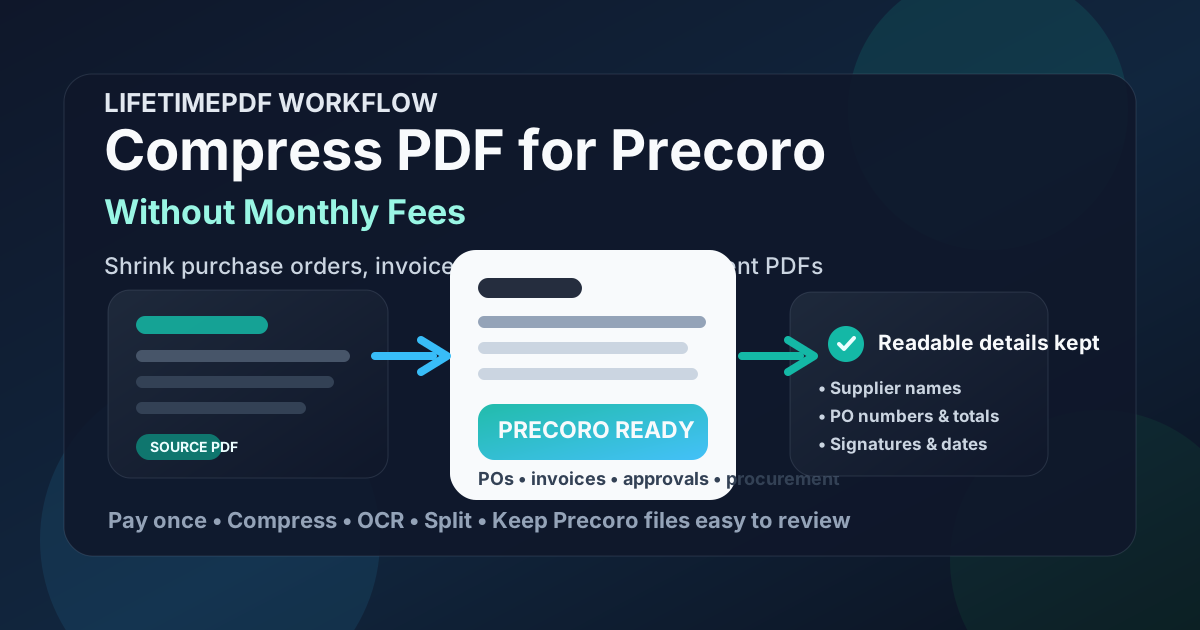
Table of contents
- Quick start: compress a Precoro PDF in about 2 minutes
- Why "without monthly fees" matters here
- Why smaller PDFs help in Precoro workflows
- What file size should a Precoro PDF be?
- Which compression level should you choose?
- Step-by-step: use LifetimePDF to shrink the file
- Best approach for common Precoro PDFs
- What to do if the PDF is still too large
- How to keep purchase-order and invoice details readable
- Workflow habits that reduce PDF bloat
- Related LifetimePDF tools and useful reading
- FAQ (People Also Ask)
Quick start: compress a Precoro PDF in about 2 minutes
If your real goal is simply make this PDF smaller so it is easier to use in Precoro, this workflow is usually enough:
- Export or save the final purchase order support PDF, invoice backup, vendor quote, supplier form, approval packet, or procurement record you actually plan to keep.
- Open Compress PDF.
- Upload the file and choose Medium compression first.
- Download the smaller result and compare the new size.
- Preview the weakest details: supplier names, dates, PO numbers, invoice references, totals, line-item tables, signatures, and the faintest scanned text.
- If the file is still bulky or image-heavy, run OCR PDF, crop empty scan borders, delete duplicate pages, or split the packet before trying stronger compression.
Why "without monthly fees" matters here
Precoro document prep is not a one-time chore. It repeats across purchase requests, approvals, supplier support, invoice processing, receiving records, and audit follow-up. That is exactly why the subscription angle matters. If the task comes back every week, paying monthly just to shrink, OCR, split, crop, and clean ordinary PDFs gets old fast.
A pay-once workflow makes more sense for this kind of admin work. You want a tool you can reach for whenever a file is oversized, messy, scan-heavy, or harder to upload than it should be. You do not want another recurring bill just to tidy a purchase-order backup, reduce an invoice packet, or fix one approval PDF before the next step.
- Recurring work: procurement and AP PDF cleanup does not stop after one month.
- More than one task: compression often leads to OCR, page extraction, cropping, or splitting.
- Better cost fit: a pay-once tool matches repeated document prep better than another software subscription.
- Less friction: the easier the workflow feels, the more likely people are to clean the file before upload instead of hoping it still works.
Why smaller PDFs help in Precoro workflows
Precoro documents often come from several directions at once. Procurement adds support pages. A supplier sends a quote or invoice. Finance adds backup. Someone else attaches a phone scan, a signed approval page, or a screenshot from another system. By the time everything becomes one PDF, the file can feel much heavier than the information inside it.
Smaller PDFs are easier to upload, faster to open, and less frustrating to review later. That matters when the real job is checking supplier names, PO references, totals, invoice numbers, signatures, dates, and approval context rather than waiting on a bloated file. Compression is not about squeezing every page until it looks rough. It is about removing avoidable weight while keeping the record clear enough to trust.
- Faster uploads: useful when somebody is trying to move a purchase request or invoice packet through the next Precoro step without delay.
- Smoother reviews: lighter files open faster for procurement, AP, finance, and approvers.
- Cleaner archives: smaller PDFs are easier to resend, store, and retrieve later during audits or supplier follow-up.
- Less scan waste: receipts, phone captures, and paper-origin support files often carry oversized images, blank borders, and duplicate pages.
- Better reuse: a leaner PDF is easier to split, OCR, extract pages from, or attach somewhere else when the next workflow appears.
What file size should a Precoro PDF be?
There is no single magic number for every Precoro workflow, so practical ranges are more useful than perfection. You want a file that uploads cleanly, opens quickly, and still looks reliable when someone is checking PO numbers, supplier details, line-item tables, invoice references, or signatures.
| Document type | Practical target | Why it works |
|---|---|---|
| Text-heavy purchase order, supplier form, or invoice backup | < 1MB to 2MB | Usually enough for files that should stay easy to upload and review |
| Vendor quote, approval packet, or mixed procurement support PDF | About 2MB to 4MB | Leaves room for tables, signatures, notes, and a few supporting pages |
| Scan-heavy receiving record, receipt pack, or image-based backup file | About 3MB to 5MB | Still manageable while protecting small references, totals, and faint scan details |
| Mixed packet with unrelated appendices | Varies | Usually better solved by splitting or trimming pages, not by crushing everything harder |
If the document is mostly text and ordinary support pages, it usually should not be huge. If it is huge anyway, the extra size often comes from scans, screenshots, duplicate pages, or oversized images rather than from the real procurement content.
Which compression level should you choose?
The right setting depends less on the platform name and more on what is inside the PDF. Precoro files often need to preserve small but meaningful details, so an overly aggressive first pass is usually a mistake.
| Compression level | Best for | Main risk |
|---|---|---|
| Low | Clean exports, contracts, supplier forms, and already small PDFs | The file may not shrink enough to be worth the step |
| Medium | Most Precoro documents, including purchase-order support, invoice backup, quotes, and approval packets | Usually the safest option, but still deserves one quick review |
| High | Very bloated scans or oversized image-heavy packets after lighter cleanup already failed | PO numbers, small tables, signatures, and faint scan text can lose clarity faster |
Step-by-step: use LifetimePDF to shrink the file
Here is the straightforward workflow if you want a smaller Precoro-ready PDF without adding a new subscription to the stack:
- Open Compress PDF.
- Upload the final purchase-order support PDF, invoice backup, vendor quote, supplier document, approval packet, or receiving record.
- Choose Medium compression first.
- Download the smaller file and check how much size you saved.
- Preview the pages that matter most: names, dates, PO numbers, invoice references, line items, totals, and signatures.
- If the file still feels heavier than it should, use OCR PDF, Extract Pages, or Split PDF instead of repeatedly over-compressing the same document.
Best approach for common Precoro PDFs
Different Precoro documents fail in different ways. The right fix depends on whether the file is text-heavy, scan-heavy, or simply carrying too many pages.
Purchase-order support PDFs
These are usually text-heavy and compress well. Medium compression is normally enough. The main risk is making small typed fields, unit-price columns, or approval notes harder to read, so review the weakest page before keeping the smaller version.
Vendor quotes and supplier invoices
These often include line-item tables, dates, reference numbers, payment terms, and signatures. A slightly larger file is better than one that makes totals or invoice IDs feel uncertain. If the attachment includes extra appendices nobody needs right now, trim or split them instead of crushing the whole packet.
Approval packets and mixed backup files
These often mix tables, screenshots, comments, and supporting pages. Compression helps, but structure matters more. If the packet contains unrelated exhibits or duplicate exports, remove them before trying a stronger setting.
Receiving records, receipts, and scanned evidence
This is where OCR becomes especially useful. If the file came from a scanner or phone camera, making it searchable often improves the workflow more than raw compression alone. Keep an eye on dates, totals, signatures, and receipt references because those are usually the details people need later.
What to do if the PDF is still too large
If the first compression pass helps but the file is still bulkier than it should be, do not immediately reach for maximum compression. That is usually how readable documents turn muddy. Start by removing the weight that adds the least value.
- Run OCR if the document is scan-based and the text is not selectable.
- Split the packet when one file is carrying unrelated sections for different reviewers.
- Extract only the needed pages instead of dragging a whole appendix into every step.
- Crop scan borders and remove blank pages or duplicate backsides.
- Replace screenshots with direct exports when a cleaner source file exists.
In practice, oversized Precoro files are often a packet problem rather than a compression problem. Better structure usually protects readability better than stronger settings.
How to keep purchase-order and invoice details readable
Before you keep the smaller file, check the details that somebody will actually depend on later. One quick review is usually enough if you look at the right places.
- Supplier names and IDs: make sure proper names still look crisp, especially on scans.
- Dates and approval references: these are easy to blur when they are small or lightly printed.
- PO numbers and line items: quantities, prices, and row labels should stay distinct.
- Invoice numbers and totals: the finance-critical details should still feel obvious at normal zoom.
- Signatures and initials: they should still look deliberate rather than smudged.
- Any handwritten or stamped text: common weak spots in scan-heavy support packets.
If the faintest part of the document is still readable, you are usually in good shape. If the weak details turned muddy, go back one step. A slightly larger file is still the better file when it keeps the proof intact.
Workflow habits that reduce PDF bloat
The easiest way to avoid oversized Precoro PDFs is not heroic compression. It is better habits before the file gets messy.
- Export once from the cleanest source available.
- Avoid screenshotting PDFs unless there is no better option.
- Keep only the pages the next reviewer actually needs.
- Separate unrelated appendices instead of stacking everything into one oversized packet.
- Use OCR on scanned procurement and supplier files before they disappear into storage.
- Compress before the attachment becomes a repeated problem.
Small habits matter because document friction compounds. One oversized upload is annoying. A workflow full of oversized uploads becomes a time tax.
Related LifetimePDF tools and useful reading
Useful tools
Best fit
This workflow is a strong fit if you regularly clean purchase-order support, vendor quotes, invoice backup, approval packets, or procurement PDFs and want a pay-once way to keep recurring document prep under control.
Want the simple version? Use LifetimePDF to compress the file first, check readability once, then keep the smaller copy only if the PO, invoice, and approval details still look trustworthy.
FAQ (People Also Ask)
How do I compress a PDF for Precoro without monthly fees?
Use a pay-once PDF tool like LifetimePDF, upload the Precoro-ready file, start with Medium compression, and review the smaller result before you use it. If the PDF is still bulky, clean scan waste, trim duplicate pages, or split the packet instead of over-compressing everything at once.
What file size should I aim for before using a PDF in Precoro?
Under 2MB is a strong target for text-heavy purchase orders, supplier forms, invoice backups, and ordinary procurement files. Mixed files with tables, signatures, or light scans often work best around 2MB to 4MB, while scan-heavy support packets may still be reasonable closer to 5MB if the important details stay readable.
Will compression make PO numbers, invoice totals, or approval details blurry?
It can if you compress too aggressively. That is why Medium compression is usually the safest first pass. Always review PO references, supplier names, dates, totals, signatures, and the faintest scanned text before keeping the smaller file.
Should I run OCR on scanned procurement PDFs before storing them?
Usually yes if the file came from a scanner or phone camera and the text is not selectable. OCR makes procurement and AP PDFs easier to search, review, and reuse later during approvals, audits, and supplier follow-up.
Why look for a Precoro PDF workflow without monthly fees?
Because purchase-order support, invoice backup, and procurement PDF cleanup happen repeatedly, but most teams do not want another subscription just to shrink, OCR, split, crop, or clean routine files. A pay-once workflow fits recurring document prep better.