Compress PDF for PRTG: Keep Sensor Reports, Uptime Summaries, and Network PDFs Small Without Losing Clarity
To compress a PDF for PRTG, upload the final sensor report, uptime summary, bandwidth export, alert evidence PDF, or monitoring packet to LifetimePDF's Compress PDF tool, start with Medium compression, and keep the smaller copy only if graphs, labels, timestamps, screenshots, and notes still read clearly.
For most PRTG workflows, under 2MB is a strong target for short text-heavy PDFs, while chart-heavy, screenshot-heavy, and scan-heavy files usually land better around 2MB to 5MB after light cleanup.
PRTG documents rarely stay in one place. A quick uptime summary can become meeting prep, ticket evidence, customer reporting, postmortem backup, or audit support later in the same week. The goal is not to squeeze the file until it looks cheap. The goal is to make it lighter so it opens faster, travels more easily, and still feels trustworthy when someone needs the details in a hurry.
Fastest path: run the PRTG PDF through LifetimePDF's Compress PDF tool on Medium, then do one quick readability check before you attach, share, archive, or forward the smaller copy.
Need the short version? Jump to Quick start: compress a PDF for PRTG in under 2 minutes.
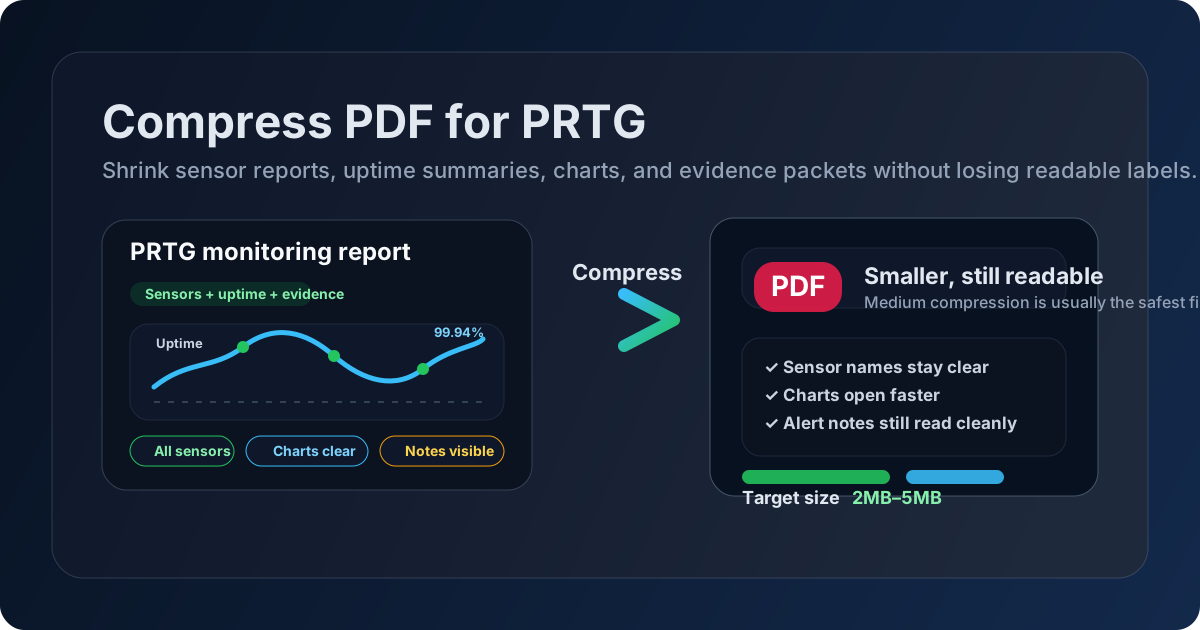
Table of contents
- Quick start: compress a PDF for PRTG in under 2 minutes
- Why smaller PDFs help in PRTG workflows
- What file size should you aim for?
- Which compression level should you choose?
- Common PRTG PDFs worth compressing
- What if the PDF is still too large?
- A quick readability check before sharing
- Workflow habits that keep monitoring PDFs cleaner
- Related LifetimePDF tools and next steps
- FAQ
Quick start: compress a PDF for PRTG in under 2 minutes
If your goal is simply make this PRTG PDF smaller without wrecking the useful parts, this is the practical workflow:
- Open Compress PDF.
- Upload the finished file you actually plan to send, attach, or archive.
- Choose Medium compression first.
- Download the smaller PDF and zoom in on the weakest details.
- If the file is still bulky, use Extract Pages, Delete Pages, or Split PDF before pushing compression harder.
Why smaller PDFs help in PRTG workflows
Monitoring PDFs create friction when they are heavier than they need to be. A big file slows down handoffs, makes mobile review annoying, and turns a quick attachment into an unnecessary delay. That matters when the same report might move from operations to management, from engineering to a customer, or from troubleshooting to compliance.
Smaller PDFs are not about vanity metrics. They are about keeping a report easy to open when someone is already busy. If a network team is checking uptime evidence, if a service manager is preparing a monthly review, or if a technician is pulling proof into a ticket, a lighter file helps that work happen with less friction.
Where this comes up most often
- Monthly uptime reports shared with customers or leadership
- Sensor snapshots attached to incidents or escalations
- Bandwidth and traffic exports used in troubleshooting or capacity planning
- SLA review packets that combine charts, notes, and screenshots
- Audit or postmortem evidence saved for later reference
What file size should you aim for?
There is no single perfect number because a one-page sensor summary behaves differently from a 30-page report with charts, screenshots, and scan-heavy appendices. Still, a useful target makes it easier to decide whether a file is already fine or worth cleaning up.
| PRTG PDF type | Good target | Why |
|---|---|---|
| Short text-heavy summary | Under 2MB | Usually easy to open, attach, and forward without compromising readability. |
| Chart-heavy monitoring report | 2MB to 4MB | Leaves enough room for trend lines, axes, labels, and legends to stay clear. |
| Screenshot-heavy review pack | 2MB to 5MB | Dashboard screenshots and alert evidence usually need a little more breathing room. |
| Scan-heavy appendix or paperwork | As small as possible after cleanup | These files often shrink more from deleting, cropping, or splitting than from raw compression alone. |
Which compression level should you choose?
Compression level is where people either save time or create new problems. Go too light and the file barely changes. Go too hard and chart labels, timestamps, or screenshot details become painful to read.
| Compression level | Best use | Watch out for |
|---|---|---|
| Low | Fine text, dense tables, or charts where tiny labels matter | May not reduce file size enough if the PDF is bloated |
| Medium | Most PRTG exports, reports, screenshots, and summary packets | Still review the smallest labels once before sharing |
| High | Scan-heavy or image-heavy files where size matters more than crispness | Can soften graphs, legends, tiny screenshot text, and timestamp details |
If you are unsure, start with Medium. It is usually the safest first pass for PRTG because it gives you a meaningful size drop without making the file look obviously degraded.
Common PRTG PDFs worth compressing
Not every PDF around PRTG looks the same, so it helps to know which files benefit most from cleanup.
1. Uptime and availability reports
These are usually easy wins. They tend to be text-heavy with a few charts, so Medium compression often trims them nicely without harming readability.
2. Bandwidth or traffic reports
These can get heavier when several graph pages are involved. Keep an eye on axis labels, legends, and small date ranges after compression.
3. Alert evidence and incident attachments
If a PDF includes screenshots, ticket notes, and supporting pages, cleanup matters as much as compression. Remove anything the next reviewer does not actually need.
4. Customer review packs
These often mix charts, screenshots, summary notes, and branded pages. They benefit from both lighter compression and better structure. A tidy 10-page packet usually beats a bulky 25-page one.
5. Scan-based appendices
If someone dropped in scans of approvals, handwritten notes, or paperwork, those pages may be responsible for most of the file size. Crop, split, or extract before you try to solve the whole problem with stronger compression.
What if the PDF is still too large?
If one pass of compression does not get you where you need to go, the answer is often structural cleanup rather than more aggressive compression.
- Extract only the useful pages. If the recipient only needs three pages, do not send twenty.
- Delete blank or duplicate pages. Export workflows and repeated appendices often add avoidable weight.
- Split one oversized packet. Separate the executive summary from the raw evidence if different audiences need different sections.
- Crop scan borders. Empty margins and scanner shadows waste file size fast.
- Run OCR only when it helps. Searchable scanned text can be useful, but not every appendix needs it.
If the file is still bulky: trim the document first, then compress the cleaner version.
A quick readability check before sharing
The last 20 seconds matter. Before replacing the original or sending the smaller copy, check the weakest parts of the PDF once.
- Zoom in on the smallest chart labels
- Check sensor names and device labels
- Verify timestamps and date ranges still read cleanly
- Review screenshots with dense UI text
- Make sure comments, notes, and callouts did not become muddy
If one of those breaks, it is better to accept a slightly larger file than to ship a smaller PDF that frustrates the next person who opens it.
Workflow habits that keep monitoring PDFs cleaner
The easiest PDF to compress well is the one that was not overloaded in the first place. A few habits make a big difference over time.
- Export for the audience. A manager, customer, and technician usually do not need the same packet.
- Keep summaries separate from raw evidence. That makes each file smaller and easier to reuse.
- Trim screenshots before export when possible. Full-screen captures are heavier than focused evidence.
- Archive the original, share the optimized copy. That gives you a safe fallback without forcing everyone else to open the largest version.
- Check metadata before sending externally. A clean PDF should be smaller and cleaner, not just smaller.
Related LifetimePDF tools and next steps
Compress PDF is the main starting point, but it works best alongside a few other cleanup tools when a monitoring packet needs more than a size reduction.
If you regularly share PRTG reports, the best workflow is simple: keep the original export, create a lighter copy for sharing, and trim the packet when only part of it is actually useful.
Ready to shrink the file? Start with Medium compression, then keep the smallest version that still feels effortless to read.
FAQ
How do I compress a PDF for PRTG?
Upload the final PRTG PDF to a compressor, start with Medium compression, and review the smaller copy before sharing it. If the file is still too large, extract only the pages that matter instead of repeatedly compressing the full packet.
What file size is best for PRTG reports?
Under 2MB is a strong target for short text-heavy reports. Chart-heavy, screenshot-heavy, and scan-heavy PDFs often work better in the 2MB to 5MB range if that keeps labels and evidence easy to read.
Will compression make PRTG charts blurry?
It can if you push compression too hard. That is why Medium compression is usually the safest place to start. Always zoom in on the smallest labels, legends, timestamps, and note text before you replace the original file.
Should I split a big PRTG PDF instead of compressing it harder?
Often, yes. If the file combines executive summaries, screenshots, scans, and long appendices, splitting or extracting the useful pages usually preserves readability better than aggressive compression.
Which LifetimePDF tools help most besides Compress PDF?
Extract Pages, Delete Pages, Split PDF, Crop PDF, Redact PDF, OCR PDF, and PDF Metadata Editor are especially useful when a monitoring packet needs cleanup as well as size reduction.