Compress PDF for Oracle Analytics Cloud: Keep Dashboard Exports, Analysis PDFs, and KPI Reports Small Without Losing the Details
To compress a PDF for Oracle Analytics Cloud, export the final dashboard or analysis PDF, upload it to LifetimePDF's Compress PDF tool, start with Medium compression, and keep the smaller copy only if chart labels, filter values, table rows, and KPI numbers still read clearly.
For most Oracle Analytics Cloud workflows, under 2MB is a strong target for short snapshots and one-page KPI updates, while multi-page scheduled reports, review packs, and browser print-to-PDF exports usually work best around 2MB to 5MB.
Oracle Analytics Cloud PDFs usually matter most when people are no longer inside the live dashboard. They get attached to emails, dropped into review folders, shared with leaders before meetings, stored for audit support, or sent to people who just need a stable file that opens fast and still looks trustworthy. That is why the goal is not the tiniest possible PDF. The goal is a smaller file that still keeps filters, legends, pivot rows, KPI cards, commentary, and chart labels readable when someone checks the numbers under normal meeting pressure.
Fastest path: run the Oracle Analytics Cloud export through LifetimePDF's Compress PDF tool on Medium, then do one quick readability check before you share, archive, or replace the lighter copy.
Need the short version? Jump to Quick start: compress an Oracle Analytics Cloud PDF in about 2 minutes.
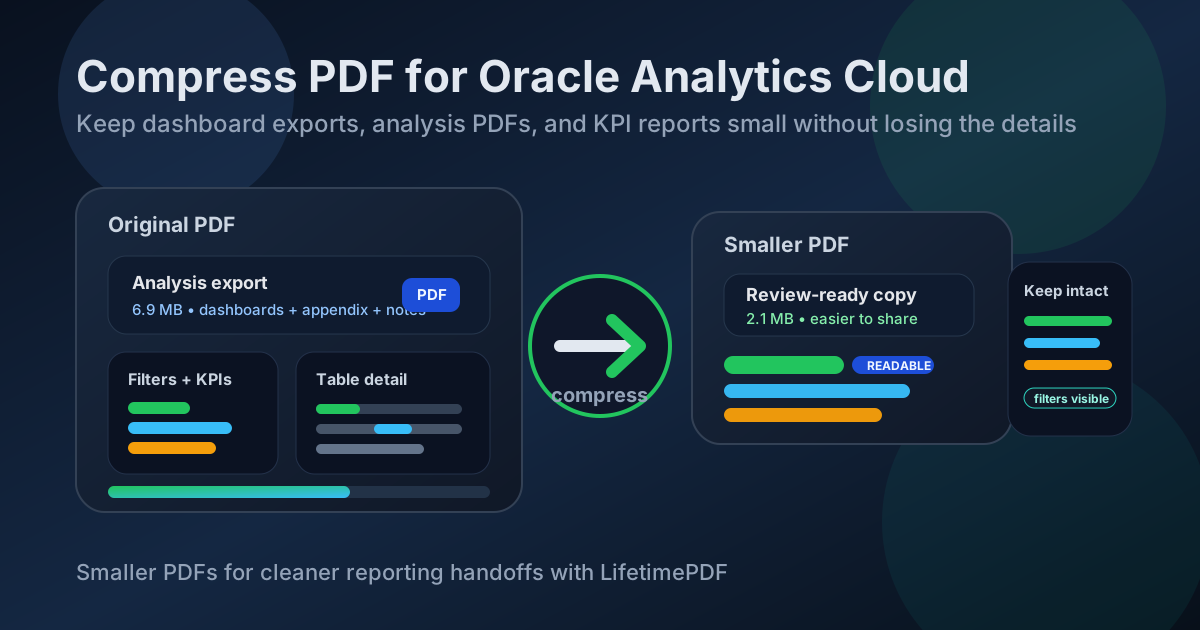
Table of contents
- Quick start: compress an Oracle Analytics Cloud PDF in about 2 minutes
- Why Oracle Analytics Cloud PDFs get heavy so quickly
- What file size should you aim for?
- Which compression level should you choose?
- Step-by-step: shrink an Oracle Analytics Cloud PDF with LifetimePDF
- Best strategy for common Oracle Analytics Cloud PDF types
- What if the export is still too large?
- How to protect chart and table readability
- Export habits that keep Oracle Analytics Cloud PDFs lighter
- Related LifetimePDF tools and internal links
- FAQ (People Also Ask)
Quick start: compress an Oracle Analytics Cloud PDF in about 2 minutes
- Export the final dashboard, analysis, or scheduled report PDF you actually plan to share.
- Upload it to LifetimePDF's Compress PDF tool.
- Start with Medium compression.
- Open the smaller copy and check the smallest labels, filter values, KPI numbers, legends, and table rows.
- If the file is still bulky, split the appendix, crop browser margins, or remove duplicate pages before compressing harder.
That sequence is usually enough. Most Oracle Analytics Cloud PDFs do not fail because the charts are impossible to compress. They get heavy because one export is trying to act like a dashboard snapshot, executive summary, appendix, archive, and backup file at the same time.
Why Oracle Analytics Cloud PDFs get heavy so quickly
Oracle Analytics Cloud exports often combine several things that are individually reasonable and collectively bulky. High-resolution charts, repeated legends, pivot tables, filter summaries, long date ranges, embedded screenshots, and browser print margins all add weight. Scheduled reports can also collect extra pages that felt harmless when the export was generated but become annoying once someone has to download, forward, or review the file on a laptop or phone.
Another common problem is that teams keep every audience in one document. The summary page is for leadership. The detail tables are for analysts. The appendix is for audit support. The screenshots are for people who were not in the meeting. Compression helps, but page discipline usually matters just as much.
What file size should you aim for?
There is no single magic number, but there are sane targets. If the PDF is a one-page KPI snapshot or short dashboard export, aim for under 2MB. If it is a scheduled report pack, analysis handoff, or multi-page review deck, 2MB to 5MB is usually a strong working range. Above that, it becomes worth asking whether the file is heavy because of image quality or because it contains pages the next reader does not actually need.
- Under 2MB: dashboard snapshots, quick KPI updates, concise analysis exports.
- 2MB to 5MB: multi-page reviews, scheduled reports, appendix-light board packets.
- Over 5MB: usually a sign to trim pages, crop browser margins, or split the packet before forcing stronger compression.
Which compression level should you choose?
For Oracle Analytics Cloud PDFs, Medium is usually the right first move. It tends to remove enough weight to make sharing easier without immediately destroying fine labels or thin table text. Light compression is useful when the export is already tidy and only needs a small reduction. Stronger compression is better treated as a backup plan once you have already removed unneeded pages and margins.
- Light: good for already-clean dashboard PDFs that only need a modest size cut.
- Medium: best default for most Oracle Analytics Cloud workflows.
- Strong: use only after you confirm the smallest labels, footnotes, and pivot rows still read clearly.
Step-by-step: shrink an Oracle Analytics Cloud PDF with LifetimePDF
- Export the final version first. Do not compress a draft if someone will later add pages and create a second oversized file anyway.
- Open Compress PDF. Upload the Oracle Analytics Cloud export you truly plan to send.
- Start with Medium compression. That keeps most report detail intact while cutting the file to a friendlier size.
- Review the smallest information once. Check chart labels, filter chips, date ranges, legend entries, notes, and narrow table columns.
- Trim structure before crushing quality. If the file is still too large, split the appendix, remove duplicate support pages, or crop wasted browser margins.
The review step matters because Oracle Analytics Cloud exports often look fine at a glance. The problems usually hide in the smallest layer of the file: tiny row labels, threshold colors, footnotes, conditional formatting, or annotations tucked into a corner of a page.
Best strategy for common Oracle Analytics Cloud PDF types
Dashboard exports for leaders
These should stay light. A leadership packet that needs to open quickly on any device benefits from Medium compression plus a quick pass to make sure the KPI cards and small chart labels still hold up.
Analysis PDFs with tables and filters
These are more fragile. The chart may still look fine after compression while the smallest row text gets muddy. Review filters, dates, and the densest table on the page before keeping the smaller file.
Scheduled report packs
These often grow because they include repeated sections, explanatory notes, and support pages. Splitting summary pages from appendix pages usually works better than trying to over-compress the whole packet.
Browser print-to-PDF copies
These are common offenders. Browser exports may include oversized margins, awkward page breaks, and blank space that adds weight without adding meaning. Compression helps, but Crop PDF can make a surprisingly large difference here.
What if the export is still too large?
If Medium compression does not get the file where it needs to be, resist the urge to jump straight to the hardest setting. First ask what is making the PDF bulky. If the answer is “too many pages,” the right fix is page cleanup. If the answer is “too much white space,” cropping helps. If the answer is “too many mixed audiences in one file,” splitting is usually the cleanest move.
- Split the executive summary from the appendix.
- Extract only the pages a reviewer actually needs.
- Delete duplicate or blank support pages.
- Crop wasted browser margins and page edges.
- Then run compression again if the file still feels heavier than it should.
How to protect chart and table readability
The safest review is boring and specific. Do not just open the first page and decide everything looks fine. Go straight to the weakest spots.
- Small chart labels and legends
- Filter values and date-range chips
- Dense pivot rows or narrow table columns
- Threshold colors and conditional formatting
- Footnotes, analyst comments, and explanatory notes
If those survive, the rest of the PDF usually survives too. If they do not, undo the last step and choose a gentler approach.
Export habits that keep Oracle Analytics Cloud PDFs lighter
The best compression workflow starts before compression. Keep exports focused. Do not include every backup page by default. Separate high-level summaries from evidence-heavy appendices when the audience is different. If the PDF came from a browser print flow, review page layout first so you are not preserving giant margins and awkward blank zones forever.
In practice, the lightest Oracle Analytics Cloud PDFs usually come from three habits: exporting the right audience version, trimming obvious excess, and then applying medium compression as the final cleanup step.
Related LifetimePDF tools and internal links
- Compress PDF for the main file-size reduction step.
- Split PDF for separating summary pages from appendices.
- Extract Pages for keeping only the sections the next reader needs.
- Crop PDF for trimming wasted browser margins.
- Compare PDFs for checking the compressed copy against the original.
- Compress PDF for Oracle Analytics Cloud Without Monthly Fees if the main issue is avoiding another recurring tool bill.
- Compress PDF for Oracle Analytics Cloud: Share Smaller Dashboard Exports, Analysis PDFs, and KPI Reports Faster for a companion workflow guide.
Practical takeaway: start with compression, then reduce page count only if the PDF is still heavier than the next reader needs.
FAQ (People Also Ask)
How do I compress a PDF for Oracle Analytics Cloud?
Export the final Oracle Analytics Cloud dashboard or analysis as a PDF, upload it to a PDF compressor, start with Medium compression, and keep the smaller copy only if chart labels, filter values, KPI numbers, and table rows still look clean. Medium compression is usually the safest first pass because it reduces size without making the report feel unreliable.
What file size should I aim for with an Oracle Analytics Cloud PDF?
Under 2MB is a strong target for short dashboard snapshots, one-page KPI updates, and concise analysis PDFs. Multi-page scheduled reports, board-review packets, and browser print copies usually work better around 2MB to 5MB as long as the smallest useful labels, numbers, and notes still read clearly.
Will compression make Oracle Analytics Cloud charts or tables blurry?
It can if you compress too aggressively. That is why Medium compression is the best starting point for most Oracle Analytics Cloud PDFs. Always review chart labels, legends, filter values, small row text, dates, and commentary before keeping the compressed copy.
Should I split a large Oracle Analytics Cloud report pack instead of compressing harder?
Often, yes. If one PDF includes the executive summary, several dashboard pages, appendix tables, screenshots, and supporting notes, splitting it usually works better than forcing stronger compression across the whole packet.
Which LifetimePDF tools help most with Oracle Analytics Cloud workflows?
Compress PDF is the main starting point. Split PDF, Extract Pages, Crop PDF, Delete Pages, OCR PDF, and Compare PDFs are especially useful when you want a smaller Oracle Analytics Cloud handoff file without sending more pages than the next reader actually needs.