Compress PDF for Naukri: Keep Resumes, Cover Letters, and Supporting PDFs Small Without Losing Clarity
To compress a PDF for Naukri, upload your final resume, CV, cover letter, experience letter, certificate, transcript, or supporting document to LifetimePDF's Compress PDF tool, start with Medium compression, and keep the smaller copy only if headings, dates, bullet points, links, and contact details still look clear.
For most Naukri applications, aim for under 2MB for resumes and cover letters, and roughly 2MB to 5MB for scan-heavy certificates, transcripts, or work-sample PDFs.
Naukri uploads are usually simple until one bloated PDF turns a normal application into a fiddly one. Maybe your resume export carried oversized images, maybe your experience letter came from a heavy scan, or maybe you combined too many supporting pages into one packet. The goal is not the tiniest file possible. It is a smaller document that still looks trustworthy the moment a recruiter or hiring manager opens it.
Fastest path: run the Naukri file through LifetimePDF's Compress PDF tool on Medium, then do one quick readability check before uploading the lighter copy.
Need the short version? Jump to Quick start: compress a PDF for Naukri in under 2 minutes.
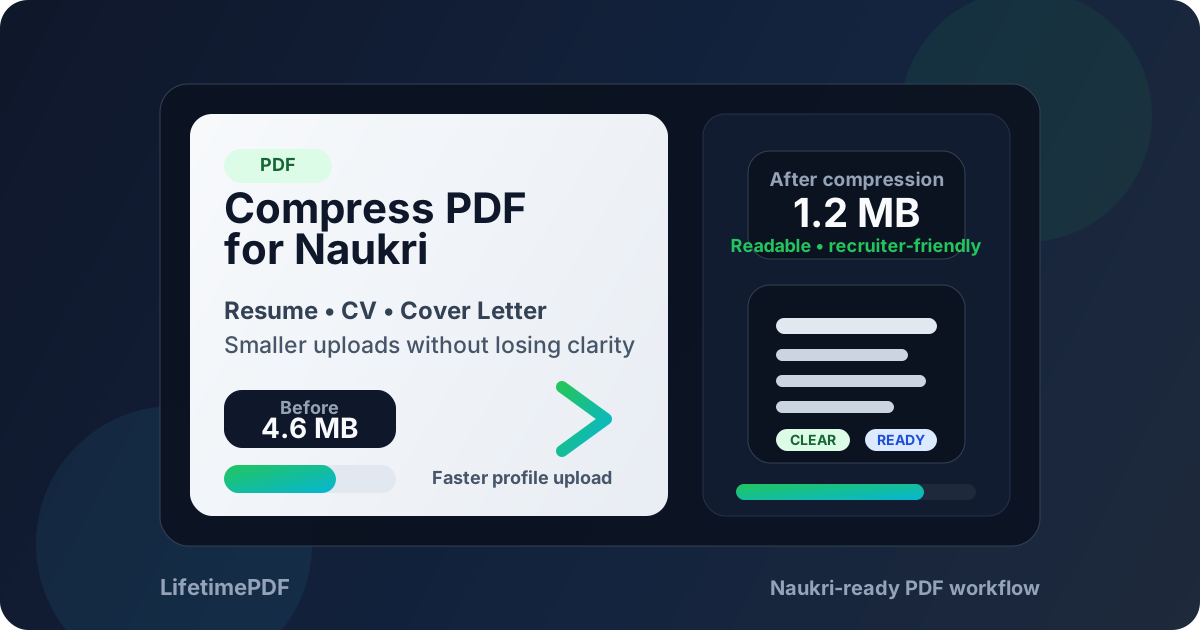
Table of contents
- Quick start: compress a PDF for Naukri in under 2 minutes
- Why smaller PDFs help in Naukri workflows
- What file size should you aim for?
- Which compression level should you choose?
- Step-by-step: shrink a Naukri PDF with LifetimePDF
- Best strategy for common Naukri file types
- What if the PDF is still too large?
- How to keep Naukri files readable and recruiter-friendly
- Privacy and document-cleanup habits before you upload
- Related LifetimePDF tools and useful internal links
- FAQ (People Also Ask)
Quick start: compress a PDF for Naukri in under 2 minutes
If your real goal is simply make this PDF smaller so the Naukri upload goes through cleanly, this workflow is usually enough:
- Open Compress PDF.
- Upload the final resume, CV, cover letter, experience letter, transcript, certificate, portfolio, or supporting PDF you plan to submit.
- Choose Medium compression first.
- Download the smaller result and compare the new size with the original.
- Open it once and check the details that matter most: your name, contact info, headings, dates, bullet points, links, and any fine text inside transcripts, certificates, or work samples.
- If the file is still heavier than you want, use Extract Pages, Delete Pages, or Crop PDF before trying a stronger compression setting.
Why smaller PDFs help in Naukri workflows
Naukri often sits in the middle of a faster-moving application loop than people expect. You may be updating your profile, tailoring one resume for operations, another for support, another for product, and trying not to lose momentum while switching between tabs, role notes, and supporting files. One oversized PDF can turn that flow into a stop-start loop of retries, re-exports, and unnecessary second-guessing.
Smaller PDFs upload faster, open faster, and are easier to replace when you notice one last line that should be tightened before submission. They are also easier to reuse across recruiter emails and other application systems without dragging around unnecessary scan weight, giant images, or blank pages that add nothing to your candidacy.
There is a presentation benefit too. A clean, right-sized PDF feels deliberate. A bloated one can feel like it came straight from a scanner or a rushed export with no final review. Nobody hires you because the file was small, but people do notice when a document feels tidy and easy to handle.
Compression is not a substitute for a good resume or strong supporting material. It is simply one part of document hygiene. But it is one of the easiest improvements you can make when you want the technical part of a Naukri application to stay out of the way.
What file size should you aim for?
Naukri experiences vary by employer and workflow, so there is no single universal number that matters every time. Still, practical targets help:
- Resume, CV, or cover letter: ideally under 2MB.
- Transcript, certificate, or experience letter: usually fine around 2MB to 5MB if the text stays crisp.
- Portfolio or work-sample PDF: as small as practical while keeping screenshots, diagrams, or layout samples readable.
- Combined support packet: only combine documents if the workflow clearly benefits from it, and keep the bundle lean instead of attaching pages "just in case."
Think of the target as small enough to upload smoothly, large enough to remain credible. A file that is technically tiny but visibly degraded does not help you.
| Document type | Practical target | Why it works |
|---|---|---|
| Resume, CV, or cover letter | < 1MB to 2MB | Usually enough for text-heavy application documents without visible compromise |
| Transcript, certificate, or experience letter | 2MB-5MB | Keeps fine detail readable while avoiding needlessly bulky uploads |
| Portfolio or work samples | 2MB-5MB | Leaves room for visuals while staying reasonably upload-friendly |
| Over 5MB | Compress again or trim pages | Often a sign that the file still has avoidable weight |
Which compression level should you choose?
Most people should start in the middle instead of reaching for the strongest setting right away. A simple rule of thumb works well here:
- Low compression: useful when the PDF is already modest and you only need a light trim.
- Medium compression: the best default for most Naukri resumes, CVs, cover letters, and ordinary supporting files.
- High compression: worth testing only when the file is still bulky after cleanup or when the source is heavily image-based.
Medium usually wins because it handles the most common problem well: files that are larger than they need to be, but not so enormous that they justify obvious quality loss. If you move to High compression, preview the result carefully instead of assuming it is still fine.
Step-by-step: shrink a Naukri PDF with LifetimePDF
- Start with the final version. Do not compress a draft if you still plan to edit the content itself later.
- Open Compress PDF.
- Upload your file. This can be a resume, CV, cover letter, experience letter, transcript, certificate, portfolio, combined packet, or another supporting PDF.
- Choose Medium compression. That is the safest first pass for most Naukri uploads.
- Download the smaller copy.
- Review the essentials once. Check names, headings, dates, links, bullet points, and any small text inside scanned pages or visual samples.
- Only escalate if needed. If the result is still too large, trim pages, crop borders, or split the document before trying stronger compression.
Useful rule: compress once, review once, upload once. Endless re-compressing usually causes more damage than it solves.
Best strategy for common Naukri file types
Resume and CV PDFs
These are usually the easiest files to shrink because well-made resumes are mostly text. If your file is already text-based, Medium compression should reduce the size without changing the reading experience much.
Cover letters
Cover letters are often light already, but sometimes they inherit unnecessary weight from a design-heavy export. A quick compression pass is usually enough, and there is no reason to let a one-page letter behave like a portfolio.
Transcripts, certificates, and experience letters
These are often the real problem files because they may come from scans or image-based exports. Crop unused borders, delete irrelevant pages, and keep the text sharp enough that names, dates, seals, credential details, and signatures still read clearly.
Portfolios and work samples
Here you need judgment. Shrinking a sample is useful, but not if it destroys the very visuals you want someone to review. If a portfolio is huge because it contains repeated full-page screenshots, export a tighter version or use smaller selected samples instead of relying on aggressive compression alone.
Combined support packets
If the workflow gives you separate upload fields, keep separate files separate. If one upload field really does need a single PDF, include only the pages that belong there and resist the temptation to bundle every optional document into one oversized packet.
What if the PDF is still too large?
If Medium compression does not get you where you need to go, the answer is usually cleanup, not panic.
- Remove blank or duplicate pages with Delete Pages.
- Keep only the required sections with Extract Pages.
- Trim scanner borders and wasted margins with Crop PDF.
- Split bulky packets into smaller logical files if the Naukri workflow allows separate uploads.
- Re-export the original document cleanly if the file became huge because of poor source settings.
In other words, make the document simpler before asking compression to do all the work. Cleaner source files almost always outperform aggressively compressed messy ones.
How to keep Naukri files readable and recruiter-friendly
The biggest parsing risk is usually not compression itself. It is the source document. A resume built from screenshots, decorative layout tricks, or image-only pages was already fragile before you touched compression.
To keep a Naukri file safe and readable:
- Use real selectable text whenever possible.
- Keep section headings simple and obvious.
- Use readable contrast and ordinary font sizes.
- Review dates, names, email address, phone number, links, and bullets after compression.
- If a scan matters, consider OCR PDF so the text layer is more useful.
If the compressed file still feels normal to read, it is usually normal enough to upload. The cleaner and more text-based the source, the safer the result tends to be.
Privacy and document-cleanup habits before you upload
Smaller files are good, but cleaner files are better. Before uploading to Naukri, take a minute to remove things that do not belong in the final version.
- Delete unused pages, draft sheets, and duplicate exports.
- Remove hidden metadata with Remove PDF Metadata if the file came from a messy workflow.
- Use PDF Metadata Editor if you want cleaner title and author fields.
- Double-check that the upload version matches the exact role you are applying for, not the last one you edited.
That last point matters more than people admit. The wrong resume version is a bigger problem than a slightly large file.
Related LifetimePDF tools and useful internal links
If you are cleaning up a Naukri upload, these are the most useful next steps:
- Compress PDF for the main size reduction step.
- Word to PDF for cleaner resume and cover-letter exports.
- Merge PDF if one upload field requires a single combined packet.
- Extract Pages and Delete Pages for trimming support files.
- Crop PDF and OCR PDF for scan-heavy documents.
You may also want the two existing Naukri companion guides already on LifetimePDF: Upload Resume and Job Application Files Faster and Without Monthly Fees.
FAQ (People Also Ask)
How do I compress a PDF for Naukri?
Upload the file to a PDF compressor, start with Medium compression, and keep the smaller copy only if names, dates, headings, links, bullet points, and contact details still look clear. That is usually the safest way to cut file size without making the document feel sloppy.
What PDF size should I aim for on Naukri?
Under 2MB is a strong target for resumes, CVs, and cover letters. For transcripts, certificates, portfolios, and other scan-heavy documents, 2MB to 5MB is a reasonable range if that keeps key details readable and uploads reliable.
Will compression hurt ATS readability in Naukri?
Usually not if you start with Medium compression and the original PDF already uses real selectable text. ATS problems are more often caused by image-based resumes, screenshots, or decorative templates than by sensible compression.
Should I upload one combined PDF or separate files in Naukri?
Use the structure the application gives you. If Naukri offers separate fields, separate files are often cleaner. If it asks for one supporting document, combine only the pages that actually belong together.
Which LifetimePDF tools are most useful for Naukri uploads?
Compress PDF is the main starting point, followed by Word to PDF, Merge PDF, Extract Pages, Delete Pages, Crop PDF, OCR PDF, Remove PDF Metadata, and PDF Metadata Editor when you need a smaller, tidier, more upload-ready file.
Ready to fix the file and move on? Start with one clean compression pass, then upload the lighter Naukri-ready copy.