Compress PDF for Mailmeteor: Keep Gmail Mail Merge Attachments, One-Pagers, and Follow-Up PDFs Easy to Open
To compress a PDF for Mailmeteor, upload the final one-pager, proposal, case study, or follow-up PDF to LifetimePDF's Compress PDF tool, start with Medium compression, and keep the smaller copy only after names, pricing, screenshots, and call-to-action details still look clean in the real Mailmeteor draft, mail merge send, or Gmail follow-up workflow where the file gets reopened.
For most Mailmeteor PDFs, under 2MB is a strong target for one-pagers, short proof docs, and simple mail merge attachments, while longer proposals, screenshot-heavy decks, and multi-page follow-up packets usually work best around 2MB to 5MB after light cleanup.
Mailmeteor is built for faster sending from Gmail, which means bulky attachments stand out immediately. If the PDF feels slow, fuzzy, or overpacked, the message loses momentum before the recipient even reaches your ask. The win is not the tiniest possible file. It is the lightest PDF that still feels trustworthy on the first open.
Fastest path: run the Mailmeteor PDF through LifetimePDF's Compress PDF tool on Medium, then extract key pages or split a bulky packet only if the document is still heavier than the real Gmail mail merge workflow needs.
In a hurry? Jump to Quick start: compress a Mailmeteor PDF in about 2 minutes.
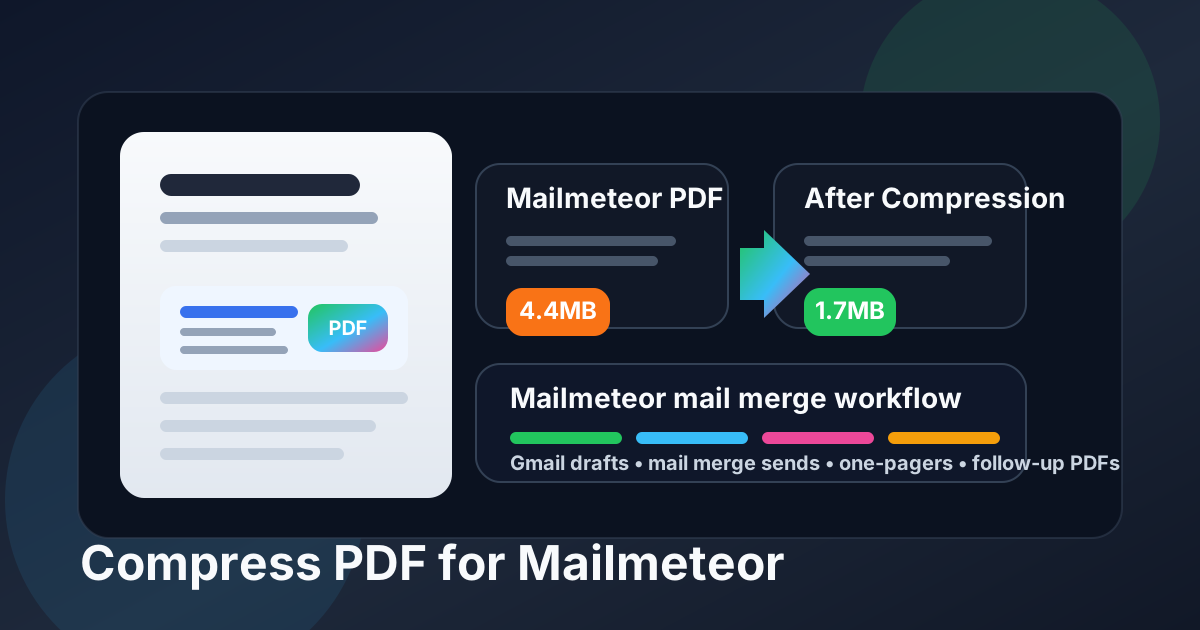
Table of contents
- Quick start: compress a Mailmeteor PDF in about 2 minutes
- Why Mailmeteor PDFs get heavy so quickly
- Where large PDFs create friction in Mailmeteor
- What file size should you aim for?
- Which compression level should you choose?
- Step-by-step: shrink a Mailmeteor PDF with LifetimePDF
- Best strategy for common Mailmeteor PDF types
- What if the file is still too big?
- How to keep names, screenshots, and offer details readable
- Workflow habits that keep Mailmeteor PDFs lighter
- Related LifetimePDF tools and useful internal reading
- FAQ (People Also Ask)
Quick start: compress a Mailmeteor PDF in about 2 minutes
- Open Compress PDF and upload the exact file you plan to attach, reuse, or share through Mailmeteor.
- Start with Medium compression. It is usually the safest balance for one-pagers, pricing sheets, case studies, proposals, and short follow-up PDFs.
- Download the smaller copy and reopen it in the place where it is really used: the Mailmeteor draft, mail merge send, or Gmail follow-up thread.
- Check the details that matter most: names, screenshot labels, pricing tables, signatures, dates, CTA buttons, and the smallest text on the busiest page.
- If the file is still heavier than it should be, use Extract Pages or Split PDF before trying stronger compression.
That order works because many mail merge PDFs are not heavy only because of image size. They are heavy because too much material got bundled into one attachment. When you clean the structure first and compress second, the result usually feels faster and more intentional.
Why Mailmeteor PDFs get heavy so quickly
Mailmeteor attachments often come from fast-moving Gmail workflows. A one-pager grows extra screenshots. A proposal picks up old versions. A case study turns into a proof packet with extra appendix pages nobody needed for the first touch. By the time the file reaches a mail merge, it is bigger than the email ever needed.
The most common reasons are simple:
- large screenshots pasted into a doc before PDF export,
- duplicate pages left behind after multiple edits,
- internal notes or approval material included in the prospect copy,
- scan-heavy pages with dark borders or background noise,
- attachments carrying an appendix that matters later, not in the first send.
In other words, size problems usually start before compression does. The clearer the prospect-facing version is, the easier it becomes to make Mailmeteor attachments smaller without damaging trust.
Where large PDFs create friction in Mailmeteor
A heavy attachment does not automatically ruin a campaign. It does create small moments of friction that quietly lower response quality:
- the file opens slowly on mobile when someone checks Gmail between meetings,
- the attachment feels bloated compared with the short, direct email around it,
- teammates keep reusing an overbuilt PDF because no one cleaned the source file,
- you compress too hard at the last minute and make the document look cheap,
- the recipient gets more pages than they need before they have even replied.
Mailmeteor is strongest when sending feels fast and low-friction. The attachment should support that feeling, not fight it.
What file size should you aim for?
For most Mailmeteor workflows, these are practical targets:
- Under 2MB: ideal for one-pagers, short case studies, capability sheets, and simple mail merge attachments.
- 2MB to 5MB: reasonable for longer proposals, screenshot-heavy decks, or multi-page follow-up packets that still need visual detail.
- Above 5MB: worth reviewing before you send, because there is usually cleaner weight you can remove before crushing image quality.
These are not hard rules. A sharp 3MB proposal is better than a blurry 900KB one. The right target is the smallest file that still feels clear, calm, and credible on a phone or laptop.
Which compression level should you choose?
Medium compression is the best starting point for most Mailmeteor PDFs. It usually cuts enough weight to remove friction while keeping names, screenshots, tables, and offer details readable.
Use compression levels like this:
- Low compression when the PDF already looks efficient and you only need a modest size drop.
- Medium compression for the default Mailmeteor workflow and most sales-facing PDFs.
- High compression only when the document is still too heavy after cleanup and the visuals are not the main trust element.
If the file includes tiny screenshot labels, price columns, signature blocks, or small details that support a buying decision, aggressive compression is usually the wrong first move. Remove waste first. Then test the lighter file before you squeeze it further.
Step-by-step: shrink a Mailmeteor PDF with LifetimePDF
- Start with the final prospect-facing PDF. Do not upload the internal working version if it still contains comments, archived pages, or appendix material.
- Open Compress PDF. Keep the workflow simple and start with the version you actually plan to send.
- Choose Medium compression first. This is usually the safest quality-to-size balance for Mailmeteor attachments.
- Download the smaller copy. Save it with a clear filename so nobody confuses it with the heavier original.
- Test the real workflow. Reopen the file in the same Mailmeteor draft, mail merge review, or Gmail follow-up context where it will be reused.
- Inspect the details that matter. Review the busiest page, the smallest text, recipient-facing names, screenshots, totals, dates, and any signature or CTA sections.
- Clean structure if needed. If the file is still too heavy, remove duplicate pages, split the appendix, or extract only the pages the recipient truly needs.
That workflow is reliable because it treats compression as part of document hygiene, not as a magic fix. Smaller files work best when the document itself is already focused.
Best strategy for common Mailmeteor PDF types
One-pagers and intro assets
These should usually land under 2MB without much drama. Medium compression is often enough. If the file is still heavy, check for oversized screenshots, repeated logos, or an unnecessary cover page before you touch stronger compression.
Proposals and pricing PDFs
These are trust-heavy documents. If totals, package notes, dates, or signature areas get fuzzy, the size win is not worth it. Compress lightly first, then remove internal pages or old versions if the PDF is still carrying too much weight.
Case studies and proof documents
These often contain screenshots, metrics, quotes, and charts. The main risk is blurring the proof. Keep the pages that tell the story clearly, compress on Medium, and inspect the pages with the densest evidence before you keep the smaller copy.
Follow-up packets
Follow-up PDFs become bloated when multiple assets get stacked into one file just because it felt convenient. Ask whether the recipient needs the whole packet right now. In many cases, sending the core document first and splitting the appendix into a separate file creates a cleaner Mailmeteor experience.
What if the file is still too big?
If Medium compression does not get you close enough, do not jump straight to maximum compression. Clean the file in smarter ways first:
- use Extract Pages to keep only the prospect-facing section,
- use Delete Pages to remove outdated versions or duplicate exports,
- use Split PDF when one file is doing too many jobs,
- use Crop PDF to trim wasted scan borders,
- re-export a cleaner original if the source file itself is overloaded with giant images.
Compression works best after the structure improves. If you try to fix a messy file only by shrinking it harder, readability usually pays the price.
How to keep names, screenshots, and offer details readable
Before you replace the original attachment, check the things recipients actually notice:
- recipient-facing names, company names, and personalization details,
- pricing, totals, package notes, and line items,
- screenshots, dashboard labels, and any tiny annotations inside them,
- signatures, dates, meeting notes, and next-step deadlines,
- the busiest page in the file, not only the cleanest one.
If any of those look fuzzy, uncertain, or tiring to zoom into, keep the lighter setting or clean the file another way. Compression should remove waste, not confidence.
Workflow habits that keep Mailmeteor PDFs lighter
A few simple habits stop attachment bloat from creeping back in:
- send the final prospect-facing PDF, not the internal working packet,
- keep archived versions and appendix material separate when they do not belong in the live send,
- replace duplicate exports instead of stacking nearly identical files for the same campaign,
- use cleaner digital originals instead of rescanning a document that already exists electronically,
- check mobile readability before deciding the PDF is truly finished.
Those habits matter because Mailmeteor works best when a recipient can open the next useful file immediately. Cleaner document discipline saves time long after the email goes out.
Related LifetimePDF tools and useful internal reading
If Mailmeteor is one part of a larger outreach stack, these tools and guides pair well with this workflow:
- Compress PDF for the main size-reduction step.
- Extract Pages when only the core document should stay attached.
- Delete Pages to remove outdated versions or repeated exports.
- Split PDF to separate the live file from backup material.
- Crop PDF to trim wasted scan borders.
- PDF Metadata Editor for cleaner document properties.
- Compress PDF for GMass.
- Compress PDF for Yesware.
- Compress PDF for Mixmax.
- Compress PDF for Woodpecker.
- Compress PDF for Reply.io.
- Lifetime access if PDF cleanup is a repeat part of your outreach workflow.
Bottom line: for most Mailmeteor PDFs, start with Medium compression, test the real Gmail mail merge workflow, and trim page weight before you use stronger compression.
FAQ (People Also Ask)
How do I compress a PDF for Mailmeteor?
Upload the final PDF to a compressor, start with Medium compression, download the smaller copy, and test it in the real Mailmeteor workflow before replacing the original. Medium is usually the safest first pass because it lowers file size without making names, pricing, screenshots, or call-to-action details harder to trust.
What file size should I aim for in Mailmeteor?
For one-pagers, short case studies, and simple mail merge attachments, under 2MB is a strong target. Longer proposals, screenshot-heavy decks, and multi-page follow-up packets usually work best around 2MB to 5MB as long as the smallest useful detail still reads clearly.
Will PDF compression blur screenshots or pricing tables in Gmail mail merge sends?
It can if you compress too aggressively. That is why Medium compression is the best place to start. Always check names, pricing, screenshot labels, signatures, dates, and the busiest page before you keep the smaller file.
Should I split a large PDF instead of compressing it harder?
Often, yes. If one PDF combines the prospect-facing document with internal notes, older versions, approvals, or a long appendix, splitting it usually creates a cleaner Mailmeteor workflow than forcing the whole bundle through aggressive compression.
Which LifetimePDF tools pair best with Mailmeteor?
Compress PDF is the main starting point. Extract Pages, Delete Pages, Split PDF, Crop PDF, PDF Metadata Editor, and OCR PDF are especially useful when you want smaller, cleaner Mailmeteor attachments without carrying extra pages, scan waste, hidden metadata, or image-only text forward.
Published by LifetimePDF - Pay once. Use forever.