Compress PDF for GMass: Keep Gmail Outreach Attachments, One-Pagers, and Follow-Up PDFs Easy to Open
To compress a PDF for GMass, upload the final one-pager, case study, proposal, or follow-up PDF to LifetimePDF's Compress PDF tool, start with Medium compression, and keep the smaller copy only after logos, screenshots, pricing, and call-to-action details still look clean in the real GMass draft, mail merge send, or Gmail follow-up workflow where the file gets reopened.
For most GMass PDFs, under 2MB is a strong target for one-pagers, short proof docs, and simple outreach attachments, while longer proposals, screenshot-heavy decks, and multi-page follow-up packets usually work best around 2MB to 5MB after light cleanup.
GMass makes it easy to send outreach from Gmail. That also means attachments need to feel light, clean, and trustworthy on the first open. The goal is not chasing the tiniest possible file. The goal is sending the smallest PDF that still looks sharp enough to support a real reply.
Fastest path: run the GMass PDF through LifetimePDF's Compress PDF tool on Medium, then extract key pages or split a bulky packet only if the document is still heavier than the real Gmail outreach workflow needs.
In a hurry? Jump to Quick start: compress a GMass PDF in about 2 minutes.
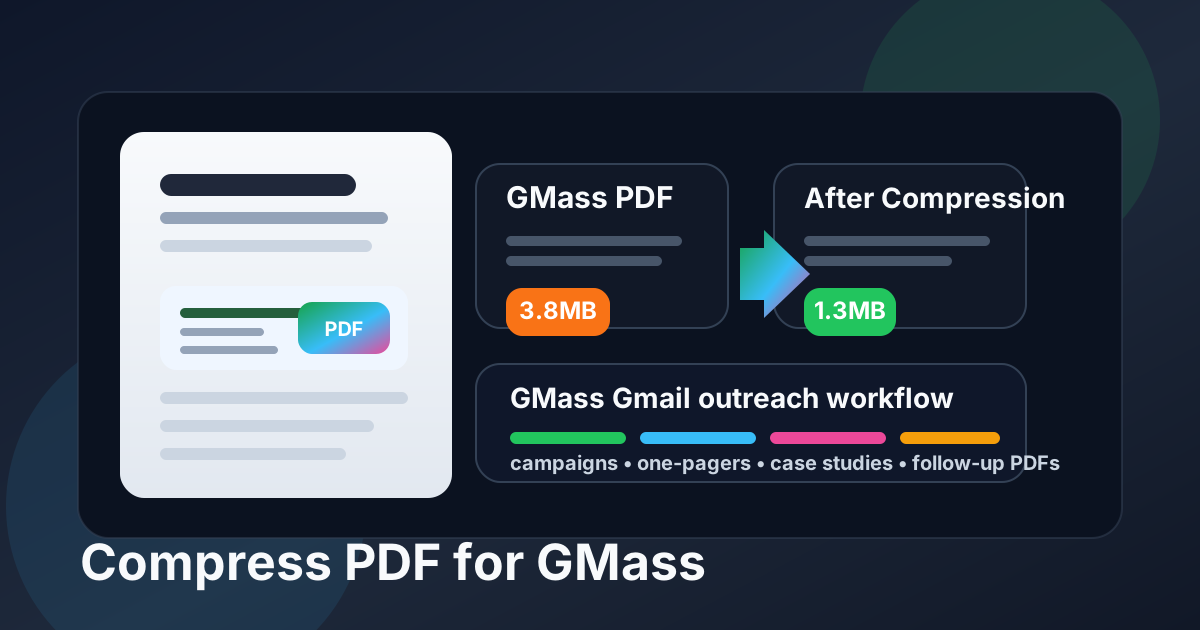
Table of contents
- Quick start: compress a GMass PDF in about 2 minutes
- Why GMass PDFs get heavy so quickly
- Where large PDFs create friction in GMass
- What file size should you aim for?
- Which compression level should you choose?
- Step-by-step: shrink a GMass PDF with LifetimePDF
- Best strategy for common GMass PDF types
- What if the file is still too big?
- How to keep screenshots, logos, and offer details readable
- Workflow habits that keep GMass PDFs lighter
- Related LifetimePDF tools and useful internal reading
- FAQ (People Also Ask)
Quick start: compress a GMass PDF in about 2 minutes
- Open Compress PDF and upload the exact file you plan to send, attach, or reuse in GMass.
- Start with Medium compression. It is usually the safest balance for one-pagers, pricing sheets, case studies, proposals, and short follow-up PDFs.
- Download the smaller copy and reopen it where the file is really used: the Gmail draft, GMass campaign, follow-up reply, or teammate handoff.
- Check the details that matter most: screenshot labels, pricing tables, names, dates, signatures, CTA buttons, and the smallest text on the busiest page.
- If the file is still heavier than it should be, use Extract Pages or Split PDF before you try stronger compression.
That order works because many outreach PDFs are not large only because of images. They are large because too much material got bundled into a single attachment. When you clean the structure first and compress second, the result usually opens faster and feels more deliberate.
Why GMass PDFs get heavy so quickly
GMass attachments often come from fast-moving sales or partnership workflows. A short one-pager becomes a proof document. A proof document picks up screenshots, customer logos, pricing notes, a meeting recap, and maybe a proposal appendix because it was easier to attach everything than decide what the prospect really needed. By the time the PDF goes into Gmail, it may be carrying much more than the next reply step actually requires.
Common causes include repeated exports, duplicate versions, oversized screenshots, dense brand graphics, scan-heavy signature pages, and background material that helped internally but does not help the reader say yes. Compression helps, but it works best after you decide which version should actually leave GMass.
Where large PDFs create friction in GMass
Large PDFs slow down more than upload time. In GMass, they create friction any time a prospect, teammate, or sender needs to reopen the file quickly inside Gmail.
- First-touch outreach: a one-pager or short proof PDF should feel easy to preview, not bulky or awkward.
- Positive-reply follow-up: when someone asks for more detail, the next attachment should open fast and feel clean.
- Mail merge sends: lighter attachments are easier to keep consistent when one campaign reaches many contacts.
- Mobile review: heavy PDFs feel worst on phones, which is where many first opens happen.
- Team handoffs: a smaller file makes it easier for another person to understand context without digging through clutter.
Smaller PDFs improve all of those moments. The best compression workflow is the one that removes waste without making the document feel weaker.
What file size should you aim for?
There is no single perfect number, but a target range keeps you from over-compressing a file that is already good enough.
- Under 2MB: ideal for one-pagers, short case studies, quick leave-behinds, and simple Gmail outreach attachments.
- 2MB to 5MB: a healthy range for longer proposals, screenshot-heavy decks, and multi-section follow-up packets.
- Over 5MB: worth reviewing before you send it, especially if the attachment is supposed to support a quick first open.
If the file stays above 5MB, do not assume stronger compression is automatically the fix. Often the smarter move is removing appendix pages, splitting backup material into a second file, or replacing a bulky scan with a cleaner original export.
Which compression level should you choose?
For most GMass workflows, the safest sequence is simple:
- Low compression: best when the PDF is already close to acceptable and only needs a modest trim.
- Medium compression: the best starting point for most one-pagers, proposals, case studies, and short follow-up PDFs because it removes obvious weight without making the file feel cheap.
- High compression: only use it after testing, especially if the document contains small pricing text, screenshot labels, signatures, chart notes, or CTA details that still need to read clearly.
Medium is the default recommendation because a GMass attachment is part of the pitch. If compression makes it fuzzy or tiring to inspect, the file is smaller but the outreach is weaker.
Step-by-step: shrink a GMass PDF with LifetimePDF
- Start with the final document. Use the actual one-pager, case study, proposal, pricing sheet, recap PDF, or follow-up leave-behind instead of an older working draft.
- Upload it to Compress PDF. Open LifetimePDF Compress PDF and add the file.
- Choose Medium first. That is usually the safest balance for GMass attachments.
- Download the smaller copy. Save it with a clear name so it does not get mixed up with older versions.
- Reopen the real workflow. View the PDF from the exact place where people will use it: a GMass campaign draft, manual Gmail follow-up, or teammate handoff note.
- Inspect the high-risk details. Check totals, dates, names, signatures, chart labels, CTA buttons, screenshot text, and the densest page in the file.
- Trim structure if needed. If the file is still heavy, delete dead pages, extract the prospect-facing section, or split background material before trying stronger compression.
That sequence keeps you from solving the wrong problem. In Gmail outreach, the best outcome is not the smallest possible PDF. It is the smallest useful PDF that still feels reliable on the first real open.
Best strategy for common GMass PDF types
Cold outreach one-pagers
These are usually the easiest files to shrink because they are mostly text, simple layout blocks, and a few visuals. Medium compression is normally enough. Just make sure the value proposition, CTA, and contact details still feel crisp.
Case studies and proof documents
These often get heavy because they mix screenshots, logos, metrics, quotes, and branded divider pages. If the file stays stubbornly large, extract only the section a prospect really needs for that stage of the conversation.
Pricing follow-ups and mini proposals
These deserve extra care because even light blur in totals, package names, or offer notes can create hesitation. Start on Medium, then inspect the busiest page before you replace the original.
Meeting recap PDFs and next-step packets
Be more careful here. Compression is still useful, but names, dates, next steps, and approval details must stay easy to verify. If one section came from a scan, zoom in before you keep the smaller version.
What if the file is still too big?
Do not keep pushing compression harder without checking the structure of the document. If Medium does not get the file where you need it, try one of these first:
- Use Delete Pages to remove draft pages, repeated covers, or appendix material.
- Use Extract Pages to keep only the prospect-facing section.
- Use Split PDF when the main document and backup material should not live together.
- Use Crop PDF to remove wasted scan borders or oversized margins.
- Use OCR PDF if an image-only scan needs to stay searchable after cleanup.
Those steps usually remove more useful weight than jumping straight to High compression.
How to keep screenshots, logos, and offer details readable
The easiest mistake is checking only the cover page. For GMass attachments, inspect the details that make real follow-up possible:
- pricing, totals, offer notes, and line items,
- names, dates, reply instructions, and next-step deadlines,
- signatures, initials, and approval fields,
- screenshots, dashboards, and labels inside them,
- logos, CTA buttons, and the busiest page in the file, not only the cleanest one.
If any of those look fuzzy, uncertain, or tiring to zoom into, keep the lighter setting or clean the file another way. Compression should remove waste, not confidence.
Workflow habits that keep GMass PDFs lighter
A few simple habits stop attachment bloat from creeping back in:
- Send the final prospect-facing PDF, not the internal working packet.
- Keep archived versions and appendix material separate when they do not belong in the live Gmail thread.
- Replace duplicate exports instead of stacking nearly identical files for the same campaign.
- Use cleaner digital originals instead of rescanning a document that already exists electronically.
- Check mobile readability before deciding the PDF is truly finished.
Those habits matter because GMass works best when the next useful file opens fast. Cleaner document discipline saves time long after the campaign is sent.
Related LifetimePDF tools and useful internal reading
If GMass is only one part of your outreach stack, these tools and guides pair well with this workflow:
- Compress PDF for the main size-reduction step.
- Extract Pages when only the core document should stay attached.
- Delete Pages to remove outdated versions or repeated exports.
- Split PDF to separate the live file from backup material.
- Crop PDF to trim wasted scan borders.
- PDF Metadata Editor for cleaner document properties.
- Compress PDF for Smartlead.
- Compress PDF for Instantly.
- Compress PDF for Saleshandy.
- Compress PDF for Reply.io.
- Compress PDF for Mailshake.
- Lifetime access if PDF cleanup is a repeat part of your outreach workflow.
Bottom line: for most GMass PDFs, start with Medium compression, test the real Gmail workflow, and trim page weight before you use stronger compression.
FAQ (People Also Ask)
How do I compress a PDF for GMass?
Upload the final PDF to a compressor, start with Medium compression, download the smaller copy, and test it in the real GMass workflow before replacing the original. Medium is usually the safest first pass because it lowers file size without making pricing, screenshots, signatures, or CTA details harder to trust.
What file size should I aim for in GMass?
For one-pagers, short case studies, and simple outreach attachments, under 2MB is a strong target. Longer proposals, screenshot-heavy decks, and multi-page follow-up packets usually work best around 2MB to 5MB as long as the smallest useful detail still reads clearly.
Will PDF compression blur screenshots or pricing tables in Gmail outreach?
It can if you compress too aggressively. That is why Medium compression is the best place to start. Always check totals, screenshot labels, signatures, dates, CTA buttons, and the busiest page before you keep the smaller file.
Should I split a large PDF instead of compressing it harder for GMass?
Often, yes. If one PDF combines the prospect-facing document with internal notes, older versions, approvals, or a long appendix, splitting it usually creates a cleaner GMass workflow than forcing the whole bundle through aggressive compression.
Which LifetimePDF tools pair best with GMass?
Compress PDF is the main starting point. Extract Pages, Delete Pages, Split PDF, Crop PDF, PDF Metadata Editor, and OCR PDF are especially useful when you want smaller, cleaner GMass attachments without carrying extra pages, scan waste, hidden metadata, or image-only text forward.
Published by LifetimePDF - Pay once. Use forever.