Compress PDF for LogicMonitor: Keep Performance Reports, Alert Summaries, and IT Docs Small Without Losing the Details
To compress a PDF for LogicMonitor, upload the file to LifetimePDF's Compress PDF tool, start with Medium compression, and keep the smaller copy only if chart labels, device names, timestamps, dashboard legends, and screenshots still look clear.
For most LogicMonitor workflows, under 2MB is a strong target for short summaries, while dashboard exports, alert reviews, SLA reports, and incident docs usually work best around 2MB to 5MB.
LogicMonitor PDFs tend to travel farther than the person exporting them expects. A performance report made for one review can quickly become an alert follow-up, an NOC handoff, a customer update, an SLA attachment, or an archive copy for later comparison. That is why file size matters. The goal is not to flatten every monitoring PDF into the smallest possible number. The goal is to make it easier to move, open, and trust while preserving the details people still need when the live dashboard is no longer on screen.
Fastest path: run the LogicMonitor PDF through LifetimePDF's Compress PDF tool on Medium, then do one quick readability check before you send, archive, attach, or store the smaller copy.
Need the short version? Jump to Quick start: compress a LogicMonitor PDF in about 2 minutes.
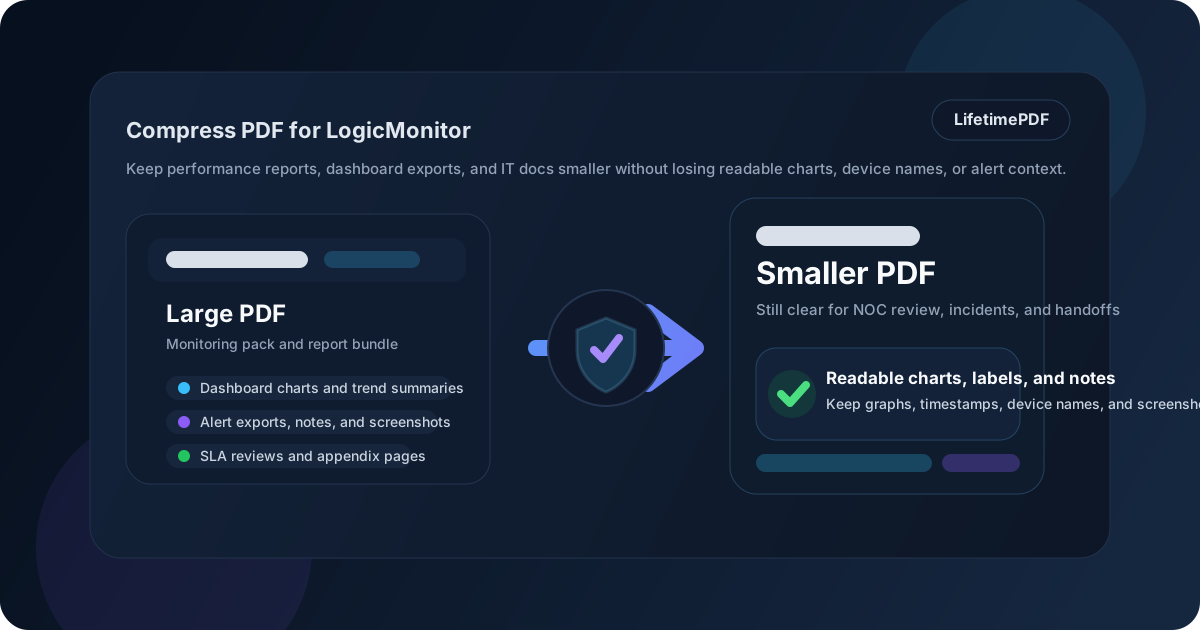
Table of contents
- Quick start: compress a LogicMonitor PDF in about 2 minutes
- Why smaller PDFs matter in LogicMonitor workflows
- What file size should you aim for?
- Which compression level should you choose?
- Step-by-step: shrink a LogicMonitor PDF with LifetimePDF
- Best strategy for common LogicMonitor PDF types
- What if the PDF is still too large?
- How to protect chart, table, and screenshot readability
- Workflow habits that keep LogicMonitor PDFs cleaner
- Related LifetimePDF tools and useful reading
- FAQ (People Also Ask)
Quick start: compress a LogicMonitor PDF in about 2 minutes
If your real goal is simply make this LogicMonitor PDF smaller so it is easier to share and review, this workflow is usually enough:
- Start with the exact PDF you actually plan to share, attach, or archive.
- Open Compress PDF.
- Choose Medium compression first.
- Download the smaller copy and compare the size change.
- Open it once and check the weak spots: graph legends, hostnames, timestamps, dashboard labels, alert text, and screenshot callouts.
- If the file is still bulkier than it should be, extract the needed pages, split the appendix, or crop wasted margins before trying stronger compression.
Why smaller PDFs matter in LogicMonitor workflows
LogicMonitor work moves faster when the next person can understand the evidence quickly. A PDF should support that handoff, not slow it down. When an export is heavier than it needs to be, the real cost is friction during incident response, recurring service reviews, customer reporting, NOC handoffs, change management, and later archive retrieval.
That friction usually shows up in ordinary ways. Someone delays opening the file because it feels bulky. A reviewer skims instead of reading the graph labels carefully. An engineer gives up on a tiny hostname buried inside a screenshot. A manager opens the PDF on a laptop or phone and misses the trend shift that mattered. Compression helps because it removes some of that drag. Cleanup helps even more because many LogicMonitor PDFs are oversized for structural reasons, not just image reasons.
Why lighter LogicMonitor PDFs usually work better
- Faster sharing: useful for tickets, reviews, customer updates, and internal handoffs.
- Smoother review: people are more likely to open a lighter export immediately.
- Better mobile access: smaller files are friendlier for on-call staff and remote stakeholders.
- Cleaner evidence packs: the PDF feels focused instead of bloated.
- Easier reuse: the same file often ends up in an incident recap, audit folder, service review, and knowledge base.
What file size should you aim for?
There is no single perfect number because a one-page KPI recap behaves differently from a multi-page dashboard export, an alert evidence pack, or a screenshot-heavy incident appendix. Still, practical targets make it easier to decide whether the file is already fine or worth shrinking further.
| Use case | Recommended target | Why it works |
|---|---|---|
| Quick status updates or lightweight summaries | < 2MB | Easy to share, preview, and reopen on almost any device |
| Dashboard exports, alert reviews, and SLA reports | 2MB to 5MB | Usually keeps charts, labels, and screenshots readable without feeling heavy |
| Long postmortem packs or appendix-heavy evidence bundles | 5MB+ | Acceptable when the packet genuinely needs many pages, but still worth trimming for clarity |
If a PDF is already small enough for the way you use it, leave it alone. Compression is useful when the file creates friction, not because every export has to hit an arbitrary number.
Which compression level should you choose?
Most LogicMonitor PDFs deserve a conservative first pass. You are usually trying to preserve chart legibility, device names, timestamps, legends, screenshot notes, and summary tables. That is why Medium compression is the best default most of the time.
Low compression
Choose Low when the file includes dense charts, narrow legends, small hostnames, tiny SLA tables, or screenshots where every detail matters. It saves less space, but it protects the details that make the PDF useful.
Medium compression
Medium is the best place to start for most LogicMonitor workflows. It usually cuts enough weight to make the file easier to send and store while keeping the smallest useful details readable.
High compression
Use High only when the file is still too large after a sensible cleanup pass or when the PDF is scan-heavy and perfect sharpness matters less than easy sharing. Always review the result carefully before replacing the original.
Step-by-step: shrink a LogicMonitor PDF with LifetimePDF
- Choose the real file you plan to share. Start with the final dashboard export, alert summary, SLA report, service review, incident packet, or customer-ready PDF.
- Open the compressor. Go to Compress PDF.
- Use Medium first. That is usually the safest balance between smaller size and readable monitoring detail.
- Download the smaller copy. Compare the size reduction with the original so you know whether the result is actually helpful.
- Open it once before sending. Check chart labels, hostnames, device group names, graph timestamps, legends, and screenshot notes.
- Only go further if needed. If the file still feels bulky, use Extract Pages, Split PDF, Delete Pages, or Crop PDF before trying stronger compression.
Useful combo: compress first, then clean up the page structure if needed. That usually works better than jumping straight to aggressive compression on the full packet.
Best strategy for common LogicMonitor PDF types
Dashboard exports
These often contain multiple charts, legends, date ranges, and explanatory notes. Medium compression usually works well, but you should always zoom in on the smallest labels once before sharing.
Alert summaries and incident handoffs
These documents are where tiny timestamps and hostnames start to matter. If the review depends on alert timing, graph context, or screenshot evidence, protect clarity before you chase a smaller number.
SLA reviews and customer-ready reports
These are often shared beyond the original operations team. A lighter file helps because account teams, managers, and customers may all need the same document later. Smaller, cleaner packets are easier to reuse.
Runbooks, change records, and audit appendices
This is where people most often regret over-compressing. Small notes, approval details, and tables can become frustratingly soft if you push the file too far. If the discussion depends on evidence detail, readability wins.
What if the PDF is still too large?
If Medium compression does not get you where you need to be, the next step is usually structural cleanup rather than brute force.
- Extract only the pages the next reviewer actually needs.
- Split one oversized packet into a main summary and a backup appendix.
- Delete duplicate covers, repeated screenshots, or stale support sections.
- Crop large margins or scanner waste that add size without adding meaning.
- Redact sensitive information before you share the smaller copy more broadly.
In many LogicMonitor workflows, the biggest file-size problem is not the monitoring data itself. It is one PDF trying to serve too many audiences at once.
How to protect chart, table, and screenshot readability
Before you replace the original file, review the parts most likely to break first:
- Chart labels and legends that become faint or soft after compression
- Device names, alert text, and timestamps that matter during incident review
- SLA tables and narrow columns that carry the key context for service discussions
- Screenshot annotations and dashboard callouts that explain what the reader should notice
- Small written notes that carry the final conclusion or action item
Workflow habits that keep LogicMonitor PDFs cleaner
Better exports start before compression. If you regularly share LogicMonitor PDFs, a few habits reduce bloat automatically:
- Export only the dashboards, devices, or time ranges the reader actually needs.
- Keep the executive summary separate from the backup appendix when the audiences are different.
- Use one clear screenshot instead of several almost-identical captures.
- Archive the full evidence bundle separately when only the summary needs to travel.
- Use redaction and metadata cleanup before broader stakeholder sharing.
That combination usually produces better PDFs than compression alone. Smaller files are helpful, but cleaner documents are what make the handoff feel professional.
Related LifetimePDF tools and useful reading
If you work with LogicMonitor exports often, these tools and guides pair especially well with this workflow:
- Compress PDF for the main size reduction step
- Extract Pages when only part of the packet matters
- Split PDF for large incident packs and appendices
- Delete Pages to remove repeats, covers, or stale backup pages
- Crop PDF for wasted margins and scanner borders
- OCR PDF if part of the packet came from scans
- Redact PDF before wider sharing
- PDF Metadata Editor for cleaner document properties
- Compress PDF for LogicMonitor: Share Smaller Performance Reports, Alert Summaries, and IT Docs Faster
- Compress PDF for Zabbix, Compress PDF for Nagios, Compress PDF for Site24x7, Compress PDF for AppDynamics, and Compress PDF for Datadog for adjacent monitoring and observability workflows
Bottom line: if the LogicMonitor PDF needs to move quickly, start with Medium compression, keep the useful details readable, and clean the packet structure before you reach for harder compression.
FAQ (People Also Ask)
How do I compress a PDF for LogicMonitor?
Upload the LogicMonitor PDF to LifetimePDF's Compress PDF tool, start with Medium compression, and keep the smaller copy only if charts, hostnames, timestamps, alert text, and screenshots still read clearly.
What file size should I aim for with LogicMonitor PDFs?
Under 2MB is a strong target for short updates and focused summaries. Multi-page dashboard exports, alert reviews, SLA reports, and incident documents usually work best around 2MB to 5MB as long as the smallest useful details still look clear.
Will compression make LogicMonitor charts or screenshots blurry?
It can if you compress too aggressively. That is why Medium compression is usually the best starting point. Always review graph legends, device names, timestamps, screenshot labels, and narrow tables before you replace the original file.
Should I split a large LogicMonitor report instead of compressing it harder?
Often, yes. If one PDF combines a leadership summary, dashboard exports, alert evidence, screenshots, backup appendices, and customer-ready pages for different audiences, splitting it usually works better than forcing stronger compression across the whole packet.
Which LifetimePDF tools help most with LogicMonitor exports?
Compress PDF is the main starting point. Extract Pages, Split PDF, Delete Pages, Crop PDF, OCR PDF, Redact PDF, and PDF Metadata Editor are especially useful when you want smaller, cleaner monitoring packets without sending the whole evidence stack every time.