Compress PDF for LiveChat: Keep Chat Attachments and Support PDFs Small Without Slowing Down Replies
To compress a PDF for LiveChat, upload the chat attachment or follow-up PDF to LifetimePDF's Compress PDF tool, start with Medium compression, and keep the smaller copy only if screenshots, order numbers, and support instructions still look clear.
For most LiveChat workflows, aim for under 2MB for short text-first PDFs and roughly 2MB to 5MB for screenshot-heavy guides, return packets, and scan-based customer paperwork.
LiveChat PDFs usually show up when somebody is waiting on an answer. That might be a troubleshooting guide, a refund policy extract, a return form, an invoice copy, a shipping document, an order summary, or a handoff packet for the next agent. The goal is not to shrink the file just for the sake of a smaller number. The goal is to make it easier to send, easier to open, and still dependable when the customer needs the details fast.
Fastest path: run the LiveChat PDF through LifetimePDF's Compress PDF tool on Medium, then do one quick readability check before you attach or forward the smaller copy.
Need the short version? Jump to Quick start: compress a PDF for LiveChat in under 2 minutes.
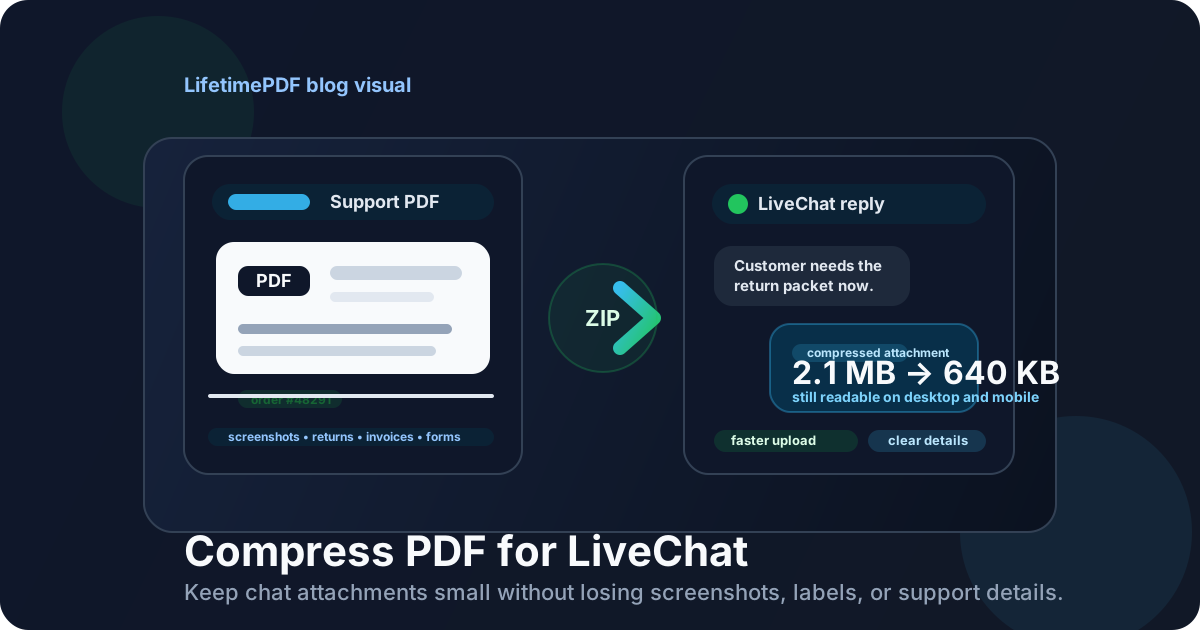
Table of contents
- Quick start: compress a PDF for LiveChat in under 2 minutes
- Why smaller PDFs help in LiveChat workflows
- What file size should you aim for?
- Which compression level should you choose?
- Best strategy for common LiveChat PDF types
- Step-by-step: shrink a LiveChat PDF with LifetimePDF
- What to clean up before compressing harder
- How to keep support replies moving
- Privacy and support hygiene before sharing
- Related LifetimePDF tools and internal links
- FAQ (People Also Ask)
Quick start: compress a PDF for LiveChat in under 2 minutes
If your real goal is simply make this LiveChat PDF smaller so it is easier to attach, review, or forward, this workflow is usually enough:
- Open Compress PDF.
- Upload the chat attachment, support guide, invoice copy, return document, case summary, or scanned form you actually plan to share.
- Choose Medium compression first.
- Download the smaller result and compare the new size with the original.
- Open it once and check the details that matter most: screenshots, order numbers, policy notes, timestamps, labels, signatures, and any line the customer is likely to question.
- If the file is still bulky, use Extract Pages, Delete Pages, or Crop PDF before trying stronger compression.
Why smaller PDFs help in LiveChat workflows
Live support depends on momentum. If the customer is waiting in chat, every extra second matters more than it does in a slower email thread. A bulky PDF creates friction at exactly the wrong moment: it uploads slower, downloads slower, opens slower on phones, and makes the handoff feel heavier than it needs to be.
Compression helps because it removes some of that weight, but the real win is smoother handling. A smaller PDF is easier to attach during a chat, easier for the customer to preview on mobile, and easier for the next agent to reuse in a follow-up. That matters whether you are sending return instructions, payment proof, policy excerpts, support evidence, or a quick case summary.
Why smaller PDFs work better in LiveChat
- Faster customer delivery: useful when somebody needs the file while the chat is still active.
- Better mobile experience: many support attachments are opened on a phone, not a large desktop display.
- Cleaner agent handoffs: lighter files are faster for another teammate to review after escalation or transfer.
- Easier reuse: the same smaller PDF can travel into email follow-ups, CRM notes, or internal ticket systems with less friction.
- Less attachment fatigue: a compact support file feels more intentional and less annoying to open.
What file size should you aim for?
There is no single permanent file-size rule for every LiveChat workflow, so practical targets matter more than chasing the smallest possible number. The right target depends on whether the PDF is mostly text, mostly screenshots, or a scan-based document with forms and signatures.
| File type | Practical target | Why it works |
|---|---|---|
| Short support guide, invoice, policy excerpt, one-page form | Under 2MB | Usually enough for text-first documents that should open quickly on any device. |
| Screenshot-heavy troubleshooting guide or case evidence | About 2MB to 5MB | Leaves room for visuals while still feeling reasonable to attach during live support. |
| Scanned return packet, warranty document, or signed form | About 3MB to 8MB | Scans are naturally heavier, but they still benefit from cleanup before you send them in chat. |
| Anything over 10MB | Usually needs cleanup | At that point, extracting pages, cropping borders, or splitting the packet often helps more than stronger compression alone. |
Which compression level should you choose?
The best setting depends on what the customer or agent needs to read. A one-page invoice behaves differently from a screenshot-heavy troubleshooting guide or a scan-based return packet.
Low compression
Good when you need to protect fine detail. Use it for PDFs with tiny labels, dense screenshots, barcodes, product diagrams, or documents where the customer may zoom in on small visual clues.
Medium compression
This is the safest starting point for most LiveChat PDFs. It usually reduces file size enough to make the document easier to send while keeping screenshots, order references, timestamps, labels, and instructions comfortably readable. If you do not want to overthink it, start here.
High compression
Use this only when the file still feels too heavy after sensible cleanup. High compression can be fine for plain text policies and simple forms, but it is riskier for screenshot-rich guides, dense tables, scanned signatures, return labels, and any page where clarity affects trust.
Best strategy for common LiveChat PDF types
Different support files deserve different treatment. The right strategy depends on what the attachment is trying to help the customer do.
Troubleshooting guide or product walkthrough
Keep screenshots readable and tightly cropped. If the guide contains repeated screens, old versions, or oversized full-window captures, cut the duplicates before pushing compression harder.
Return form, warranty packet, or shipping document
Be careful with barcodes, tracking references, form fields, and signatures. Compression is useful, but it should never make the document harder to scan or complete.
Invoice, refund summary, or payment proof
These are usually easy wins. The important parts are names, amounts, dates, reference numbers, tax lines, and payment terms. A smaller invoice PDF is fine as long as every number is still unmistakable.
Chat transcript, case handoff, or escalation summary
Keep only the parts another human actually needs. Long appendices, repeated screenshots, and pasted notes often add more weight than value. A shorter handoff packet is usually easier to trust and faster to act on.
Scanned ID, signed approval, or customer paperwork
Crop empty borders first, then compress. Scan-heavy pages often lose readability quickly under aggressive compression, especially if the file includes tiny handwritten notes or low-contrast stamps.
Step-by-step: shrink a LiveChat PDF with LifetimePDF
- Choose the final customer-facing or agent-facing file, not a bulky archive export.
- Open Compress PDF.
- Upload the support guide, invoice, order summary, return document, chat handoff, or scanned PDF.
- Start with Medium compression.
- Download the smaller copy and compare the size reduction.
- Open the new file and inspect the smallest meaningful details: order IDs, labels, timestamps, refund amounts, signatures, barcodes, screenshots, and field names.
- If the file still feels heavy, use Extract Pages, Delete Pages, or Crop PDF before trying a stronger setting.
- If the document contains personal data, old case notes, or internal comments, run Redact PDF before sending it anywhere.
What to clean up before compressing harder
If the PDF still feels too big after a reasonable first pass, stronger compression is not always the smartest next move. Often the better fix is reducing unnecessary weight at the document level.
Extract only the useful pages
If the customer only needs pages 2 through 4, sending a twelve-page PDF is needless friction. Smaller, role-specific packets are easier to open and easier to understand.
Crop empty scan borders
Phone scans and exported paperwork often carry oversized margins and dead space. Trimming those borders can reduce visual bulk and sometimes reduce file size too.
Remove duplicate screenshots or appendix pages
Support teams often reuse old troubleshooting decks and internal notes. Duplicate pages, repeated screenshots, or outdated screenshots make the PDF heavier without making the answer better.
Redact what should not travel
If a PDF includes personal data, internal comments, or information unrelated to the customer issue, remove or redact it before you optimize the file any further. Privacy problems matter more than file-size problems.
How to keep support replies moving
The best LiveChat attachment is not just smaller. It is also easier for the next person to act on. Good file hygiene makes support feel faster even when the document itself does not change much.
- Send one clear file per task: a return form, invoice copy, or instructions PDF should not also be an internal archive.
- Name files clearly: short, specific names reduce confusion during follow-up and escalation.
- Check mobile readability: if the customer is likely on a phone, zoom once before you send.
- Keep screenshots purposeful: crop to the exact setting, error message, or field that matters.
- Prefer focused attachments over giant packets: shorter files keep the support moment moving.
Privacy and support hygiene before sharing
Compression is also a good moment to check what you are about to send. Support teams reuse templates, exports, and prior-case files constantly. That is efficient, but it also creates easy opportunities for accidental oversharing.
Check for visible sensitive information
Old customer names, email addresses, order references, payment details, addresses, or internal notes should be removed or redacted before sharing. If the information is visible on the page, only redaction solves the real problem.
Check metadata too
Some PDFs still carry old author names, internal tags, export labels, or system names in metadata. That is not always dangerous, but it can look sloppy or reveal context the customer does not need.
Keep the packet audience-specific
Do not send a broad internal support archive when the customer only needs one clean instruction sheet. Privacy gets easier when each PDF only contains the minimum useful information.
Related LifetimePDF tools and internal links
LiveChat-ready PDFs usually improve fastest when you combine compression with one or two cleanup steps:
- Compress PDF for the first size reduction.
- Extract Pages if the customer only needs part of the document.
- Delete Pages to cut dead weight before compressing harder.
- Crop PDF to trim empty borders around scans and screenshots.
- Redact PDF for customer-safe sharing.
- PDF Metadata Editor to remove stale file details.
- Compress PDF for Zendesk if you also manage ticket attachments and help center exports.
- Compress PDF for Intercom for another customer-conversation workflow.
- Compress PDF for Freshdesk if your support docs also move through helpdesk tickets.
Want the simplest workflow? compress the final file on Medium, review it once, then only extract, crop, delete, or redact if the customer-facing result still needs cleanup.
FAQ (People Also Ask)
How do I compress a PDF for LiveChat?
Upload the PDF to a compressor, start with Medium compression, and keep the smaller copy only if screenshots, order numbers, labels, and instructions still look clear. Medium is usually the safest first pass because it reduces size without making the attachment frustrating to review in a live support context.
What file size should I aim for before sending a PDF in LiveChat?
Under 2MB is a strong target for short text-heavy support PDFs. Screenshot-heavy guides, return packets, and scanned paperwork often work well around 2MB to 5MB, or a bit higher if readability still matters more than hitting the smallest number possible.
Will compression ruin screenshots or labels in a LiveChat attachment?
It can if you compress too aggressively. Start with Medium, then review small labels, callouts, timestamps, order references, and screenshot text. If the file is still large, shorten or crop the document before pushing harder compression.
Should I split a large support PDF instead of compressing it harder?
Often, yes. If one PDF mixes customer-facing instructions, old appendices, internal notes, and duplicate evidence, splitting it usually works better than forcing a stronger compression setting across the whole file.
How do I remove private information before sharing a LiveChat PDF?
Use metadata cleanup if the file still shows stale author or system details, and use redaction if customer information, addresses, payment details, or internal notes are visible on the page. Visible information needs redaction, not just metadata editing.