Compress PDF for Lightdash Without Monthly Fees: Shrink Dashboard Exports, Chart Snapshots, and KPI PDFs Without Another Subscription
If you need to compress a PDF for Lightdash without monthly fees, export the file, upload it to LifetimePDF's Compress PDF tool, start with Medium compression, and keep the smaller copy only if chart labels, filter values, legends, and notes still read clearly.
For most Lightdash workflows, that is enough to shrink dashboard exports, chart snapshots, and KPI PDFs without adding another recurring subscription just to finish the sharing step.
Lightdash already handles the visible part of the job. It turns warehouse data into dashboards, keeps teams aligned around metrics, and makes it easy to export something worth discussing. The PDF problem usually shows up at the very end. Someone needs a lighter dashboard export for email, a smaller KPI pack for a leadership review, or a chart snapshot that opens fast in chat. That is exactly the kind of narrow, repeatable task where a pay-once PDF workflow makes more sense than another monthly add-on.
Fastest path: run the Lightdash export through LifetimePDF's Compress PDF tool at Medium, then split or extract pages only if the packet still includes more weight than the next reader actually needs.
In a hurry? Jump to Quick start: compress a Lightdash PDF in under 2 minutes.
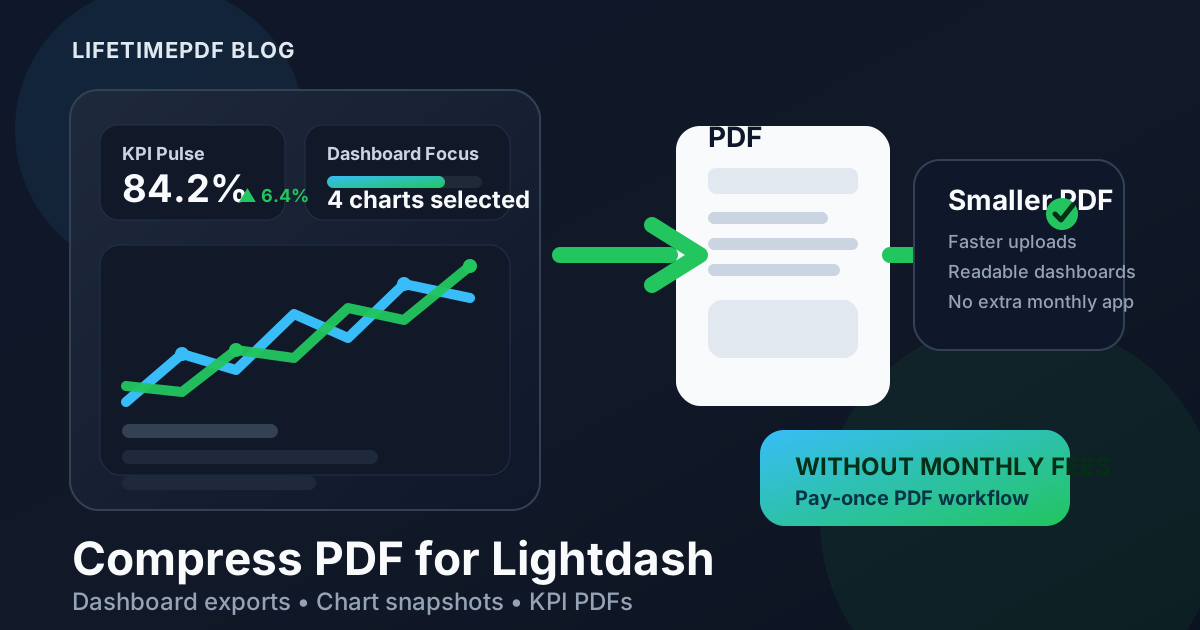
Table of contents
- Quick start: compress a Lightdash PDF in under 2 minutes
- Why "without monthly fees" matters here
- Why smaller PDFs help in Lightdash workflows
- What file size should a Lightdash PDF be?
- Which compression level should you choose?
- Step-by-step: use LifetimePDF to shrink the file
- Best approach for common Lightdash PDFs
- What to do if the PDF is still too large
- How to keep dashboard text and charts readable
- Workflow habits that reduce PDF bloat
- Related LifetimePDF tools and useful reading
- FAQ (People Also Ask)
Quick start: compress a Lightdash PDF in under 2 minutes
If your real goal is simply make this Lightdash PDF smaller so it is easier to send, this workflow is usually enough:
- Export the Lightdash file you actually plan to share, whether that is a dashboard export, chart snapshot, KPI packet, weekly review, stakeholder update, or board appendix.
- Open Compress PDF.
- Upload the file and choose Medium compression first.
- Download the smaller result and compare the new size.
- Preview the details that matter most: chart labels, filter selections, date ranges, legend text, table rows, KPI totals, and short commentary.
- If the file is still bulky, use Extract Pages, Split PDF, or Delete Pages before forcing stronger compression across the whole report.
Why "without monthly fees" matters here
This is finish-line work. The dashboard already exists. The numbers are already modeled. The chart already says what it needs to say. The only remaining problem is that the exported PDF is heavier than the next reader wants.
That is why a monthly fee often feels backwards here. Teams using Lightdash usually already pay for warehousing, data transformation, BI, and internal reporting workflows. Once the job becomes make the final PDF easier to attach, upload, or archive, another recurring tool just to reduce file size is hard to justify. A pay-once workflow matches the real need much better.
It also matches how these files are actually used. A product lead wants a smaller KPI packet for Slack. A finance stakeholder needs a dashboard export that does not bounce in email. A founder wants a chart snapshot tucked into a board deck without inflating the whole packet. None of those moments really needs a second subscription whose only role is shrinking the last file in the chain.
Simple logic: if Lightdash already did the dashboard work, a pay-once PDF workflow usually fits the sharing step better than a monthly add-on.
Why smaller PDFs help in Lightdash workflows
Lightdash exports rarely stay inside Lightdash forever. They get dropped into project docs, attached to weekly recaps, copied into board packets, posted in chat, and saved for later comparison. Heavy PDFs slow all of that down.
The problem is not only upload limits. Large files also make people hesitate to open them on mobile, delay previews in shared folders, and add friction when a simple KPI update should feel lightweight. A smaller file is easier to move, quicker to preview, and less annoying to store.
That matters even more with Lightdash because many exports are visually dense. One PDF might include several charts, filters, table snippets, trend lines, and a bit of commentary. If you compress too aggressively, the file becomes smaller but the useful parts get harder to trust. The goal is not the tiniest possible PDF. The goal is a smaller PDF that still communicates clearly.
What file size should a Lightdash PDF be?
There is no universal perfect number, but these targets are practical for most teams:
- Under 2MB: ideal for one-page dashboard exports, single-chart snapshots, short KPI summaries, and quick team updates.
- 2MB to 5MB: realistic for multi-page stakeholder packs, board-review PDFs, and exports that mix charts with notes or backup visuals.
- Over 5MB: usually a signal to review the packet structure, not just the compression level.
If the file size stays stubbornly high, the problem is often packaging. Too many pages, repeated appendix screenshots, overly wide margins, or several audience-specific sections bundled into one PDF can add more weight than the charts themselves.
Which compression level should you choose?
For Lightdash exports, the safest order is simple:
- Start with Medium. This is usually the best balance between file size and readability.
- Use stronger compression only when necessary. It can help for presentation-heavy pages, but it is more likely to soften tiny labels and dense chart text.
- Split before you over-compress. If the file combines several audiences or backup pages, trimming the packet often works better than pushing image quality lower.
Medium is usually enough because Lightdash exports often depend on relatively small details: axis labels, compact legends, short annotations, filter pills, and KPI context. Those are exactly the elements that suffer first when compression gets too aggressive.
Step-by-step: use LifetimePDF to shrink the file
- Export only what matters. If you do not need every dashboard page, do not start with the biggest possible packet.
- Upload to Compress PDF.
- Choose Medium compression. This is the best default for exports with charts, tables, filters, and notes.
- Download and compare. Do not assume smaller is automatically better. Open the file and read the smallest meaningful text.
- Check the details that carry meaning. Look at legends, date ranges, filter chips, KPI deltas, and note text.
- Clean up only if needed. If the file is still larger than it should be, extract the summary pages, delete low-value appendix pages, or split the packet into separate PDFs.
Best approach for common Lightdash PDFs
Dashboard exports
These are usually ideal for Medium compression. The biggest risk is making smaller axis labels or sidebar details harder to read. Review the most crowded chart before you keep the file.
Chart snapshots
These often compress very well because the PDF is short and visually focused. Aim for a small file that still keeps trend labels, legend keys, and date markers crisp.
KPI packs
KPI summaries usually look simple, but they often include small deltas, subtle percentages, and short explanatory notes. Do one careful pass on the smallest numbers and labels before sending them widely.
Stakeholder updates or board packets
These are where file bloat often hides. The issue is not always the dashboards. It is often the combination of summary pages, supporting charts, screenshots, and appendix material. Splitting the packet can work better than stronger compression.
What to do if the PDF is still too large
If compression alone does not get you where you need to be, do not jump straight to the harshest settings. Try these in order:
- Extract only the summary pages using Extract Pages.
- Split the document by audience, meeting section, or reporting purpose with Split PDF.
- Remove repeated or low-value pages with Delete Pages.
- Then run compression again on the cleaner file.
That sequence usually preserves readability better than trying to squeeze everything through one heavier compression pass.
How to keep dashboard text and charts readable
Before you share the compressed copy, check the pieces that people rely on to interpret the data correctly:
- chart labels and axis text
- legend colors and legend wording
- filter selections and date ranges
- KPI values, deltas, and percentage changes
- small commentary blocks or summary notes
- table headers and the most crowded rows
If any of those feels fuzzy, you usually have two better options than stronger compression: keep Medium and accept a slightly bigger file, or send fewer pages.
Workflow habits that reduce PDF bloat
The cleanest way to shrink Lightdash PDFs is to export more intentionally in the first place. A few simple habits help a lot:
- Export the pages the next reader actually needs, not every page available.
- Use separate packets for executives, operators, and deep-dive reviewers when their needs differ.
- Keep appendix material separate from the main story when possible.
- Use one quick readability check every time instead of assuming the same compression level fits every export.
- Store smaller reviewed copies instead of repeatedly forwarding giant originals.
Small habits like those usually save more time than endlessly chasing the tiniest possible file size.
Related LifetimePDF tools and useful reading
If you handle dashboard exports often, these tools and guides pair well with this workflow:
- Compress PDF for the first size reduction pass.
- Extract Pages when only the summary section matters.
- Split PDF when one packet is doing too many jobs.
- Delete Pages for removing repetitive appendix material.
- Compress PDF for Lightdash: Share Smaller Dashboard Exports, Chart Snapshots, and KPI PDFs Faster for the broader general-use version of this topic.
- Compress PDF for Klipfolio Without Monthly Fees, Compress PDF for GoodData Without Monthly Fees, and Compress PDF for IBM Cognos Analytics Without Monthly Fees if you manage several BI exports across one reporting stack.
Want the shortest possible workflow? Compress the Lightdash PDF first, then split or extract pages only if the result is still heavier than your reader needs.
FAQ (People Also Ask)
How do I compress a PDF for Lightdash without monthly fees?
Use a pay-once PDF tool like LifetimePDF, upload the Lightdash export, start with Medium compression, and preview the smaller result before you share it. If the file is still too large, split or extract the pages the next reader actually needs instead of over-compressing the whole packet.
What file size should I aim for with Lightdash PDFs?
Under 2MB is a strong target for one-page dashboard exports, short KPI updates, and focused chart snapshots. Broader reporting packs usually work better around 2MB to 5MB as long as labels, filters, notes, and legends still read clearly.
Will compression make Lightdash charts or filters blurry?
It can if you compress too aggressively. That is why Medium compression is usually the safest first pass. Review the smallest chart labels, filter values, legend text, notes, and KPI totals before keeping the compressed file.
Should I split a large Lightdash packet instead of compressing it harder?
Often, yes. If one PDF combines an executive summary, multiple dashboards, appendix charts, and backup screenshots, splitting it usually works better than pushing stronger compression across the entire packet.
Why look for a Lightdash PDF workflow without monthly fees?
Because shrinking the final PDF is finish-line work. If your team already pays for analytics, warehousing, BI, and reporting software, another recurring bill just to reduce export size is hard to justify. A pay-once workflow fits the job better.