Compress PDF for KnowledgeOwl: Keep Help Center Guides, SOPs, and Customer Docs Lighter
To compress a PDF for KnowledgeOwl, upload the final help center guide, onboarding packet, SOP, policy handout, or customer-facing reference PDF to LifetimePDF's Compress PDF tool, start with Medium compression, and keep the smaller copy only if headings, screenshots, tables, and callout boxes still read clearly when you reopen it from the article or category where it will actually live.
For most KnowledgeOwl workflows, aim for under 4MB for text-heavy downloads and roughly 4MB to 10MB for screenshot-rich onboarding packs, implementation walkthroughs, and scan-heavier PDFs that still need to feel dependable.
KnowledgeOwl works best when the article gives the explanation and the PDF supports it without turning the experience heavy. Trouble starts when a customer clicks a help center download and gets a sluggish file full of repeated pages, oversized screenshots, or scanner waste. The goal is not to flatten every document until it looks thin. The goal is to cut wasted weight while keeping the pages people still need to trust.
Fastest path: compress the final PDF on Medium, reopen the smaller copy from the real KnowledgeOwl article where it will live, then check one dense text page and one screenshot-heavy, table-heavy, or form-heavy page before you replace the original.
Need the short version? Jump to Quick start: compress a PDF for KnowledgeOwl in under 2 minutes.
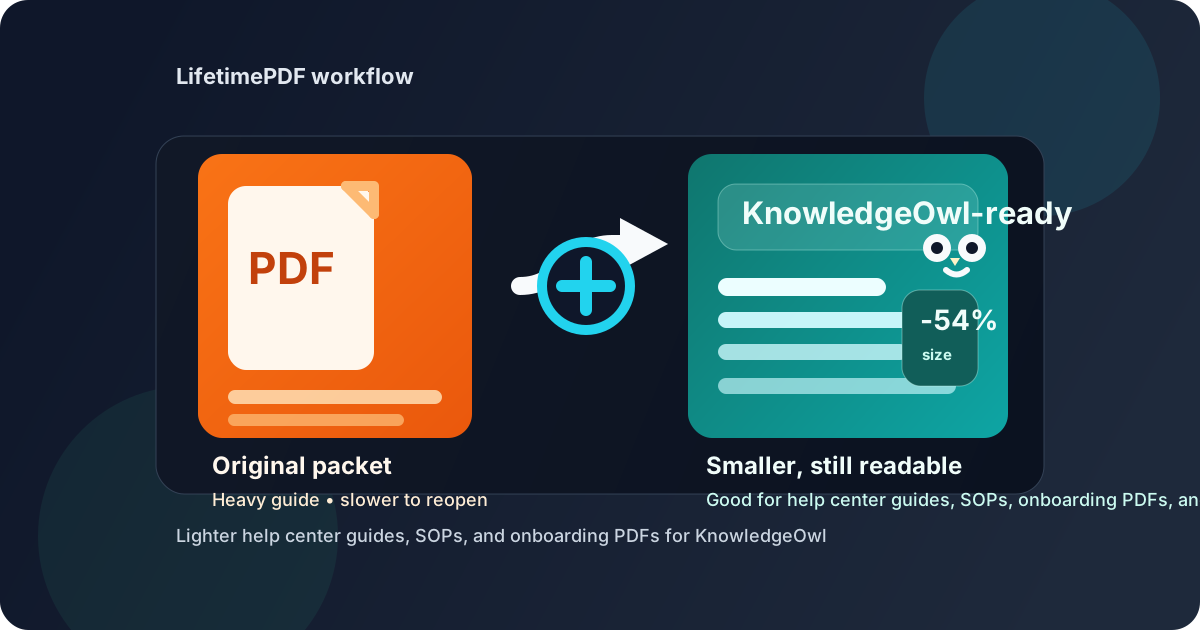
Table of contents
- Quick start: compress a PDF for KnowledgeOwl in under 2 minutes
- Why smaller PDFs help in KnowledgeOwl
- What makes a good KnowledgeOwl PDF attachment
- What file size should you aim for?
- Which compression level should you choose?
- Step-by-step: shrink a KnowledgeOwl PDF with LifetimePDF
- Best strategy for common KnowledgeOwl PDF types
- What if the PDF is still too large?
- How to keep KnowledgeOwl docs cleaner over time
- Related LifetimePDF tools and useful internal links
- FAQ
Quick start: compress a PDF for KnowledgeOwl in under 2 minutes
- Open Compress PDF.
- Upload the exact PDF you want to share from KnowledgeOwl, not an older draft.
- Start with Medium compression.
- Download the smaller file and reopen it from the real KnowledgeOwl article or category page.
- Zoom in on the smallest text, the busiest screenshot, and any table or form field that customers still need to read.
- If the file is still too bulky, use Extract Pages, Split PDF, or Crop PDF before trying harsher compression.
That workflow is usually enough for SOPs, printable help guides, onboarding packets, implementation summaries, and customer reference PDFs. It is faster than repeatedly re-exporting the same document and safer than pushing compression until the instructions become annoying to trust.
Why smaller PDFs help in KnowledgeOwl
A KnowledgeOwl article should answer a question quickly. When the supporting PDF is too heavy, readers feel the drag even if they never say it out loud. The download takes longer, the file reopens more slowly on mobile, and support teams end up sending separate copies because the original feels clumsy.
Smaller PDFs improve the workflow in practical ways:
- Faster customer access: lighter guides reopen more quickly on phones, laptops, and slower connections.
- Cleaner support handoffs: agents can share one dependable PDF instead of apologizing for a bloated one.
- Less duplicate clutter: when the file is easy to keep, teams are less likely to create multiple “final-final-v2” variants.
- Better trust: a compact PDF that still looks crisp feels maintained, while a giant messy export feels neglected.
None of that means every file should be tiny. A useful PDF is always better than a small useless one. The sweet spot is a document that opens quickly and still preserves the details a reader actually came for.
What makes a good KnowledgeOwl PDF attachment
The best KnowledgeOwl PDFs do one job well. They support the article instead of trying to become the entire knowledge base inside one download.
- One clear purpose: a setup checklist, printable SOP, policy summary, or customer handout is better than a giant mixed bundle.
- Final content only: remove outdated pages, duplicate covers, old appendices, and drafts before you compress.
- Searchable text when possible: if the PDF is scan-heavy, OCR PDF may help more than brute-force compression.
- Readable screenshots: if readers depend on interface screenshots, make those your first quality checkpoint after compression.
- Clean naming and metadata: a sensible filename and tidy document properties make the file easier to reuse later.
Practical rule: if one PDF contains several unrelated sections, split it before you compress it harder. Readers using a help center usually want one answer, not a grab bag.
What file size should you aim for?
There is no magic number that fits every KnowledgeOwl workflow, but some targets are more realistic than others.
- Under 2MB: ideal for short text-first guides, one-page handouts, and lightweight reference sheets.
- Under 4MB: a strong target for many SOPs, policy guides, checklists, and customer-facing instructions.
- 4MB to 10MB: reasonable for screenshot-rich onboarding packs, implementation walkthroughs, forms, and moderate scan bundles.
- 10MB+: not automatically bad, but usually worth reviewing for repeated pages, oversized images, or content that should be split into separate downloads.
If the PDF is mostly text, getting under 4MB is often straightforward. If it is a long scan or image-heavy packet, a heavier final size may still be the better tradeoff if customers can actually read it.
Which compression level should you choose?
In most cases, Medium compression is the right starting point for KnowledgeOwl. It usually cuts enough weight to make the file easier to use while keeping text, screenshots, tables, and callout boxes in good shape.
| Compression level | Best for | Watch out for |
|---|---|---|
| Low | Already-clean exports that only need a modest reduction | May not cut enough size if the file is full of screenshots or scans |
| Medium | Most help center guides, SOPs, onboarding packets, and customer docs | Still review tiny labels, table text, and screenshot details |
| High | Non-critical PDFs where hitting a size limit matters more than visual polish | Image-based text, UI screenshots, and small diagrams can degrade fast |
If Medium is not enough, fix the structure before you jump straight to High. Removing irrelevant pages usually helps more than squeezing the useful pages harder.
Step-by-step: shrink a KnowledgeOwl PDF with LifetimePDF
- Start with the final version. Use the exact PDF that belongs in the live help center article.
- Open Compress PDF.
- Upload the file. This might be a printable quick-start guide, an internal SOP, a customer onboarding pack, or a policy reference.
- Choose Medium compression first. It is the safest default when readability still matters.
- Download and test the result. Open it from the real article, not just from your downloads folder.
- Check the risky spots. Zoom in on screenshots, table headers, footnotes, numbered steps, and any text embedded inside images.
- Replace only when it passes. If the compressed file feels lighter and still trustworthy, use it. If not, clean the source structure and try again.
That last review step matters. A PDF can look fine in a local preview and still feel rough once it is reopened from a real help article on a smaller screen.
Best strategy for common KnowledgeOwl PDF types
Help center guides and printable walkthroughs
These usually compress well because they are text-heavy. Start with Medium, then verify that headings, numbered steps, and any annotated screenshots still feel easy to follow.
Customer onboarding packets
These often include screenshots, tables, and checklists. Medium is still a good default, but keep an eye on tiny labels inside interface captures. If the packet covers several separate tasks, split it into smaller topic-based PDFs instead of forcing one giant bundle to do everything.
Internal SOPs and support playbooks
These files live longer than people expect. Compression is helpful, but clear structure matters just as much. Remove stale pages, repeated headers, and archived variants before you compress.
Policy documents and compliance handouts
Text-heavy policy files usually shrink cleanly. The main risk is not visual quality but version confusion, so make sure the final file has the right name and clean metadata.
Scan-heavy forms or signed paperwork
These are the hardest to shrink gracefully because every page behaves more like an image. Compression helps, but the bigger win usually comes from cropping scanner waste and using OCR PDF so the file is easier to search and reuse later.
What if the PDF is still too large?
If the first pass still leaves the file too heavy, do not assume harsher compression is the only answer. In many cases, the real problem is that the PDF contains more than the KnowledgeOwl reader actually needs.
- Use Extract Pages when only one chapter, appendix, or form section belongs in the article.
- Use Delete Pages to remove covers, blanks, duplicate inserts, or archived sections.
- Use Split PDF when one giant file would work better as smaller topic-specific downloads.
- Use Crop PDF if empty margins and scanner waste are inflating the file.
- Use OCR PDF if the real problem is that the scan is hard to search, not just large.
- Use PDF Metadata Editor when you want a cleaner final handoff file.
The best outcome is not always the smallest file. It is the cleanest file that still makes the article easier to use.
How to keep KnowledgeOwl docs cleaner over time
Good PDF hygiene saves more time than one-off compression. If your team regularly shares documents through KnowledgeOwl, a few simple habits keep the library cleaner:
- Publish one PDF per topic instead of one oversized bundle for everything.
- Prefer final exports over repeatedly edited copies that carry stale pages forward.
- Review mobile readability, not just desktop readability.
- Retire outdated attachments instead of stacking near-duplicates.
- Keep filenames and document titles consistent so support teams can find the right version quickly.
Readers notice when a knowledge base feels maintained. Smaller, cleaner PDFs are a quiet part of that feeling.
Make KnowledgeOwl downloads easier to open
Start with compression, then clean the structure only if the first pass is not enough. That gives you smaller PDFs without making customer-facing instructions feel brittle.
FAQ
How do I compress a PDF for KnowledgeOwl?
Upload the final PDF to a compressor, start with Medium compression, and keep the smaller copy only if headings, screenshots, tables, and step-by-step instructions still look clean when you reopen it from the KnowledgeOwl article where it belongs.
What file size is best for KnowledgeOwl PDFs?
Under 4MB is a strong target for many text-heavy guides and SOPs. Screenshot-rich onboarding packets and scan-heavier reference files often work best around 4MB to 10MB if the important details still read clearly.
Will compression make support screenshots blurry?
Usually not if you start with Medium compression, but tiny labels inside screenshots are one of the first places where quality loss becomes noticeable. Always check the busiest screenshot before replacing the original.
Should I split a large KnowledgeOwl PDF instead of compressing harder?
Yes, if the file covers several unrelated topics. Smaller topic-based downloads are easier for readers to navigate and usually compress more gracefully than one oversized bundle.
Which LifetimePDF tools help beyond compression?
Extract Pages, Delete Pages, Split PDF, Crop PDF, OCR PDF, and PDF Metadata Editor are the best companion tools when you want lighter, cleaner KnowledgeOwl downloads.