Compress PDF for KWFinder: Make Keyword Research Reports Smaller Without Losing Readability
To compress a PDF for KWFinder, export the report as a PDF, upload it to Compress PDF, start with Medium compression, and keep the smaller copy only if keyword tables, search volume, notes, and SERP screenshots still look clear.
For most KWFinder exports, a target of under 2MB works well for shortlists and fast handoffs, while larger research packs and client summaries usually land best around 2MB to 4MB.
Most people searching this phrase are not trying to discover a complicated workflow. They already have the research. They just need a smaller PDF that uploads faster, shares more easily, and still preserves the numbers and screenshots that make the recommendation believable. That is the real job. A compressed KWFinder PDF is useful only if the next reader can still scan the keyword rows, understand the SERP context, and act on the summary without fighting the file.
Fastest path: run the KWFinder export through LifetimePDF's Compress PDF tool at Medium, then split or extract pages only if the file is still larger than your delivery channel or reader actually needs.
In a hurry? Jump to Quick start: compress a KWFinder PDF in under a minute.
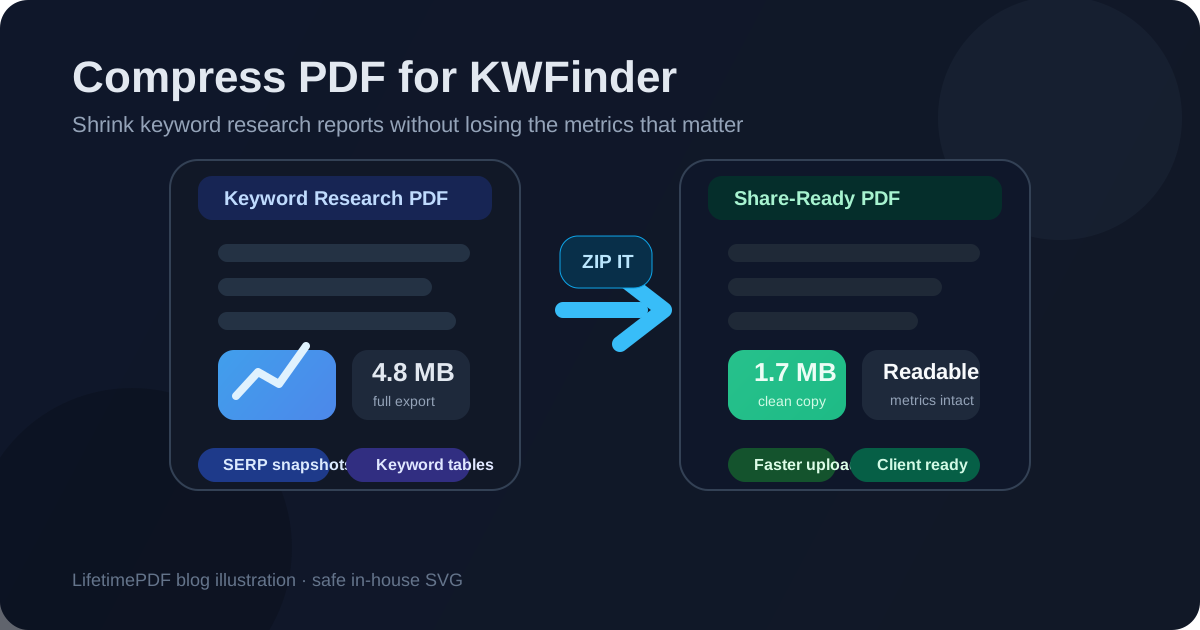
Table of contents
- Quick start: compress a KWFinder PDF in under a minute
- Why smaller KWFinder PDFs are easier to use
- What file size should you aim for?
- Which compression level should you choose?
- Step-by-step: shrink a KWFinder PDF with LifetimePDF
- Best approach for common KWFinder file types
- What if the file is still too large?
- How to keep keyword metrics and screenshots readable
- Workflow habits that reduce PDF bloat
- Related LifetimePDF tools and internal links
- FAQ (People Also Ask)
Quick start: compress a KWFinder PDF in under a minute
If your goal is simply make this KWFinder PDF smaller so I can send it without headaches, this is the shortest dependable workflow:
- Open Compress PDF.
- Upload the KWFinder export, keyword shortlist, SERP snapshot, or client report you want to shrink.
- Choose Medium compression first.
- Download the result and compare the new file size with the original.
- Open the compressed copy once and check the smallest important details: keyword rows, volume, difficulty, notes, and screenshot labels.
- If the PDF is still bulky, use Split PDF, Extract Pages, or Delete Pages before trying a stronger compression level.
Why smaller KWFinder PDFs are easier to use
KWFinder reports usually get exported because the research needs to travel. Maybe a writer needs a shortlist. Maybe a strategist needs the SERP evidence behind the recommendation. Maybe a client needs a clean summary that explains the opportunity without opening another platform. In all of those cases, a smaller PDF reduces friction.
Heavy files slow down handoffs in ordinary ways. They take longer to upload, they are more annoying to forward, and they often feel less approachable when someone opens them on a phone or a cluttered laptop. The extra size usually comes from screenshot-heavy pages, repeated exports, large appendices, or one oversized PDF trying to serve every audience at once. Compression helps, but the real win is turning the file into something people will actually open and use.
The goal is not to make the PDF microscopic. The goal is to make it light enough to share while keeping the parts that still carry meaning: keyword text, search volume, difficulty scores, intent notes, SERP screenshots, and the summary that tells people what to do next.
Simple rule: the best KWFinder PDF is the smallest version that still tells the keyword story clearly.
What file size should you aim for?
There is no universal perfect number because a one-page shortlist behaves differently from a screenshot-heavy research pack. Still, useful targets make decisions easier.
| KWFinder PDF type | Practical target | Why it works |
|---|---|---|
| Focused keyword shortlists and internal handoffs | Under 2MB | Usually quick to email, upload, and review without sacrificing keyword rows or notes |
| SERP snapshots and planning recaps | 2MB to 3MB | Leaves room for screenshots and annotations while keeping the file manageable |
| Client-ready reports with several sections | 3MB to 4MB | More realistic when the document includes evidence pages, context, and summary commentary |
| Anything above 4MB | Compress again or reduce page count | Often a sign the file includes more screenshots or appendix material than the next reader needs |
These are not hard limits. They are sanity checks. If the file opens quickly, sends cleanly, and still looks trustworthy when you zoom in on the smallest important detail, you are usually in the right zone.
Which compression level should you choose?
For most KWFinder exports, Medium compression is the safest first choice. It usually reduces enough file size to matter without immediately damaging the keyword metrics or screenshots people rely on.
- Low compression: use it when the file is only slightly too large and the pages include very small text or dense tables.
- Medium compression: best starting point for most KWFinder reports because it balances size and readability well.
- High compression: only use it after cleanup if the file still needs to shrink and you are willing to review every detail carefully.
The biggest mistake is choosing the strongest setting before doing any cleanup. If the file contains repeated screenshots, oversized appendix pages, or pages meant for different audiences, trimming the document structure usually works better than crushing every page harder.
Step-by-step: shrink a KWFinder PDF with LifetimePDF
- Export the version you actually intend to share. Do not compress a draft full of pages nobody needs.
- Open Compress PDF.
- Upload the file. This could be a shortlist, grouped report, SERP snapshot deck, or client summary.
- Choose Medium compression. It is the safest first pass for most keyword research PDFs.
- Download the result. Save it clearly so you can compare it with the original if needed.
- Check the high-risk details. Review keyword labels, search volume, difficulty scores, CPC values, trend visuals, screenshot text, and notes.
- Only then share it. If the compressed copy still looks dependable, you are done. If not, reduce the page count and try again.
Good workflow: compress first, then decide whether you also need to extract pages, split the pack, crop margins, or clean metadata.
Best approach for common KWFinder file types
Keyword shortlists
These usually compress well because they are more table-driven than image-heavy. Medium compression is often enough. The main review step is checking whether the smallest keyword rows and note columns still read comfortably.
SERP snapshots
Screenshot-backed PDFs can grow quickly. They are also where over-compression becomes most obvious. If the SERP evidence matters, it is usually better to keep a slightly larger file than to force the screenshots into something blurry and hard to trust.
Grouped research packs
These often mix shortlist pages, screenshots, commentary, and appendix material for multiple readers. If the file is serving different audiences, splitting it often produces a more useful result than applying stronger compression to everything at once.
Client-ready summaries
Client files should feel light, deliberate, and easy to forward. That does not mean removing every support detail. It means packaging the right pages in the cleanest file possible. Often the best move is a concise summary PDF plus a separate appendix rather than one oversized all-in-one report.
What if the file is still too large?
If you already compressed the PDF once and it is still awkward, do not assume the only answer is more compression. In many cases, the smarter fix is to share less PDF.
- Split the summary from the appendix.
- Extract only the pages the next reader actually needs.
- Delete repeated screenshots, outdated pages, or blank filler pages.
- Crop oversized margins around screenshots and exported captures.
- Keep the full archive separately and send the lighter working copy.
Those changes often produce a better result than pushing the compression level higher, because they remove waste without damaging the useful content.
Still too heavy? Shorten the document first, then compress the smaller version again.
How to keep keyword metrics and screenshots readable
The real fear behind this query is simple: I want a smaller file, but I do not want the research to become mush. That is a fair concern. Text-heavy pages usually compress nicely. The risk shows up on dense tables, tiny metric columns, and screenshot-heavy pages.
- Usually safe: short summaries, simple shortlist pages, and notes with limited visuals.
- Watch closely: difficulty scores, search volume columns, CPC values, trend visuals, screenshot labels, and any text someone may need to zoom in on.
- Fast quality check: zoom in on one dense keyword table and one screenshot page after compression. If both still look clean, the file is usually ready.
If the PDF stops feeling trustworthy in the exact places people need to inspect, step back. A slightly larger file that stays readable is more useful than a tiny one that undermines the work.
Workflow habits that reduce PDF bloat
The easiest KWFinder PDFs to compress are the ones that were packaged intelligently from the start. A few habits make a real difference:
- Keep a master and a shared copy: archive the full export, but send the lighter version by default.
- Split by audience: writers, strategists, and clients usually need different slices of the same research.
- Use fewer screenshots: include the pages that prove the point, not every capture you took.
- Name files clearly: labels like
shortlist,client-copy, andappendixreduce confusion. - Clean the finish line: use PDF Metadata Editor if the file should look polished when someone checks its properties.
Smaller PDFs often feel more professional because they respect the reader's time as much as their inbox. That matters in agencies, internal SEO teams, and client reporting alike.
Related LifetimePDF tools and internal links
Compressing a PDF for KWFinder is often one step in a broader workflow. These tools pair especially well with it:
- Compress PDF - reduce size for easier sharing and faster uploads
- Split PDF - separate the summary from the appendix
- Extract Pages - keep only the pages the next reader needs
- Delete Pages - remove duplicate or unnecessary pages
- Crop PDF - trim wasted margins around screenshots
- Compare PDFs - check revised research packs side by side
- PDF Metadata Editor - tidy document properties before delivery
Suggested internal reading
- Compress PDF for KWFinder: Share Smaller Keyword Research Exports, SERP Snapshots, and Client PDFs Faster
- Compress PDF for KWFinder Without Monthly Fees
- Compress PDF for Mangools
- Compress PDF for KeywordTool.io
- Compress PDF for Keywords Everywhere
- Compress PDF for LowFruits
- Browse all LifetimePDF articles
Ready to shrink a KWFinder PDF? Start with balanced compression, then trim the file only if the next reader needs an even lighter copy.
FAQ (People Also Ask)
How do I compress a PDF for KWFinder?
Export the KWFinder report as a PDF, upload it to an online PDF compressor, start with Medium compression, and review the smaller copy before you send it. Medium is usually the safest first pass because it reduces file size without immediately blurring keyword tables, notes, or SERP screenshots.
What file size is best for a KWFinder PDF?
Under 2MB is a solid target for focused shortlists and quick internal handoffs. For broader research packs or client-ready summaries, 2MB to 4MB is usually more realistic as long as the smallest useful text remains easy to read.
Will compressing a KWFinder PDF make the metrics blurry?
It can if you compress too aggressively. That is why Medium compression is the best default for most cases. Always check search volume, keyword difficulty, CPC values, screenshot labels, and notes before keeping the compressed version.
Is it better to split a large KWFinder report instead of compressing it harder?
Often, yes. If the document mixes a summary, screenshots, appendix pages, and notes for different readers, splitting it usually creates a cleaner result than squeezing every page harder.
Which LifetimePDF tools help most with KWFinder exports?
Compress PDF is the main starting point. Split PDF, Extract Pages, Delete Pages, Crop PDF, Compare PDFs, and PDF Metadata Editor all help create lighter, cleaner keyword research PDFs.
Published by LifetimePDF - Pay once. Use forever.