Compress PDF for JobAdder: Make Resumes and Supporting Files Smaller Without Hurting ATS Readability
To compress a PDF for JobAdder, upload your final resume or supporting file to LifetimePDF's Compress PDF tool, start with Medium compression, and keep the smaller copy only if names, dates, headings, bullet points, and links still look clear.
For most JobAdder uploads, aim for under 2MB for resumes and cover letters, and roughly 2MB to 5MB for certificates, transcripts, portfolios, or other scan-heavy supporting PDFs.
JobAdder usually sits inside a recruiter workflow that already asks you to move quickly. You might be tailoring a resume, swapping in a fresher cover letter, adding a transcript, or responding to an agency request before the role cools off. A bulky PDF adds friction at exactly the wrong moment. The goal is not to squeeze the file until it looks rough. The goal is to make the upload lighter while keeping the document readable, professional, and trustworthy when a recruiter opens it.
Fastest path: run the JobAdder file through LifetimePDF's Compress PDF tool on Medium, then do one quick readability check before uploading the lighter copy.
Need the short version? Jump to Quick start: compress a PDF for JobAdder in under 2 minutes.
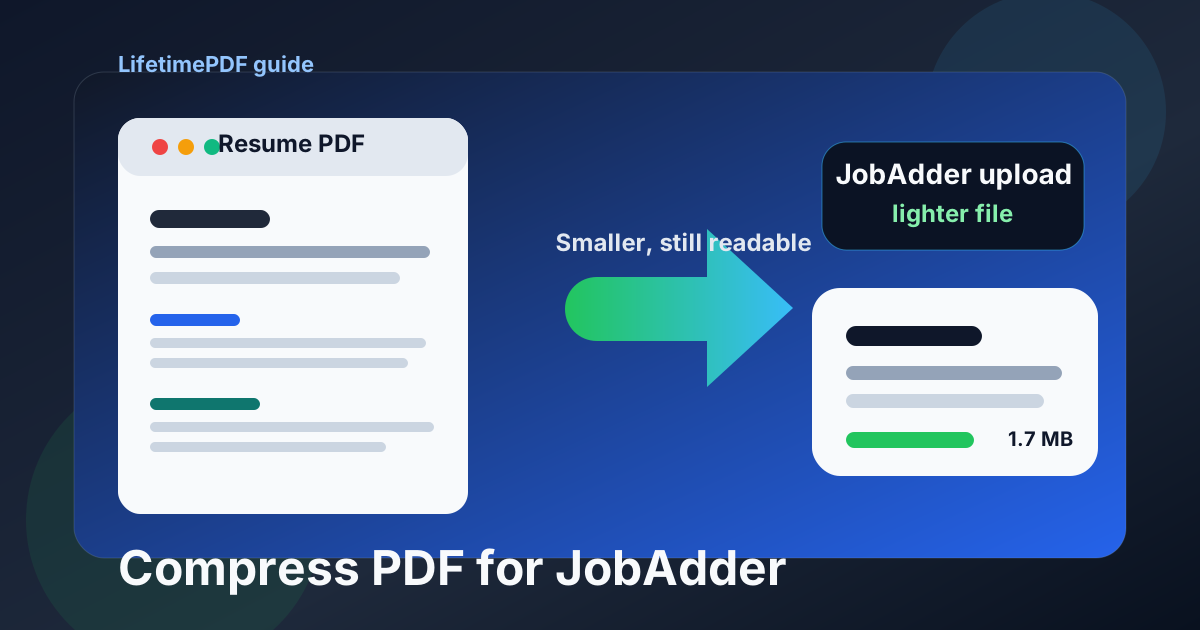
Table of contents
- Quick start: compress a PDF for JobAdder in under 2 minutes
- Why smaller PDFs help in JobAdder workflows
- What file size should you aim for?
- Which compression level should you choose?
- Step-by-step: shrink a JobAdder PDF with LifetimePDF
- Best strategy for common JobAdder file types
- What if the PDF is still too large?
- How to keep JobAdder files readable and ATS-friendly
- Privacy and document-cleanup habits before you upload
- Related LifetimePDF tools and useful internal links
- FAQ (People Also Ask)
Quick start: compress a PDF for JobAdder in under 2 minutes
If your real goal is simply make this PDF smaller so the JobAdder upload goes through cleanly, this workflow is usually enough:
- Open Compress PDF.
- Upload the final resume, cover letter, transcript, certificate, portfolio, or supporting PDF you plan to send.
- Choose Medium compression first.
- Download the smaller result and compare the new size with the original.
- Open it once and check the details that matter most: your name, contact information, headings, dates, bullet points, links, and any fine text inside supporting pages.
- If the file is still heavier than you want, use Extract Pages, Delete Pages, or Crop PDF before trying a stronger compression level.
Why smaller PDFs help in JobAdder workflows
JobAdder often sits in the middle of real recruiting activity rather than a slow, one-off upload. A recruiter may ask for an updated resume. An agency may want a cleaner version of a certificate. You may be applying to several roles in one sitting and switching between slightly different resume versions. In that context, a heavy PDF becomes annoying fast. It slows uploads, makes replacement uploads feel clumsy, and adds a little avoidable drag during a process that already needs focus.
Smaller PDFs also act like a quality check. A normal text-based resume or cover letter should not feel huge. If it does, the source file is often carrying unnecessary weight from screenshots, oversized logos, scanner borders, duplicate pages, or decorative exports that do not help you get hired. Compression helps, but it also shows when cleanup is the smarter move.
Why compression usually helps
- Faster uploads: useful on weak Wi-Fi, mobile hotspots, or older laptops.
- Less re-upload hassle: lighter files are easier to replace after a last-minute wording or formatting fix.
- Cleaner recruiter experience: lean PDFs usually open faster when recruiters are moving through many candidates.
- Better portability: a PDF that behaves well in JobAdder usually behaves better in recruiter email and other ATS workflows too.
- Easier cleanup: shrinking the file often exposes extra pages, bad scans, or visual clutter you did not need in the first place.
What file size should you aim for?
There is no single JobAdder number that applies to every employer or document type, but a few practical ranges keep you from compressing harder than necessary:
| Document type | Practical target | Why it works |
|---|---|---|
| Resume or cover letter | Under 1MB to 2MB | Usually ideal for text-based application documents |
| Transcript or certificate PDF | 1MB to 3MB | Keeps detail readable without making the upload feel bulky |
| Portfolio or work samples | 2MB to 5MB | Allows some visuals while staying manageable |
| Combined supporting packet | As small as practical, ideally under 5MB | Easier for recruiters to open, review, and forward internally |
These are working targets, not purity rules. If a polished portfolio needs a little more room, that is fine. The better question is whether every megabyte is earning its place. If the answer is no, clean up the file first and then compress.
Which compression level should you choose?
Most JobAdder uploads do best when you start in the middle instead of jumping to the harshest setting.
Low compression
Best when the file is already fairly small and you only want to shave off a little weight. Good for polished text-based resumes that mostly need a lighter export.
Medium compression
Usually the smartest default. It often cuts enough size to make uploads smoother while preserving recruiter-facing details like dates, bullet points, section headings, and links. If you only try one setting first, make it this one.
High compression
Use it when the PDF is still much larger than it should be after basic cleanup. It can be helpful for scan-heavy documents, but review the result carefully. If certificate numbers, transcript rows, or small labels inside work samples start looking soft, back off and clean the file another way.
Step-by-step: shrink a JobAdder PDF with LifetimePDF
- Open Compress PDF.
- Upload the exact file you plan to use in JobAdder.
- Choose Medium compression.
- Download the smaller result.
- Check the new size and open the file once before uploading it anywhere.
- Review your contact information, headings, dates, bullet points, links, page order, and any fine text in attached supporting documents.
- If the file is still heavier than it should be, trim unnecessary pages, crop scan waste, or split large supporting packets before trying stronger compression.
That quick review matters. Compression is only successful if the smaller file still feels competent when someone else opens it without context. Recruiters should not have to zoom in just to read your employment dates or figure out what a certificate says.
Best strategy for common JobAdder file types
Resume
A resume should usually end up very light. If yours is unusually large, the culprit is often decorative design, embedded screenshots, or export settings that are carrying more baggage than value. Starting from a clean Word to PDF export often works better than repeatedly compressing a messy original.
Cover letter
Cover letters are usually easy to compress because they are mostly text. If the file still feels bulky, check for branded headers, pasted signature images, or oversized embedded graphics.
Transcript or certificate
These are more likely to be scan-heavy. Before pushing compression harder, crop large borders, rotate crooked pages, and delete blanks. If the document is image-based, running OCR PDF can also make it more searchable and easier to handle.
Portfolio or work samples
Portfolios often contain the very visuals you do not want to ruin. Keep them lean, but do not flatten them into mush. If a combined packet is becoming unwieldy, it is often better to use Merge PDF more selectively or remove weaker pages than to crush every page harder.
What if the PDF is still too large?
When compression alone is not enough, the file usually needs cleanup rather than more force.
- Delete unnecessary pages: use Delete Pages if the file includes duplicate sheets, old versions, or pages no recruiter asked for.
- Extract only what matters: use Extract Pages if you only need one certificate page or a short section of a longer scan.
- Crop scanner waste: use Crop PDF to remove huge borders or dead space that add image weight without adding value.
- Split supporting packets: if the application supports separate uploads, do not force everything into one big file just because you can.
- Re-export from the source: a clean PDF exported from Word, Google Docs, or your design tool is often lighter than a messy PDF that has been compressed repeatedly.
How to keep JobAdder files readable and ATS-friendly
ATS-friendly usually means the file behaves like a normal document, not that it follows some secret hack. The safest habits are boring ones:
- Use real selectable text whenever possible instead of screenshots of text.
- Keep section headings obvious and consistent.
- Do not rely on faint colors or tiny type to fit more onto the page.
- Check that links, dates, and contact details still look clear after compression.
- Open the final PDF on a second device if you can; problems show up faster when you are not staring at the source file.
If the compressed copy looks soft, patchy, or strangely flattened, treat that as a warning. A recruiter should not have to work to trust your file. It is better to upload a slightly larger PDF that reads cleanly than a tiny one that feels compromised.
Privacy and document-cleanup habits before you upload
File size is not the only thing worth checking. Application PDFs often carry extra material you did not mean to share, such as hidden comments, metadata, unused pages, or personal details in a supporting document.
- Use Redact PDF if you need to permanently remove IDs, account numbers, addresses, or sensitive reference details.
- Use PDF Metadata Editor if the file still carries messy title or author data from old templates or shared computers.
- Check page order and naming before you upload so the file feels deliberate instead of improvised.
- If JobAdder gives you separate fields, keep private supporting material separate rather than bundling everything into one large packet.
A lighter file is useful. A lighter file that is also clean, readable, and intentional is better.
Related LifetimePDF tools and useful internal links
If your JobAdder file needs more than simple compression, these tools are the most useful companions:
- Compress PDF for the main size reduction step.
- Word to PDF for cleaner resume exports.
- Merge PDF when you actually need one supporting packet.
- Extract Pages and Delete Pages for trimming oversized files.
- Crop PDF and OCR PDF for scan-heavy supporting documents.
- Redact PDF and PDF Metadata Editor for cleaner privacy hygiene before you upload.
Best next step: compress the final JobAdder file first, then only reach for extra cleanup tools if the size or quality still is not where you want it.
FAQ (People Also Ask)
How do I compress a PDF for JobAdder?
Upload the final PDF to a compressor, start with Medium compression, and keep the smaller copy only if names, dates, headings, and body text still look clear. For most JobAdder uploads, Medium is the safest first step because it reduces size without making the application feel careless.
What PDF size should I aim for on JobAdder?
Under 2MB is a strong target for most resumes and cover letters. Certificates, transcripts, portfolios, and other scan-heavy supporting PDFs can land higher, but staying around 2MB to 5MB usually keeps uploads and recruiter previews smoother without carrying unnecessary weight.
Will compression hurt ATS readability in JobAdder?
Usually not if you start with Medium compression and the source PDF already contains real selectable text. The bigger risk is a file built from screenshots, flattened scans, or heavily decorative layouts instead of a clean text-based export.
Should I upload one combined PDF or separate files in JobAdder?
Follow the structure of the application itself. If the JobAdder flow gives you separate upload fields, keeping files separate is usually cleaner than forcing everything into one oversized packet.
Which LifetimePDF tools pair best with JobAdder uploads?
Compress PDF is the main starting point. Word to PDF, Merge PDF, Extract Pages, Delete Pages, Crop PDF, OCR PDF, Redact PDF, and PDF Metadata Editor are all useful when you want smaller, cleaner application files without oversharing extra pages or hidden metadata.