Compress PDF for Help Scout: Make Support Attachments Smaller Without Losing Readability
To compress a PDF for Help Scout, upload the file to LifetimePDF's Compress PDF tool, start with Medium compression, and keep the smaller copy only if screenshot labels, ticket references, dates, signatures, and customer instructions still look clean.
For most Help Scout workflows, that is enough to make support attachments easier to upload, open, and reuse without turning useful documents into blurry friction.
Help Scout attachments usually go wrong in ordinary ways. A solid troubleshooting guide picks up extra screenshots, a return packet carries pages the customer never needed, or a scanned document drags along empty borders and blank backsides. The result is not a bad PDF. It is just heavier than the conversation needs. Good compression fixes that without stripping away the details people still rely on.
Fastest path: compress the Help Scout attachment at Medium, then use extract, split, delete, or crop tools only if the PDF still feels bulkier than the reply or handoff actually needs.
In a hurry? Jump to Quick start: compress a Help Scout PDF in about 2 minutes.
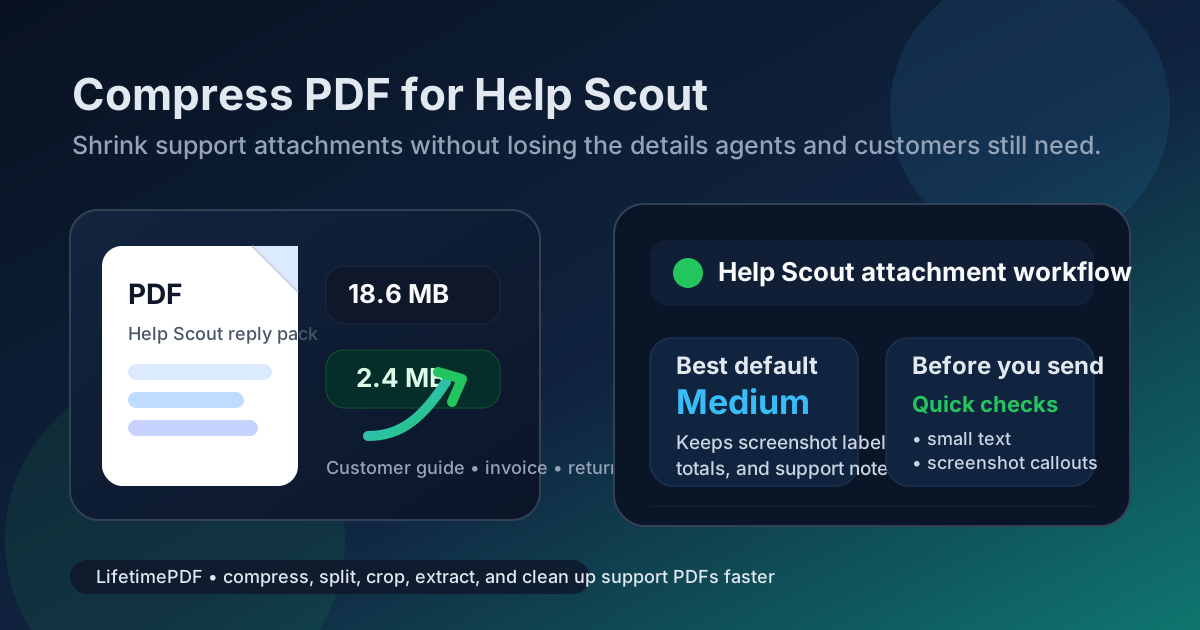
Table of contents
- Quick start: compress a Help Scout PDF in about 2 minutes
- Why smaller PDFs matter in Help Scout
- What file size should you aim for?
- Which compression level should you choose?
- Step-by-step: shrink a Help Scout PDF with LifetimePDF
- Best approach for common Help Scout PDF types
- What to do if the PDF is still too large
- How to keep support attachments readable
- Workflow habits that reduce PDF bloat
- Related LifetimePDF tools and useful reading
- FAQ (People Also Ask)
Quick start: compress a Help Scout PDF in about 2 minutes
If your real goal is simply make this PDF smaller so it is easier to use in Help Scout, this workflow is usually enough:
- Save the final PDF you actually plan to attach, not the larger working packet full of extra history.
- Open Compress PDF.
- Upload the file and start with Medium compression.
- Download the smaller copy and compare the size change.
- Preview the weakest details: screenshot labels, ticket IDs, dates, signatures, totals, and faint scan text.
- If the PDF is still bulky, use Extract Pages, Delete Pages, Crop PDF, or Split PDF before trying heavier compression.
Why smaller PDFs matter in Help Scout
Help Scout is built around clear conversations. When an attachment feels heavy, the conversation slows down with it. A customer waits longer for a useful file, another agent opens a handoff less willingly, and an internal review becomes more annoying than it needs to be. File size is not the whole support experience, but it absolutely affects the tempo.
Most PDF bloat in support workflows is boring, not mysterious. It comes from duplicated pages, scanner borders, extra appendix sheets, large screenshots, and documents that were assembled for several audiences at once. Compression helps, but the bigger win is using compression alongside a little cleanup so the attachment matches the actual task.
Why lighter Help Scout PDFs work better
- Faster uploads: useful when you are replying in an active queue and do not want attachments to become the slow part.
- Easier customer review: smaller PDFs feel less frustrating on mobile and load more predictably from email.
- Cleaner internal handoffs: teammates are more likely to open a focused file than a bloated packet.
- Less repeat cleanup: once a reusable attachment is trimmed and compressed, future replies get easier.
- Better support hygiene: smaller, cleaner files usually mean you removed irrelevant pages too.
What file size should you aim for?
There is no perfect number for every Help Scout PDF, but a few practical targets help you avoid compressing harder than necessary:
| Help Scout PDF type | Recommended target | Why it works |
|---|---|---|
| Short customer-facing instructions or saved reply attachments | < 2MB | Lightweight enough for fast previews and low-friction sharing |
| Everyday support docs, invoices, and handoff files | 2MB-5MB | Usually the best balance between readability and convenience |
| Screenshot-heavy guides or scan-heavy packets | 5MB-10MB | Still workable, but worth shrinking if several people will open it repeatedly |
| Over 10MB | Compress again or trim pages | Often a sign the packet contains more content than the next reader really needs |
Which compression level should you choose?
The right setting depends less on theory and more on what the PDF contains. A clean text-forward policy note behaves differently from a return packet with screenshots, and both behave differently from a scan with faint handwriting or signatures.
Low compression
- Best when crisp visuals matter more than aggressive size reduction.
- Useful for polished customer-facing PDFs, branded guides, or files with tiny annotated screenshots.
- Often a better second choice than a first one if the file is already close to the size you want.
Medium compression
- The safest default for most Help Scout work.
- Usually the best balance for saved reply attachments, invoices, troubleshooting guides, return instructions, and internal handoff PDFs.
- Keeps small text, screenshot callouts, dates, and totals readable more reliably than aggressive compression.
High compression
- Best when the file is still too large after cleanup or when scan-heavy pages are carrying most of the weight.
- Useful for internal reference files where size matters more than polished presentation.
- Always preview carefully before you replace the original.
Step-by-step: shrink a Help Scout PDF with LifetimePDF
- Choose the final attachment. If the customer only needs the instructions, do not send the internal notes, blank backsides, and backup pages too.
- Open the compressor. Go to LifetimePDF Compress PDF.
- Upload the file. This might be a warranty PDF, invoice backup, saved reply attachment, return guide, KB export, internal escalation note, or scanned support record.
- Start with Medium. That usually cuts file size without damaging the details support teams care about.
- Download and review. Open the smaller file once before sending it anywhere.
- Fix structure before over-compressing. If the PDF is still heavy, extract the relevant pages, crop wasted margins, or delete blank sheets before trying a stronger setting.
- Attach the cleaner copy in Help Scout. Keep the original only if the compressed version fails a readability check.
Good support habit: make the file smaller and more focused. Compression works best when you pair it with page cleanup instead of asking one button to solve every problem alone.
Best approach for common Help Scout PDF types
Saved reply attachments and customer instructions
These should stay especially light because they get reused a lot. Keep the formatting clean, remove internal-only pages, and aim for a fast-loading PDF that feels easy to send again and again.
Invoices, refund documents, and billing backups
Protect the readable parts first: totals, dates, line items, and account identifiers. Billing PDFs do not need perfect visual polish, but they do need the right numbers to remain obvious.
Troubleshooting guides with screenshots
Screenshot-heavy guides usually need more caution. If the guide depends on tiny interface labels, start with Medium and review at normal zoom and a slight zoom-in before you keep the smaller copy.
Scan-heavy approvals, forms, and returns
Scan-heavy files often carry avoidable weight from empty borders, blank backsides, and oversized image pages. In these cases, cropping and deleting extra sheets can matter as much as compression itself.
Internal escalation packets
These are often too long because they were assembled for completeness. If the next teammate only needs the most relevant section, extract that section and attach the tighter file instead of shipping the entire packet.
What to do if the PDF is still too large
When a Help Scout PDF refuses to slim down enough, the answer is usually not infinite compression. It is usually better document structure.
- Extract only the pages the next reader needs.
- Delete blank sheets, duplicate covers, and appendix pages.
- Crop scanner borders that add weight without adding meaning.
- Split one oversized packet into smaller logical files.
- Re-export the PDF from the source if the original was already bloated.
How to keep support attachments readable
Before replacing the original file, do one quick review of the weakest details. That takes seconds and prevents embarrassing follow-up messages like "the attachment is too blurry to use."
- Zoom in on the smallest screenshot labels.
- Check ticket references, order numbers, totals, and dates.
- Review signatures, handwritten notes, and faint scan lines.
- Make sure tables still separate clearly and line items do not merge visually.
- Open the file on a normal laptop screen, not just a huge monitor where everything looks forgiving.
Workflow habits that reduce PDF bloat
- Build audience-specific attachments: customer PDFs and internal handoffs do not need the same page set.
- Trim scan waste early: crop borders and delete blank backsides before files start getting reused.
- Keep reusable docs tidy: saved reply attachments should be maintained like templates, not treated as one-off exports.
- Avoid stacking multiple jobs into one PDF: instructions, invoice proof, and internal notes often belong in separate files.
- Use supporting tools together: compression is strongest when paired with extraction, deletion, cropping, and splitting.
Related LifetimePDF tools and useful reading
- Compress PDF for the fastest size reduction pass.
- Extract Pages when the customer or teammate only needs one section.
- Delete Pages to remove blank sheets and irrelevant appendices.
- Crop PDF to remove scan waste and oversized margins.
- Split PDF when one packet is trying to do too many jobs.
- Compress PDF for Help Scout Without Monthly Fees if you want the pay-once workflow angle.
- Compress PDF for Intercom Without Monthly Fees for a closely related support attachment workflow.
FAQ (People Also Ask)
How do I compress a PDF for Help Scout?
Upload the PDF to LifetimePDF, start with Medium compression, download the smaller result, and preview the weak spots before attaching it in Help Scout. For most support documents, that is the safest balance between lighter file size and readable details.
What file size is best for Help Scout attachments?
Under 2MB works well for short customer-facing files and saved reply PDFs. Longer guides, screenshot-heavy attachments, and scan-heavy packets usually land best around 2MB to 5MB if the important text still looks clear.
Will compression make Help Scout screenshots blurry?
It can if you compress too aggressively, especially when a guide depends on tiny interface labels. That is why Medium is usually the safest default and why one quick review matters before you replace the original.
Should I split a large PDF instead of compressing it harder?
Often, yes. If one packet contains the customer instructions, billing proof, return paperwork, and internal notes, splitting it usually works better than trying to crush the whole file into one tiny attachment.
What should I do if a scan-heavy Help Scout PDF is still too big?
Crop scanner borders, delete blank backsides, extract only the relevant pages, and then compress again. Scan-heavy PDFs are often oversized because of wasted image area and unnecessary pages, not because the useful content itself is huge.
Need the short version? Compress the file first, clean up the pages second, and send the smaller copy only after one readability check.