Compress PDF for Google Docs: Shrink Exported Docs, Resumes, and Proposals Without Breaking Layout
To compress a PDF for Google Docs, export the document as a PDF, upload it to LifetimePDF's Compress PDF tool, start with Medium compression, and keep the smaller copy only if text, page breaks, tables, and embedded images still look clean.
For most Google Docs exports, under 1MB to 3MB is a strong everyday target, while longer proposals, handbooks, and image-heavy docs often feel best around 2MB to 5MB after light cleanup.
Google Docs already makes it easy to create a PDF. The friction usually starts after that. The exported file is a little too heavy for email, too clumsy for an upload form, or just bulkier than it needs to be because the document carries a cover page, screenshots, appendix pages, and branding that made sense during editing but not during sharing. Good compression fixes that without turning the PDF into something cramped, blurry, or weirdly fragile.
Fastest path: export the Google Doc, run the PDF through LifetimePDF's Compress PDF tool on Medium, then do one quick readability check before you upload, attach, or send the smaller copy.
In a hurry? Jump to Quick start: compress a Google Docs PDF in about 2 minutes.
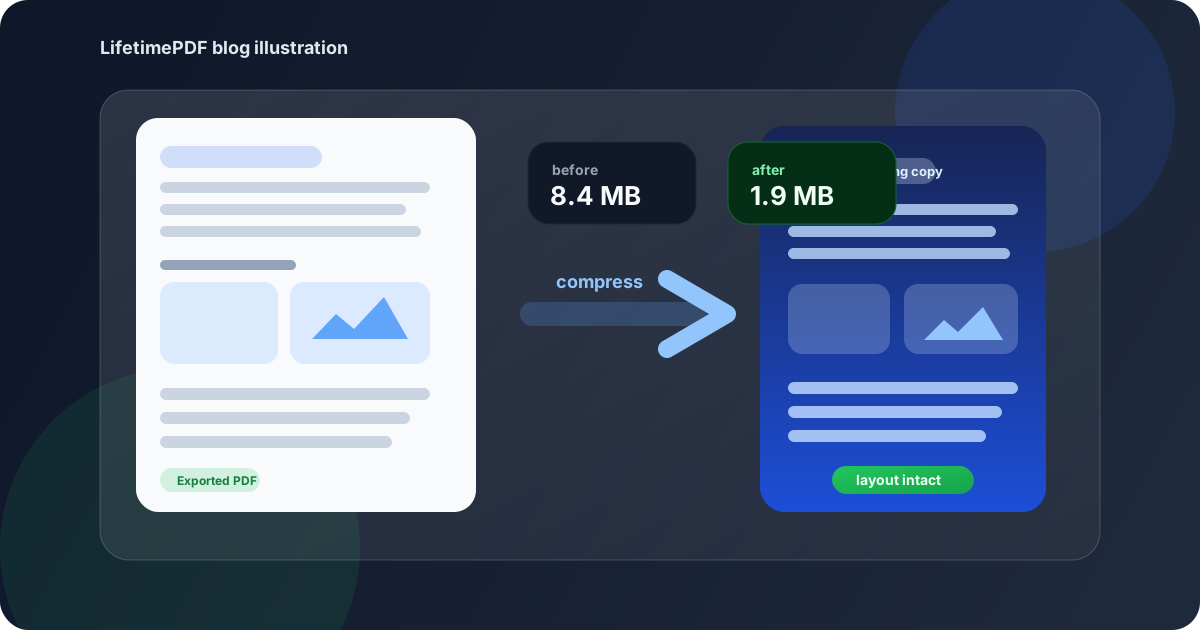
Table of contents
- Quick start: compress a Google Docs PDF in about 2 minutes
- Why Google Docs PDFs get heavy in the first place
- What file size should you aim for?
- Which compression level should you choose?
- Step-by-step: shrink an exported Google Docs PDF with LifetimePDF
- Best approach for common Google Docs PDF types
- What if the PDF is still too large?
- How to check quality before you share it
- Workflow habits that keep exported docs lighter
- Related LifetimePDF tools and useful reading
- FAQ (People Also Ask)
Quick start: compress a Google Docs PDF in about 2 minutes
If your real goal is simply make this exported Google Docs PDF smaller so it is easier to send, this workflow is usually enough:
- Export the final document from Google Docs as a PDF.
- Open Compress PDF.
- Upload the exported file and choose Medium compression first.
- Download the smaller result and compare the new size with the original.
- Check the weakest points once: the densest page, small table text, signature blocks, logos, screenshots, and the last page.
- If the PDF is still too bulky, use Extract Pages or Split PDF before pushing stronger compression.
Why Google Docs PDFs get heavy in the first place
Google Docs itself is not usually the problem. The problem is that a simple document quietly turns into a bigger package. A proposal gains screenshots, a handbook gains branded pages, a resume gets exported with a portfolio appendix, or a report carries charts and pasted visuals that looked harmless during editing but add real weight once the document becomes a fixed PDF.
Most oversized Google Docs PDFs come from one of these patterns:
- Too many images: logos, screenshots, product mockups, charts, signatures, and headshots add up fast.
- Long appendices: the main document is fine, but support pages, references, or backup material double the file size.
- Repeated export clutter: duplicate cover pages, repeated attachments, or extra copies of the same section travel with the PDF unnecessarily.
- One file doing too many jobs: a PDF meant for review, archive, email, and upload at the same time usually ends up heavier than any one of those uses requires.
- Wide tables and full-page visuals: they do not just affect layout. They can make the final PDF harder to shrink gracefully.
What file size should you aim for?
There is no single magic number for every Google Docs export, but these ranges are practical and easy to work with:
| Document type | Practical target | Why it works |
|---|---|---|
| Letters, resumes, short agreements, and text-first docs | Under 1MB to 2MB | Usually small enough for email, quick uploads, and easy mobile viewing without compromising normal readability. |
| Proposals, reports, study packs, and everyday business docs | 2MB to 3MB | Often the sweet spot for keeping images, logos, and tables clear while still making the file easier to share. |
| Handbooks, branded decks, and image-heavy exports | 3MB to 5MB | Leaves enough room for visuals and formatting without making the PDF feel awkwardly bloated. |
| Over 5MB | Usually needs cleanup first | At that point, extra pages, oversized visuals, or an oversized appendix are often the real issue. |
These are working targets, not strict rules. If the PDF is mostly text, you can often go smaller. If it includes client-facing visuals, signatures, or charts people still need to inspect, a slightly larger file is usually the smarter tradeoff.
Which compression level should you choose?
For most Google Docs PDFs, Medium compression is the safest answer. It cuts enough file weight to matter while usually preserving headings, body text, tables, logos, and normal embedded images well enough for everyday reading.
| Compression level | Best for | Watch out for |
|---|---|---|
| Low | Polished documents that are already close to the right size and should stay visually crisp | May not reduce enough if the file is carrying too many screenshots, appendix pages, or oversized visuals. |
| Medium | Most resumes, proposals, letters, reports, and exported Google Docs PDFs | Still review the smallest useful text before replacing the original. |
| High | Last-resort cleanup for bulky image-heavy docs or throwaway copies where tiny details matter less | Can soften logos, screenshots, table lines, signature marks, and busy page layouts too much. |
Step-by-step: shrink an exported Google Docs PDF with LifetimePDF
- Export the final Google Doc as PDF. Use the version you really plan to share, not a working draft with duplicate pages, open notes, or backup sections.
- Open Compress PDF.
- Upload the exported PDF. This could be a resume, proposal, report, handbook, school submission, client brief, or internal reference file.
- Select Medium compression. That is the best first-pass balance for most Google Docs exports.
- Download the smaller copy. Compare the original and compressed file sizes so you know whether the reduction was worth it.
- Review the result once. Check headers, page breaks, table alignment, screenshot readability, signature blocks, and the busiest page in the file.
- Trim more only if needed. If the file is still too large, extract the key pages, split the appendix, or remove repeated support material before trying stronger compression.
That quick review matters. The most common failure is not that the compressor breaks the PDF. It is that people never check the compressed copy closely enough to notice a small table, footer, or screenshot became more annoying to read than the size savings justified.
Best workflow: export the doc, compress once, then decide whether the file needs page trimming instead of more compression.
Best approach for common Google Docs PDF types
| File type | What matters most | Best move |
|---|---|---|
| Resumes and cover letters | Sharp text, clean spacing, stable page breaks | Use Medium compression and verify the PDF still looks crisp at normal zoom. |
| Client proposals and branded PDFs | Readable charts, logos, screenshots, and polished layout | Compress first, then trim large appendix material if the file is still too bulky. |
| Policies, handbooks, and study packs | Comfortable text, page numbers, and dependable section breaks | Split supporting sections when different readers do not need the whole file. |
| Contracts and approval-ready docs | Clear signatures, initials, dates, and clauses | Keep compression moderate and review the signature and small-print areas once. |
If the exported Google Docs PDF feels too large, ask whether the document is serving one audience or several. A smaller main file plus a separate appendix is often better than one oversized PDF that tries to do everything at once.
What if the PDF is still too large?
If Medium compression does not get the file where you need it, do not assume the answer is maximum compression. Google Docs exports often shrink better when you remove weight intelligently first.
- Extract only the pages people actually need: use Extract Pages for focused sharing.
- Split oversized packets: use Split PDF for main-document-versus-appendix workflows.
- Delete repeated support pages: if the file carries duplicate attachments or optional background pages, trim them before compressing again.
- Simplify oversized visuals: if a page is mostly giant screenshots or pasted graphics, those often matter more than raw page count.
- Protect the final file only after cleanup: if the PDF contains private information, use PDF Protect once you are happy with the size and layout.
- Only then try stronger compression: a cleaner document usually compresses more gracefully.
How to check quality before you share it
Before you attach the compressed file to an email or upload it anywhere, review the details most likely to show quality loss. The first page is not enough. Check the most demanding page in the document.
Review these details once
- Small table text, footnotes, and reference numbers
- Headers, page numbers, and section spacing
- Logos, signatures, initials, and approval marks
- Screenshots, embedded charts, or pasted diagrams
- The last page, which often reveals awkward spacing fastest
- The busiest page in the whole document, not just the cleanest one
If those still feel comfortable to read, the PDF is probably compressed enough. If they feel annoying, the size savings may not be worth the tradeoff.
Workflow habits that keep exported docs lighter
Better Google Docs PDFs usually start before compression. A few habits reduce file bloat and make the final export easier to work with:
- Keep a main version and an appendix version: not every recipient needs the background material.
- Export only the finished file: avoid sending a draft plus optional pages plus internal notes all bundled together.
- Name the smaller copy clearly: labels like
shared,compressed, oremail-copyreduce confusion. - Use screenshots carefully: large pasted visuals are one of the fastest ways to bloat a Google Docs PDF.
- Trim before you resend: if a file bounces off an upload limit, remove unused pages before you crush the whole document harder.
- Think about the next step: if the PDF will be protected, signed, or split anyway, do that on the right-sized file instead of repeating the whole process later.
Related LifetimePDF tools and useful reading
Compressing a Google Docs PDF is usually one small step in a larger document workflow. These tools and related articles are the most useful companions:
- Compress PDF for the first size-reduction pass.
- Extract Pages when the reader needs only part of the document.
- Split PDF for main-document-versus-appendix sharing.
- PDF Protect before sending sensitive PDFs outside a trusted team.
- Google Docs to PDF Online Free for the native export workflow.
- Compress PDF Online Free for broader size-reduction advice.
- Compress PDF for Google Drive if the next stop is shared cloud storage.
- Google Sheets to PDF Online Free and Google Slides to PDF Online Free for adjacent Google Workspace workflows.
- Lifetime access if PDF cleanup is regular work, not a one-off errand.
FAQ (People Also Ask)
How do I compress a PDF for Google Docs?
Export the Google Doc as a PDF, upload it to a PDF compressor, start with Medium compression, and review the smaller copy before you share it. For most Google Docs exports, Medium is the safest first pass because it reduces file size while keeping text, page breaks, tables, and embedded images readable.
What file size should I aim for with a Google Docs PDF?
A practical target is under 1MB to 3MB for everyday letters, resumes, and short proposals. Longer handbooks, branded reports, and image-heavy docs often sit better around 2MB to 5MB as long as the smallest useful details still look clear.
Will compression ruin the layout of a Google Docs PDF?
It can if you compress too aggressively, especially when the file contains screenshots, logos, wide tables, signatures, or dense page layouts. That is why Medium compression is usually the best place to start. Always review the busiest page before keeping the smaller file.
Is it better to split a long Google Docs PDF instead of compressing it harder?
Often, yes. If one PDF mixes the main document with appendices, backup pages, or support material for different readers, splitting it usually works better than forcing stronger compression across the entire file.
What should I do if the Google Docs PDF is still too large after compression?
Extract only the pages people need, split the appendix, remove repeated support pages, or simplify oversized visuals before trying stronger compression. In many Google Docs workflows, the biggest size problem is extra document weight, not a lack of compression.
Ready to shrink it? Start with Medium compression, keep the layout readable, and trim the file structure only if the PDF is still heavier than it should be.
Best sequence for most people: Export from Google Docs → Compress → Review → Trim only if needed → Share.
Published by LifetimePDF — Pay once. Use forever.