Compress PDF for Google Chat: Share Smaller Files in Spaces and Direct Messages Faster
Yes - you can compress a PDF for Google Chat before sharing it in spaces or direct messages, and Medium compression is usually the best place to start because it reduces file size without making ordinary text documents hard to read.
If the file is a scan, a long handbook, a proposal with oversized images, or a packet that only needs a few pages shared, trim it first because smaller PDFs upload faster, open faster, and create less friction for everyone in the conversation.
Google Chat is often where documents move from "finished somewhere else" to "used by real people right now." A team drops in an agenda before a meeting, a manager shares a policy update, a salesperson sends a pricing PDF to a colleague, or someone posts a scanned approval form that nobody wants to wait on. When the file is heavier than it needs to be, the chat itself slows down. The point of compression is not chasing the smallest possible number. It is making the document easier to send, easier to open, and easier for the next person to actually use.
Fastest path: Use LifetimePDF's Compress PDF tool, start with Medium compression, and download a Google Chat-friendly PDF in seconds.
In a hurry? Jump to Quick start: compress a PDF for Google Chat in under a minute.
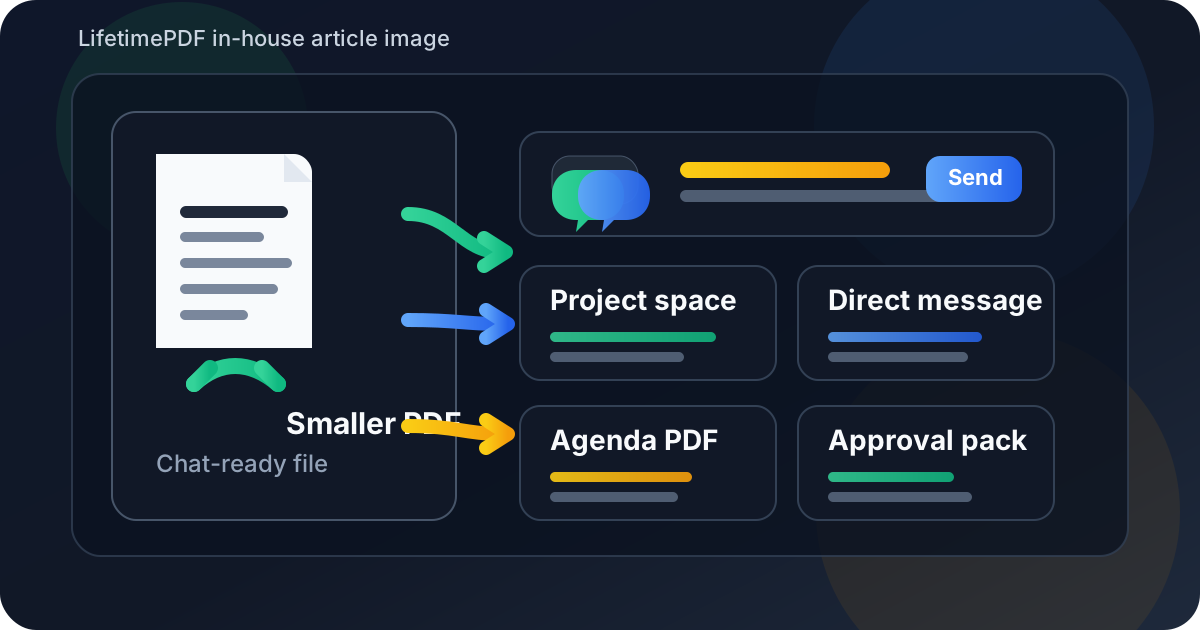
Table of contents
- Quick start: compress a PDF for Google Chat in under a minute
- Why compress PDFs before sharing in Google Chat?
- What size should a Google Chat-friendly PDF be?
- Which compression level should you choose?
- Step-by-step: shrink a PDF with LifetimePDF
- Common Google Chat PDFs that benefit from compression
- Scanned PDFs: why they get huge and how to fix them
- What if the PDF is still too large?
- How to keep text readable in spaces and direct messages
- Privacy and smarter document sharing in Google Chat
- Related LifetimePDF tools and internal links
- FAQ (People Also Ask)
Quick start: compress a PDF for Google Chat in under a minute
If your goal is simply make this PDF smaller so I can send it in Google Chat without extra friction, keep it simple:
- Open Compress PDF.
- Upload your file.
- Choose Medium compression first.
- Download the smaller PDF and check the new size.
- Open it once to confirm that headings, tables, comments, signatures, and screenshots still look clear.
- If it is still bulkier than you want, extract only the needed pages or try a stronger compression setting.
Why compress PDFs before sharing in Google Chat?
Even when a PDF technically uploads, that does not mean the original file is ideal for Google Chat. Big files create small annoyances that add up fast. They take longer to upload, longer to preview, and longer to download on someone else's laptop or phone. That matters whether you are sharing an agenda in a project space, sending a contract draft in a direct message, posting HR paperwork, or dropping a scan into a thread while a meeting is already moving.
Why smaller PDFs work better in Google Chat
- Faster uploads: useful when you are sending from a browser tab, a phone, or weaker Wi-Fi.
- Cleaner handoffs: people are more likely to open a lighter file immediately instead of postponing it.
- Less chat friction: smaller attachments feel more natural inside active spaces and quick direct-message exchanges.
- Better mobile experience: lighter PDFs are more comfortable to download and open on the go.
- Less duplicate clutter: when the same document gets reposted, forwarded, or downloaded by several people, file bloat spreads quickly.
In short, compression is not only about passing some invisible attachment threshold. It is about making the document easier to send, easier to receive, and easier for another person to actually act on without cursing the file first.
What size should a Google Chat-friendly PDF be?
There is no single magic number because a two-page text memo behaves very differently from a 50-page scan, a slide export, or a PDF packed with screenshots. Still, practical size targets make sharing decisions easier.
| Use case | Recommended target | Why it works |
|---|---|---|
| Very fast Google Chat sharing | < 2MB | Best for quick uploads, quick opening, and smoother mobile use |
| Everyday work document | 2MB-5MB | Usually the best balance of readability and convenience |
| Long reports or scan-heavy packets | 5MB-10MB | Still workable, but less ideal for chat-first collaboration |
| Over 10MB | Compress again or trim pages | Often a sign the document contains more weight than the chat actually needs |
If you can get under 5MB without hurting readability, that is usually a comfortable result for shared work. Under 2MB feels especially clean when the PDF is just a brief, a form, an agenda, or a small approval packet.
Which compression level should you choose?
LifetimePDF keeps it simple with Low, Medium, and High compression. That is enough for most Google Chat use because you are not trying to micro-tune a print-production workflow. You are trying to make the file easier to share without making it ugly.
Low compression
Use Low when the PDF has fine details that people may inspect closely later. Examples include signatures, small tables, markups, dense diagrams, and screenshots with tiny interface text. This keeps more visual detail, but it may not reduce the size dramatically.
Medium compression
Use Medium for most everyday Google Chat sharing. It usually cuts enough size to make uploads smoother while keeping text, logos, charts, and standard screenshots readable. For agendas, proposals, internal memos, onboarding docs, policies, and simple reports, this is the best starting point.
High compression
Use High when the file is mostly scans, repeated screenshots, or oversized visual material and the smallest possible shareable version matters more than perfect sharpness. Always preview the result before sending it onward.
Step-by-step: shrink a PDF with LifetimePDF
Here is a practical workflow that works well for most Google Chat attachments:
- Open the compressor: go to LifetimePDF Compress PDF.
- Upload the file: choose the PDF you want to share in a space, group thread, or direct message.
- Select Medium compression: this is usually the safest balance between readability and smaller file size.
- Download the result: save the smaller copy and compare it with the original if the file contains important visual detail.
- Check the small stuff: zoom in on signatures, comments, tables, scanned text, and screenshots before sending.
- Trim if necessary: if the PDF is still bulkier than it should be, remove extra pages or split the file instead of crushing the whole thing harder.
That last step matters more than people think. Structural cleanup usually protects clarity better than trying to solve every size problem with more aggressive compression.
Common Google Chat PDFs that benefit from compression
Not every file needs the same treatment, but these are some of the most common PDF types that become easier to share after a quick compression pass:
- Meeting agendas and pre-read packets: lighter files are easier to open when the meeting is about to start.
- Project briefs and internal memos: smaller PDFs feel less heavy inside active team spaces.
- Proposals, quotes, and approvals: good candidates when a document moves quickly between people for sign-off.
- Scanned forms and signed paperwork: often much larger than the actual content requires.
- Training guides and onboarding docs: useful to compress when several people may download them at once.
- Screenshot-heavy reports: one of the easiest ways for a normal PDF to become unnecessarily bulky.
If the file is being shared to answer one question for one audience, it probably does not need every appendix page, duplicate screenshot, or scan shadow that came along for the ride.
Scanned PDFs: why they get huge and how to fix them
Scanned PDFs behave differently from text-first PDFs. Each page acts more like an image, so file size climbs quickly. That is why a five-page signed form can end up feeling heavier than a 30-page normal document.
If you are sending scans in Google Chat, compression helps, but it works best when you clean the file first.
- Crop empty borders and scanner shadows.
- Delete blank pages and accidental duplicates.
- Rotate crooked pages so people do not have to fight the file.
- Run OCR PDF if you want the text to be searchable after sharing.
- Extract only the signed or relevant pages instead of sending the entire scanned packet.
What if the PDF is still too large?
If the file is still too large after a reasonable compression pass, the next move is usually not stronger compression. It is better cleanup.
- Use Extract Pages to send only the pages a teammate actually needs.
- Use Delete Pages to remove blank sheets, duplicate content, or unnecessary appendices.
- Use Split PDF to break one long packet into smaller, cleaner files.
- Use Crop PDF if scanned pages carry oversized margins or dark scanner edges.
A smaller, better-scoped PDF is usually more helpful than an aggressively compressed document that technically uploads but feels unpleasant to read.
How to keep text readable in spaces and direct messages
The main risk with compression is not that the PDF stops opening. It is that the file still opens, but the details people need become harder to trust.
- Check the smallest text first: table rows, comments, signatures, footnotes, and screenshot labels reveal quality problems quickly.
- Review any diagrams or charts: if thin lines or labels blur together, step back to a lighter compression level.
- Be careful with screenshots: app captures and dashboards tend to soften faster than plain text pages.
- Keep the original copy: compress the shareable version, not the only authoritative version.
- Trim before you over-compress: fewer relevant pages often beats a much stronger setting.
Privacy and smarter document sharing in Google Chat
Google Chat often sits in the middle of real work, which means the file you share there may contain more information than the chat audience actually needs. That is worth thinking about before you post the attachment.
- Share the smallest useful scope: if the conversation is about pages 3 to 5, send pages 3 to 5.
- Remove sensitive material first: use Redact PDF when internal notes, account numbers, or personal data should not travel further.
- Clean metadata if needed: use PDF Metadata Editor before wider sharing.
- Protect the final copy: use PDF Protect when the workflow calls for extra control.
- Remember the audience: a direct message, a project space, and a broad team room do not all need the same attachment scope.
Compression helps with convenience. Scope control helps with trust. The cleanest workflow usually uses both.
Related LifetimePDF tools and internal links
Compressing a PDF for Google Chat is often just one step in a broader document-sharing workflow. These tools pair well with it:
- Compress PDF - shrink file size for easier chat sharing
- Extract Pages - send only the pages people actually need
- Delete Pages - remove blank or unnecessary pages before sending
- Split PDF - break one long packet into smaller files
- Crop PDF - trim wasted scan margins
- OCR PDF - make scanned attachments searchable
- Redact PDF - remove sensitive data before sharing
- PDF Metadata Editor - clean document properties
- PDF Protect - add password protection when needed
Suggested internal blog links
- Compress PDF Online
- Compress PDF for Slack
- Compress PDF for Microsoft Teams
- Compress PDF for Discord
- Compress PDF for Google Drive
FAQ (People Also Ask)
1) How do I compress a PDF for Google Chat?
Upload the file to a PDF compressor, choose a compression level, and download the smaller result. For most people, Medium compression is the best starting point because it keeps text, tables, comments, and ordinary graphics readable while shrinking the file enough for smoother Google Chat sharing.
2) What PDF size is best for Google Chat sharing?
A practical target is under 5MB for normal work documents and under 2MB if you want especially fast previews and mobile-friendly opening. If the file is much larger than that, consider trimming pages instead of only compressing harder.
3) Will compression make my PDF blurry in Google Chat?
Usually not if you start with a moderate setting and preview the result before sending it. The biggest risks show up in scans, screenshots, dense tables, and tiny labels, so check those first.
4) What kinds of PDFs benefit most from compression before sharing in Google Chat?
Meeting agendas, scanned forms, proposals, internal memos, onboarding guides, training packets, and screenshot-heavy reports all benefit because they often get reopened, forwarded, or downloaded by several people.
5) What if my PDF is still too large after compression?
Extract only the needed pages, split the file into smaller parts, or crop empty scan space. In many cases, sharing fewer pages works better than over-compressing the entire document.
6) Is it better to send a full packet or a trimmed PDF in Google Chat?
A trimmed PDF is usually better. If the chat is about one section, send that section. It is faster for you, clearer for the recipient, and less likely to expose information the conversation does not require.
Ready to shrink your PDF for Google Chat?
Best Google Chat workflow: Trim -> Compress -> Preview -> Share.
Published by LifetimePDF - Pay once. Use forever.