Compress PDF for Freshteam: Make Resumes and Supporting Files Smaller Without Hurting ATS Readability
To compress a PDF for Freshteam, upload your final resume or supporting document to LifetimePDF's Compress PDF tool, start with Medium compression, and keep the smaller version only if names, dates, headings, links, and contact details still look clean.
For most Freshteam uploads, aim for under 2MB for resumes and cover letters, and roughly 2MB to 5MB for transcripts, certificates, portfolios, or other scan-heavy supporting PDFs.
Freshteam application flows are usually straightforward until one file suddenly becomes the slow, messy part of the application. A resume exported from Word, a transcript scan, a certificate packet, or a visual portfolio can carry far more weight than it needs. The right goal is not the tiniest PDF you can possibly produce. It is a smaller file that uploads smoothly, still reads cleanly, and does not make a recruiter wonder whether the document was damaged on the way in.
Fastest path: run the Freshteam file through LifetimePDF's Compress PDF tool on Medium, then do one quick readability check before uploading the lighter copy.
Need the short version? Jump to Quick start: compress a PDF for Freshteam in under 2 minutes.
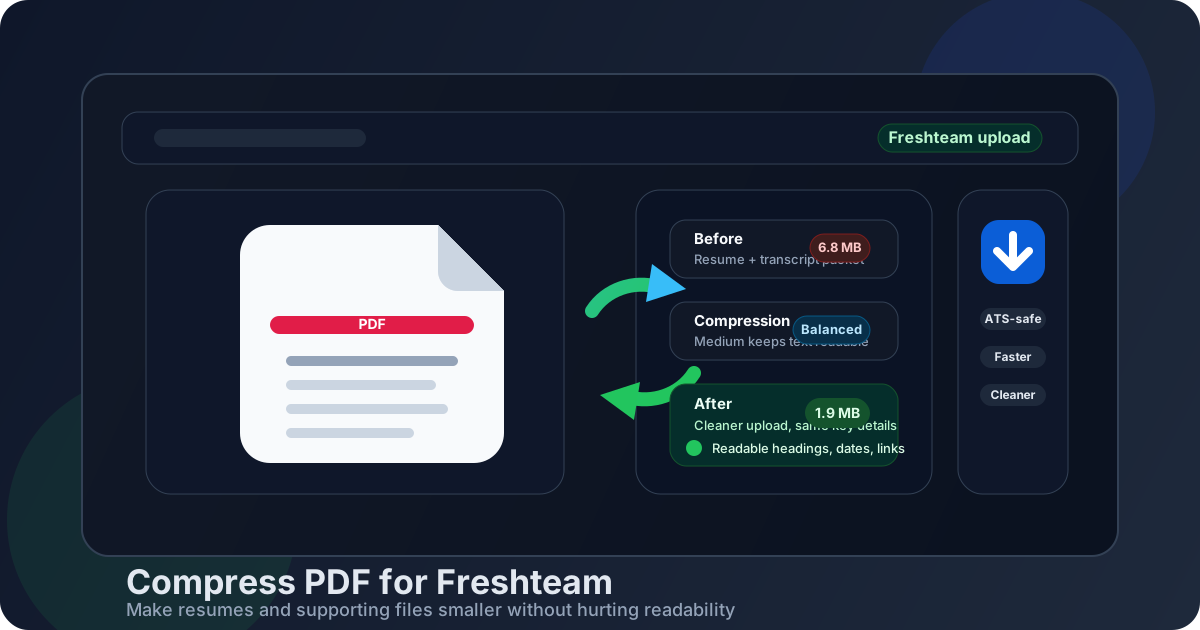
Table of contents
- Quick start: compress a PDF for Freshteam in under 2 minutes
- Why smaller PDFs help in Freshteam workflows
- What file size should you aim for?
- Which compression level should you choose?
- Step-by-step: shrink a Freshteam PDF with LifetimePDF
- Best strategy for common Freshteam file types
- What if the PDF is still too large?
- How to keep Freshteam files readable and ATS-friendly
- Privacy and document-cleanup habits before you upload
- Related LifetimePDF tools and useful internal links
- FAQ (People Also Ask)
Quick start: compress a PDF for Freshteam in under 2 minutes
If your real goal is simply make this PDF smaller so the Freshteam upload goes through cleanly, this workflow is usually enough:
- Open Compress PDF.
- Upload the final resume, cover letter, transcript, certificate, portfolio, or supporting PDF you plan to submit.
- Choose Medium compression first.
- Download the smaller result and compare the new size with the original.
- Open it once and check the details that matter most: your name, contact info, headings, dates, bullet points, links, and any fine text inside samples or certificates.
- If the file is still heavier than you want, use Extract Pages, Delete Pages, or Crop PDF before trying a stronger compression setting.
Why smaller PDFs help in Freshteam workflows
Freshteam often appears on career pages where the application itself feels simple and quick. That is exactly why file friction stands out so much. A heavy PDF slows uploads, makes re-uploads more annoying after a last-minute edit, and adds unnecessary drag when you are applying to several roles in one sitting.
Compression also acts like a useful quality check. A clean text-based resume should not normally feel bulky. If it does, something is probably inflating it: scanner borders, oversized images, a decorative background, pasted screenshots, or too many pages bundled into one file. Making the PDF smaller often reveals those problems faster than staring at the file-size number alone.
Why compression usually helps
- Faster uploads: helpful on weak Wi-Fi, mobile hotspots, and older laptops.
- Less re-upload pain: lighter files are easier to swap in after last-minute resume edits.
- Cleaner reviewer experience: smaller PDFs usually open faster when hiring teams skim multiple candidates.
- Better reuse: a lean file that works well in Freshteam usually behaves better in email and other ATS platforms too.
- Easier document hygiene: slimming the file exposes pages, images, or scan waste you probably never needed.
What file size should you aim for?
There is no single Freshteam number that fits every employer or every document type, but a few practical ranges keep you from compressing harder than necessary:
| Document type | Good target | Why it works |
|---|---|---|
| Resume or cover letter | Under 1MB to 2MB | Usually enough for text-heavy files while keeping uploads snappy |
| Transcript or certificate PDF | About 1MB to 3MB | Keeps fine print readable without carrying unnecessary image weight |
| Portfolio or work sample PDF | About 2MB to 5MB | Leaves room for visuals while staying practical for online applications |
| Anything over 5MB | Compress again or trim pages | Often a sign that the file includes avoidable bulk |
These are working targets, not rigid rules. If a design sample needs a little more room to stay credible, that is fine. The useful question is whether the extra weight helps the application or simply reflects a messy export.
Which compression level should you choose?
LifetimePDF keeps this simple with Low, Medium, and High compression. For Freshteam, the best setting depends on what kind of PDF you are uploading.
Low compression
- Best when you want to preserve as much visual detail as possible.
- Useful for portfolios, certificates, and layout-heavy files that are already close to a good size.
- Usually not the first choice for ordinary resumes or cover letters.
Medium compression
- The safest starting point for most Freshteam uploads.
- Works well for text-based resumes, cover letters, and most supporting documents.
- Usually cuts size meaningfully without making the PDF feel degraded.
High compression
- Best when the file is still larger than you want after a first pass.
- Useful for scan-heavy documents, but it deserves a closer readability check.
- Less ideal for files that rely on fine typography or small image labels.
Step-by-step: shrink a Freshteam PDF with LifetimePDF
- Start with the final document. Use the exact version you plan to upload so you do not waste time compressing an outdated draft.
- Open Compress PDF.
- Upload the file. That could be a resume, a cover letter, a transcript, a certificate, a writing sample, or a compact portfolio PDF.
- Choose Medium compression first.
- Download the smaller copy. Compare the new size to the original so you know whether the reduction was actually useful.
- Review the result once. Check names, contact details, dates, headings, bullet points, links, signatures, and any tiny labels inside charts or sample pages.
- Trim or split only if needed. If the file is still awkwardly large, remove extra pages or split oversized packets before compressing again.
Need a cleaner source file first? Bad exports create bloated PDFs. Building from a clean document helps.
Best strategy for common Freshteam file types
Resume PDFs
Text-based resumes should usually compress very well. If yours is larger than expected, the weight often comes from logos, screenshots, design backgrounds, or an export with unnecessarily large embedded images. Start with Medium compression and keep the result only if headings and dates still look clean.
Cover letters
Cover letters are normally light. If a cover-letter PDF feels strangely large, check the source document and rebuild it with Word to PDF before compressing again. That often produces a cleaner result than repeatedly shrinking a messy export.
Transcripts and certificates
These files are often scan-heavy, which means compression helps but cleanup matters too. Use Crop PDF to remove thick borders, Delete Pages to remove blanks, and OCR PDF if you want a searchable copy after visual cleanup.
Portfolios and work samples
Portfolios need a little more judgment. Some image quality matters, but many portfolio PDFs are much heavier than they need to be because every page was exported at presentation-grade resolution. Keep only the pages that directly support the role, and if a combined packet feels too bulky, use Extract Pages or Split PDF to make the file more focused.
Combined supporting packets
If a Freshteam application gives you separate upload fields, keeping files separate is usually cleaner than merging everything into one oversized packet. If one file is truly needed, use Merge PDF deliberately, then compress the finished document instead of stacking heavy exports together at random.
What if the PDF is still too large?
If Medium compression barely changes the file or the result is still heavier than you want, the problem is usually structural rather than cosmetic. Try these fixes before you settle for a muddy PDF:
- Delete pages you do not need: blank sheets, repeated pages, and extra samples add size fast.
- Crop scanner waste: thick borders and large margins contribute nothing to the application.
- Split oversized packets: one resume plus several supporting documents does not always belong in one combined file.
- Rebuild the source: a fresh export from Word or your design tool can be cleaner than repeatedly compressing a broken PDF.
- Use stronger compression only after cleanup: that usually preserves more clarity overall.
How to keep Freshteam files readable and ATS-friendly
Compression itself is usually not what breaks applicant-tracking readability. The bigger risks are image-based resumes, screenshots of text, overly decorative layouts, and tiny type that was already hard to read before you touched the file.
Good habits before you upload
- Keep real selectable text whenever possible.
- Use clear section headings and consistent spacing.
- Avoid exporting resumes as screenshots pasted into a PDF.
- Review names, phone numbers, emails, dates, and links after compression.
- If a page contains important small text, zoom in once before you trust the final file.
A recruiter does not care that you saved 400KB if the result looks cramped or washed out. The best Freshteam upload is the smallest file that still feels calm, readable, and deliberate.
Privacy and document-cleanup habits before you upload
Smaller files are only part of a clean application workflow. Before you upload, ask whether the PDF contains anything you do not actually want to share: hidden metadata, old comments, unnecessary pages, stale contact info, or extra personal details inside a transcript packet.
- Use Redact PDF if a supporting file contains information that should not go out.
- Use PDF Metadata Editor to clean author fields or draft titles that came from another workflow.
- Use Merge PDF only when the application truly benefits from a combined packet.
Compression should make a file lighter. Cleanup makes it safer and more intentional. Together, those habits make Freshteam uploads feel much less fragile.
Related LifetimePDF tools and useful internal links
If you are fixing Freshteam documents regularly, these tools usually matter more than compression alone:
- Compress PDF for the actual size-reduction step.
- Word to PDF when you want a cleaner export before compression.
- Merge PDF, Extract Pages, and Delete Pages for trimming bloated packets.
- Crop PDF and OCR PDF for scan-heavy transcripts and certificates.
- Redact PDF and PDF Metadata Editor for privacy cleanup before you upload.
Useful internal blog links
- Compress PDF for Freshteam: Upload Resume and Job Application Files Faster
- Compress PDF for Freshteam Without Monthly Fees
- Compress PDF for Breezy HR
- Compress PDF for Avature
- Compress PDF for Taleo
- Compress PDF for iCIMS
- Compress PDF Online Free
- Word to PDF Online Free
- Browse all LifetimePDF articles
Want the shortest workflow? Start with compression, then fix the source only if the result still feels bulky or messy.
FAQ (People Also Ask)
How do I compress a PDF for Freshteam?
Upload the PDF to LifetimePDF's compressor, start with Medium compression, and keep the smaller copy only if names, dates, headings, bullet points, links, and contact details still look clean. That is usually the safest balance between a lighter file and a trustworthy application.
What file size should I aim for on Freshteam?
Under 2MB is a strong target for resumes and cover letters. Scan-heavy files such as transcripts, certificates, or small portfolios can reasonably land in the 2MB to 5MB range if that keeps important detail intact.
Will compression hurt ATS readability in Freshteam?
Usually not if the original file contains real text and you start with Medium compression. The larger readability risks are screenshot-based resumes, overdesigned layouts, and tiny text that was already hard to read before compression.
Should I upload one combined PDF or separate files in Freshteam?
Follow the structure of the application. If Freshteam provides separate upload fields, separate files are usually cleaner. Combine documents only when the employer actually expects a single supporting PDF.
Which LifetimePDF tools pair best with Freshteam uploads?
Compress PDF is the main starting point. Word to PDF, Merge PDF, Extract Pages, Delete Pages, Crop PDF, OCR PDF, Redact PDF, and PDF Metadata Editor are the most useful supporting tools when you want smaller, cleaner, and more intentional application documents.