Compress PDF for Evisort: Keep Contracts, Intake Packets, and Legal Files Small Without Losing Readability
To compress a PDF for Evisort, upload the final file to LifetimePDF's Compress PDF tool, start with Medium compression, and keep the smaller copy only if clause text, dates, signatures, and searchable text still read cleanly.
For most text-heavy Evisort files, under 2MB is a strong target, while intake packets, signed appendices, and scan-heavy legal support files usually work best around 2MB to 5MB.
Evisort documents often need to stay useful after the first import. A contract might be reopened during intake review, obligation follow-up, renewal planning, or a later legal check. Smaller PDFs help because they move faster and feel cleaner, but only if the details that matter still stay readable and searchable.
Fastest path: run the Evisort PDF through LifetimePDF's Compress PDF tool on Medium, then do one quick readability check before you import, review, or archive it.
Need the short version? Jump to Quick start: compress an Evisort PDF in under 2 minutes.
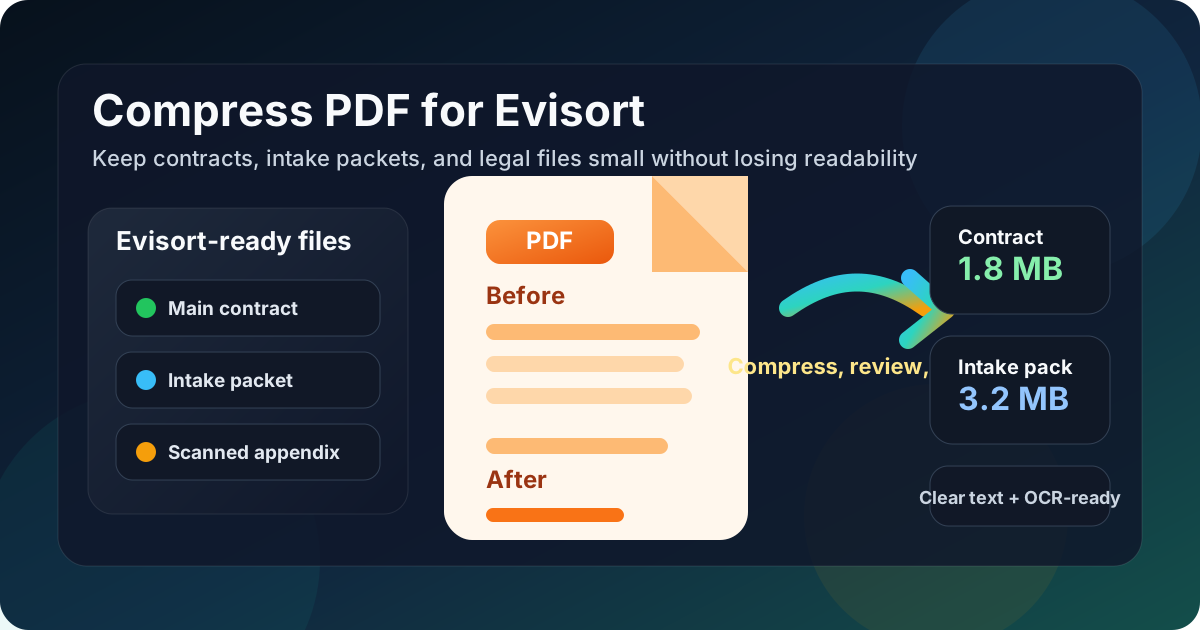
Table of contents
- Quick start: compress an Evisort PDF in under 2 minutes
- Why smaller PDFs help in Evisort workflows
- What file size should you aim for?
- Which compression level should you choose?
- Step-by-step: shrink an Evisort PDF with LifetimePDF
- Best strategy for common Evisort document types
- What if the PDF is still too large?
- How to keep contract details and searchable text usable
- Workflow habits that reduce PDF bloat
- Related LifetimePDF tools and useful reading
- FAQ (People Also Ask)
Quick start: compress an Evisort PDF in under 2 minutes
If your real goal is simply make this PDF smaller so it moves cleanly through Evisort, this workflow is usually enough:
- Open Compress PDF.
- Upload the contract, amendment, NDA, vendor agreement, intake packet, signed appendix, or scanned legal file you want to shrink.
- Choose Medium compression first.
- Download the smaller result and compare the new size with the original.
- Open it once and check the smallest useful details: clause text, dates, names, table rows, signatures, appendix labels, and searchable text.
- If the file came from a scan or still feels bulky, use OCR PDF, Delete Pages, or Crop PDF before you try stronger compression.
Why smaller PDFs help in Evisort workflows
In Evisort, a PDF is rarely just a one-time upload. It may be part of an intake flow, a repository cleanup project, a review cycle, or a later search for contract terms and dates. When the file is heavier than it needs to be, every one of those steps feels slower than it should, especially when the packet includes old scans, appendices, or oversized image pages.
Good compression is not about forcing the tiniest file possible. It is about cutting avoidable weight while protecting the details people actually need to trust. In legal and contract workflows, that usually means clause text, names, dates, signatures, tables, appendix labels, and searchable text. If those stay clear, a smaller PDF becomes easier to import, store, review, and reopen later without making the document feel weaker.
Why lighter Evisort PDFs work better
- Faster imports: useful when a contract or support packet needs to move into the system quickly.
- Smoother review: lighter PDFs are easier for internal teams to open without friction.
- Less scan bloat: legacy agreements, signed appendices, and paper-origin documents often carry more image weight than they need.
- Cleaner storage: smaller files are easier to archive, split, compare, and reuse later.
- Better search experience: a clean, readable PDF plus OCR is much easier to work with than a bloated image-only scan.
What file size should you aim for?
There is no perfect number for every Evisort workflow, so practical ranges are more useful than chasing one tiny target. What matters is whether the document stays easy to review and search later.
| Document type | Practical target | Why that range works |
|---|---|---|
| Text-heavy contracts, NDAs, amendments, and vendor agreements | Under 2MB | These are usually text-first files that should stay quick to open and easy to review. |
| Intake packets, approval bundles, and mixed-content legal files | 2MB to 5MB | This range often keeps tables, cover sheets, signatures, and moderate scan content readable without hauling unnecessary file weight. |
| Scanned legacy agreements and image-heavy support files | Up to 5MB if needed | These naturally weigh more, so preserving clarity matters more than forcing them into an unrealistically tiny target. |
If a straightforward legal PDF lands far above those ranges, the real issue is usually not Evisort. It is more often duplicate pages, dark scan borders, oversized images, blank page backs, or one file trying to carry too many supporting materials at once.
Which compression level should you choose?
For most Evisort workflows, Medium compression is the safest starting point. It usually removes enough file weight to make the document easier to handle while keeping legal details and searchable text in a healthy place.
- Low compression: useful when the PDF already looks clean and only needs a modest size reduction.
- Medium compression: the best default for most agreements, intake packets, and ordinary supporting files.
- High compression: best saved for bulky scans, archive copies, or image-heavy appendices where a lighter file matters more than perfect visual polish.
Step-by-step: shrink an Evisort PDF with LifetimePDF
- Start with the final packet. Use the version you actually plan to import so you are not compressing stale drafts or duplicate support pages.
- Open Compress PDF.
- Upload the file. This might be a contract, renewal file, vendor agreement, intake packet, signed appendix, or scanned legal document.
- Choose Medium compression. It is usually the best first pass for contract-heavy workflows.
- Download the smaller copy. Compare the new size with the original so you can tell whether the reduction was worth it.
- Check the details that carry meaning. Review clause text, dates, names, signatures, table rows, appendix labels, and searchable text.
- Run OCR or clean up only if needed. If the file came from a scan or is still too large, use OCR, remove duplicate pages, crop scan waste, or split long backup sections before compressing harder.
That review step matters. A PDF can be technically smaller and still be worse if the text layer becomes less useful or clause details become harder to trust. One quick quality check is usually enough to avoid that mistake.
Best strategy for common Evisort document types
Text-heavy contracts, NDAs, and amendments
These usually compress well. Medium compression is often enough to cut size without hurting readability. If the file still feels larger than expected, look for duplicate schedules, cover pages, or image-based inserts before reaching for stronger compression.
Intake packets and vendor files
These often mix contract text with cover notes, tables, signed pages, and supporting documents. Medium compression is still a strong default, but review dates, pricing rows, names, and any small appendix labels before replacing the original file.
Scanned legacy agreements
This is where avoidable weight shows up most often. Old scans, phone captures, dark borders, and blank page backs can make a simple agreement much larger than it needs to be. Use Crop PDF, Delete Pages, or OCR PDF where useful instead of relying on heavy compression alone.
Exhibits and support appendices
Support files can be naturally heavier because they often include certificates, stamps, screenshots, handwritten marks, or image-heavy pages. In those cases, a practical file size matters more than chasing perfection. It is usually better to keep the important details clear than to squeeze the file down so far that the result feels fragile.
What if the PDF is still too large?
If Medium compression helps but does not get the file far enough, resist the urge to keep squeezing the same document harder right away. In Evisort workflows, structural cleanup often gives a better result than brute-force compression.
- Remove blank pages, duplicate scans, or outdated drafts no one needs.
- Split one oversized packet into a core agreement and separate appendices.
- Extract only the pages a reviewer actually needs.
- Crop scanner borders and dead margin space.
- Run OCR or re-scan a problem file if the source was already weak before compression started.
Useful cleanup tools: when compression alone is not enough, combine it with page cleanup instead of sacrificing readability.
How to keep contract details and searchable text usable
Before replacing the original with the smaller version, check the details that tend to break first:
- small clause text and section references
- names, dates, and counterparty details
- pricing tables and line-item schedules
- signature blocks, initials, and handwritten marks
- appendix labels, exhibit references, and scan stamps
- text that should still copy, search, or OCR cleanly
If any of those become awkward to read at normal zoom, the file may be over-compressed. Back off, use a lighter setting, or clean the packet structure instead. In contract workflows, readability and usable text are not cosmetic. They are part of whether the document remains practical later.
Workflow habits that reduce PDF bloat
- Finalize the packet first: compress the version you actually intend to keep, not a temporary working export.
- Separate core agreements from bulky support material: one clean contract plus separate appendices is often better than one giant bundle.
- Clean scan problems early: crop, rotate, OCR, and remove blank pages before they multiply through later versions.
- Compare before replacing: if you are unsure what changed visually, use Compare PDFs.
- Start from a clean source: use Word to PDF or a fresh export when possible instead of repeatedly recompressing an already tired file.
- Trim unnecessary metadata when appropriate: PDF Metadata Editor can help tidy a file before sharing or archiving it.
These habits do more than reduce size. They also make the document easier to hand off, easier to search, and easier to trust when someone reopens it later.
Related LifetimePDF tools and useful reading
If you are working with contract-heavy documents, these tools usually pair well with PDF compression:
- Compress PDF for the first size-reduction pass.
- OCR PDF when scans need a cleaner searchable text layer.
- Extract Pages when only part of a long packet needs to move forward.
- Split PDF when the agreement and appendices should travel separately.
- Delete Pages for blank scans, duplicate appendices, and outdated backup sections.
- Compare PDFs when you want to confirm the smaller copy still preserves the details that matter.
Useful adjacent reading: the upload-focused Evisort guide, Compress PDF for ContractSafe, Compress PDF for Contractbook, Compress PDF for SpotDraft, Compress PDF for Juro, and Compress PDF for LinkSquares if your team works across multiple contract systems.
Bottom line: if the Evisort PDF is too large, start with Medium compression, protect readability and searchable text, and clean the packet structure before you force the file any harder.
FAQ (People Also Ask)
How do I compress a PDF for Evisort?
Upload the final Evisort PDF to a PDF compressor, start with Medium compression, and keep the smaller copy only after checking clause text, dates, signatures, tables, appendix labels, and searchable text. For most contract workflows, Medium is the safest starting point because it reduces file size without weakening review quality.
What file size should I aim for before using a PDF in Evisort?
Text-heavy contracts, NDAs, amendments, and vendor agreements often work well under 2MB. Intake packets, signed appendices, and scan-heavy support files usually land better around 2MB to 5MB as long as the smallest useful details remain easy to read.
Should I run OCR before importing a scanned contract into Evisort?
Often, yes. If the file came from a scan and the text is not selectable, OCR usually makes the final PDF more useful. Compression reduces size, but OCR helps the document become easier to search, review, and reuse later.
Will compression make clause text or searchable text less usable?
It can if you compress too aggressively or start with a poor scan. That is why Medium compression is usually the best first move. Always review clause text, signatures, dates, table rows, and searchable text before you keep the smaller file.
Which LifetimePDF tools pair best with Evisort workflows?
Compress PDF is the main starting point. OCR PDF, Extract Pages, Delete Pages, Split PDF, Crop PDF, Compare PDFs, and PDF Metadata Editor are especially useful when you want smaller, cleaner Evisort documents without carrying extra file weight forward.