Compress PDF for Evernote: Keep Notes, Scans, and Research Attachments Lighter
To compress a PDF for Evernote, upload the final research article, scan, receipt packet, meeting notes, or reference file to LifetimePDF's Compress PDF tool, start with Medium compression, and keep the smaller copy only if text, screenshots, and scan details still look clean when attached to your note.
For most Evernote workflows, aim for under 5MB for short text-heavy PDFs and roughly 5MB to 15MB for scan-heavy receipts, article bundles, project packets, or image-rich reference files.
Evernote is great at collecting things you want to find later, but oversized PDFs quietly turn that strength into friction. Heavy attachments take longer to upload, feel clunkier on mobile, and make simple note archives more annoying than they need to be. The goal is not to crush every document into mush. The goal is to make the file lighter while keeping the parts you actually care about when you search, skim, zoom, and reopen it weeks later.
Fastest path: run the PDF through LifetimePDF's Compress PDF tool on Medium, attach the smaller copy to your Evernote note, then zoom in once on the smallest text or most detailed scan before you move on.
Need the short version? Jump to Quick start: compress a PDF for Evernote in under 2 minutes.
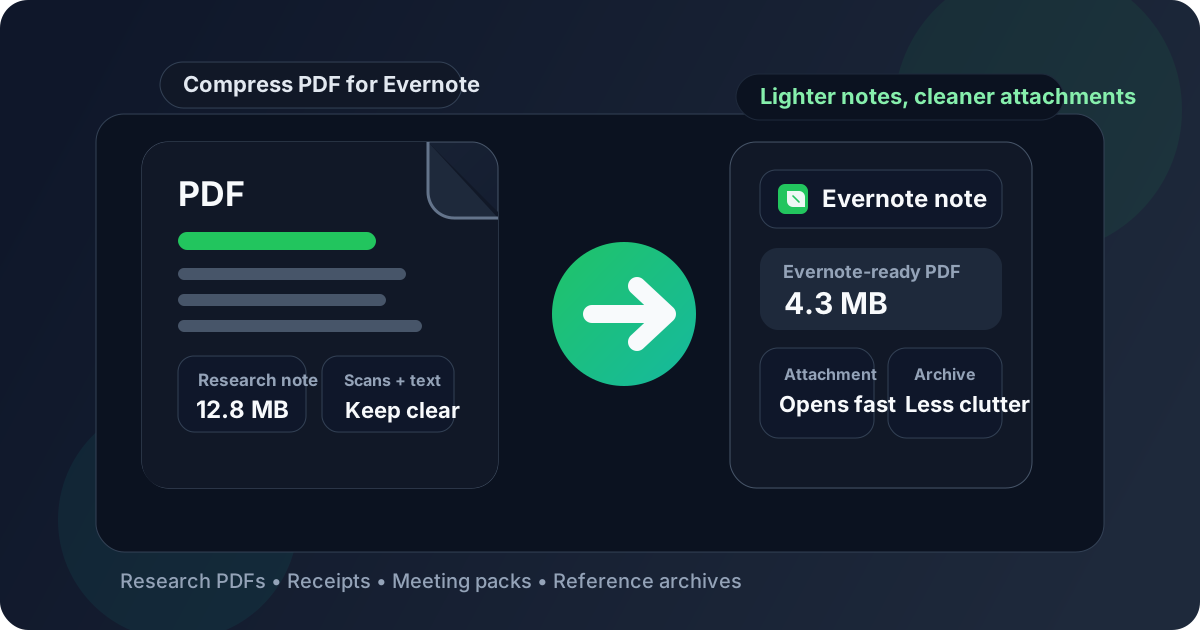
Table of contents
- Quick start: compress a PDF for Evernote in under 2 minutes
- Why smaller PDFs help in Evernote
- What file size should you aim for?
- Which compression level should you choose?
- Step-by-step: shrink an Evernote PDF with LifetimePDF
- Best strategy for common Evernote file types
- What if the PDF is still too large?
- How to keep PDFs searchable and useful later
- Related LifetimePDF tools and useful internal links
- FAQ (People Also Ask)
Quick start: compress a PDF for Evernote in under 2 minutes
If your real goal is simply make this PDF lighter before I save it into Evernote, this workflow is usually enough:
- Open Compress PDF.
- Upload the final article, scan, receipt file, meeting pack, contract, or reference PDF you actually plan to attach to a note.
- Choose Medium compression first.
- Download the smaller PDF and compare the new size with the original.
- Attach it to Evernote and check the details that matter most: paragraph clarity, scanned text, screenshot legibility, zoom comfort, and whether the file opens smoothly on the device you use most.
- If the file still feels bulky, use Split PDF, Extract Pages, or Crop PDF before trying stronger compression.
Why smaller PDFs help in Evernote
Evernote often becomes the place where everything lands: scanned receipts, project briefs, research papers, insurance documents, contracts, travel paperwork, reference manuals, clipped articles, and meeting attachments. If every PDF is heavier than it needs to be, the system still works, but it stops feeling light. Notes become cluttered with bulky files, mobile review feels slower, and the archive you were supposed to trust starts to feel like a pile.
Why lighter PDFs usually behave better in Evernote
- Cleaner uploads: smaller attachments are easier to add to notes and share across your workflow.
- Better mobile comfort: lighter PDFs feel less annoying when you reopen them on a phone or tablet.
- Less note bloat: long-running notebooks stay easier to manage when every attachment is not oversized.
- Faster review: practical-sized PDFs are easier to skim during meetings, travel, or quick reference checks.
- Smoother archiving: a cleaned-up PDF is easier to keep, tag, duplicate, and send elsewhere later.
- Better reuse: once the file is lighter, it is easier to email, upload, or move into another tool without redoing the same cleanup.
In other words, compression is not just a storage trick. It is an organization habit. A PDF that feels lighter and cleaner is more likely to stay useful inside your note system instead of becoming dead weight attached to a note you avoid opening.
What file size should you aim for?
There is no perfect number because a 4-page typed memo behaves very differently from a 120-page scan-heavy binder. Still, practical targets help. The smartest move is to shrink the file until it feels easy to keep and revisit, not until it becomes the smallest possible object on earth.
| Evernote PDF type | Comfortable target | Notes |
|---|---|---|
| Short text-heavy memos, invoices, letters, and simple references | Under 5MB | Usually easy to read after Medium compression if the source PDF is already clean. |
| Research papers, meeting packets, article bundles, and screenshot-heavy reports | 5MB to 15MB | Still practical if charts, tables, highlighted passages, and screenshots stay readable. |
| Scanned receipts, handwritten notes, and document-photo bundles | As small as practical without losing key detail | These often benefit more from cropping, deleting dead pages, and OCR than from aggressive compression alone. |
| Large binders, policy packs, or multi-topic archives | Split into parts if possible | One monster attachment is rarely the nicest long-term Evernote experience. |
If a document remains readable and practical at a slightly larger size, that is fine. The point is to make Evernote easier to live with, not to chase the tiniest number at any cost.
Which compression level should you choose?
Most people do best with a simple rule: start with Medium and only get more aggressive if the file is still heavier than the job deserves.
Low compression
Use Low when the PDF already looks fairly efficient and you only want a modest reduction. This is a safe choice for contracts, charts, detailed screenshots, or any file where tiny details matter more than squeezing out every last megabyte.
Medium compression
Medium is the best default for most Evernote workflows. It usually cuts enough size to matter while keeping ordinary reading, zooming, and scan review comfortable. If you are not sure where to begin, this is almost always the right first pass.
High compression
Use High only when the file is still annoyingly large after smarter cleanup or when the PDF is much bigger than the actual reading task requires. High can be fine for casual reference copies, but you should always check small text, scanned edges, and screenshot details afterward.
Step-by-step: shrink an Evernote PDF with LifetimePDF
- Start with the final file. Use the exact PDF you want to keep in Evernote, not an earlier export you will replace again later.
- Open Compress PDF.
- Choose Medium compression first. It is usually the best balance for readable note attachments.
- Download the smaller copy. Compare the new size with the original so you know whether the reduction was meaningful.
- Attach it to the real note. Put it where it will actually live: a project note, reading note, travel folder, receipts notebook, or archive.
- Review the real pain points. Check a dense paragraph, a screenshot, a scan edge, a chart, or whatever details would bother you later if they looked rough.
- Adjust only if needed. If the PDF is still too bulky, split the file, crop scanner waste, remove extra pages, or OCR it before trying stronger compression.
Best strategy for common Evernote file types
Not every Evernote attachment deserves the same treatment. The right workflow depends on what the PDF actually is.
Research articles and reading packets
These usually compress well, especially when the source file is already text based. If you only need one chapter, paper section, or appendix, keeping only the needed pages often helps more than heavier compression.
Scanned receipts and admin paperwork
This is where people often do too much compression before fixing the real problem. If the scan includes giant margins, shadows, crooked pages, or blank backs, clean that up first. Use Crop PDF and Delete Pages before deciding the file needs a harsher compression pass.
Meeting packs and project briefs
These often contain slides, screenshots, charts, and appendices. Compression helps, but trimming irrelevant sections matters too. A shorter meeting packet saved into Evernote is much easier to revisit than one huge archive full of pages you will never read again.
Reference manuals and policy files
When the PDF is a long-term reference rather than something you read cover to cover, splitting it into logical parts can matter more than squeezing it harder. Topic-based chunks are easier to tag, search around, and reopen later.
Screenshot-heavy reports and clipped resources
Be a little conservative. Screenshot text and thin UI details are often the first things to degrade when a file is compressed too aggressively. Start with Low or Medium, then zoom into the fussiest image before you approve the smaller copy.
What if the PDF is still too large?
If one compression pass was not enough, do not immediately jump to the harshest setting. First ask what is actually making the file heavy. In many cases, the answer is not "needs more compression". The answer is "too many pages," "too much scanner waste," or "this should have been split into separate notes."
- Use Extract Pages when you only need part of the PDF in Evernote.
- Use Delete Pages to remove blank scans, duplicate pages, cover sheets, or irrelevant appendices.
- Use Split PDF for giant files that would behave better as separate notes or separate project sections.
- Use Crop PDF if scanner borders are wasting space.
- Use OCR PDF if the real issue is a scan that needs better searchability rather than simply a smaller file size.
A cleaner PDF often beats a more aggressively compressed PDF. Evernote benefits from better structure just as much as it benefits from raw size reduction.
How to keep PDFs searchable and useful later
Compression only counts as a win if the document still behaves well after it lands in your note archive. That means readability matters, but so does future usefulness. After you create the smaller copy, take 30 seconds to check the parts that affect later retrieval.
Check these before you keep the smaller copy
- Dense text: zoom into the smallest paragraph on the page.
- Scanned details: make sure faded print, stamps, handwritten notes, and page edges still look clear enough to trust.
- Screenshot text: UI labels and tiny captions are often the first things to get ugly.
- Searchability: if the PDF is scan-heavy, use OCR PDF so the note archive stays easier to search.
- Organization: if the file covers multiple topics, split it instead of keeping one giant attachment.
- Metadata: if the PDF will be shared, archived, or synced widely, cleaning document properties can be worthwhile too.
Evernote works best when the archive stays useful over time. A smaller PDF is good. A smaller PDF that is still readable, searchable, and easy to classify is much better.
Related LifetimePDF tools and useful internal links
If you want cleaner Evernote attachments, these are the most useful companion tools:
- Compress PDF for the main size-reduction step.
- Extract Pages when you only need selected pages.
- Delete Pages to remove dead weight before archiving.
- Split PDF for large binders that should become separate notes.
- Crop PDF to trim scanner waste before compressing.
- OCR PDF to make scans more searchable.
- PDF Metadata Editor if you want cleaner file properties before saving or sharing.
- How to Compress a PDF for a broader compression workflow.
- Compress PDF for OneNote and Compress PDF for Notability if your notes also live in other notebook apps.
Simple rule of thumb: shrink the PDF until it feels lighter in Evernote, then stop. If it is still awkward, reorganize the file instead of endlessly squeezing it.
FAQ: Compress PDF for Evernote
How do I compress a PDF for Evernote?
Upload the final PDF to a compressor, start with Medium compression, and keep the smaller copy only if text, screenshots, scan details, and highlighted passages still look clean once the file is attached to your note. For most Evernote workflows, Medium is the safest first step because it reduces size without making the document unpleasant to reopen later.
What PDF size should I aim for in Evernote?
Under 5MB is a strong target for short text-heavy PDFs. Scan-heavy receipts, article bundles, and image-rich project packets often land in the 5MB to 15MB range and can still feel perfectly practical if they remain readable and easier to sync.
Will compression ruin searchability in Evernote?
Usually not if the source PDF already has a clean text layer and you begin with Medium compression. If the file is a scan, the bigger issue is often missing OCR rather than compression itself. In that case, run OCR PDF so the file stays easier to search later.
Should I split a large PDF before putting it in Evernote?
Often yes. If the file contains multiple meetings, chapters, invoices, or project sections, smaller chunks usually feel more useful than one oversized attachment. Splitting also makes later note organization much easier.
Which LifetimePDF tools pair best with Evernote?
Compress PDF is the main starting point. Extract Pages, Delete Pages, Crop PDF, Split PDF, OCR PDF, and PDF Metadata Editor are the most useful helpers when you want lighter, cleaner PDFs inside an organized note archive.
Ready to clean up your Evernote attachments?
Best workflow: Clean the file - Compress - Attach - Review once.
Published by LifetimePDF — Pay once. Use forever.