Compress PDF for Domotz: Keep Network Reports, Maps, and IT Docs Small Without Losing Clarity
To compress a PDF for Domotz, upload the final network report, topology map, alert summary, site snapshot, or internal IT document to LifetimePDF's Compress PDF tool, start with Medium compression, and keep the smaller copy only if device labels, site names, timestamps, notes, and screenshot text still read clearly.
For most Domotz workflows, under 2MB is a strong target for short text-heavy PDFs, while screenshot-heavy maps, audit packets, and scan-heavy evidence usually land better around 2MB to 5MB after light cleanup.
Domotz PDFs are rarely one-and-done files. A topology map might start as a quick internal review, then get attached to a ticket, forwarded to a customer, dropped into an audit packet, or saved for the next technician who inherits the site. The goal is not to squeeze the file until it looks cheap. The goal is to make it lighter so it opens faster and still feels dependable when someone needs the details during a handoff, escalation, or on-site visit.
Fastest path: run the Domotz PDF through LifetimePDF's Compress PDF tool on Medium, then do one quick readability check before you attach, share, archive, or forward the smaller copy.
Need the short version? Jump to Quick start: compress a PDF for Domotz in under 2 minutes.
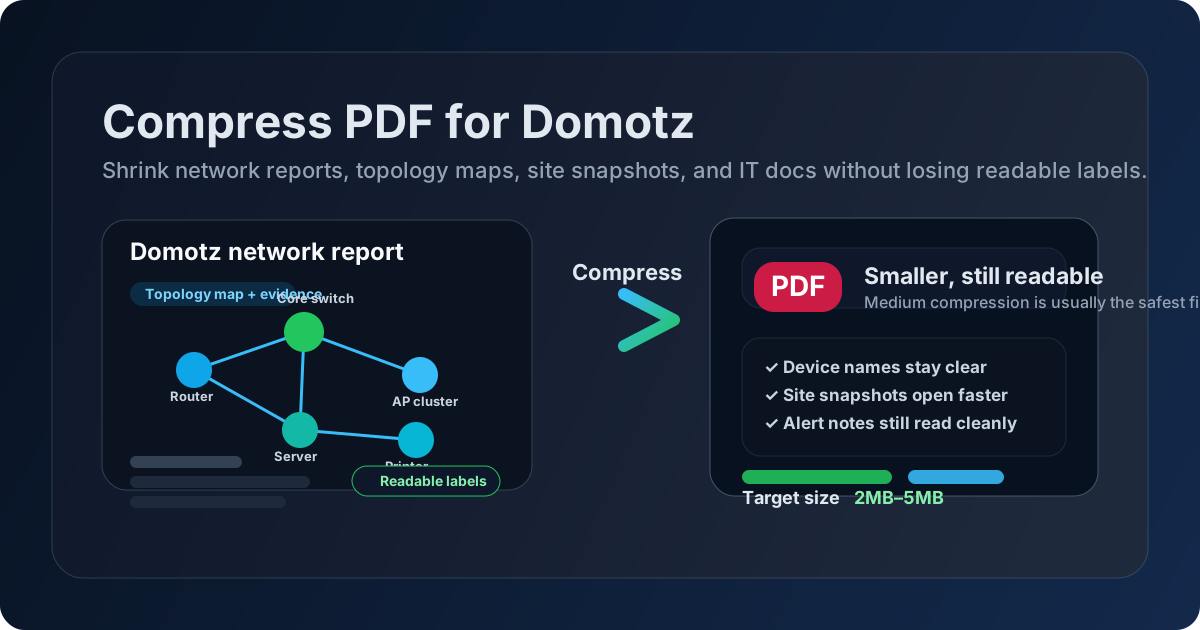
Table of contents
- Quick start: compress a PDF for Domotz in under 2 minutes
- Why smaller PDFs help in Domotz workflows
- What file size should you aim for?
- Which compression level should you choose?
- Common Domotz PDFs worth compressing
- What if the PDF is still too large?
- A quick readability check before sharing
- Workflow habits that keep MSP PDFs cleaner
- Related LifetimePDF tools and useful next steps
- FAQ
Quick start: compress a PDF for Domotz in under 2 minutes
If your goal is simply make this Domotz PDF smaller without ruining it, this is the most practical workflow:
- Open Compress PDF.
- Upload the finished file you actually plan to send, attach, or archive.
- Choose Medium compression first.
- Download the smaller PDF and zoom in on the weakest details.
- If the file is still bulky, use Extract Pages, Delete Pages, or Crop PDF before trying stronger compression.
Why smaller PDFs help in Domotz workflows
Domotz work creates a lot of practical PDFs: site summaries, network maps, evidence packets, quick exports, customer recaps, and internal notes that support repeat service. Those files often start small in purpose but grow large in weight because of screenshots, appended evidence, scans, or a habit of exporting more pages than the next reader actually needs.
Smaller PDFs reduce friction exactly where teams feel it. They open faster during troubleshooting, travel more cleanly through tickets and email, and create less annoyance when someone needs to reopen the same packet during an escalation, customer meeting, or audit. That matters when the document contains timestamps, site names, labels, screenshots, or notes that still need to be trustworthy after compression.
Why teams usually prefer the smaller copy
- Faster review: maps, summaries, and exports open with less waiting.
- Cleaner customer handoffs: lighter PDFs are easier for customers to download, forward, and keep.
- Less mobile friction: smaller files behave better on phones and tablets.
- Better repeat access: when the same packet comes back later, the leaner version is less painful to reopen.
- Smoother archiving: MSP documentation is easier to manage when every file is not carrying dead weight.
What file size should you aim for?
There is no magic number because a one-page site recap behaves differently from a screenshot-heavy network report, a topology map, a customer-ready quarterly packet, or a scanned approval form. Still, practical targets help you decide whether a file is already fine or worth trimming further.
| Document type | Comfortable target | Why it works |
|---|---|---|
| Short text-heavy notes and summaries | Under 2MB | Usually easy to share while keeping site names, labels, timestamps, and brief tables clear. |
| Screenshot-heavy reports and topology maps | 2MB to 5MB | Gives image-based details more room so dashboard text and map labels do not fall apart. |
| Scan-heavy paperwork | As small as possible after cleanup | Scans shrink best after cropping borders, deleting blank pages, and compressing once. |
| Large mixed packets | Often better split than over-compressed | If one file serves several audiences, splitting usually protects readability better. |
In real Domotz work, the best size is not the smallest number you can force. The best size is the smallest file that still leaves map labels, timestamps, screenshots, notes, and customer-facing details comfortable to read without hesitation.
Which compression level should you choose?
If you are deciding between Low, Medium, and High compression, start by asking what the next reader must be able to verify. The more the PDF depends on tiny interface text, small labels, or dense screenshots, the more careful you should be.
Low compression
Use Low when the PDF contains fine text or evidence that must stay extra sharp. This is a safe choice for dense topology maps, dashboard screenshots, audit tables, or customer-facing reports where small labels matter.
Medium compression
Medium is the best starting point for most Domotz PDFs. It usually cuts enough weight to make the file easier to move around while preserving the important stuff: labels, timestamps, report headings, screenshots, and technician notes.
High compression
High compression is most useful when the file is dominated by scans, oversized screenshots, or image-heavy appendices. It can be the right choice, but it deserves a careful review because tiny text and subtle map details can soften fast.
Common Domotz PDFs worth compressing
Compression is most useful when the PDF is worth keeping but bulky enough to slow people down. In Domotz workflows, that often includes files like these:
- Topology maps: useful for troubleshooting and customer communication, but often heavier than expected when screenshots and annotations are involved.
- Network reports and site snapshots: ideal compression candidates because they are frequently shared more than once.
- Alert summaries and audit packets: especially worth shrinking when the file mixes tables, screenshots, and repeated appendix content.
- Ticket attachments and customer recap packets: smaller files feel more professional because they open quickly and travel easily.
- Scanned approvals, forms, and SOPs: these often contain dead border space and image weight that can be cleaned up quickly.
The more often a PDF gets reopened, the more value you get from cleaning it once. A small improvement in file size pays back every time that document gets attached, reviewed, or forwarded again.
What if the PDF is still too large?
If one pass of compression does not get you where you want to go, do not jump straight to the most aggressive setting. Structural cleanup usually works better than crushing the whole file harder.
- Delete duplicate or blank pages: use Delete Pages to remove obvious waste.
- Extract the useful section: use Extract Pages when the next review only needs part of a longer packet.
- Split one oversized file: use Split PDF if customer-facing pages and raw technical evidence should not live together.
- Crop dead borders: scanned forms and paperwork often shrink well after Crop PDF.
- Run OCR when appropriate: OCR PDF can make scan-based documents easier to search and reuse later.
- Redact sensitive details first: use Redact PDF before wider sharing if the file contains customer or device-sensitive information.
- Remove hidden clutter: use PDF Metadata Editor if the file carries stale titles or document properties you do not want to pass along.
In other words, if the PDF is still bulky, fix the structure before you punish the quality. That usually leads to a cleaner file and a less frustrating review experience.
A quick readability check before sharing
Before you replace the original, spend a few seconds checking the details most likely to break first. This matters more than the final file size number.
- Zoom in on the smallest map labels or dashboard text.
- Check site names, timestamps, alert notes, and ticket comments.
- Review the densest table or report block in the file.
- Confirm highlights, arrows, or annotations are still obvious.
- Open the file on a normal laptop screen, not only a zoomed-in desktop monitor.
Workflow habits that keep MSP PDFs cleaner
Compression works better when it is part of a cleaner document habit, not a last-second rescue move. A few small changes usually make Domotz PDFs easier to manage over time.
- Export only what the next audience needs: avoid sending a giant raw packet when a short summary would do.
- Keep customer-facing and internal evidence separate: one file rarely serves both perfectly.
- Trim scan waste early: border-heavy scans stay bulky no matter how many times you compress them.
- Standardize a review step: compress, check the weakest detail once, then share with confidence.
- Clean before archiving: smaller long-term PDFs are easier to search, store, and reopen later.
These habits matter because Domotz documentation tends to be reused. Anything that makes the file lighter and easier to trust will keep helping long after the first upload.
Related LifetimePDF tools and useful next steps
If you are working through Domotz reports, topology maps, and customer-facing MSP packets, these tools usually pair well together:
- Compress PDF for the first size-reduction pass.
- Extract Pages when only part of the packet needs to travel.
- Delete Pages to strip duplicate or blank pages.
- Split PDF when one file is serving two audiences.
- Crop PDF to trim dead scan borders.
- OCR PDF for scan-based forms and paperwork.
- Redact PDF to remove sensitive information before sharing.
- PDF Metadata Editor to clean hidden document properties before broader sharing.
Related reads on LifetimePDF: Compress PDF for N-able N-central, Compress PDF for N-able N-sight, Compress PDF for ConnectWise RMM, Compress PDF for Hudu, and Compress PDF for IT Glue.
Ready to shrink the file? Start with the PDF you actually plan to share, use Medium compression first, and keep the smaller copy only if the key details still read cleanly.
FAQ
How do I compress a PDF for Domotz?
Upload the Domotz PDF to a compressor, start with Medium compression, download the smaller result, and review the weakest details before sharing it. Medium is usually the best first pass because it lowers file size without making device labels, site names, timestamps, or screenshots frustrating to read.
What file size should I aim for?
For short text-heavy PDFs, under 2MB is a strong target. Screenshot-heavy, map-heavy, and scan-heavy files usually feel safer around 2MB to 5MB. The best result is the smallest file that still keeps the important details easy to read.
Will compression make Domotz maps or screenshots blurry?
It can if you push compression too hard. That is why Medium compression is usually the safest place to start. Always zoom in on map labels, timestamps, dashboard text, and notes before you replace the original.
Should I split a large PDF instead of compressing it harder?
Often, yes. If one PDF mixes customer summaries, raw exports, screenshots, scanned forms, and appendices, splitting it usually protects readability better than applying stronger compression across everything.
Which LifetimePDF tools are most useful alongside compression?
Compress PDF is the starting point, but Extract Pages, Delete Pages, Split PDF, Crop PDF, OCR PDF, Redact PDF, and PDF Metadata Editor are all useful when you want smaller, cleaner Domotz documents without carrying unnecessary pages or hidden clutter forward.