Compress PDF for Crazy Egg Without Monthly Fees: Shrink Heatmaps, Snapshots, and UX Report PDFs Without Another Subscription
If you need to compress a PDF for Crazy Egg without monthly fees, use a pay-once PDF tool, start with Medium compression, and keep the smaller copy only if heatmap legends, labels, screenshots, and notes still look clear.
For most Crazy Egg workflows, that is enough to shrink heatmap recaps, snapshot reports, scroll analyses, and UX report PDFs without adding one more recurring subscription to an already crowded product stack.
Crazy Egg already does the expensive part: surfacing behavior patterns, exposing friction, and turning page activity into something teams can act on. The PDF step should stay simple. Usually the job is not building a permanent reporting system. It is making a review deck lighter, getting a stakeholder update under an upload limit, or keeping an archive copy easier to open later. That is exactly why a pay-once workflow makes more sense than paying every month just to shave a few megabytes off the final file.
Fastest path: run the Crazy Egg PDF through LifetimePDF's Compress PDF tool at Medium, then split or extract pages only if the report still carries more file weight than the next reader actually needs.
In a hurry? Jump to Quick start: compress a Crazy Egg PDF in under 2 minutes.
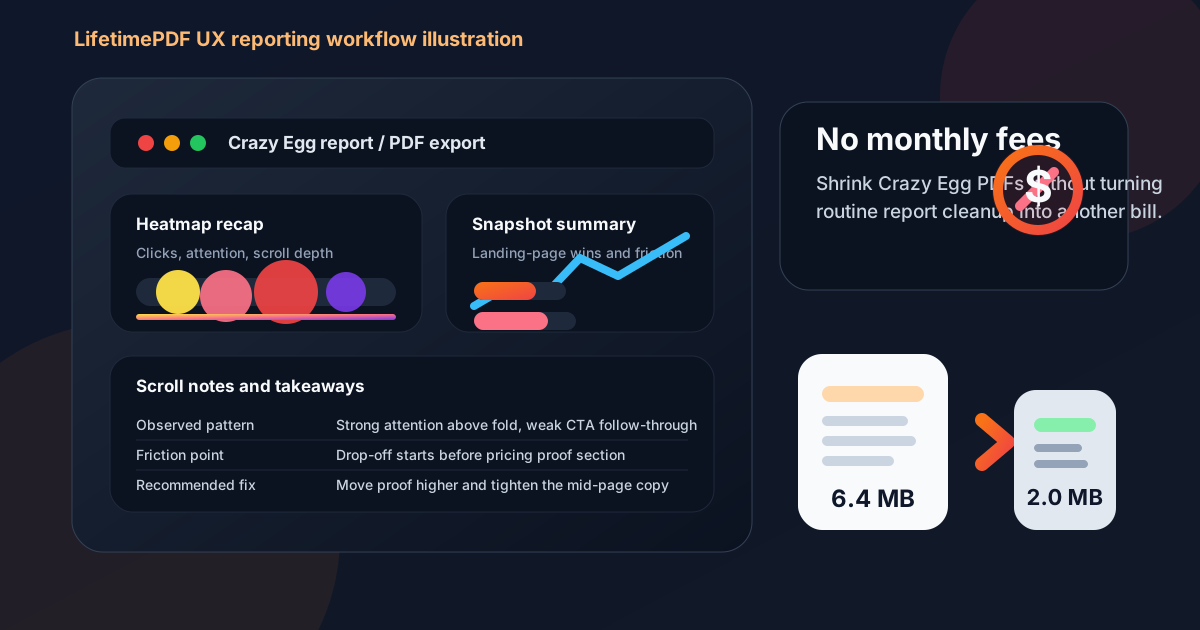
Table of contents
- Quick start: compress a Crazy Egg PDF in under 2 minutes
- Why "without monthly fees" matters here
- Why smaller PDFs help in Crazy Egg workflows
- What file size should a Crazy Egg PDF be?
- Which compression level should you choose?
- Step-by-step: use LifetimePDF to shrink the file
- Best approach for common Crazy Egg PDFs
- What to do if the PDF is still too large
- How to keep screenshots, labels, and notes readable
- Workflow habits that reduce PDF bloat
- Related LifetimePDF tools and useful reading
- FAQ (People Also Ask)
Quick start: compress a Crazy Egg PDF in under 2 minutes
If your real goal is simply make this Crazy Egg PDF smaller so it is easier to send, this workflow is usually enough:
- Export the Crazy Egg file you actually plan to share, whether that is a heatmap review, snapshot report, scroll-depth recap, landing-page audit, or stakeholder-ready UX summary.
- Open Compress PDF.
- Upload the file and choose Medium compression first.
- Download the smaller result and compare the new size.
- Preview the details that matter most: heatmap legends, scroll indicators, page titles, browser text, annotations, date ranges, and short action notes.
- If the file is still bulky, use Extract Pages, Delete Pages, or Split PDF before forcing stronger compression across the whole export.
Why "without monthly fees" matters here
This is finish-line work. The valuable part already happened inside Crazy Egg: finding friction, reviewing clicks, spotting scroll drop-off, and deciding what deserves attention. Paying forever just to make that export smaller is hard to justify.
Product, CRO, marketing, and design teams already live inside a stack full of recurring costs. Analytics, experimentation, heatmaps, design, dashboards, project tools, and storage all add up. When the last step is only make this report easier to send, another monthly fee feels like overhead instead of value.
That matters even more because Crazy Egg PDFs are usually one-time artifacts. A marketer may need a smaller snapshot for a weekly growth update. A product manager may need a trimmed heatmap recap for leadership. A consultant may want a lighter UX audit for a client handoff. None of those cases really call for another subscription just to finish the file.
Simple logic: if the real task is shrinking a report after the insight work is already done, a pay-once PDF workflow usually fits better than renting another tool forever.
Why smaller PDFs help in Crazy Egg workflows
Crazy Egg exports rarely stay inside Crazy Egg for long. They end up in growth reviews, redesign meetings, sprint planning docs, client decks, experiment recaps, and shared folders where someone needs a fixed snapshot instead of a live dashboard. Heavy files slow all of that down.
Smaller PDFs remove friction without changing the meaning of the report. A lighter file is easier to upload, easier to forward, and easier to open when somebody joins a meeting late and just needs the topline story. The key is shrinking the file without damaging the parts that make the export useful in the first place.
- Faster review: lighter PDFs open more quickly when someone only needs the main evidence.
- Smoother sharing: smaller files are easier to email, attach to tickets, and upload into project tools.
- Cleaner archiving: compact reports are less annoying to store in audit folders and experiment histories.
- Better external delivery: clients and stakeholders are much more likely to open a lightweight PDF immediately.
The biggest file-size problems usually come from full-browser screenshots, repeated recap pages, appendix sections for multiple audiences, or one oversized report trying to serve executives, marketers, designers, and implementers all at once. Compression helps, but it works best when you pair it with small cleanup choices.
What file size should a Crazy Egg PDF be?
There is no single perfect number, but practical targets help. For short snapshot reports, one-page summaries, and stakeholder updates, under 2MB is a strong goal. For screenshot-heavy heatmap recaps, scroll analyses, and appendix-led UX review packs, 2MB to 5MB is usually more realistic as long as the smallest useful labels still look clear.
| Crazy Egg PDF type | Practical target | What to protect |
|---|---|---|
| Short snapshot reports and stakeholder recaps | < 2MB | Headlines, labels, and summary notes |
| Heatmap reviews, scroll reports, and landing-page UX recaps | 2MB to 4MB | Legends, screenshots, browser text, and callouts |
| Appendix-heavy evidence packs and client-ready reports | 3MB to 5MB | Support screenshots, written takeaways, and audit context |
You do not win by chasing the tiniest file possible. You win when the next reader can open the PDF quickly and still trust what they are looking at. If labels, notes, or screenshot details become hard to read, the file is too compressed even if the size number looks impressive.
Which compression level should you choose?
For Crazy Egg exports, Medium compression is usually the right first move. It often cuts enough file weight while keeping legends, labels, screenshots, and written notes readable.
- Low compression: good when the file is already close to your target and you only need a modest reduction.
- Medium compression: best default for most heatmap recaps, snapshot reports, and stakeholder-ready UX summaries.
- High compression: useful only when file size matters more than polish, and only after you confirm the smallest labels still work.
In practice, teams often get better results by starting at Medium and then removing unneeded pages if the file is still too large. That usually beats pushing the entire report through a stronger setting right away.
Step-by-step: use LifetimePDF to shrink the file
- Export the right PDF first. Do not start with a giant report if your audience only needs the topline summary.
- Open the compressor. Go to LifetimePDF Compress PDF.
- Upload the Crazy Egg file. This might be a heatmap recap, snapshot report, scroll analysis, landing-page audit, or stakeholder deck.
- Choose Medium compression. That is the safest first pass for most UX and CRO documents.
- Download and review. Compare the old and new size, then check legibility on the smaller copy.
- Trim or clean only if needed. If the file is still too large, split appendix pages, crop browser margins, or redact internal-only details before trying a harsher compression setting.
The review step matters. Open the compressed file once before sending it. Look at the smallest legend, the tightest annotation, the smallest browser text inside screenshots, and any note somebody may need to reference later. If those still feel readable at normal viewing size, you are probably done.
Best approach for common Crazy Egg PDFs
Heatmap reviews
Protect the legend, click zones, and screenshot detail first. These reports lose value fast if a reader cannot tell what drew attention and what did not. Medium compression plus one quick readability check is usually the safest workflow.
Snapshot reports
These are often already concise. Medium compression is usually enough. If the export still feels heavy, the real problem is often too many screenshots or too much appendix material rather than the main report page itself.
Scroll reports and landing-page audits
Review long-page screenshots carefully after compression. Scroll markers, headings, and annotations can become annoying to read before the overall file size looks impressively small.
Stakeholder or client-ready UX summaries
Keep the main story sharp and the appendix separate. Many Crazy Egg PDFs become oversized because they try to serve every audience at once. Extract the summary pages for decision-makers and keep the deeper evidence in a second file.
Archive copies for later comparison
Archive versions should be lighter, but still readable enough to answer questions later. Preserve the pages that explain the page, date range, and main finding, then cut repeated screenshots and stale notes.
What to do if the PDF is still too large
If Medium compression does not get you where you need to be, do not jump straight to aggressive compression. Usually a better answer is to remove file weight that is not helping the reader.
- Extract only the summary or decision-making pages.
- Split long report packs into a main report and a backup appendix.
- Delete duplicate screenshots, stale covers, and leftover draft sections.
- Crop oversized browser borders and wasted margins.
- Redact internal URLs, IDs, or notes that should not travel outside the team.
You can handle those cleanup steps with Extract Pages, Delete Pages, Split PDF, Crop PDF, and Redact PDF.
How to keep screenshots, labels, and notes readable
A good compressed Crazy Egg PDF still feels trustworthy. Before you share it, check the parts most likely to suffer:
- heatmap legends, labels, and explanatory notes
- browser text inside screenshots
- annotations, arrows, highlights, and caption callouts
- snapshot labels and summary metrics
- written takeaways that explain what changed
- appendix pages that somebody may still need in a follow-up discussion
If any of those become annoying to read at a normal zoom level, back off. A slightly larger file is usually the better business choice than a smaller file that makes the evidence harder to trust.
Workflow habits that reduce PDF bloat
The cleanest Crazy Egg PDFs usually come from cleaner export habits upstream. You do not need to attach every supporting screenshot to every summary. In many teams, the best file-size improvement comes from packing the report more deliberately before compression ever starts.
- Separate summary from evidence: keep the main findings in one PDF and the long appendix in another.
- Remove repeated full-browser screenshots: one well-chosen image beats six similar ones.
- Crop wasted margins: browser chrome and empty whitespace add size without adding meaning.
- Redact before external sharing: clean up internal comments, URLs, and campaign references first.
- Keep the last reviewed copy: once the file is readable and light enough, stop re-exporting and recompressing variants without a reason.
These habits usually improve the reading experience more than aggressive compression alone. A tidy Crazy Egg report pack is easier to share, easier to compress, and easier to trust later.
Related LifetimePDF tools and useful reading
If you want a cleaner workflow around this article, these tools and guides fit naturally:
- Compress PDF for the main size reduction step.
- Extract Pages when stakeholders only need the summary.
- Split PDF when one report contains both a main story and a bulky appendix.
- Crop PDF for browser borders and wasted margins.
- Redact PDF for internal URLs, IDs, or sensitive notes.
- Compress PDF for Hotjar Without Monthly Fees for a close heatmap-reporting companion workflow.
- Compress PDF for Microsoft Clarity Without Monthly Fees for another behavior-analysis reporting workflow.
- Compress PDF for FullStory Without Monthly Fees for a session-replay heavy companion workflow.
- Compress PDF for PostHog Without Monthly Fees if your team mixes product analytics with behavior insights.
Want the simplest setup? Use LifetimePDF for the compression step, then keep Split PDF, Crop PDF, and Redact PDF nearby for report packs that mix executive summaries with screenshot-heavy appendix pages.
FAQ (People Also Ask)
How do I compress a PDF for Crazy Egg without monthly fees?
Upload the Crazy Egg export to a pay-once tool like LifetimePDF, start with Medium compression, and review the smaller file before you share it. If the PDF is still too heavy, split, crop, or extract only the pages the next reader actually needs instead of over-compressing the whole export.
What file size should I aim for with Crazy Egg PDFs?
Under 2MB is a strong target for short snapshot reports and stakeholder recaps. Screenshot-heavy heatmap reviews, scroll analyses, and appendix-led UX decks usually work better around 2MB to 5MB as long as the smallest useful labels still read clearly.
Will compression make Crazy Egg screenshots blurry?
It can if you compress too aggressively. Medium compression is usually the safest first pass because it reduces size while preserving legends, screenshots, browser text, and written takeaways.
Why look for a Crazy Egg PDF workflow without monthly fees?
Because the compression step comes after the useful insight work is already done. If you already pay for Crazy Egg and other CRO tools, another recurring bill just to shrink exported PDFs rarely feels justified.
What if my Crazy Egg PDF is still too large after compression?
Extract only the summary pages, split the appendix into a second file, crop browser borders, and redact internal-only details before pushing compression harder. In many Crazy Egg workflows, sharing less PDF works better than crushing the whole report more aggressively.
Published by LifetimePDF - Pay once. Use forever.