Compress PDF for ContentShake AI: Share Smaller SEO Briefs, Draft Review PDFs, and Content Approval Packs Faster
To compress a PDF for ContentShake AI, export or print the brief or review file as PDF, upload it to Compress PDF, start with Medium compression, and keep the smaller copy only if headings, examples, screenshots, and comments still look clean.
For most ContentShake AI PDFs, under 2MB works well for single SEO briefs and quick writer handoffs, while broader draft review packs, screenshot-heavy recaps, and approval PDFs usually work best around 2MB to 5MB.
If the file is still heavy, split appendix pages, remove repeated screenshots, or crop oversized exports before trying stronger compression.
ContentShake AI PDFs usually get shared because someone needs the plan without another login. Maybe you are sending a brief to a writer, packaging a draft review for an editor, or handing a client an approval copy that is easier to open in email or a project thread. In those moments, smaller PDFs help. They upload faster, feel lighter in shared folders, and reduce friction when someone needs to act on the recommendation instead of wrestling with the file. The goal is not the tiniest possible PDF. The goal is a smaller copy that still feels dependable when someone zooms in on a heading note, example block, or screenshot annotation.
Fastest path: Run the ContentShake AI export through LifetimePDF's Compress PDF tool at Medium, then do one quick readability check before you email, upload, or archive the smaller copy.
Short on time? Jump to Quick start: compress a PDF for ContentShake AI in under a minute.
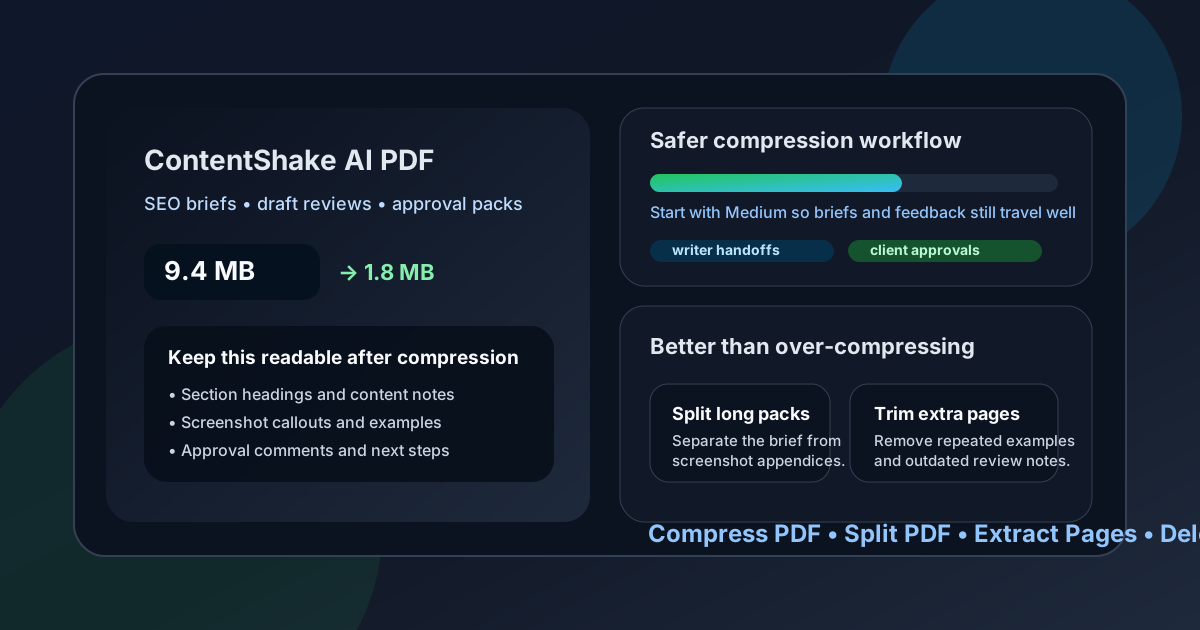
Table of contents
- Quick start: compress a PDF for ContentShake AI in under a minute
- Why smaller PDFs help in ContentShake AI workflows
- What file size should you aim for?
- Which compression level should you choose?
- Step-by-step: shrink a PDF with LifetimePDF
- Best strategy for briefs, review packs, and approval files
- What if the PDF is still too large?
- How to keep headings, notes, and screenshots readable
- Workflow habits that reduce PDF bloat
- Related LifetimePDF tools and internal links
- FAQ (People Also Ask)
Quick start: compress a PDF for ContentShake AI in under a minute
If your real goal is simply make this ContentShake AI PDF smaller so it is easier to send, review, and save, this is the shortest reliable workflow:
- Open Compress PDF.
- Upload the ContentShake AI SEO brief, outline recap, draft review pack, approval PDF, or screenshot-backed content plan you want to shrink.
- Choose Medium compression first.
- Download the smaller file and compare the new size with the original.
- Open it once to check headings, notes, examples, screenshots, action items, and summary recommendations.
- If the file is long, use Split PDF or Extract Pages to keep only the pages the next reader actually needs.
- If the pack includes repeated screenshots, stale appendix pages, or oversized exported views, trim that weight before trying a stronger compression level.
Why smaller PDFs help in ContentShake AI workflows
ContentShake AI PDFs usually exist because someone needs a fixed version of content work: a brief for a writer, a draft review packet for an editor, an approval copy for a manager, or a client handoff that is easier to circulate than a live workspace. That is where file size starts to matter.
Heavy PDFs are slower to upload, more awkward to forward, and easier for busy readers to postpone. In practice, the extra weight often comes from repeated screenshots, long revision appendices, broad example collections, or one oversized document trying to answer every possible question at once. Good compression is not about forcing the file to the smallest possible number. It is about trimming waste while keeping the details people still rely on, such as topic guidance, suggested headings, screenshot callouts, example snippets, approval notes, and next-step recommendations.
Why compression usually helps
- Faster sharing: smaller PDFs are easier to email, upload to project tools, and attach to content or client updates.
- Smoother writer handoffs: lighter files open faster when somebody needs to start writing now, not later.
- Cleaner archives: recurring briefs and review packs are easier to store and revisit when they are not bloated with extra screenshots.
- Better approval flow: reviewers are more likely to open a lighter file quickly and leave feedback faster.
- Less rework: compressing once is usually easier than rebuilding and resending a file that turned out too large to use comfortably.
What file size should you aim for?
There is no single perfect number because a one-page brief behaves differently from a multi-section review pack with screenshots, examples, and revision notes. Still, practical targets make the decision easier.
| Use case | Recommended target | Why it works |
|---|---|---|
| Single briefs, outline summaries, and quick writer handoffs | < 2MB | Easy to email, quick to preview, and low-friction for busy readers |
| Most draft review packs, optimization recaps, and client-ready approval PDFs | 2MB to 5MB | Usually the sweet spot between readability and convenience |
| Screenshot-heavy appendices, revision history packs, and oversized evidence decks | 5MB+ | Still workable internally, but often a sign that the PDF should be split or trimmed before wider sharing |
The right target also depends on who will open the file. A strategist or editor may tolerate a larger appendix. Writers, clients, and executives usually benefit from a tighter summary. If the reader only needs the main guidance and a few proof points, the best move is often a smaller, more focused PDF rather than a heavily compressed version of the whole export.
Which compression level should you choose?
Most ContentShake AI PDFs should start with Medium compression. It usually removes enough weight to matter without immediately softening heading notes, screenshot callouts, or smaller example text.
| Compression level | Best for | Watch out for |
|---|---|---|
| Low | Detail-heavy briefs and PDFs where preserving small text matters more than maximum reduction | May not shrink enough if the real problem is repeated screenshots or unnecessary appendix pages |
| Medium | Most content briefs, review packs, and client-ready approval copies | Usually the best default, but still review headings, notes, examples, screenshots, and action items before keeping it |
| High | Image-heavy appendix copies or quick-share versions where the tiniest detail is not critical | Can blur screenshot labels, smaller example text, and dense recommendations that someone may need later |
Step-by-step: shrink a PDF with LifetimePDF
Here is a simple workflow that works well for most ContentShake AI reports and briefs:
- Open LifetimePDF Compress PDF.
- Upload your ContentShake AI PDF.
- Choose Medium compression first.
- Download the smaller file.
- Review the compressed copy at normal reading zoom and again at closer zoom.
- Check whether topic notes, suggested headings, screenshot callouts, example snippets, approval comments, and recommendation text still feel easy to trust.
- If the file is still too large, use Delete Pages, Split PDF, or Crop PDF before trying a stronger compression pass.
That order matters. Compression is best at removing file-weight waste. Page tools are best at removing scope waste. When you use both in the right order, you usually get a better result than leaning on either one alone.
Good workflow: compress first, then decide whether you also need page cleanup, splitting, metadata cleanup, or a before-and-after comparison.
Best strategy for briefs, review packs, and approval files
1) SEO briefs and outlines
These files need to stay easy to skim. Topic suggestions, headings, section ideas, and action notes all matter. Start with Medium compression and check that the brief still feels effortless to use at normal zoom. If the reader is going to write from the PDF, clarity matters more than squeezing out every last bit of size.
2) Draft review packs
These often include the main draft plus screenshots, editorial notes, and supporting examples. If the reviewer does not need every appendix page, splitting the pack usually works better than forcing stronger compression across the whole file.
3) Client-ready approval PDFs
Client-facing packs tend to get heavy because they combine summaries, screenshots, commentary, and appendix material in one place. Most readers do not need every supporting example in the main PDF. Keep the decision-ready story in the core report and move backup proof into a separate appendix when necessary.
4) Screenshot evidence and revision appendices
If the appendix is full of before-and-after captures, repeated examples, or proof pages that mostly exist for internal reference, trim those pages before compressing again. A shorter appendix almost always works better than a heavily compressed appendix that nobody can comfortably read.
What if the PDF is still too large?
If the compressed file is still heavier than you want, do not assume the next answer is stronger compression. Large ContentShake AI PDFs often stay large because they contain too much material, not because the compression setting was too gentle.
- Split the pack: separate the main brief or report from the appendix or review-proof section.
- Extract only what matters: keep the pages needed for the meeting, handoff, or approval round.
- Delete repeated pages: remove duplicate screenshots, stale examples, or outdated versions.
- Crop oversized margins: trim wasted white space and wide screenshots that add weight without adding clarity.
- Rebuild for the audience: create one compact summary and one detailed appendix instead of one oversized master PDF.
In many real workflows, the biggest win comes from making the report narrower in scope, not smaller in pixels.
How to keep headings, notes, and screenshots readable
A compressed file only helps if people can still use it. Before you send the final ContentShake AI PDF, check the parts most likely to suffer:
- Suggested headings and structure: the main plan should still be easy to scan.
- Topic notes and content guidance: small labels should still read clearly.
- Screenshot callouts and examples: highlights, notes, and reference areas should still point to the right evidence.
- Approval comments and action items: next-step text should feel easy to skim, not cramped or washed out.
- Appendix screenshots and proof pages: supporting evidence should still be usable when someone checks a detail later.
If one page looks soft, that is often enough reason to step back. A PDF that is a little larger but easier to trust is usually the better version.
Workflow habits that reduce PDF bloat
- Keep the writer brief separate from proof packs: most readers need the guidance first, not every supporting screenshot.
- Export only the views that matter: focused PDFs are easier to read and easier to compress.
- Trim duplicate evidence: repeated screenshots and stale revisions add weight without adding insight.
- Crop oversized captures: wide screenshots often include empty space the reader does not need.
- Compare versions when revisions matter: use Compare PDFs if you need to show what changed between rounds.
- Clean metadata before client delivery: use PDF Metadata Editor when a polished external copy matters.
These habits usually improve the reading experience more than aggressive compression alone. A tidy ContentShake AI PDF is easier to send, easier to compress, and easier to trust later.
Related LifetimePDF tools and internal links
Compressing a PDF for ContentShake AI is usually one step inside a broader content optimization, editorial, or SEO reporting workflow. These tools pair well with it:
- Compress PDF - shrink content briefs, review packs, and approval PDFs before sharing
- Split PDF - break one oversized content pack into smaller files
- Extract Pages - isolate the exact pages needed for a writer, editor, or client handoff
- Delete Pages - remove outdated revisions, repeated examples, or appendix clutter
- Crop PDF - trim white space and awkward screenshot margins
- Merge PDF - combine only the support files you actually need
- PDF Metadata Editor - clean hidden file details before client delivery
- Compare PDFs - useful when content files change between review rounds
Suggested internal blog links
- Compress PDF for ContentShake AI Without Monthly Fees
- Compress PDF for Frase
- Compress PDF for Dashword
- Compress PDF for Content Harmony
- Compress PDF for Clearscope
- How to Reduce PDF File Size for Email
- Compare PDF Versions Online
- Browse all LifetimePDF articles
Ready to shrink your ContentShake AI PDF?
Best workflow: Export PDF → Compress → Review → Split or trim if needed → Share or archive.
FAQ (People Also Ask)
1) How do I compress a PDF for ContentShake AI?
Export the brief or review file as PDF, upload it to a PDF compressor, start with medium compression, download the smaller result, and preview it before sharing it. For most ContentShake AI exports, Medium compression is the best first step because it reduces size while keeping headings, notes, examples, screenshots, and recommendations readable.
2) What is a good file size for a ContentShake AI PDF?
For single briefs, outline summaries, and quick writer handoffs, under 2MB is a practical target. For broader review packs, screenshot-heavy recaps, and client-ready approval PDFs, 2MB to 5MB is often more realistic as long as the smallest important text still looks clear.
3) Will compressing a ContentShake AI PDF make recommendations or screenshots blurry?
It can if you compress too aggressively. That is why Medium compression is usually the safest default. Always review heading notes, screenshot callouts, examples, approval comments, and recommendation blocks before you keep the compressed file.
4) Should I split a large ContentShake AI brief instead of compressing it harder?
Often, yes. If one PDF mixes the main brief, optimization notes, screenshots, revision comments, and appendix pages for different readers, splitting the document usually works better than forcing strong compression across the entire file.
5) Which LifetimePDF tools pair best with ContentShake AI exports?
Compress PDF is the main starting point. Split PDF, Extract Pages, Delete Pages, Crop PDF, Compare PDFs, and PDF Metadata Editor all help when you need cleaner client-ready content and SEO PDFs.
Published by LifetimePDF - Pay once. Use forever.