Compress PDF for ChartMogul: Share Smaller Revenue Reports, Board Packs, and KPI PDFs Faster
To compress a PDF for ChartMogul, export the revenue report or board pack as a PDF, upload it to Compress PDF, start with Medium compression, and keep the smaller copy only if MRR charts, cohort tables, KPI summaries, and notes still look clear.
For most ChartMogul PDFs, under 1MB to 2MB works well for short revenue updates, while broader board packs, investor recaps, and appendix-heavy KPI reviews usually sit best around 2MB to 5MB.
ChartMogul PDFs get bulky for the same reason they are useful: one file often combines growth charts, subscription metrics, cohort tables, commentary, screenshots, and a board-friendly narrative. Good compression removes the handoff friction without flattening the numbers, labels, and context people actually need to trust the report.
Fastest practical path: export the ChartMogul PDF, start with Medium compression, review the smallest useful numbers once, then split or trim appendix pages only if the file is still heavier than it needs to be.
In a hurry? Jump to quick start: compress a ChartMogul PDF in under 2 minutes.
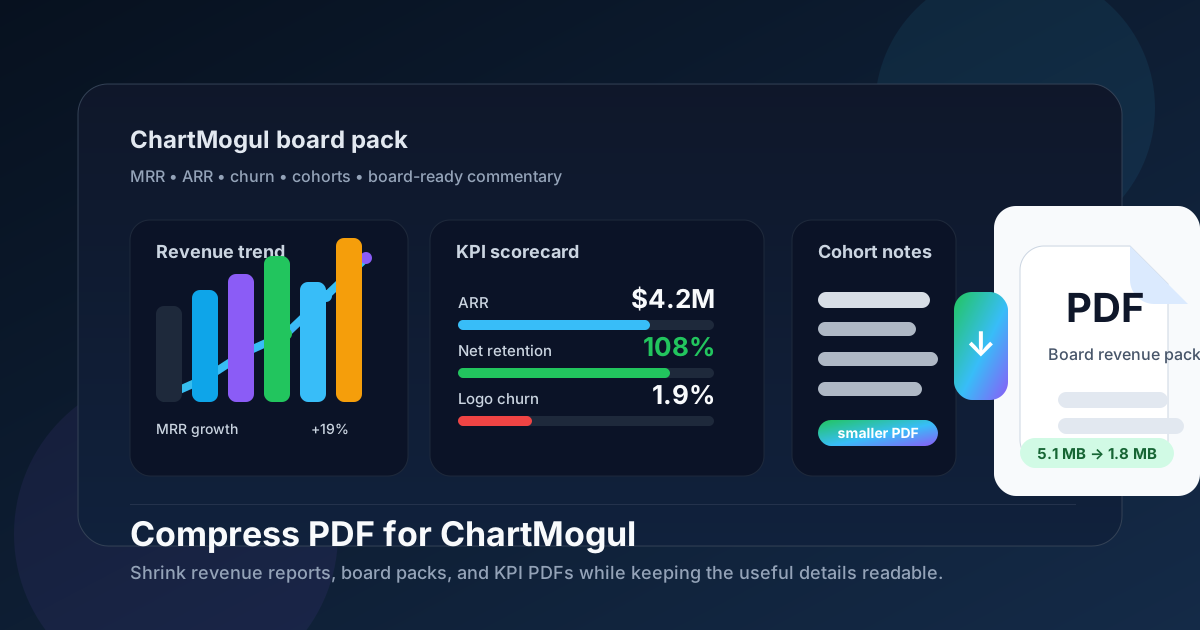
Table of contents
- Quick start: compress a ChartMogul PDF in under 2 minutes
- Why smaller PDFs help in ChartMogul workflows
- What file size should you aim for?
- Which compression level should you choose?
- Step-by-step: shrink a ChartMogul PDF with LifetimePDF
- Best strategy for common ChartMogul PDF types
- What if the PDF is still too large?
- How to keep revenue metrics and board-pack details readable
- Workflow habits that reduce PDF bloat
- Related LifetimePDF tools and internal links
- FAQ
Quick start: compress a ChartMogul PDF in under 2 minutes
If your real goal is simply make this ChartMogul PDF smaller so it is easier to send, upload, or archive, this workflow is usually enough:
- Export or save the ChartMogul report, board pack, KPI summary, subscription-metrics review, or investor recap as a PDF.
- Open Compress PDF.
- Upload the ChartMogul PDF you want to shrink.
- Choose Medium compression first.
- Download the smaller file and compare the new size with the original.
- Open it once and check MRR figures, chart labels, cohort rows, KPI callouts, dates, and notes.
- If the file is still bulky, use Split PDF, Extract Pages, or Delete Pages before pushing compression harder.
Why smaller PDFs help in ChartMogul workflows
ChartMogul exports usually sit inside a handoff, not at the very end of the workflow. People turn them into PDFs when they need to share a revenue story with someone else: a board update, an investor packet, a monthly KPI review, a churn analysis, or an executive summary that mixes charts with commentary. That is where file size starts to matter.
Heavy PDFs create drag in places that should feel simple. They are slower to upload, clumsier in email, and more awkward to open when someone only needs the main answer. In practice, the extra weight usually comes from repeated charts, wide cohort tables, appendix sections, exported screenshots, or multiple audience versions packed into one file. Good compression is not about chasing the tiniest possible number. It is about removing friction while keeping the proof intact.
Why compression usually helps
- Faster board delivery: lighter PDFs are easier to attach, upload, and circulate before meetings.
- Smoother executive reviews: a smaller revenue report opens faster when someone wants the conclusion, not a loading wait.
- Cleaner archives: monthly KPI packs take up less space when they are not bloated with repeated appendices.
- Better team handoffs: smaller PDFs move more smoothly between finance, operations, leadership, and investors.
- Less rework: compressing once is usually easier than rebuilding and resending a report that turned out awkward to share.
What file size should you aim for?
There is no perfect number for every ChartMogul PDF, but a few practical ranges help you avoid compressing harder than necessary:
| Document type | Good target range | Why that range works |
|---|---|---|
| Single-page KPI snapshot or quick revenue recap | Under 1MB | Usually enough for one chart, a few callouts, and a light metric table. |
| Executive summary or short monthly report | 1MB to 2MB | Keeps charts, commentary, and small notes readable without feeling heavy. |
| Board pack or investor update | 2MB to 4MB | Allows wider charts, cohort tables, and supporting notes to stay legible. |
| Appendix-heavy revenue review or mixed metrics deck | 3MB to 5MB | Useful when the PDF mixes charts, screenshots, commentary, and support pages. |
| Large all-in-one board packet | Split it instead of forcing a tiny size | One oversized PDF is often the real problem, not the compression level. |
If you can hit the lower end of those ranges without harming readability, great. If not, keep the file a little larger and preserve the pieces people actually need to inspect. In ChartMogul workflows, losing confidence in the numbers usually costs more than carrying a slightly heavier file.
Which compression level should you choose?
The right compression level depends on what kind of ChartMogul PDF you built. Some exports are mostly text and headline metrics. Others depend on wide charts, cohort tables, multi-column data, or board commentary.
| Compression level | Best for | Tradeoff |
|---|---|---|
| Low | Reports where tiny text, dense cohort columns, or chart labels matter a lot | Smallest reduction, safest readability |
| Medium | Most ChartMogul KPI summaries, executive updates, and board-review decks | Best balance of size and clarity |
| High | Only when the PDF still feels too large after trimming extra pages | Greater size reduction, higher chance of blurry charts or harder-to-read tables |
Step-by-step: shrink a ChartMogul PDF with LifetimePDF
- Prepare the report you actually want to share. If you have raw exports, appendix pages, screenshots, and summary slides mixed together, decide whether they all belong in one PDF.
- Open Compress PDF.
- Upload the ChartMogul PDF. This might be a revenue recap, board report, churn analysis, KPI summary, or investor-ready deck.
- Choose Medium compression. That is the safest starting point for most recurring-revenue reporting PDFs.
- Download the compressed result.
- Review the most fragile details first. Check MRR values, chart labels, cohort tables, footnotes, dates, and commentary.
- Split or trim if the file still feels bulky. Use Split PDF or Delete Pages for appendix cleanup.
- Share or archive the final copy. Once the PDF is clearly readable and easier to handle, it is ready to send.
That workflow usually works better than immediately pushing the strongest compression option. When a ChartMogul file feels too large, the root cause is often page packaging, not the report itself.
Best strategy for common ChartMogul PDF types
Not every ChartMogul PDF should be treated the same way. The smartest compression choice depends on what the next reader needs from the file.
1) Revenue snapshot or executive summary
These are usually the easiest to compress. If the PDF only includes a few charts, a short table, and some notes, Medium compression is often enough to get the file comfortably small without noticeable loss.
2) Board pack or investor update
This is where you need more caution. Wider tables, cohort views, and small labels can become harder to read if the PDF is compressed too aggressively. Start with Low or Medium and preview the smallest text before keeping it.
3) Churn analysis or subscription-metrics review
If the report mixes charts, tables, notes, and commentary, compression helps, but the bigger win often comes from removing duplicate pages or separating the summary from supporting material.
4) All-in-one monthly reporting pack
These packs often blend narrative with proof. Medium compression is usually the safest choice because it keeps the deck lighter without making charts, tables, or footnotes feel cheap.
What if the PDF is still too large?
If the first compression pass is not enough, do not assume the answer is simply stronger compression. In many cases, a better file structure shrinks the PDF more safely than harder image reduction.
- Split the summary from the appendix: keep the headline story separate from the raw evidence pages.
- Delete duplicate charts or stale exports: repeated visuals add weight fast.
- Extract only the needed pages: if someone only needs the summary and one support section, send exactly that.
- Crop oversized margins: wide whitespace around charts or screenshots can waste space.
- Trim repeated audience versions: not every investor, operator, and board note needs to travel in the same file.
The goal is not just a smaller PDF. It is a cleaner one. Once the document becomes more focused, compression usually works better too.
How to keep revenue metrics and board-pack details readable
Before you send, store, or present the compressed copy, do a quick check on the details people actually rely on:
- MRR, ARR, churn, ARPU, and other KPI values
- Chart legends, axes, dates, and trend labels
- Cohort tables, retention rows, and comparison columns
- Board commentary, footnotes, and explanatory notes
- Investor-facing callouts, benchmark references, and next-step summaries
- Appendix labels that explain where the numbers came from
Workflow habits that reduce PDF bloat
- Export only what the next reader needs: a focused revenue report usually beats an all-purpose archive dump.
- Separate proof from presentation: keep the main narrative light and move raw evidence into a second file when needed.
- Use screenshots selectively: one strong example is usually better than five near-duplicates.
- Trim stale comparison pages: old views feel useful until they make the file harder to use.
- Compare versions when revisions matter: use Compare PDFs if you need to confirm what changed between report rounds.
- Clean metadata before external delivery: use PDF Metadata Editor when a polished board-ready file matters.
These habits usually improve the reading experience more than aggressive compression alone. A tidy report pack is easier to share, easier to compress, and easier to trust later.
Related LifetimePDF tools and internal links
Compressing a PDF for ChartMogul is usually one step inside a broader revenue reporting or board handoff workflow. These tools pair well with it:
- Compress PDF - shrink revenue reports, KPI summaries, and board packs before sharing
- Split PDF - break one oversized board packet into smaller, easier files
- Extract Pages - isolate the exact sections needed for a review
- Delete Pages - remove duplicate charts, stale pages, or bulky appendix sections
- Crop PDF - trim wasted margins around exports and screenshots
- Merge PDF - combine only the supporting documents you actually need
- PDF Metadata Editor - clean hidden title, author, and keyword fields before external delivery
- Compare PDFs - useful when board decks change between review rounds
Suggested internal blog links
- Compress PDF for Fathom
- Compress PDF for Klipfolio
- Compress PDF for Datarails
- Compress PDF for Prophix
- Compress PDF for Drivetrain
- Compress PDF Online Free
- Browse all LifetimePDF articles
FAQ
1) How do I compress a PDF for ChartMogul?
Export the ChartMogul file as a PDF, upload it to a PDF compressor, start with medium compression, download the smaller result, and preview it before sending it. For most ChartMogul workflows, Medium compression is the best place to begin because it reduces size while keeping MRR charts, cohort tables, KPI summaries, and commentary readable.
2) What file size should I aim for before sharing a ChartMogul report?
A practical target is under 1MB to 2MB for short revenue updates, KPI snapshots, and lightweight executive summaries. For broader board packs, investor recaps, or appendix-rich reporting decks, somewhere in the 2MB to 5MB range is often still reasonable as long as the smallest important details stay clear.
3) Will compressing a PDF make ChartMogul charts or tables blurry?
It can if you compress too aggressively. That is why Medium compression is usually the safest default. Always review chart labels, KPI tables, cohort rows, dates, footnotes, and commentary before you keep the compressed copy.
4) Should I split a large ChartMogul PDF instead of compressing it harder?
Often, yes. If one PDF includes the board summary, investor narrative, raw metric appendix, screenshots, and recommendations for different audiences, splitting it usually works better than forcing strong compression across the entire file.
5) What should I do if the PDF is still too large after compression?
Remove duplicate charts, crop oversized margins, split one large report into smaller PDFs, and keep only the pages your board or teammate actually needs before pushing compression harder. In many ChartMogul workflows, file bloat comes from oversized packaging more than from the actual report data inside the document.
Ready to shrink your ChartMogul PDF?
Best workflow: Export the ChartMogul PDF - Compress - Review - Split or trim if needed - Share or archive.
Published by LifetimePDF — Pay once. Use forever.