Compress PDF for BuzzSumo Without Monthly Fees: Share Smaller Content Research Reports and Competitor Exports Without Subscription Bloat
If you need to compress a PDF for BuzzSumo without monthly fees, export the report as PDF, use a pay-once tool like LifetimePDF, start with Medium compression, and review the smaller file once before sharing it.
For most BuzzSumo workflows, that is enough to shrink content research reports, competitor exports, trend snapshots, and client PDFs without adding another recurring bill for a tiny finishing task.
This is the kind of workflow that should stay boring. You finish the research, tighten the file, send it, and move on. But subscription-heavy PDF tools can make a simple handoff feel needlessly expensive. When the real need is just a lighter PDF that still keeps headlines, screenshots, charts, source references, and notes readable, a no-subscription path is usually the smarter fit.
Fastest path: save the BuzzSumo export as PDF, run it through LifetimePDF's Compress PDF tool with Medium compression, and split or extract pages only if the file still feels heavier than it should.
In a hurry? Jump to Quick start: compress a BuzzSumo PDF in under 2 minutes.
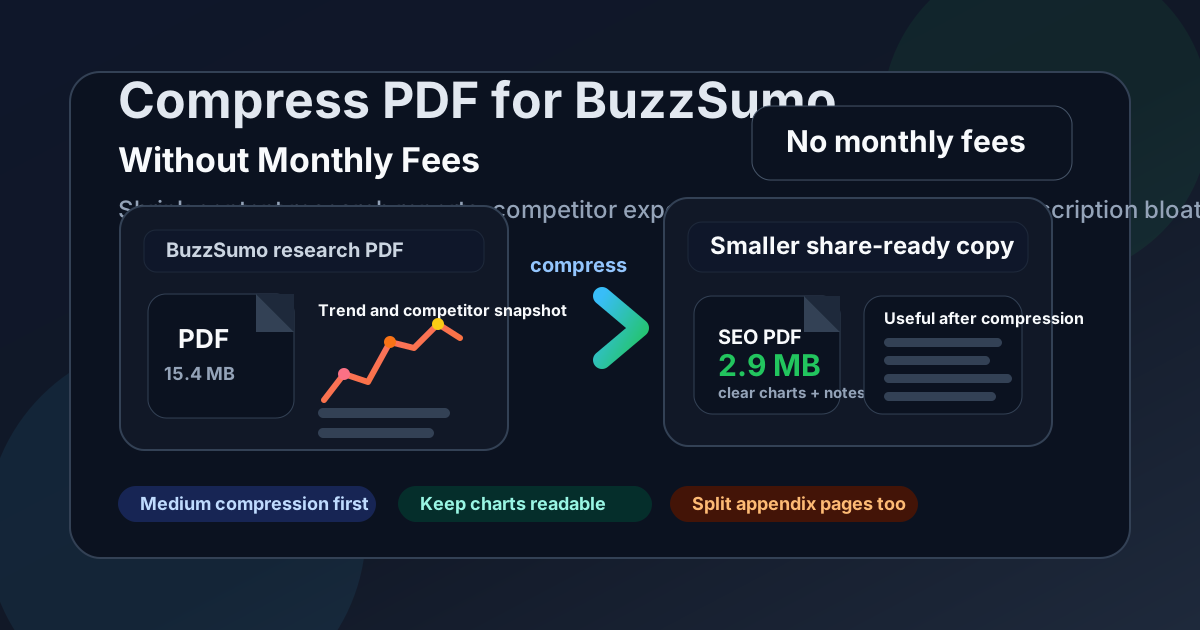
Table of contents
- Quick start: compress a BuzzSumo PDF in under 2 minutes
- Why “without monthly fees” matters here
- Why smaller PDFs work better for BuzzSumo workflows
- What size should a BuzzSumo PDF be?
- Which compression level should you choose?
- Step-by-step: use LifetimePDF to shrink the file
- Common BuzzSumo PDFs that benefit from compression
- What to do if the PDF is still too large
- How to keep headlines, charts, and screenshots readable
- Workflow habits that reduce PDF bloat
- Related LifetimePDF tools and internal links
- FAQ (People Also Ask)
Quick start: compress a BuzzSumo PDF in under 2 minutes
If your real goal is simply make this BuzzSumo PDF smaller so it is easier to send, use this workflow:
- Create the PDF copy first by exporting the report, printing the research view, or saving the recap as PDF.
- Open Compress PDF.
- Upload the content research report, competitor export, trend snapshot, author shortlist, or client-ready PDF you want to shrink.
- Choose Medium compression first.
- Download the smaller file and check the new size.
- Preview the sections that matter most: headlines, chart labels, engagement numbers, screenshots, notes, and source references.
- If the file is still heavy, use Extract Pages, Split PDF, or Delete Pages instead of repeatedly pushing the whole export through stronger compression.
Why “without monthly fees” matters here
People do not search for this because PDF compression is exciting. They search for it because the job repeats and the subscription feels bigger than the problem. An agency, in-house team, freelancer, or consultant may already be paying for research tools, analytics platforms, storage, project software, reporting tools, and client collaboration software. Adding another monthly charge just to make exported PDFs smaller starts to feel silly fast.
That is why this keyword makes sense. The work itself is ordinary. Someone needs to upload a smaller file to a portal, attach a report to email, share a cleaner strategy deck, or archive a version that opens faster later. A pay-once PDF workflow fits that reality better than subscription sprawl.
Why smaller PDFs work better for BuzzSumo workflows
BuzzSumo PDFs exist because the research needs to leave the platform. A content lead wants a trend snapshot. A strategist wants competitor examples in one place. A client wants a fixed recap they can forward internally. In each case, file size becomes a usability issue, not just a technical detail.
Heavy PDFs are slower to upload, more awkward to email, and easier for busy people to postpone. The extra weight often comes from screenshot-heavy appendices, wide browser-print exports, duplicated pages, or one oversized report trying to answer every question for every audience. Good compression removes waste while protecting the details people still care about, such as headlines, top-performing examples, charts, source labels, commentary, and next-step notes.
Why compression usually helps
- Faster content handoffs: smaller reports are easier to attach in email, chat, and project tools.
- Smoother client delivery: lighter PDFs feel easier to open, review, and forward.
- Cleaner internal reviews: stakeholders can skim the right report faster when the file is not bloated.
- Better archives: saved research packs stay more manageable when every version is not overloaded with screenshots.
- Less resend friction: smaller PDFs reduce the odds that someone asks for a lighter copy later.
What size should a BuzzSumo PDF be?
There is no perfect number, but there is a practical range. A short trend snapshot, author shortlist, or focused content recap often works best under 2MB. Larger competitor exports, screenshot-backed research packs, and client summaries usually land more comfortably in the 2MB to 5MB range if you still want headlines, chart labels, and source notes to stay readable.
| BuzzSumo PDF type | Good target range | What to protect |
|---|---|---|
| Single trend snapshot or author shortlist | Under 2MB | Headlines, source labels, quick summary notes |
| Content research report | 2MB to 4MB | Charts, commentary, example titles, takeaways |
| Competitor export or screenshot-heavy pack | 3MB to 5MB | Small chart labels, screenshots, evidence pages |
| Appendix-heavy client deck | Keep the core file small; split the appendix | Main narrative, action pages, decision-ready summary |
Which compression level should you choose?
If you are unsure, start with Medium. That is usually the safest balance for BuzzSumo exports because it cuts enough size while keeping headlines, charts, screenshots, notes, and labels intact. Stronger compression can work, but it is better reserved for files where the visuals are simple or the appendix is expendable.
- Low compression: best when the file already looks clean and only needs a small reduction.
- Medium compression: the best first pass for most BuzzSumo workflows.
- High compression: only after you have trimmed extra pages and confirmed the smallest useful text still survives.
One smart habit is to reduce page count before chasing a stronger compression setting. In research workflows, many oversized PDFs are not image problems. They are packaging problems.
Step-by-step: use LifetimePDF to shrink the file
- Open Compress PDF.
- Upload the BuzzSumo PDF you actually plan to share.
- Choose Medium compression first.
- Download the compressed copy.
- Check headlines, chart labels, screenshots, engagement numbers, dates, and any notes that matter to the reader.
- If the result still feels bulky, remove repeated or low-value pages with Delete Pages.
- If the export serves multiple audiences, split it with Split PDF so each reader gets a smaller, more focused copy.
- If only a few pages matter, use Extract Pages and send the essentials instead of the whole report pack.
Best workflow order: trim unnecessary pages first, compress second, and do one quick readability check before you send the file.
Common BuzzSumo PDFs that benefit from compression
Not every export behaves the same way. These are the kinds of BuzzSumo PDFs that usually benefit most from cleanup and compression:
- Content research reports: often shared as planning material for writers, strategists, or clients.
- Competitor exports: easy to bulk up when several domains, screenshots, and examples get bundled together.
- Trend snapshots: usually small enough to shrink well without risking readability.
- Author or influencer shortlists: a strong candidate for focused, lightweight PDFs.
- Screenshot-backed recaps: visual proof adds value, but it adds weight quickly too.
- Client-ready research decks: often better when the appendix is separated from the summary pages.
If your PDF has both a main story and a lot of support material, keep the main report light and put the evidence in a second file. That usually feels more professional than forcing everything into one attachment.
What to do if the PDF is still too large
If the first compression pass does not get you far enough, the answer is usually not compress harder immediately. It is usually reduce unnecessary content first.
- Remove repeated cover pages, browser-print clutter, or blank export pages.
- Split long appendices into a separate attachment.
- Extract only the summary pages a teammate or client actually needs.
- Crop oversized screenshot margins with Crop PDF.
- Rebuild the final share copy from only the pages that serve the next reader.
How to keep headlines, charts, and screenshots readable
The danger zone is usually small text and fine visual detail. Before you keep a compressed copy, quickly inspect the parts most likely to degrade:
- chart labels with small text
- headline examples that need to stay fully legible
- screenshots with narrow interface text
- engagement numbers, dates, or filters
- notes or callouts you added for context
- source references people may revisit later
You do not need a long QA process. Open the file once, zoom in on the smallest chart label or tightest screenshot text, and confirm it still looks like something a real reader can use. If it does, you are probably done.
Workflow habits that reduce PDF bloat
A few habits make future exports easier to manage:
- Build audience-specific packs: do not send a giant all-purpose PDF when two lighter files would serve people better.
- Keep appendices separate: backup evidence can live outside the core decision document.
- Trim before export: if you already know a section is optional, remove it before you create the final PDF.
- Name files clearly: concise filenames and clean document titles make archives easier to search later.
- Reuse a simple finishing workflow: trim, compress, review, send.
The best PDF workflow is rarely the fanciest one. It is the one your team can repeat without friction every time a research handoff or client recap needs to leave the tool.
Related LifetimePDF tools and internal links
Compressing a PDF for BuzzSumo is often one step in a broader workflow. These tools pair naturally with it:
- Compress PDF - shrink BuzzSumo exports before sharing them
- Extract Pages - send only the pages a teammate or client actually needs
- Split PDF - break one oversized export into clearer sections
- Delete Pages - remove blank or repeated appendix pages before compression
- Crop PDF - trim wasted screenshot borders and dead space
- PDF Metadata Editor - clean titles and document properties before client delivery
- Compare PDFs - useful when checking revisions between research rounds
- Merge PDF - combine only the support pages you actually want in the final pack
Suggested internal blog links
- Compress PDF for BuzzSumo
- Compress PDF Without Monthly Fees
- Compress PDF for Ahrefs Without Monthly Fees
- Compress PDF for Semrush Without Monthly Fees
- Compress PDF for Google Search Console Without Monthly Fees
- Compress PDF for TopicMojo Without Monthly Fees
- Compress PDF for WriterZen Without Monthly Fees
- Browse all LifetimePDF articles
FAQ (People Also Ask)
How do I compress a PDF for BuzzSumo without monthly fees?
Use Compress PDF, upload the BuzzSumo PDF, start with medium compression, and download the smaller result. If it is still bulky, extract only the pages the reader actually needs instead of repeatedly over-compressing the whole export.
What file size is best for BuzzSumo reports?
Under 2MB is a strong target for short trend snapshots, author shortlists, and focused recaps. Larger competitor exports, research packs, and screenshot-heavy client summaries often work better around 2MB to 5MB as long as the smallest useful labels still look clear.
Will compression make BuzzSumo screenshots or charts blurry?
It can if you compress too aggressively. That is why medium compression is the safest default for most BuzzSumo exports. Always check chart labels, small numbers, screenshots, notes, and source references before you keep the compressed copy.
Why look for a BuzzSumo PDF workflow without monthly fees?
Because shrinking exported research PDFs is routine work, not something most teams want to rent forever. A pay-once PDF workflow makes more sense when you only need reliable compression and cleanup around research you already produced.
What if my BuzzSumo PDF is still too large after compression?
Split the appendix into its own file, extract only the summary pages, delete duplicate sections, and crop wasted screenshot margins before trying stronger compression. In many cases, sharing less PDF works better than crushing the whole pack harder.