Compress PDF for BuzzSumo: Share Smaller Content Research Reports, Competitor Exports, and Client PDFs Faster
To compress a PDF for BuzzSumo, export or print the report as PDF, upload it to Compress PDF, start with Medium compression, and keep the smaller copy only if headlines, charts, screenshots, and notes still look clean.
For most BuzzSumo PDFs, under 2MB works well for single research snapshots and author shortlists, while broader competitor exports, trend reports, and client strategy packs usually work best around 2MB to 4MB.
If the file is still heavy, split appendix pages, remove repeated screenshots, or crop wasted margins before you try stronger compression.
BuzzSumo PDFs usually get shared when somebody needs a fixed, portable version of the research. Maybe you are sending a topic report to a content lead, attaching a competitor snapshot to a strategy deck, or handing a client a lightweight summary instead of a live walkthrough. In those moments, smaller PDFs help. They open faster, upload more easily, and create less friction when the real job is making a decision from the research rather than waiting on a bulky attachment. The goal is not the tiniest possible file. The goal is a smaller PDF that still feels dependable when somebody zooms in on a chart, scans headlines, or checks the notes you added for context.
Fastest path: Run the BuzzSumo export through LifetimePDF's Compress PDF tool at Medium, then do one quick readability check before you email, upload, or archive the smaller copy.
Short on time? Jump to Quick start: compress a PDF for BuzzSumo in under a minute.
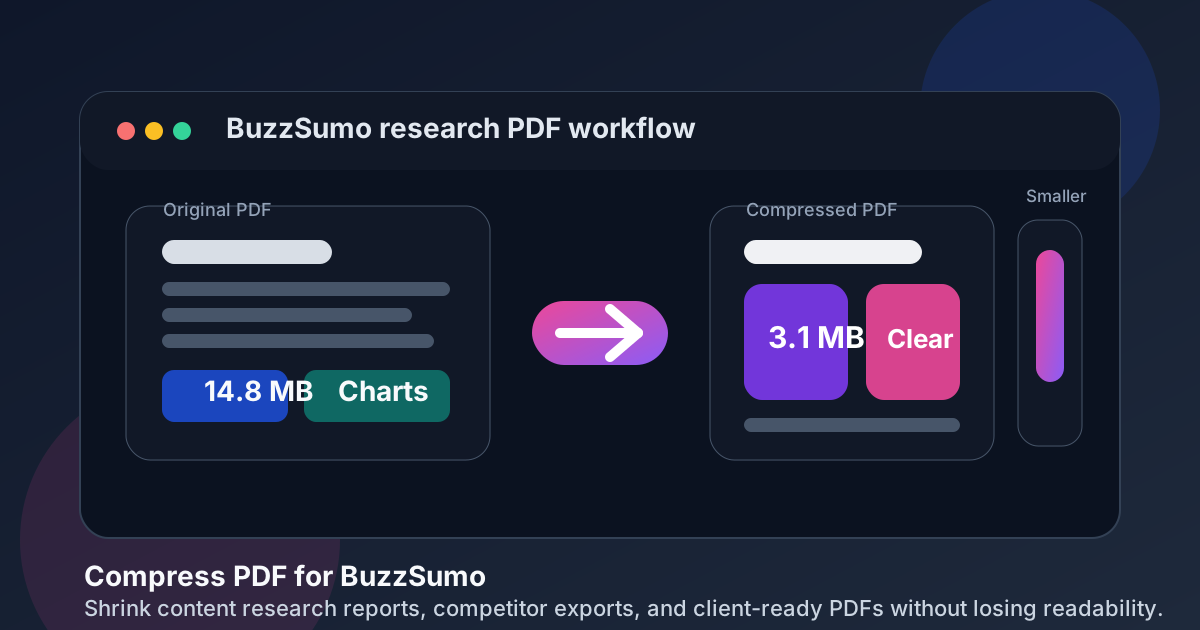
Table of contents
- Quick start: compress a PDF for BuzzSumo in under a minute
- Why smaller PDFs help in BuzzSumo workflows
- What file size should you aim for?
- Which compression level should you choose?
- Step-by-step: shrink a PDF with LifetimePDF
- Best strategy for research reports, competitor exports, and client decks
- What if the PDF is still too large?
- How to keep charts, screenshots, and notes readable
- Workflow habits that reduce PDF bloat
- Related LifetimePDF tools and internal links
- FAQ (People Also Ask)
Quick start: compress a PDF for BuzzSumo in under a minute
If your real goal is simply make this BuzzSumo PDF smaller so it is easier to send, review, and save, this is the shortest reliable workflow:
- Open Compress PDF.
- Upload the content research report, competitor export, trend snapshot, author shortlist, or client-ready PDF you want to shrink.
- Choose Medium compression first.
- Download the smaller file and compare the new size with the original.
- Open it once to check chart labels, headlines, screenshots, source notes, and comments.
- If the file is long, use Split PDF or Extract Pages to keep only the pages the next reader actually needs.
- If the pack includes duplicate screenshots, cover pages, or bulky appendix sections, trim those before trying a stronger compression level.
Why smaller PDFs help in BuzzSumo workflows
BuzzSumo research often moves between people who are not sitting inside the same tool at the same time. A strategist may want a clean snapshot of competitor content trends. An editor may only need the best-performing headline examples. A client may want the summary pages without the raw appendix. That is where file size starts to matter.
Heavy PDFs are slower to upload, more awkward to forward, and easier for busy readers to ignore until later. In practice, the extra weight often comes from full browser-print exports, repeated screenshots, oversized covers, or one report that tries to serve every audience at once. Good compression is not about forcing the file to the smallest possible number. It is about trimming waste while keeping the information people still rely on, like chart labels, headlines, source references, screenshots, and decision notes.
Why compression usually helps
- Faster content reviews: smaller files open more quickly in meetings, Slack threads, and approval loops.
- Cleaner client delivery: lighter PDFs feel easier to share when you are sending a recap instead of a live demo.
- Less attachment friction: compact exports are simpler to email, upload, and archive.
- Better handoffs: writers and strategists get the right pages without dragging around a bloated appendix.
- More durable archives: research libraries stay more manageable when every saved PDF is not overloaded with duplicate screenshots.
What file size should you aim for?
There is no perfect number for every BuzzSumo PDF, because the right target depends on what is inside the file and who needs to read it. Still, a few practical ranges are useful:
- Under 2MB: ideal for one-topic reports, author shortlists, compact competitor snapshots, and summary pages headed to email or chat.
- 2MB to 4MB: a realistic target for multi-page research packs, competitor exports, and client-ready strategy PDFs with screenshots.
- Above 4MB: often a sign that the PDF is carrying too many screenshots, appendix pages, or duplicated sections and should probably be split before you compress harder.
If the next reader only needs the headlines, key charts, and takeaway notes, do not keep ten extra pages just because the export made them easy to include. Smaller, tighter PDFs are usually more useful than one oversized file that tries to answer every question at once.
Which compression level should you choose?
For most BuzzSumo PDFs, Medium compression is the safest starting point. It usually trims enough file weight to make sharing easier while keeping charts, screenshots, headlines, and comments readable.
- Low compression: best when the file has tiny labels, dense screenshots, or small tables you do not want softened much.
- Medium compression: best default for research reports, competitor exports, and client recaps.
- Strong compression: best reserved for archive copies, rough internal sharing, or files that were excessively large to begin with.
Step-by-step: shrink a PDF with LifetimePDF
Here is a reliable workflow when you need a smaller BuzzSumo PDF without turning it into something annoying to read later:
- Export only the version you actually need. If you already know this is for a client recap, do not start from the longest possible internal version.
- Upload it to Compress PDF.
- Choose Medium compression. This is usually the right balance between size and clarity.
- Download the smaller copy. Compare the file size reduction with the original.
- Open the compressed file once. Check the parts that matter most: chart labels, headlines, date ranges, screenshots, and notes.
- Trim extra pages if needed. Use Delete Pages, Extract Pages, or Split PDF if the file still carries pages that nobody needs.
- Keep the reviewed version. Once the smaller file feels easy to open and still easy to trust, that is the one to send.
Best strategy for research reports, competitor exports, and client decks
Not every BuzzSumo PDF needs the same treatment. The fastest way to protect readability is to think about the kind of file you are compressing.
Content research reports
These usually need readable headlines, engagement signals, and a few screenshots or notes. Medium compression is usually enough, especially if you remove extra cover pages and trim unused appendix sections first.
Competitor exports
Competitor packs get heavy when one file includes too many domains, examples, and backup screenshots. If the reader only needs the main comparison, extract the key pages and archive the rest separately.
Author or influencer shortlists
These are often the easiest PDFs to shrink because the most important information is text-first. If the file still feels large, the problem is often repeated screenshots or unnecessary introductory slides.
Client strategy PDFs
Client-facing versions should usually be smaller and tighter than internal research packs. Keep the summary, examples, and next steps together, but move raw backup material into a separate appendix if it starts bloating the main file.
What if the PDF is still too large?
If Medium compression helps but not enough, stronger compression is not always the smartest next move. In many cases, the real problem is structure, not format.
- Split one large report into a summary PDF and an appendix PDF.
- Delete repeated screenshot pages, covers, or navigation pages that add weight without adding value.
- Extract only the pages a specific stakeholder actually needs.
- Crop overly wide margins or wasted whitespace from printed pages.
- Keep internal backup material in a separate file instead of stuffing it into the client version.
This is why Split PDF, Delete Pages, and Crop PDF often solve the problem faster than a second round of aggressive compression.
How to keep charts, screenshots, and notes readable
The most important test is not whether the PDF became tiny. It is whether the next person can still use it without asking you to resend the original.
After compressing a BuzzSumo PDF, check these spots first:
- Chart labels: make sure the smallest text on the page still looks clean at normal zoom.
- Headlines and examples: confirm example titles still read clearly enough to discuss in a meeting.
- Screenshots: if you used captures to preserve context, make sure they are not muddy after compression.
- Source notes and dates: verify that any date ranges, filters, and references are still easy to identify.
- Your own comments: reviewer notes, annotations, or takeaway bullets should still feel effortless to scan.
Workflow habits that reduce PDF bloat
The easiest way to get smaller BuzzSumo PDFs is to export cleaner files before compression even begins.
- Build separate internal and client-ready versions instead of one giant universal export.
- Remove duplicate screenshots when a text summary already explains the point.
- Limit the PDF to the time range, topics, or competitor set the reader actually needs.
- Keep raw backup material in a separate appendix file rather than the main deck.
- Use PDF Metadata Editor if you want the finished file to look cleaner before sharing it externally.
These habits are boring in the best possible way. They save time later because the file you send already matches the job it needs to do.
Related LifetimePDF tools and internal links
If you regularly share research exports, competitor snapshots, or client strategy PDFs, these LifetimePDF tools pair especially well with BuzzSumo workflows:
- Compress PDF for the first size reduction.
- Split PDF when one oversized export should become a summary and an appendix.
- Extract Pages to keep only the pages a client or teammate needs.
- Delete Pages for duplicate screenshots, covers, or unneeded sections.
- Crop PDF when wide margins or wasted white space are inflating the file.
- Compare PDFs if you want to confirm the trimmed version still contains the important differences or takeaways.
Ready to clean up a BuzzSumo export? Start with compression, then trim or split the file only if it still feels heavier than it needs to be.
FAQ: Compress PDF for BuzzSumo
1) What is the best compression setting for a BuzzSumo PDF?
For most BuzzSumo exports, Medium compression is the best first step because it reduces size while keeping headlines, charts, screenshots, and notes readable.
2) What is a good file size for a BuzzSumo PDF?
For single research snapshots, compact competitor recaps, and author shortlists, under 2MB is a practical target. For broader competitor exports, trend reports, and client-ready strategy PDFs, 2MB to 4MB is often more realistic as long as the smallest important text still looks clear.
3) Will compressing a BuzzSumo PDF make screenshots or charts blurry?
It can if you compress too aggressively. That is why Medium compression is usually the safest default. Always review chart labels, screenshots, headlines, source notes, and commentary before you keep the compressed file.
4) Should I split a large BuzzSumo report pack instead of compressing it harder?
Often, yes. If one PDF mixes the executive summary, competitor examples, screenshots, author lists, and appendix pages for different readers, splitting the document usually works better than forcing strong compression across the entire file.
5) Which LifetimePDF tools pair best with BuzzSumo exports?
Compress PDF is the main starting point. Split PDF, Extract Pages, Delete Pages, Crop PDF, Compare PDFs, and PDF Metadata Editor all help when you need cleaner client-ready research PDFs.
Published by LifetimePDF - Pay once. Use forever.