Compress PDF for BigCommerce: Speed Up Product Manuals, Spec Sheets, and Digital Downloads
To compress a PDF for BigCommerce, upload the final file to LifetimePDF's Compress PDF tool, start with Medium compression, and keep the smaller copy only if text, tables, spec sheets, and barcodes still look clean.
For most BigCommerce downloads, under 3MB is a comfortable target for short manuals, size charts, and warranty PDFs, while longer product guides, wholesale line sheets, and image-heavy catalogs usually work best around 3MB to 8MB after light cleanup.
In BigCommerce, success is not just that the PDF technically uploads. The better question is whether the file opens quickly from a product page, support article, account area, or sales email without making the download feel slow or low quality. The goal is not the tiniest possible file. The goal is a lighter PDF that still looks trustworthy when a shopper, buyer, or support customer opens it on the first try.
Fastest path: run the BigCommerce PDF through LifetimePDF's Compress PDF tool on Medium, then test the smaller file from the exact live product, help, or download link your customers will actually use.
In a hurry? Jump to Quick start: compress a BigCommerce PDF in about 2 minutes.
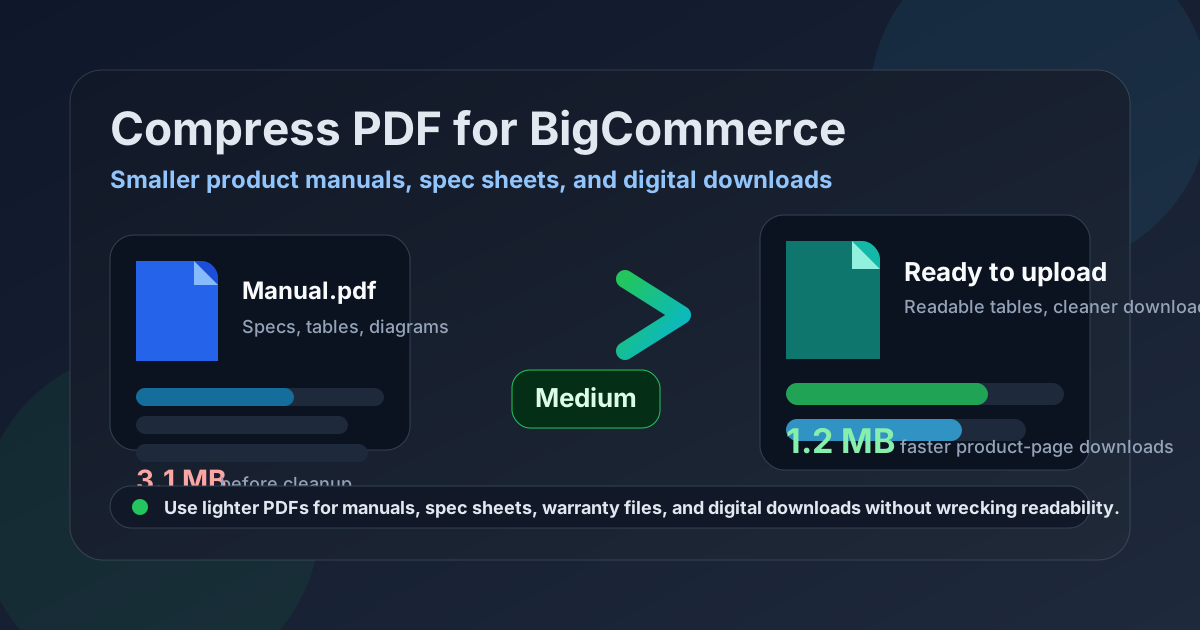
Table of contents
- Quick start: compress a BigCommerce PDF in about 2 minutes
- Why BigCommerce PDFs get heavy so quickly
- Why file weight matters after the upload
- What file size should you aim for?
- Which compression level should you choose?
- Step-by-step: shrink a BigCommerce PDF with LifetimePDF
- Best strategy for common BigCommerce PDF types
- What if the file is still too heavy?
- How to keep text, tables, and codes readable
- Workflow habits that keep BigCommerce PDFs lighter
- Related LifetimePDF tools and useful internal reading
- FAQ (People Also Ask)
Quick start: compress a BigCommerce PDF in about 2 minutes
If your real goal is simply make this PDF smaller so the product-page download feels cleaner in BigCommerce, this workflow is usually enough:
- Open Compress PDF.
- Upload the exact manual, spec sheet, warranty PDF, size chart, wholesale line sheet, or digital download you plan to publish.
- Start with Medium compression.
- Download the smaller copy and open it once on desktop and once on mobile.
- Replace the live BigCommerce file only if the smallest text, tables, barcodes, and diagrams still look reliable.
That simple sequence solves most real-world upload and download complaints. Many BigCommerce PDFs are heavier than they need to be because they were created for print, exported from design tools at full image resolution, or merged from supplier files that were never cleaned for web delivery. You usually do not need heroic compression. You need a reasonable first pass, a quick readability check, and one clean final file.
Why BigCommerce PDFs get heavy so quickly
BigCommerce stores often use PDFs for jobs that sound simple but quietly produce large files. Product manuals pull in diagrams, installation steps, and multiple languages. Spec sheets mix dense tables with print-oriented layout choices. Warranty or return packets often add legal pages that customers rarely need on the first click. Digital downloads and lead magnets sometimes inherit giant background images because they came from a presentation or design export instead of a web-optimized source.
A few patterns show up over and over:
- Oversized product images: useful for print, unnecessary for a quick web download.
- Wide margins and blank space: common in print layouts and wasted in browser delivery.
- Merged appendices: multilingual, legal, or internal pages bundled into one customer-facing file.
- Scanned supplier documents: image-based pages that stay large even when the content is simple.
- Repeated exports: the same PDF saved and resaved until it becomes bloated without becoming better.
Once you see those habits, the fix becomes more obvious. Compression helps, but cleanup choices matter too. Removing dead weight before or after compression usually beats cranking the compression level until the file looks soft.
Why file weight matters after the upload
A BigCommerce PDF can upload successfully and still create a bad customer experience. Someone taps a product manual from a phone while standing in a warehouse aisle. A buyer opens a wholesale sheet from an email on hotel Wi-Fi. A support customer clicks a warranty guide because they need one answer quickly, not a 12MB wait. If the file feels slow or fuzzy, it chips away at confidence even when the content itself is correct.
Lighter PDFs usually help in four ways:
- Faster first open: less waiting from the product page or support article.
- Less friction on mobile: especially important when customers are not on perfect Wi-Fi.
- Fewer support complaints: smaller files are easier to share, save, and reopen later.
- Cleaner internal workflows: sales, support, and operations teams are less likely to send the wrong giant draft when the customer file is clearly prepared for web use.
What file size should you aim for?
There is no single perfect number, but there are sensible ranges. The best target depends on what the PDF actually does for the store.
- Under 2MB: ideal when the file is a short size guide, quick install sheet, return form, or single-purpose help PDF.
- 2MB to 5MB: a strong range for many product manuals, illustrated setup guides, and multi-page spec sheets.
- 5MB to 8MB: often acceptable for longer manuals, image-heavy catalogs, or B2B materials that genuinely need more detail.
- Above 8MB: usually worth reviewing before you accept it as final, unless the file truly contains high-detail content that customers must keep together.
The important rule is simple: aim for the smallest file that still feels easy to trust. If the smallest table text blurs, a barcode stops scanning, or a technical diagram turns muddy, you have gone too far.
Which compression level should you choose?
For BigCommerce, Medium is the right default most of the time. It usually cuts enough weight without making the file look cheap.
- Low compression: best when the file already looks clean and you only need a modest size reduction.
- Medium compression: the safest first pass for most storefront downloads, support PDFs, and digital products.
- High compression: use only when speed matters more than visual polish and you are prepared to inspect every small detail afterward.
If you are unsure, run Medium first. Only reach for stronger compression after you have already tried cleaner fixes like deleting appendix pages, cropping wasted margins, or splitting a long file into smaller pieces.
Step-by-step: shrink a BigCommerce PDF with LifetimePDF
- Start with the final share-ready file. Use the exact PDF your store will link to, not an older draft sitting in downloads.
- Open Compress PDF. Upload the live candidate.
- Choose Medium compression first. That is the safest balance for manuals, charts, and product documents.
- Download the smaller copy. Rename it clearly so you do not mix it up with the larger original.
- Inspect the weak points. Check the smallest table text, any barcode or QR code, fine diagrams, and pages with grayscale screenshots.
- Test the real path. Replace the file in BigCommerce, then open it from the product page, support page, or sales link where a customer would actually click it.
That last step matters more than people expect. A PDF can look fine when opened locally and still feel awkward when reached through the real storefront flow. One live-path test catches issues early.
Best strategy for common BigCommerce PDF types
Product manuals and installation guides
These usually benefit from Medium compression first. If the guide still feels heavy, look for repeated safety pages, oversized screenshots, or multilingual sections that should be split into separate files. Customers opening a manual from a product page usually want the correct instructions quickly, not one huge all-purpose document.
Spec sheets and size charts
The danger here is readability. Tables can become annoying fast if the smallest measurements or model numbers soften too much. Compress carefully, then zoom in on the tightest rows. If the chart is short and highly scannable, it may even belong as HTML on the page with the PDF kept as a secondary download.
Warranty packets and return instructions
These often contain extra pages customers never need on day one. Use Delete Pages or Extract Pages to publish only the customer-facing portion. A shorter warranty PDF often feels better than a heavily compressed one bloated with internal reference pages.
Digital downloads and lead magnets
For ebooks, checklists, printable planners, or bonus downloads sold through BigCommerce, the goal is a file that still feels polished after the customer has paid or opted in. Medium compression is usually enough. If the PDF is still too large, revisit the source artwork before applying stronger compression that may make the product feel lower quality.
Wholesale line sheets and B2B catalogs
These can justify a little more size because buyers may need dense tables, SKU references, and larger product images. But they also benefit the most from splitting. One main catalog plus separate detail sheets is often better than a single oversized PDF that tries to do everything.
What if the file is still too heavy?
If Medium compression is not enough, do not jump straight to the harshest setting. Try a cleaner fix first:
- Use Split PDF for long manuals, catalogs, or mixed-audience files.
- Use Delete Pages to remove duplicate covers, blank pages, or stale appendix sections.
- Use Crop PDF to trim print margins that add visual bulk without adding value.
- Use PDF to HTML when the information really belongs on-page instead of inside a download.
- Re-export from the original source if a scan or design export is the real reason the file is oversized.
Stronger compression should be your last move, not your first. Big size drops feel satisfying, but not if the file becomes harder to read or less credible.
How to keep text, tables, and codes readable
After compression, do a fast but deliberate quality check. Open the PDF and look at the parts most likely to break trust:
- The smallest model numbers or measurement rows in tables.
- Any barcode or QR code a customer might need to scan.
- Fine line drawings, wiring diagrams, or assembly sketches.
- Gray screenshots where text can soften faster than expected.
- Page numbers, footnotes, or legal language that still has to remain readable.
Then open the same file on a phone. BigCommerce downloads are often consumed on smaller screens, and a PDF that feels acceptable on a large monitor can still feel cramped in a real customer context. If the compressed file still looks stable there, you are usually in good shape.
Workflow habits that keep BigCommerce PDFs lighter
The easiest way to keep this problem from repeating is to make lightweight publishing normal instead of treating it as a rescue job.
- Name the final web file clearly. Something like manual-web.pdf is safer than guessing which export is current.
- Keep one print master and one web copy. They do not have to be the same file.
- Avoid repeated recompression. Start from the clean source when possible instead of compressing an already compressed copy again and again.
- Check the live link after replacement. A good local file is not enough; the public customer path matters.
- Review older downloads occasionally. Legacy PDFs often stay live for years even when better, lighter replacements would help immediately.
These habits are boring in the best way. They reduce the chance of last-minute fixes, duplicate uploads, and customer complaints that start with, “Your PDF will not open on my phone.”
Related LifetimePDF tools and useful internal reading
If BigCommerce is part of your normal publishing workflow, these tools and articles pair well with this guide:
- Compress PDF for the first size-reduction pass.
- Split PDF for long downloads that should be broken into smaller parts.
- Extract Pages when only the customer-facing section should be published.
- Delete Pages to remove stale appendix or duplicate cover pages.
- Crop PDF to trim wasted margins from print-oriented layouts.
- PDF Metadata Editor for cleaner download titles and file properties.
- PDF to HTML when a spec sheet belongs on the page instead of inside a download.
- HTML to PDF if you are turning a help page into a cleaner downloadable asset.
- Compress PDF for Shopify.
- Compress PDF for WordPress.
- Compress PDF for Webflow.
- Compress PDF for Squarespace.
- Compress PDF for Wix.
Ready to shrink the file? Start with a medium pass, check the weakest pages, then replace the live BigCommerce download only after you confirm the real customer path feels faster.
FAQ (People Also Ask)
How do I compress a PDF for BigCommerce?
Upload the final PDF to a compressor, start with Medium compression, download the smaller copy, and test the real BigCommerce product-page, support-link, or customer-download path before publishing it. Medium is usually the safest first pass because it lowers file size without making text, tables, or diagrams feel unreliable.
What file size should I aim for when publishing a PDF on BigCommerce?
For many BigCommerce manuals, size guides, and short support downloads, under 3MB is a comfortable target. Longer manuals, wholesale line sheets, and image-heavy catalogs often land best around 3MB to 8MB as long as the smallest useful text still reads clearly.
Will PDF compression hurt barcodes, diagrams, or technical drawings?
It can if you compress too aggressively. That is why Medium compression is the best place to start. Always check the smallest table text, barcodes, QR codes, diagrams, and fine line art before replacing the original file.
Should I split a long BigCommerce catalog instead of compressing it harder?
Often, yes. If one PDF bundles a short buyer-facing guide together with legal pages, multilingual sections, or wholesale appendices, splitting it usually creates a cleaner BigCommerce experience than pushing stronger compression across the whole file.
When should I use HTML instead of a PDF in BigCommerce?
If the information should be scanned quickly on a product page, support page, or mobile screen, HTML is often better. PDFs still make sense for downloadable manuals, printable guides, warranty packets, and files customers need to save offline.
Published by LifetimePDF - Pay once. Use forever.