Compress PDF for Azure DevOps Without Monthly Fees: Shrink Work Item Attachments and Review Docs Without Subscription Bloat
If you need to compress a PDF for Azure DevOps without monthly fees, the practical answer is: use a pay-once PDF compressor, start with Medium compression, and keep the smaller copy only after checking screenshots, comments, tables, and small text once.
For most Azure DevOps workflows, that is enough to lighten work item attachments, PR review PDFs, sprint summaries, and evidence packs without turning ordinary document cleanup into another recurring software bill.
This is a routine project hygiene task, not a tool category that needs subscription drama. Teams share bug evidence, architecture notes, test results, wiki exports, approvals, incident summaries, and sprint review packets all the time. Sometimes the PDF is just heavier than it should be. The job is to make it smaller, keep it readable, and move on. That is exactly why a pay-once workflow fits Azure DevOps better than one more monthly PDF utility you barely wanted in the first place.
Fastest path: run the real attachment through LifetimePDF's Compress PDF tool on Medium, then extract or split pages only if the result is still bulkier than the work item, pull request, or sprint review really needs.
Short on time? Jump to Quick start: compress a PDF for Azure DevOps in about 2 minutes.
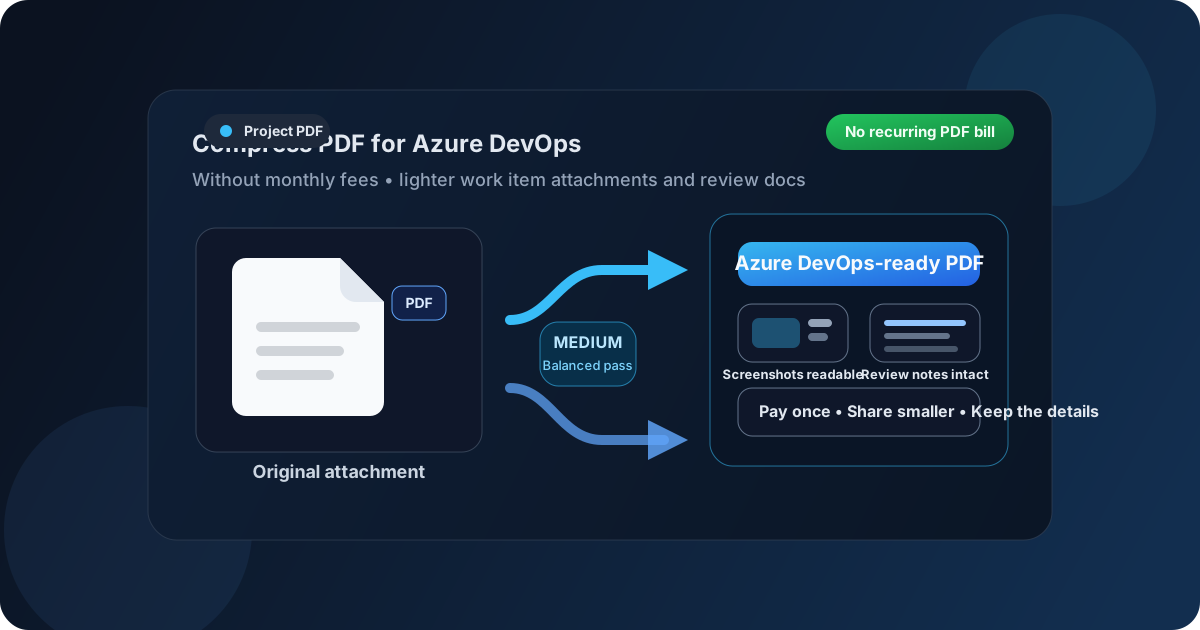
Table of contents
- Quick start: compress a PDF for Azure DevOps in about 2 minutes
- Why “without monthly fees” matters for this workflow
- Why smaller PDFs help in Azure DevOps
- What size should an Azure DevOps-friendly PDF be?
- Which compression level should you choose?
- Step-by-step: use LifetimePDF to shrink a PDF for Azure DevOps
- Common Azure DevOps PDFs that benefit from compression
- What to do if the PDF is still too large
- How to keep attachments readable
- Related LifetimePDF tools and useful reading
- FAQ (People Also Ask)
Quick start: compress a PDF for Azure DevOps in about 2 minutes
If the real task is simply make this PDF easier to share in Azure DevOps right now, this workflow is usually enough:
- Start with the exact file you plan to attach to a work item, PR review, wiki page, or sprint discussion.
- Open Compress PDF.
- Choose Medium compression first.
- Download the smaller file and compare the new size.
- Check the fragile details once: screenshots, table text, comments, code snippets, signatures, labels, and any evidence another reviewer must trust.
- If the packet is still awkward, use Extract Pages, Split PDF, Delete Pages, or Crop PDF before trying a harsher compression pass.
Why “without monthly fees” matters for this workflow
People do not search for this because PDF compression is exciting. They search for it because the workflow is ordinary and recurring billing feels disproportionate. A PDF compressor looks harmless until the download button gets locked behind a trial, a usage cap, or one more monthly plan for a task that takes two minutes when the tool behaves itself.
Azure DevOps makes this even more obvious because the document work is so routine. A bug gets a screenshot pack. A sprint review gets a summary PDF. A pull request references a marked-up spec. A test cycle, audit trail, or release gate needs supporting evidence. None of that is rare enough to ignore, but none of it is glamorous enough to justify subscription sprawl either.
A pay-once workflow fits the reality better. You want dependable compression, predictable access, and no awkward moment where the tool becomes the bottleneck instead of the oversized attachment. Compressing a PDF for Azure DevOps should feel like normal project cleanup, not procurement.
Routine project document cleanup does not need another recurring bill.
Why smaller PDFs help in Azure DevOps
Even when a PDF technically attaches fine, that does not mean it is pleasant to work with. Azure DevOps attachments usually support active work: bug triage, pull request review, test evidence, architecture discussions, sprint planning, incident follow-up, release readiness, and internal approvals. When the PDF is heavier than it needs to be, every one of those moments gets slightly slower and slightly more annoying.
Compression helps because it reduces raw file weight, but the bigger win is smoother collaboration. Smaller PDFs upload faster, download faster, reopen more comfortably, and move more easily into Teams, email, SharePoint, or a compliance folder later. That matters even more when teammates are remote, on VPN, on slower home internet, or reviewing attachments during a meeting instead of from an ideal desktop setup.
Why smaller Azure DevOps PDFs usually work better
- Faster uploads: useful when you are attaching evidence during active triage or trying to keep a work item moving.
- Less review friction: teammates are more likely to open a focused 2MB or 4MB PDF right away than a bloated file they assume will be painful.
- Cleaner project history: ordinary work items and review threads stay easier to navigate when every attachment is not oversized.
- Better cross-tool reuse: smaller files are easier to resend in Teams, email, docs, and customer follow-up.
- Smarter handoffs: a tighter PDF usually communicates better than a giant all-purpose packet with lots of irrelevant pages.
What size should an Azure DevOps-friendly PDF be?
There is no perfect number because a one-page signoff behaves differently from a screenshot-heavy defect appendix, a 30-page sprint report, or a scan-based approval bundle. Practical ranges are more useful than chasing the smallest possible file.
| PDF type | Good target | Why it works |
|---|---|---|
| Lightweight work item attachment | Under 2MB | Great for quick downloads, low-friction reviews, and mobile opening |
| Everyday review docs and sprint summaries | 2MB to 5MB | Usually the best balance between readability and convenience |
| Screenshot-heavy or mixed evidence packets | 5MB to 8MB | Still workable if labels, comments, and evidence remain clear |
| Large scan bundles or bloated appendices | Trim pages first | Cleanup usually helps more than brute-force compression |
These are not hard limits. They are sanity checks. If a PDF is well above the range that fits its job, something is probably worth cleaning up. If it already feels light and clear, do not keep compressing just to win a meaningless size contest.
Which compression level should you choose?
LifetimePDF keeps the choice simple: Low, Medium, or High. That is enough for most Azure DevOps work because the real question is not technical perfection. It is whether the file becomes easier to share and review while still looking dependable.
Low compression
- Best when tiny labels, dense tables, or print-quality diagrams must stay especially sharp.
- Useful for architecture reviews, audit-ready PDFs, and client-facing material that may be printed later.
- Usually not the best first choice unless the original file is already close to the size you want.
Medium compression
- The safest default for most Azure DevOps workflows.
- Strong for PR review docs, bug evidence, sprint summaries, wiki exports, approval packets, and mixed-content PDFs.
- Usually shrinks the file enough to matter without wrecking screenshots, comments, or ordinary small text.
High compression
- Best for scan-heavy files where file size matters more than presentation polish.
- Useful when you already know the PDF contains lots of image weight or unnecessary scan bulk.
- Always review the smallest important details before replacing the original attachment.
Step-by-step: use LifetimePDF to shrink a PDF for Azure DevOps
- Choose the final file. Use the version you actually plan to attach, not a working draft with duplicate appendices or backup pages nobody needs.
- Open Compress PDF.
- Start with Medium compression. This is usually the safest balance between lighter file size and readable evidence.
- Download the result and compare it once. Do not rely on the file size alone.
- Check the weak spots. Look closely at screenshots, chart labels, tiny table text, comments, signatures, timestamps, bug IDs, and small callouts.
- If it is still awkward, trim before compressing harder. Use Extract Pages, Split PDF, Delete Pages, or Crop PDF.
- If the file is scan-based, run OCR PDF. Searchable text is often more useful than squeezing the same scan harder.
Common Azure DevOps PDFs that benefit from compression
Azure DevOps attracts the kinds of PDFs that grow quietly over time. Each one is reasonable on its own, then suddenly the shared attachment is much heavier than the next reviewer actually needs.
- Bug evidence packets: screenshots, repro notes, console captures, and test evidence merged into one PDF.
- Pull request review documents: marked-up specs, approval summaries, design notes, and decision records.
- Sprint and release summaries: status reports, burndown snapshots, retrospective packets, and release checklists.
- Architecture and wiki exports: diagrams, reference docs, change plans, and team documentation pulled into PDF form.
- Approvals and audit support: scanned signoffs, vendor paperwork, policy acknowledgments, and evidence bundles.
- Test and QA records: validation results, screenshots, defect appendices, and workflow proof for regulated or formal processes.
In most of these cases, the problem is not that the PDF exists. The problem is that the attachment contains more image weight, scan waste, or irrelevant pages than the Azure DevOps thread actually needs.
What to do if the PDF is still too large
If one compression pass is not enough, resist the urge to keep smashing the whole document harder. That is how useful screenshots become mush and small labels become guesswork.
Better fixes usually look like this:
- Extract only the useful pages: ideal when a work item or pull request only needs one section.
- Split long appendices: keep the main document clean and move backup material into a second file.
- Delete duplicate pages: common in merged approval packets and exported review docs.
- Crop scanner borders: dead space adds surprising weight.
- OCR image-only scans: making text searchable can improve the document's usefulness more than another size cut.
How to keep attachments readable
A smaller file is only a win if the next person can still trust what they are looking at. Before replacing the original PDF, check the exact details that matter in project review:
- Screenshot callouts and UI labels
- Ticket IDs, version numbers, and timestamps
- Table headers and dense spreadsheet text
- Comments, annotations, and signature blocks
- Architecture diagram labels and arrows
- Any faint text or scan-heavy evidence a reviewer may need later
If one of those breaks, the file is not ready no matter how small it became. The point is to reduce drag, not remove trust.
Related LifetimePDF tools and useful reading
Compress PDF is the main starting point, but Azure DevOps attachments often clean up faster when you pair it with one or two supporting tools:
- Compress PDF for the main size reduction pass
- Extract Pages when only part of the packet matters
- Split PDF for appendices and large evidence bundles
- Delete Pages to remove duplicate or irrelevant sheets
- Crop PDF to remove wasted scanner borders
- OCR PDF for image-only scans
If you want the broader non-pricing angle too, the main guide at Compress PDF for Azure DevOps covers the general workflow, while this page focuses on doing it without recurring subscription baggage.
FAQ (People Also Ask)
How do I compress a PDF for Azure DevOps without monthly fees?
Use a pay-once PDF tool like LifetimePDF, upload the Azure DevOps file, start with Medium compression, and keep the smaller copy only after checking screenshots, comments, tables, and small text once. If the file is still bulky, extract or split pages instead of forcing harsher compression across the whole document.
What file size should I aim for in Azure DevOps?
Under 2MB feels great for quick work item sharing and mobile review, while 2MB to 5MB is usually a strong target for longer sprint summaries, PR review PDFs, and mixed evidence packets that still need to look trustworthy.
Will compression make Azure DevOps screenshots or diagrams blurry?
It can if you compress too aggressively. That is why Medium compression is usually the safest first pass. Always review screenshots, chart labels, tables, comments, signatures, and the smallest meaningful text before replacing the original attachment.
Why look for an Azure DevOps PDF compressor without monthly fees?
Because shrinking a project PDF is routine collaboration work, not something most teams want to rent forever. A pay-once workflow is easier to justify when you need dependable compression without another recurring software bill.
What if my Azure DevOps PDF is still too large after compression?
Extract the relevant pages, split long appendices, crop scan borders, delete duplicate pages, or run OCR on image-only scans. In many Azure DevOps workflows, a tighter document package works better than compressing the same bloated file harder.