How to Unlock a PDF on Linux: Open, Edit, Print, or Sign the File Safely
To unlock a PDF on Linux, save the file in a clear local folder, open an authorized PDF Unlock workflow in Firefox, Chrome, or Chromium, download the working copy, and test the blocked action right away.
If the PDF asks for a password before it opens and you do not know it, the right Linux fix is to get that password from the owner or ask for an unrestricted copy.
That is the short answer. The useful part is knowing whether the file is truly locked, only restricted after opening, or just trapped inside a messy Linux workflow involving Thunderbird attachments, Downloads, Firefox preview, Chrome preview, shared folders, or duplicate copies across your home directory. The goal is not just to remove a lock. The goal is to get the authorized PDF back into a clean working state so you can print it, sign it, edit it, upload it, or send it on without more friction.
Fastest path: confirm you are allowed to use the file, save the exact PDF into a clear Linux folder, open LifetimePDF's PDF Unlock tool in Firefox or Chrome, enter the current password if required, then test the real task that was blocked.
In a hurry? Jump to Quick start: unlock a PDF on Linux in a few minutes.
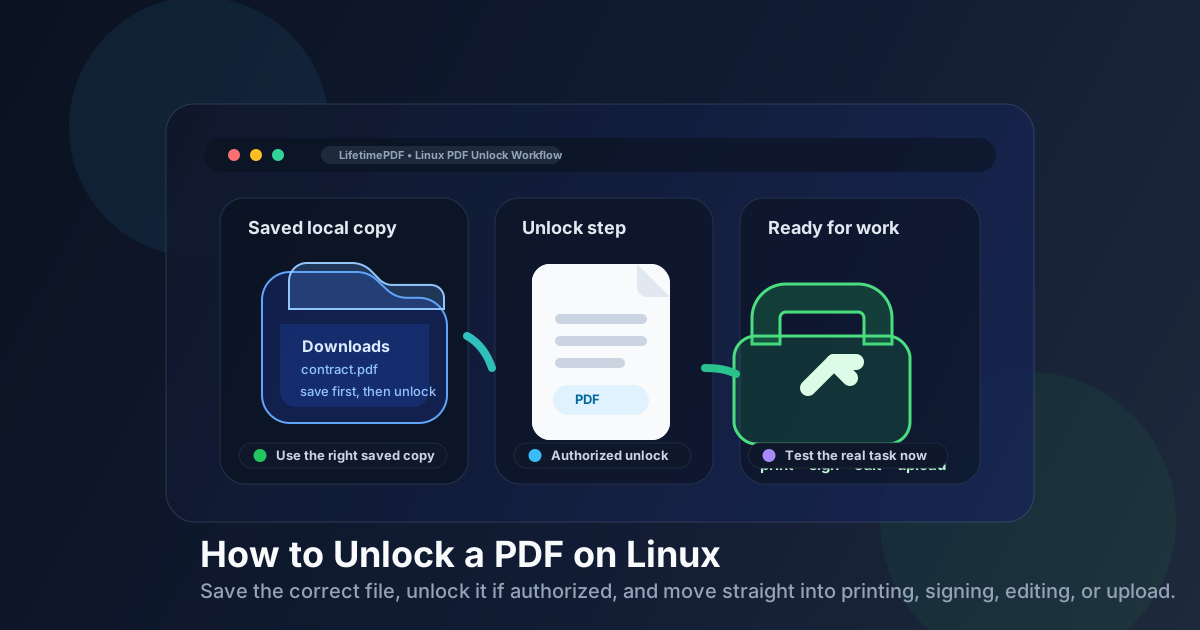
Table of contents
- Quick start: unlock a PDF on Linux in a few minutes
- What “unlock” means on Linux
- Before you start: save the right Linux copy
- Step-by-step: how to unlock a PDF on Linux
- Working with Thunderbird, browser previews, Downloads, and shared folders
- What to do after the PDF is unlocked
- Common Linux problems and quick fixes
- Related LifetimePDF tools for Linux workflows
- FAQ (People Also Ask)
Quick start: unlock a PDF on Linux in a few minutes
If you already have permission to work with the file, this is the shortest useful Linux workflow:
- Save the PDF from Thunderbird, Firefox, Chrome, or another portal into Downloads, Documents, or another clear folder.
- Open PDF Unlock in your Linux browser.
- Choose the file from your file manager so you know you are selecting the exact copy you intend to use next.
- Enter the current password if the PDF needs it.
- Download the unlocked working copy and rename it clearly so it does not blend into the original attachment or browser download.
- Immediately try the real task that was blocked, such as printing, signing, editing, copying text, extracting pages, or uploading the document to a portal.
What “unlock” means on Linux
People use the word locked for several different problems, and Linux makes it easy to blur them together because the same document may open in Firefox, Chrome, Evince, Okular, Thunderbird, or a synced folder while behaving differently in each place. Sometimes the file truly requires a password before it opens. Sometimes it opens fine but blocks printing, copying, editing, or signing. Sometimes the issue is not security at all. It is just the wrong copy or a viewer limitation.
| What you see on Linux | What it usually means | Best next step |
|---|---|---|
| The PDF will not open without a password | The file has an open password and blocks access before viewing | Use the correct password or ask the owner for it. If you do not have authorization, stop there. |
| The PDF opens, but printing, copying, or editing fails | The file may have owner-password restrictions rather than a full open lock | Confirm you are allowed to remove the restriction, then create a usable working copy. |
| The browser or viewer feels limited | The preview path may be the problem, not the PDF itself | Save the file locally and test the same document from the saved copy before assuming the PDF is truly locked. |
| You fixed the file, but the same problem keeps showing up | You may be reopening the original attachment, preview, or earlier download instead of the unlocked copy | Rename the result clearly and reopen it from your Linux folder, not from the older tab or message thread. |
That distinction matters because the right fix depends on the kind of block you are facing. A PDF that will not open at all is a different situation from a PDF that opens normally but refuses to print or accept a signature. Linux users get much better results when they identify the real kind of lock first and only then decide whether unlocking is necessary.
Before you start: save the right Linux copy
On Linux, the biggest mistake is usually workflow confusion rather than a hard technical limitation. The same PDF may exist as a Thunderbird attachment, a Firefox preview, a Chrome preview, a file in Downloads, a copy in Documents, and another copy in a shared folder or synced directory. If you unlock one version and later reopen another, it looks like nothing changed.
Before you do anything else, place the PDF in one location you can recognize quickly. That can be Downloads for speed, Documents for cleaner organization, or a project folder if the document matters. If the file is important, rename the source copy clearly before you create the unlocked working version.
approval-form.pdf, use a working name like approval-form-unlocked-working.pdf after processing. Clear filenames save Linux users more time than almost any unlock trick.
Step-by-step: how to unlock a PDF on Linux
Once you have the right file and the right to work with it, the Linux workflow is straightforward.
- Confirm the goal. Are you trying to open the PDF, print it, sign it, edit it, copy text, or upload it to a portal? Knowing the blocked action helps you confirm the unlock actually solved the real problem.
- Open PDF Unlock in Firefox, Chrome, or Chromium. Go to LifetimePDF PDF Unlock in your Linux browser.
- Select the file from your saved folder. Choose the PDF from Downloads, Documents, or another clear location so you are not accidentally pulling from the wrong preview path.
- Enter the current password if required. If the PDF is protected with an open password or password-linked restrictions, use the correct password carefully.
- Download the unlocked result. Save it somewhere obvious, not into a vague temporary location you will forget ten minutes later.
- Reopen the new file, not the old tab. This is where many Linux users trip up. Go back into the saved folder and open the newly downloaded result directly.
- Test the real task immediately. Print, sign, fill, edit, extract pages, or upload the document right away so you know the fix worked before you move on.
If the file still needs restricted access after you finish the real work, add fresh protection to the final version rather than recycling older settings you no longer trust. A document that has already passed through email, browser previews, and multiple folders is easier to manage when you deliberately protect the last clean copy.
Useful follow-up: if the PDF is only one step in a bigger Linux workflow, open the next tool immediately while the correct file is still in front of you.
Working with Thunderbird, browser previews, Downloads, and shared folders
Linux does not give you one single PDF path. It gives you several, and each one can behave a little differently. That is why the same document may feel locked in one place and ordinary in another.
Thunderbird attachments
Thunderbird is convenient for a quick look, but it is not the cleanest place to manage a protected document. Save the file first if you need to unlock it, print it, or move it into another step. Otherwise, you may bounce between preview and download states without realizing which copy is active.
Firefox and Chrome previews
Browser preview is fine for reading, but it is not always the best place to judge whether a PDF is truly workable. If you need to unlock, sign, or reuse the file elsewhere, save a copy you can identify clearly in your Linux file manager.
Downloads and Documents
Once the PDF is in a normal folder, the workflow becomes much more reliable. You can see the filename, rename it, compare versions, and reopen the new copy intentionally instead of trusting a browser tab or attachment preview that still points at the original version.
Shared folders and synced directories
Shared mounts and sync tools are useful, but they can make duplicate-copy confusion worse. If the document matters, create one clearly named working copy before you unlock it so you do not accidentally keep editing the wrong revision.
Evince and Okular after the unlock
Linux viewers are great for reviewing the finished file after processing. They are less helpful when you are still trying to diagnose whether the obstacle is a password, a permission restriction, or simply the wrong file path.
What to do after the PDF is unlocked
Unlocking is usually not the finish line. It is the step that clears the way for the real job. On Linux, that next job is often one of these:
- Print the PDF after a restriction had been blocking the print flow.
- Sign the document once the file is actually ready for your browser-based signing workflow.
- Edit or annotate a file that was previously stuck in a read-only pattern.
- Copy text from the document for notes, forms, or reporting.
- Extract pages so you can share only the part another person needs.
- Upload the PDF to a portal that was rejecting or mishandling the protected version.
After that real task is done, decide deliberately whether the final version still needs protection. If you are sending a sensitive statement, contract, or financial file, re-protect the final cleaned copy. If the document needs to move freely between teammates, clients, or departments, removing stale restrictions may be the better choice.
Common Linux problems and quick fixes
I unlocked the PDF, but it still looks locked
You are probably reopening the original attachment, browser preview, or earlier download. Go back into the saved folder, locate the newly downloaded working copy, and open that file directly.
The PDF opens, but I still cannot do what I need
Check whether the blocked task is actually a viewer limitation rather than a PDF-security issue. Some previews are fine for reading and weak for exporting, printing, form work, or signatures.
I cannot tell which copy is the latest one
Rename both the original and the processed version clearly. On Linux, better filenames solve a surprising number of “broken unlock” complaints.
The file asks for a password and I do not know it
If the password blocks access before the PDF opens, the right move is to ask the sender or file owner for the password or for a version you are allowed to use. That is not a Linux problem. It is an access-rights problem.
I only need one or two pages after unlocking
Unlock the PDF you are authorized to use, then immediately extract the needed pages so the final share copy is smaller, cleaner, and easier to manage.
FAQ (People Also Ask)
How do I unlock a PDF on Linux?
Save the PDF into a clear local folder, open an authorized PDF unlock tool in Firefox or Chrome, upload the file, enter the current password if needed, download the unlocked copy, and test the blocked action right away.
Can I unlock a PDF on Linux without knowing the password?
If the PDF requires a password before it opens and you do not know it, the correct fix is usually to ask the owner or sender for the password or for an unrestricted copy.
Why does the PDF still seem locked after I unlocked it on Linux?
Most of the time, you are reopening the original Thunderbird attachment, browser preview, or older download rather than the newly saved unlocked copy. Open the processed file directly from your saved folder.
Is it better to unlock the PDF from a preview tab or after saving it locally?
Saving it locally is usually better. It makes it easier to pick the right file, rename the result, reopen the correct copy, and avoid confusing a limited preview with a genuinely locked document.
What should I do after unlocking a PDF on Linux?
Do the real task immediately, whether that is printing, signing, editing, copying text, extracting pages, or uploading the file. If the final version still needs controlled access, protect that cleaned-up final copy before you share it again.
Unlock the PDF and finish the real task while the right file is still in front of you.
LifetimePDF keeps the Linux workflow simple: unlock the document you are authorized to use, move into signing, printing, or page extraction, then protect the final version again only if it still needs it.