How to Compress a PDF in Chrome: Shrink Downloads, Gmail Attachments, and Drive Exports Without Ruining Readability
To compress a PDF in Chrome, open a browser-based Compress PDF tool, choose the file from Downloads, a saved Gmail attachment, or a Google Drive export, compress it once, and save the smaller copy back to your computer.
If the PDF is still too large, remove blank pages or crop oversized scan borders before compressing again so the file gets smaller without crushing text quality.
That is the short answer. The part that actually saves time in Chrome is avoiding preview-tab confusion, duplicate downloads, stale Drive revisions, and the all-too-common mistake of making a smaller copy and then uploading the original anyway. In practice, the clean workflow is simple: start with the exact file you plan to send, compress it once, inspect the hard-to-read parts, and only then decide whether the document needs extra cleanup.
Fastest path: open LifetimePDF's Compress PDF tool in Chrome, shrink the real final file once, review the smallest useful text, then use page deletion, cropping, or OCR only if the finished copy still needs help.
In a hurry? Jump to Quick start: compress a PDF in Chrome in 3 minutes.
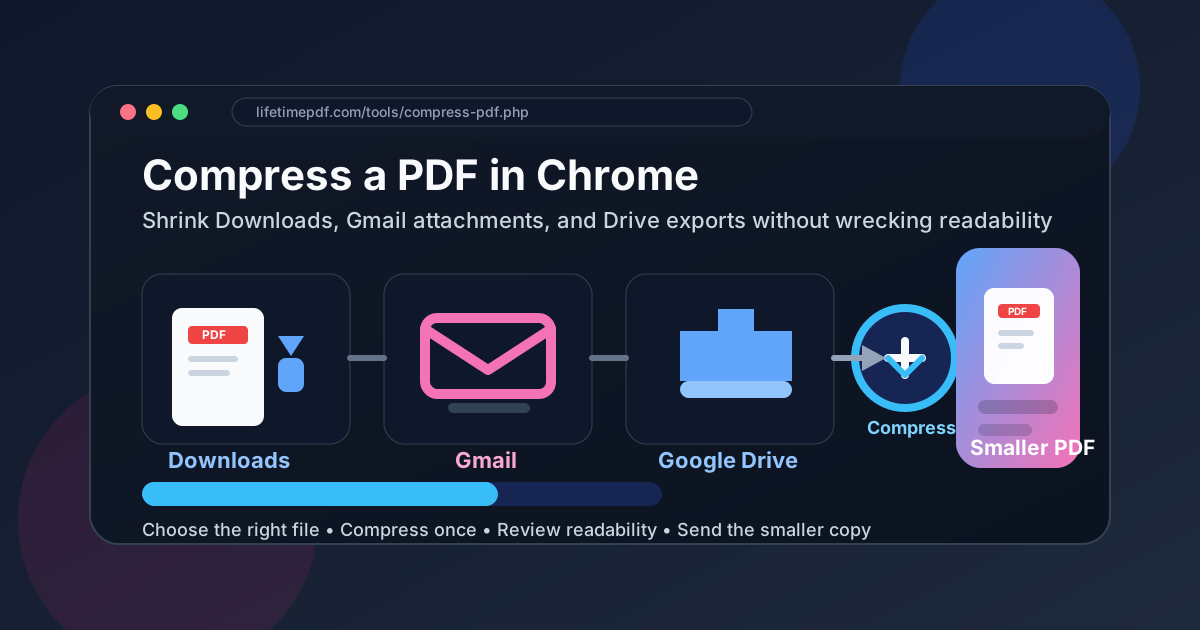
Table of contents
- Quick start: compress a PDF in Chrome in 3 minutes
- The easiest Chrome workflow for shrinking PDFs
- Step-by-step: compress a PDF from Downloads, Gmail, or Drive
- How to handle common Chrome PDF sources without grabbing the wrong file
- When compression is enough and when cleanup works better
- Common Chrome compression problems and quick fixes
- Best order for scans, OCR, and compression in Chrome
- Related LifetimePDF tools for smoother Chrome workflows
- FAQ (People Also Ask)
Quick start: compress a PDF in Chrome in 3 minutes
If the file already exists and you just need it smaller for email, an upload portal, or a chat attachment, this is the workflow most people actually want:
- Open Compress PDF in Chrome.
- Choose the exact file from Downloads, a normal folder, or a saved copy from Gmail or Google Drive.
- Compress the PDF once.
- Download the smaller copy and open it.
- Check tiny text, signatures, tables, receipts, and scanned pages before sending it anywhere important.
The most important part is not the button click. It is making sure you are shrinking the right version of the file. Chrome makes it easy to have a preview tab, an older download, a Drive export, and a final local copy all open at the same time.
The easiest Chrome workflow for shrinking PDFs
Chrome itself is mostly the container here. It helps you open previews, save attachments, export Drive files, and jump between tabs, but the real win comes from keeping the process clean. A lot of bad PDF workflows are not technical failures at all. They are version-control failures in miniature.
Someone downloads a contract from Gmail, edits the filename, compresses it, then attaches the original. Or they export a PDF from Drive, compress an older copy in Downloads, and wonder why the portal still rejects the file size. Or they keep recompressing the same scan until the text turns muddy because they are trying to solve wasted borders and blank pages with pure compression.
In Chrome, the safer pattern is:
- Save or locate the final file first.
- Compress it once.
- Review the result.
- Only do extra cleanup if a real problem remains.
That sounds basic, but it prevents most of the avoidable damage people do to PDFs when they are rushing.
Step-by-step: compress a PDF from Downloads, Gmail, or Drive
1. Open the compression tool in Chrome
Start with LifetimePDF's Compress PDF in a normal Chrome tab. That keeps the entire workflow inside the browser you are already using for email, Drive, and downloads.
2. Pick the exact file you really plan to send
This is where most errors happen. Do not assume the most recent preview tab is the same as the final saved file. If the PDF came from Gmail, save the attachment first. If it came from Drive, export or download the version you actually want. If it already lives in Downloads, confirm you are not choosing an older duplicate with (1) or (2) at the end of the filename.
3. Compress once, not five times
One clean pass tells you whether the file size problem is mostly normal image weight or something more structural. Recompressing a PDF repeatedly before you inspect the result is how perfectly usable pages become fuzzy.
4. Review the output before you trust it
Open the smaller copy and scan the spots most likely to suffer:
- fine print in contracts or legal text
- receipts and invoices with tiny totals
- tables with narrow columns
- signatures and initials
- scanned forms with light gray text
- screenshots or charts that were already low quality
If those areas still look good, you are probably done.
5. Save the result with a name you will not confuse later
A simple filename like client-report-compressed.pdf or visa-docs-small.pdf is usually enough. The point is to make the smaller version obvious so you do not upload the original from memory while working quickly in Chrome.
How to handle common Chrome PDF sources without grabbing the wrong file
Downloads
Downloads is the easiest source, but it is also where duplicates pile up. If you see several similarly named files, open the one you intend to send and check the modified date before compressing it. This matters more than people think.
Gmail attachments
A Gmail preview is useful for checking the content, but it is not the same thing as building a clean file workflow. Save the attachment first, then compress the saved file. That gives you a stable copy you can rename, review, and attach again without guessing which tab or temporary preview Chrome was showing.
Google Drive exports
Drive can hold multiple revisions of the same document, and shared folders make that even messier. Export the exact PDF you want, then compress that export. If the file was generated from Docs, Slides, or another source, make sure nobody is still changing the live document while you are shrinking an older output.
Portal downloads and browser-generated PDFs
Statements, reports, invoices, or support exports downloaded in Chrome are often already optimized reasonably well. In those cases, one pass may be enough. If the file barely shrinks, that is not always failure. It may just mean the PDF was already fairly efficient and the real size problem is page count or image-heavy content.
Rule of thumb: if you are not completely sure which copy is current, stop and identify the exact source file before compressing anything. A clean workflow beats a fast wrong one.
When compression is enough and when cleanup works better
Compression works best when the document is fundamentally fine and just a bit heavy. If the PDF is already the right page set and the problem is only upload size, a standard compression pass is usually the correct first move.
But some files stay large because the waste is built into the pages themselves:
- blank pages from scanner feeders
- huge dark borders around scanned pages
- pages you do not need at all
- screenshots pasted at oversized dimensions
- image-only scans that should be OCRed for searchability
If that sounds like your file, use the right cleanup step instead of hammering the same PDF again:
- Delete Pages for blank or unnecessary pages
- Crop PDF for giant scanner borders or wasted margins
- OCR PDF if you need searchable text from a scan
- Then run Compress PDF on the cleaned-up final version
The reason this works better is simple: you are removing waste before asking the compressor to optimize what remains.
Common Chrome compression problems and quick fixes
The PDF is smaller, but the text looks blurry
That usually means the file was image-heavy to begin with, or the same PDF has been compressed multiple times already. Go back to the cleanest original you have, then try one careful pass instead of stacking smaller versions on top of each other.
The PDF barely shrank at all
The document may already be fairly optimized, or the real problem might be extra pages and oversized scans rather than raw image data. Try removing waste with page deletion or cropping first.
I compressed the file, but Chrome keeps showing the old one
Check whether you reopened an older tab or an earlier download. Chrome makes it easy to bounce between the preview, the original, and the compressed result without noticing. Rename the smaller file clearly and open it directly from the folder where you saved it.
The upload portal still rejects the PDF
Some portals care about more than file size. They may dislike page dimensions, password protection, or unusual scan structure. If size is still the issue, clean up pages and margins first, then make another smaller copy from the corrected file.
I only have a messy scan
If the PDF came from a phone scan, office copier, or document camera, treat it like a scan cleanup job first. Trim borders, remove junk pages, OCR if needed, then compress the final delivery copy.
Best order for scans, OCR, and compression in Chrome
If you are working with a normal digital PDF, compression can be step one. But if the document is a scan, the order matters more:
- Start with the cleanest available original.
- Delete pages you do not need.
- Crop wasted borders or oversized blank areas.
- OCR the document if you need searchable or selectable text.
- Compress the final cleaned-up version.
This sequence usually gives you the best combination of readability, searchability, and manageable file size. Doing it backward often means you optimize the wrong file and then have to repeat work.
Related LifetimePDF tools for smoother Chrome workflows
Chrome-based PDF work gets easier when you use the right tool for the actual problem instead of treating every issue as a compression issue.
If you work with PDFs constantly, LifetimePDF's one-time purchase is useful for exactly this kind of browser workflow: open the right tool quickly, fix the real problem, and move on without another subscription hanging over a simple task.
FAQ (People Also Ask)
How do I compress a PDF in Chrome?
Open a browser-based PDF compressor in Chrome, choose the file from Downloads, Gmail, or Google Drive, compress it once, download the smaller copy, and review readability before sending it anywhere important.
Can Chrome compress PDFs by itself?
No, not in a reliable way for normal file-size reduction. Chrome can preview PDFs and help you open or download them, but you still need a compression tool inside Chrome to create a smaller optimized copy.
Why is my PDF still large after compression in Chrome?
The file may contain scan-heavy pages, oversized image backgrounds, blank pages, or huge borders. When that happens, deleting extra pages or cropping waste usually helps more than recompressing the same file several times.
Should I OCR before or after compressing a PDF in Chrome?
If you need searchable text, clean up the document first, OCR it, and then compress the final version if size still matters. That usually produces a better result than compressing a messy scan too early.
What is the safest way to shrink a Gmail attachment in Chrome?
Save the attachment to Downloads or another normal folder first, compress that saved copy, then attach the smaller version. That is safer than working from a preview tab and accidentally sending the original again.