How to Check PDF Language on Windows: Acrobat, Edge, and Text-Layer Checks Before You Share
To check PDF language on Windows, open the final PDF, confirm the main document language matches the content readers will actually hear, and spot-check the text layer before you share it.
If the file still carries an old template language, bad OCR assumptions, or multilingual export mistakes, fix the source and export a cleaner PDF.
Windows makes it easy to open a PDF quickly and assume everything under the hood is fine. That is exactly how stale language settings survive. A document can look polished in Edge, Acrobat, Outlook preview, or File Explorer and still pronounce badly in assistive technology, confuse OCR cleanup, or keep the wrong language from an older template. The useful goal is not just opening the file. It is proving the document language still matches the content you are about to send, publish, archive, or upload.
Fastest practical path: review the real Windows copy, confirm the text layer works, compare the document language with the actual body text, inspect multilingual sections, then fix the source if anything feels stale or wrong.
In a hurry? Jump to quick start: check PDF language on Windows in about 7 minutes.
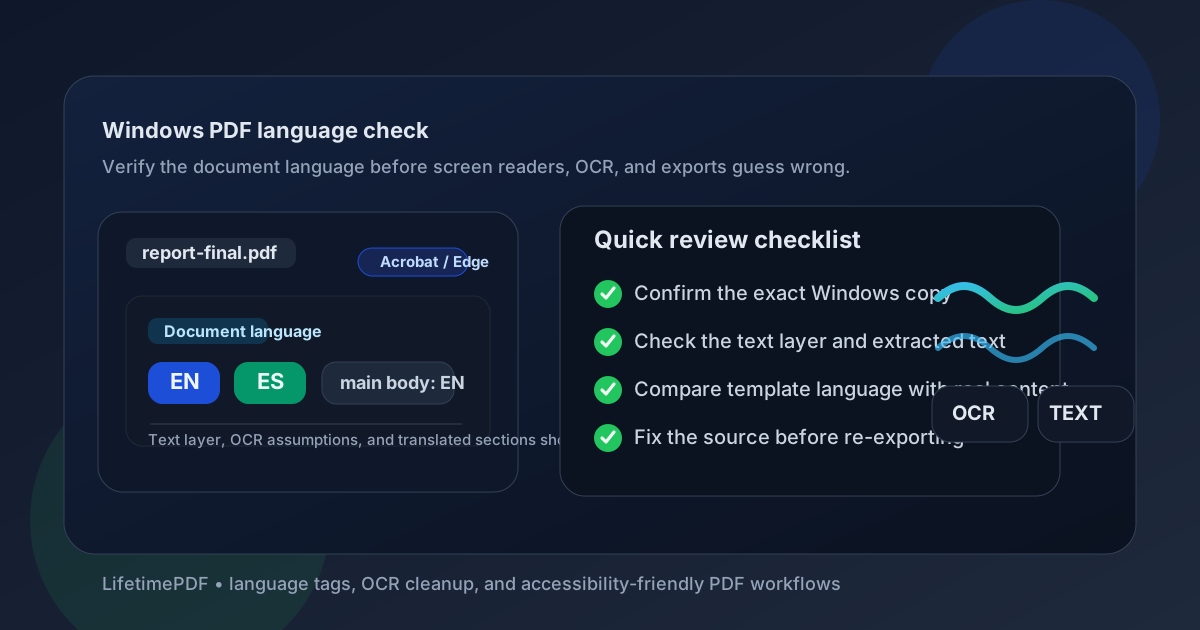
Table of contents
- Quick start: check PDF language on Windows in about 7 minutes
- What you are really checking when you review PDF language
- Where Windows users get misled
- Step-by-step: how to check PDF language on Windows
- Warning signs that the language setting is stale or wrong
- Multilingual, translated, and OCR-heavy PDFs
- When to fix the source versus patch the PDF
- Related LifetimePDF tools and guides
- FAQ
Quick start: check PDF language on Windows in about 7 minutes
If your real question is tell me whether this Windows PDF is using the right language before I send it, use this order:
- Open the exact PDF you plan to email, upload, archive, or publish from Downloads, OneDrive, Teams, Outlook, or a shared folder.
- Confirm the file has usable text. Search a visible word, copy a line, or run PDF to Text. If it behaves like a picture, run OCR PDF first.
- Identify the real dominant language of the document body, not the old template language or whatever language a previous version used.
- Spot-check headings, names, accented words, quotations, and any bilingual or translated sections to see whether the text output still makes sense.
- Run one broader PDF accessibility check so language problems do not hide inside larger structure issues.
- If the language is stale, missing, or clearly wrong, repair the source file and export a cleaner PDF instead of trusting the current copy.
What you are really checking when you review PDF language
Checking PDF language on Windows is not just asking whether the document contains English, Spanish, French, or another language. You are checking whether the file's internal language setting still matches the actual reading experience. That matters because screen readers rely on it for pronunciation, OCR cleanup works better when the assumptions fit the content, and multilingual PDFs often carry invisible leftovers from older templates.
In practice, you are looking for three things:
- Main-language accuracy: the PDF's primary language still matches the main body of the document.
- Text-layer credibility: the extracted or searchable text behaves like real language instead of OCR mush, broken accents, or stale template output.
- Mixed-language awareness: translated clauses, quotes, names, and bilingual sections do not get quietly flattened into the wrong assumptions.
Good outcome
The document sounds right, extracts cleanly, and does not surprise you when the text leaves the page.
Common failure
The visible content changed, but the PDF still carries last quarter's template language or OCR assumptions.
Best next move
Review the real file, then repair the source if the language setting is obviously stale or the text layer is weak.
Language also overlaps with broader accessibility and conversion work. If the PDF is badly tagged, scan-heavy, or exported from a messy source, the language review often reveals the first visible symptom rather than the only problem. That is why I prefer treating document language as part of a real Windows review workflow, not as an isolated checkbox.
Where Windows users get misled
Windows gives you a lot of fast ways to preview a PDF. The trap is that speed feels like proof. A good-looking file in Microsoft Edge, Adobe Acrobat, Outlook, Teams, or a synced folder can still carry the wrong document language underneath.
| Windows view | What it is good for | What it cannot safely prove |
|---|---|---|
| Edge browser preview | Fast confirmation that you are looking at the right file and that the visible pages match expectations. | That the underlying language setting matches the content or that OCR assumptions are correct. |
| Acrobat or another stronger PDF app | Deeper manual review and a better sense of how the finished PDF behaves. | You still need text extraction and judgment. A file can look fine while carrying stale language metadata. |
| Outlook or Teams preview | Quick attachment triage and version checking. | Whether the PDF kept the right language after export, translation, or OCR cleanup. |
| PDF to Text output | Spotting broken accents, noisy OCR, or language drift once the layout polish disappears. | Not every structural problem, but it is one of the fastest reality checks you can run. |
| Accessibility checker results | Surfacing larger issues around language, structure, and reading behavior. | Whether a human will trust the wording, context, and multilingual decisions without a manual review. |
That last point matters most. A checker can warn you. It cannot always tell you whether the file still reflects the correct language choices for the people who will actually use it.
Step-by-step: how to check PDF language on Windows
This workflow gives you a dependable answer without turning a routine review into a huge remediation project.
Step 1: Start with the real Windows copy
Review the exact file that will leave your machine. If the PDF lives in Downloads, OneDrive, Outlook, Teams, SharePoint, or a shared folder, open that final copy directly. Previewing one file and sending another is an easy way to miss stale settings.
Step 2: Confirm the text layer before you trust the language
If the PDF is a scan or a weak export, a language review can turn into guesswork fast. Try selecting text, searching a visible word, or using PDF to Text. If the file behaves more like an image than a document, run OCR PDF first. OCR will not solve every language problem, but it makes the rest of the check much more honest.
Step 3: Decide what the document's real primary language is
This sounds obvious until you review translated reports, recycled templates, bilingual forms, or documents assembled from several sources. The right language is the language that dominates the actual reading experience, not necessarily the first page, the filename, or the previous version.
Step 4: Spot-check the text after it leaves the layout
Run a small sample through PDF to Text and read it like a human instead of trusting the pretty page. Check headings, one paragraph near the start, one paragraph in the middle, any names or accented words, and any section that was translated or pasted from elsewhere. If the extracted text looks suspicious, the language setting, OCR pass, or export pipeline may need repair.
Step 5: Inspect multilingual sections on purpose
Bilingual forms, translated clauses, product names, quotations, and appendices are where lazy export habits show up. A mostly English PDF can still contain short Spanish sections, French names, German terms, or legal text copied from another source. Those sections deserve a deliberate glance instead of an optimistic shrug.
Step 6: Finish with one broader accessibility-minded review
Language is one part of a usable PDF, not the whole story. Pair your review with PDF Accessibility Checker so stale language settings do not hide inside larger issues like poor tagging or broken reading order. If the file is still weak, use PDF to Word to recover an editable starting point and repair the source instead of endlessly poking at the final export.
Warning signs that the language setting is stale or wrong
These patterns show up a lot in real Windows workflows, especially when PDFs move through email, portals, translated templates, and scanned archives.
| What you notice | What it usually means | Best next move |
|---|---|---|
| The visible text changed languages, but the file came from an old template | The PDF may still carry the source template's old language settings. | Check the source document properties and export again. |
| Names, accents, or common words look broken after extraction | The text layer or OCR assumptions may not match the real language well. | Re-run OCR if needed and recheck the source. |
| The PDF looks fine in Edge, but accessibility review flags language or structure issues | The file is visually tidy but not structurally trustworthy. | Do not trust the preview alone. Repair upstream and rebuild the PDF. |
| Bilingual sections feel inconsistent or awkward | The export may be flattening mixed-language content too aggressively. | Review those sections in the source and mark them cleanly before re-exporting. |
| The PDF is scan-heavy and hard to search | You may be fighting OCR problems before you even reach the language question. | Repair the text layer first, then revisit document language. |
Multilingual, translated, and OCR-heavy PDFs
Windows PDF review gets trickiest when the file was translated late, assembled from multiple sources, or rescued from a scan. In those cases, language mistakes are usually a symptom of a broader workflow problem, not a random one-off.
Translated reports and reused templates
These are prime candidates for stale document language because the visible content changed while the hidden settings stayed behind.
Bilingual forms and legal packets
They often need a more deliberate source-file workflow because one global assumption can be too blunt for the whole document.
Scans and OCR recovery
If the text layer is weak, language review becomes guesswork. OCR first, then judge the language using real extracted text.
Pasted-together PDFs
When pages come from different systems or teams, invisible leftovers from older exports are common and deserve a manual check.
My practical opinion: if the document changed languages during its life, assume the metadata and export settings deserve a second look too. PDFs are very good at hiding old decisions under a professional-looking surface.
When to fix the source versus patch the PDF
Not every Windows language problem deserves the same response. The useful question is whether the PDF is almost healthy and only needs a light cleanup, or whether the real problem clearly lives upstream.
Patch lightly or leave the PDF alone when
- the text layer is already clean and stable,
- the document is mostly one language with only minor translated fragments,
- you only need a quick confidence check before sharing internally,
- the source file is unavailable but the current PDF is otherwise solid.
Fix the source and re-export when
- the PDF came from a reused template with different old language settings,
- several extracted sections look broken or suspicious,
- OCR assumptions are obviously hurting the text quality,
- the file will be published, archived, submitted, or reused seriously,
- the language problem is part of broader accessibility or structure issues.
If the PDF matters to more than one reader, more than one revision, or more than one device, upstream repair usually wins. A clean source produces a cleaner export and saves future-you from reliving the same fix.
FAQ
How do I check PDF language on Windows quickly?
Open the final PDF on Windows, confirm the text layer works, identify the document's real main language, and spot-check extracted text before you share it. If the file is a scan or the text looks suspicious, OCR or source repair should happen before you trust the export.
Can Microsoft Edge tell me whether a PDF is using the right language?
Not completely. Edge is useful for opening the real file and confirming the visible pages, but it cannot prove that the underlying language setting matches the content. Use text extraction, OCR awareness, and a broader accessibility-minded review for that.
Why does document language matter in a Windows PDF?
It affects how screen readers pronounce the content, how reliable OCR cleanup feels, and whether translated or template-based documents behave correctly when the text leaves the page. The page can look polished while the hidden language setting is still wrong.
Should I OCR a scanned PDF before checking language on Windows?
Usually yes if the PDF has a weak or missing text layer. OCR does not magically fix every language issue, but it gives you searchable, extractable text so the rest of the review becomes far more trustworthy.
When is the source file a better fix than the PDF itself?
If the file came from a stale template, if multiple sections extract badly, or if the PDF will be reused seriously, fix the source and export a cleaner PDF. That is usually faster and more dependable than repeated patching.