How to Check PDF Bookmarks on Chromebook: Chrome Viewer, Files, and Drive Navigation Checks Before You Share
To check PDF bookmarks on Chromebook, save the real PDF in Files, open it in a view that exposes the bookmark or contents list, and click the main entries to confirm the labels and jump targets still match the document.
If the outline is hidden, vague, or landing on the wrong section after a merge, export, or upload cycle, fix it before you share the PDF so readers are not stuck scrolling by hand.
That is the fast answer. The useful Chromebook answer is that bookmark problems often hide behind perfectly ordinary previews. The PDF opens in Chrome, Files, Google Drive, Gmail, or Classroom and everything looks calm until someone tries to jump to the pricing section, appendix, exhibit list, chapter break, or signature page. A short bookmark review catches stale labels and broken destinations before the file reaches the next reader.
Fastest practical path: save the exact Chromebook copy, surface the outline, scan the top-level entries, test the sections people will actually use, compare the jumps with the visible PDF, and fix stale navigation before the file leaves ChromeOS.
In a hurry? Jump to Quick start: check Chromebook PDF bookmarks in about 5 minutes.
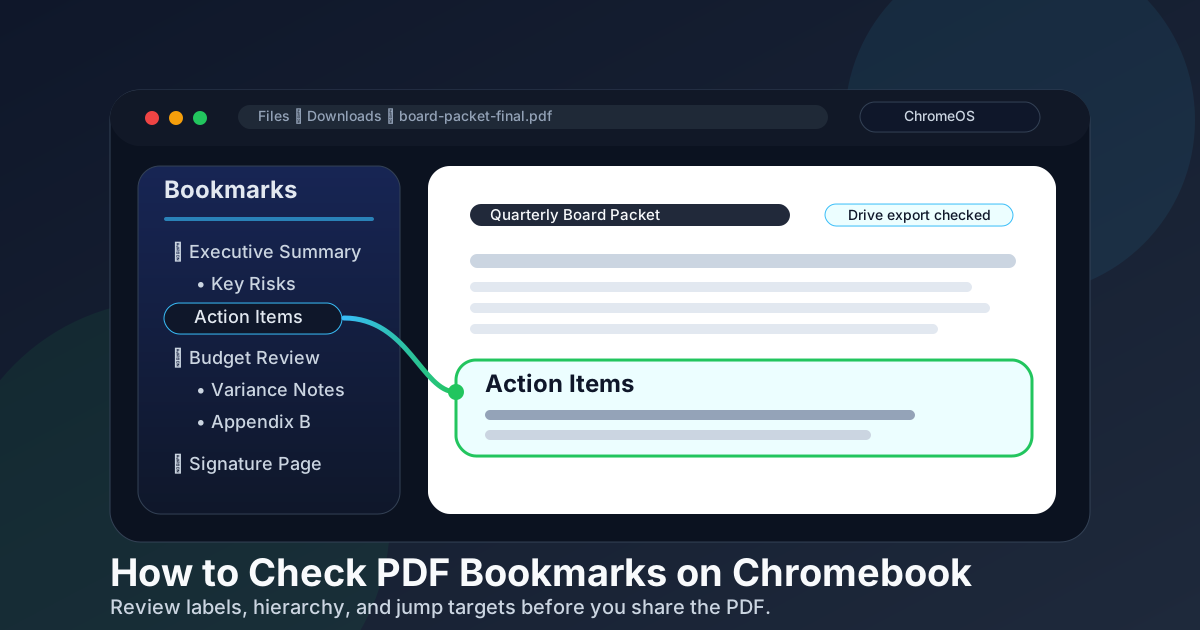
Table of contents
- Quick start: check Chromebook PDF bookmarks in about 5 minutes
- What good PDF bookmarks look like on Chromebook
- Where Chromebook workflows hide bookmark problems
- Step-by-step: how to check PDF bookmarks on Chromebook
- Common signs the bookmark outline needs cleanup
- When to fix the outline and when to rebuild it
- Related LifetimePDF tools and guides
- FAQ
Quick start: check Chromebook PDF bookmarks in about 5 minutes
If your real goal is make sure this PDF is easy to navigate before I send it, use this order:
- Save the exact PDF you plan to upload, share, archive, or reopen later into Files on your Chromebook.
- Do not trust a quick Chrome tab, Drive preview, Gmail attachment preview, or Classroom attachment preview alone.
- Open the same file in a view or workflow that clearly exposes the bookmark, contents, or outline panel.
- Scan the top level first and see whether the labels match the major sections a reader would actually look for.
- Click the high-value jumps such as the summary, appendix, exhibits, pricing pages, schedules, or signature section.
- If the labels are vague or the jumps land in the wrong places, fix the outline before the PDF leaves your Chromebook workflow.
What good PDF bookmarks look like on Chromebook
PDF bookmarks are the navigation outline inside the file. They help readers jump straight to the sections that matter instead of swiping, scrolling, or guessing their way through a long packet. On Chromebook that matters even more, because many people open PDFs in browser-style previews where long scrolling quickly becomes annoying.
| What to inspect | What a healthy result looks like | What a bad result looks like |
|---|---|---|
| Visibility | The bookmark or contents list is visible in the workflow you are using. | You only saw a flat preview and never confirmed the outline directly. |
| Labels | Entries sound like real sections such as Executive Summary, Scope, Appendix, or Signature Page. | Entries say Untitled, Section 1, Page 12, or duplicate labels that tell the reader almost nothing. |
| Hierarchy | Main sections appear at the top level and subsections sit underneath them sensibly. | The outline is either a flat wall of dozens of entries or a deeply nested mess that hides important destinations. |
| Jump accuracy | The important entries land on the right page and near the right heading. | Bookmarks jump a page early, a page late, or into the middle of unrelated content. |
The important distinction is that a Chromebook PDF can have bookmarks without having good bookmarks. Presence is only the first check. Reliability is the one that saves the next reader time.
Where Chromebook workflows hide bookmark problems
ChromeOS gives you several convenient ways to glance at a PDF, but not every path tells you much about the outline. Quick previews are useful for opening the right file. They are not always strong evidence that the bookmark structure is present, complete, or still accurate.
| Opening path | What it is good for | What it cannot safely prove |
|---|---|---|
| Chrome PDF viewer | Confirming you saved the right PDF and doing a fast visual pass. | That the file definitely has no bookmarks just because you do not see an outline immediately. |
| Files app preview | Checking that the local Chromebook copy opens and looks like the expected document. | That the bookmark list is complete, readable, and ready for a client, class, filing, or archive workflow. |
| Google Drive, Gmail, or Classroom preview | Seeing whether the shared copy looks like the right file. | That the downloadable copy has the same outline or that the visible navigation is the one real readers will rely on. |
| A fuller bookmark-review workflow | Surfacing the outline, testing the main jumps, and comparing them with the visible document structure. | It still does not fix the outline for you. It simply lets you catch the problem before the PDF leaves your Chromebook. |
Step-by-step: how to check PDF bookmarks on Chromebook
The best Chromebook workflow is simple: inspect the same file you plan to send, surface the outline, and test the jumps people will actually use. This takes minutes, not hours, and it prevents the kind of navigation problems that make long PDFs feel clumsy.
1. Save the real outgoing PDF first
Move the file out of temporary previews and into Files so you are checking the exact Chromebook copy that will actually be uploaded, sent, archived, or reopened later. That sounds obvious, but a surprising number of bookmark mistakes come from reviewing one copy and sharing another.
- Downloads copy and Drive copy should match.
- Do not assume the previewed version is the one the recipient gets.
- Rename obviously old copies before you test the wrong file.
2. Surface the bookmark or contents list
Open the PDF where the bookmark, contents, or outline panel is visible. You are not only asking whether the list exists. You are also asking whether ChromeOS readers can actually use it without friction.
- Expand the top level first.
- Look for the sections a reader would expect to revisit.
- If the panel is missing, compare with another bookmark-aware workflow before assuming the PDF has no outline.
3. Read the labels like a stranger would
Ask whether the entries make sense to somebody who did not build the PDF. Good bookmark labels reduce cognitive work. Weak labels force the reader to click around blindly.
- Prefer section names over vague placeholders.
- Major sections should stand on their own.
- If the outline needs insider knowledge to decode it, it is not ready.
4. Test the high-value jumps
Do not just click the first bookmark and call it done. Open the entries readers are most likely to use: executive summary, price sheet, appendix, exhibit list, timeline, or signature page.
- Land near the heading, not three pages away.
- Check that inserted pages did not shift the target.
- Make sure the last section in the file is reachable too.
5. Compare the outline with the visible document structure
Use headings, page labels, divider pages, or the table of contents to confirm the bookmark order still matches the actual PDF. If the document says Appendix B but the outline still says Pricing Notes from an earlier draft, the file is telling two different stories.
Finish by reopening the final Chromebook copy once more after any fix. That last reopen matters because it verifies the corrected file, not your memory of it.
Common signs the bookmark outline needs cleanup
Most bad bookmark outlines are not subtle. They usually advertise the problem as soon as you stop treating the sidebar like decoration and start treating it like navigation.
Label problems
- Multiple entries with the same name.
- Placeholder labels such as Untitled or Section 1.
- Old draft names that no longer match the final document.
- Top-level entries that are too tiny to help anyone navigate quickly.
Destination problems
- Bookmarks land a page early or late after pages were inserted.
- The outline jumps into the middle of unrelated content.
- The last appendix or signature section is missing completely.
- The clickable list exists, but nobody would trust it after two bad jumps.
Bookmark quality problems that show up often on Chromebook
- Merge drift: the packet was combined from several PDFs and the outline no longer matches the new page order.
- Export drift: the source document changed after the bookmarks were last reviewed.
- Preview confidence: the file looked fine in Chrome or Drive, so nobody tested the actual jumps.
- Overbuilt hierarchy: the outline is technically complete but so deep that readers cannot use it comfortably on a Chromebook screen.
- Copy mismatch: the bookmarks were checked in one version and the wrong PDF was shared from another folder or tab.
When to fix the outline and when to rebuild it
Not every bookmark problem deserves a full rebuild. Sometimes the fastest fix is a quick rename and retest. Other times the cleanest answer is to go back to the source document and export a fresh PDF with better structure.
| Situation | Best move | Why it works |
|---|---|---|
| A few labels are vague but the jumps still land correctly. | Rename and retest. | The structure is basically healthy, so small cleanup gives readers a better experience fast. |
| The jumps are off after a merge, delete, insert, or export cycle. | Repair the outline and retest the key destinations. | The labels may still be useful, but the targets need to match the final page order again. |
| The PDF is missing major sections or the hierarchy is chaotic. | Rebuild from the best editable source you have. | It is usually faster to fix structure at the source than to fight a broken finished PDF. |
| The file is scanned or image-only. | Run OCR first, then rebuild or repair. | Text-aware structure is much easier to organize than a stack of page images. |
Related LifetimePDF tools and guides
If your Chromebook bookmark check surfaces a real problem, these guides are the natural next steps.
Need the full repair path? If a long Chromebook PDF is hard to navigate, confirm the bookmarks, fix the source structure, and export a cleaner file before sharing it onward.
FAQ
How do I check PDF bookmarks on Chromebook?
Save the PDF locally on Chromebook, open it in a view that exposes the bookmark or contents list, scan the main labels, and click the important entries to confirm the jump targets still match the document.
Can Chrome viewer or Google Drive preview show PDF bookmarks on Chromebook?
Sometimes, but quick previews are not strong proof that the outline is complete or reliable. They are useful for opening the right file, but you still need to surface the actual bookmark list and test the key jumps.
What should I check besides whether the bookmark list exists?
Check whether the labels are clear, the hierarchy makes sense, the important jumps land on the right sections, and the outline still matches the visible headings and any table of contents inside the PDF.
Why do PDF bookmarks break after editing or merging files?
Merged packets, inserted pages, deleted sections, OCR cleanup, and rushed exports can shift bookmark destinations or leave old labels behind. The outline may still appear while pointing to the wrong places.
What should I do if the bookmarks are bad on Chromebook?
If the outline is vague, broken, or missing major sections, fix the source document or rebuild the structure before exporting a fresh PDF. Then retest the final Chromebook copy before sharing it.