How to Check if a PDF Is XFA on iPad: Files, Safari, and Acrobat Compatibility Clues
To check if a PDF is XFA on iPad, save the exact file into Files, open it in Adobe Acrobat Reader, then compare the same PDF in Files preview and Safari and watch for missing fields, broken layout, or Acrobat-only behavior.
If the form behaves normally in Acrobat but loses fields, scripts, save behavior, or structure in Files, Safari, browser upload previews, or other Apple-side touchpoints, it is very likely an XFA form rather than a standard fillable PDF.
That difference matters because iPad users often hit XFA at the worst possible moment: a government form opens from Safari but stops responding, a client taps a PDF in Files and thinks the fields vanished, or a signing portal accepts the document but strips the live form logic. A quick compare-between-viewers check tells you whether the safe move is to keep using the Adobe workflow, flatten the finished document, or rebuild the form into something more portable.
Fastest path: save one clean iPad copy, test it in Acrobat Reader first, then open the same file in Files and Safari. If Acrobat works but Apple-side previews break, treat that as a serious XFA clue.
Need the short version? Jump to quick start: tell if an iPad PDF is XFA in about 5 minutes.
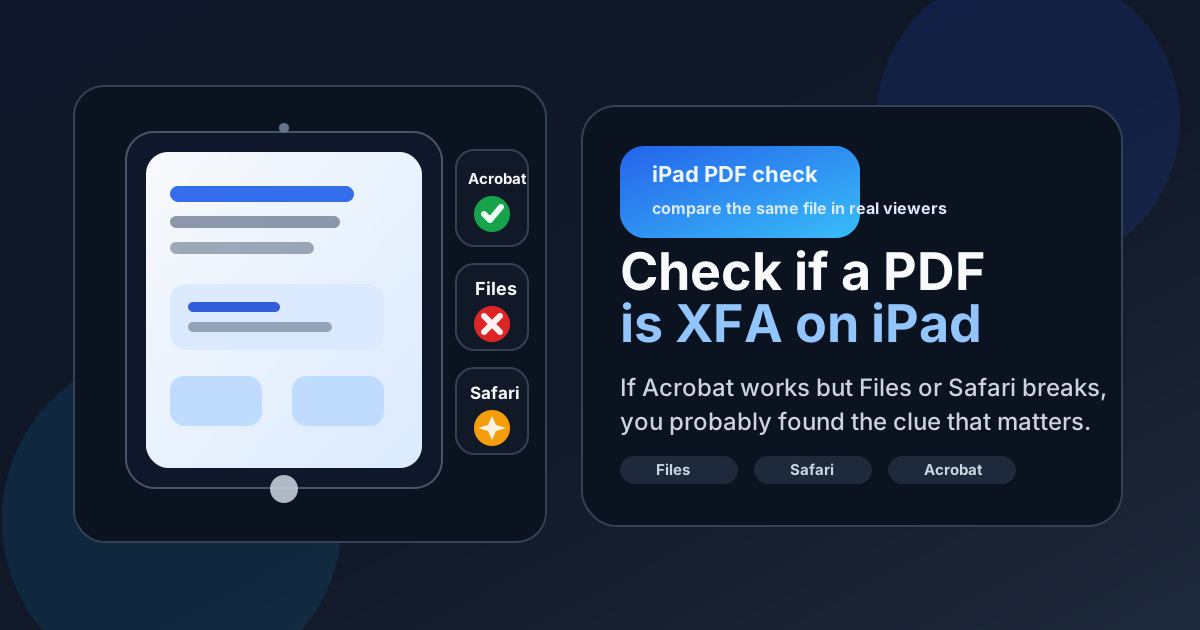
Table of contents
- Quick start: tell if an iPad PDF is XFA in about 5 minutes
- What XFA usually looks like on iPad
- The strongest iPad-side signs a PDF may be XFA
- Step-by-step: compare Acrobat, Files, and Safari
- XFA vs AcroForm vs flat PDF
- What to do if the file really is XFA
- Common iPad mistakes that waste time
- Useful LifetimePDF tools and related guides
- FAQ
Quick start: tell if an iPad PDF is XFA in about 5 minutes
If you only need a fast answer, do this:
- Save the PDF locally into Files so you are testing the exact copy you will upload, share, or sign.
- Open that same file in Adobe Acrobat Reader on iPad.
- Check whether the fields, buttons, calculations, and layout behave normally there.
- Open the identical file in Files preview.
- Open it again from Safari or in the real browser portal where the problem usually happens.
- If Acrobat works but Files or Safari loses fields, breaks the layout, or blocks real form use, the PDF is very likely XFA.
What XFA usually looks like on iPad
XFA is not just another name for a fillable PDF. It is a form technology that often depends much more heavily on Adobe's own handling of the file. On desktop or mobile, that usually means the PDF can appear normal at first glance but fail as soon as you try to use it in a non-Adobe viewer.
On iPad, that failure often shows up in a few recognizable ways:
Looks readable, but not really usable
The page opens, yet fields refuse to respond, buttons do nothing, or the form never saves correctly once you try to complete it.
Layout changes between viewers
Acrobat may show extra fields, better spacing, or working calculations while Files or Safari shows a broken or incomplete version of the same PDF.
Portal or signing workflow breaks
An upload flow may accept the file but strip out active behavior, leaving the recipient with a PDF that looks present but does not actually work.
The iPad-specific trap is convenience. Because it is easy to open PDFs in Files, Safari, Mail, or a cloud preview, people assume the first visible version is the real version. That assumption is exactly what XFA punishes.
The strongest iPad-side signs a PDF may be XFA
Not every broken form is XFA. Permissions, a bad download, a corrupt file, and ordinary viewer limitations can also cause trouble. Still, these signs make XFA much more likely:
- Acrobat works, Files does not: the same saved PDF behaves normally in Acrobat Reader but loses fields or function in Files preview.
- Safari preview is weaker than Acrobat: the form opens in browser preview but buttons, calculated fields, or hidden sections do not behave correctly.
- The document changes shape based on answers: dynamic expanding sections, conditional fields, or scripted behavior are common XFA clues.
- The layout looks incomplete in Apple-side previews: sections may collapse, text may overlap, or interactive areas may vanish.
- You can view it but not truly complete it: the page is there, yet the actual submission workflow breaks on iPad outside Adobe's viewer.
One symptom is not enough
If one preview fails, do not jump straight to XFA. Use the comparison method. Open the exact same file in Acrobat, Files, and Safari before you decide whether the issue is a bad file, a bad preview, or a real XFA compatibility gap.
Step-by-step: compare Acrobat, Files, and Safari
This workflow is more reliable than guessing from one screenshot or one error banner.
1) Save the real file first
Do not test only the email preview or the browser preview. Save the PDF into Files so every app is opening the same copy. That avoids false comparisons caused by cached previews, partial downloads, or portal-rendered snapshots.
2) Start with Acrobat Reader on iPad
Open the file in Acrobat Reader and check what "working" looks like:
- Do fields accept input?
- Do checkboxes, dropdowns, and signatures behave as expected?
- Do calculations or reveal/hide sections respond?
- Can you save the form state properly?
If Acrobat itself struggles, the file may be damaged or poorly built. If Acrobat works well, you now have a baseline for comparison.
3) Open the same file in Files preview
Files is useful because it reflects the casual way many iPad users actually view PDFs. Compare it directly with Acrobat:
- Are the same fields visible?
- Does the layout stay intact?
- Do interactive pieces stop working?
- Do buttons, calculations, or save behavior disappear?
If the answer changes sharply between Acrobat and Files, XFA becomes much more likely.
4) Test Safari or the real browser flow
Many iPad form failures happen in portals, not in standalone viewing. Open the file through the browser path you actually use and watch for differences from Acrobat:
- Does Safari show a simplified preview rather than a fully working form?
- Does the upload portal flatten or ignore the live behavior?
- Do review, sign, or submit steps fail after the PDF appears to open?
This matters because a PDF that looks acceptable in Files may still fail inside a browser-based workflow.
5) Decide which kind of problem you actually have
| What you see | Likely meaning | Best next move |
|---|---|---|
| Acrobat, Files, and Safari all behave the same | The file may be a normal fillable PDF or a flat PDF | Keep testing the actual submission path, but XFA is less likely |
| Acrobat works, Files and Safari break | Strong XFA or advanced-form compatibility signal | Keep completion in Adobe or rebuild the form |
| Everything breaks everywhere | Possible corruption, permissions issue, or bad export | Get a clean source file before diagnosing XFA |
| The file only looks like a page image | May be flat, scanned, or non-interactive rather than XFA | Identify whether you need OCR, a form rebuild, or a better source |
Useful iPad habit
Use Split View or Stage Manager to compare the same PDF between Acrobat and Files or Acrobat and Safari. The side-by-side view makes layout loss, missing fields, and broken behavior much easier to spot quickly.
XFA vs AcroForm vs flat PDF
A lot of confusion disappears once you separate these three things:
| PDF type | What it usually means | How it behaves on iPad |
|---|---|---|
| XFA form | Adobe-focused dynamic form structure | Often works best in Acrobat, but may break in Files, Safari, and browser workflows |
| AcroForm | Standard fillable PDF field structure | Usually more portable across viewers, though not every app handles every feature equally well |
| Flat PDF | No real live fields, just visible page content | Easy to view almost anywhere, but not truly fillable unless you add new overlays or rebuild it |
In plain language: XFA is powerful but fragile outside Adobe-heavy workflows. AcroForm is usually the safer choice when you need broad compatibility. Flat PDFs travel well, but they are not real working forms anymore.
What to do if the file really is XFA
Once you confirm the problem is probably XFA, do not waste time trying five more casual viewers. Pick the next move based on your goal.
Common iPad mistakes that waste time
- Testing different copies of the file: compare the same saved PDF everywhere.
- Trusting a preview just because it opens: visible pages are not the same thing as working fields.
- Using Markup as a form workaround too early: it can cover the page, but it does not fix the form structure.
- Assuming Safari preview equals the upload result: portal handling can still differ from standalone viewing.
- Blaming the iPad immediately: sometimes the source file is damaged or exported badly. Acrobat comparison helps separate device limitations from file problems.
Useful LifetimePDF tools and related guides
If your iPad PDF turns out to be XFA or simply fragile, these tools usually help most:
Need a safer end result? Use the tools below to either stabilize the completed document or rebuild the form so it travels better beyond Acrobat.
FAQ
How do I check if a PDF is XFA on iPad?
Save the PDF into Files on your iPad, open it in Adobe Acrobat Reader, then compare the same file in Files preview and Safari. If Acrobat handles the form correctly but Files or Safari loses fields, layout, or interactivity, the PDF is very likely XFA.
Can the iPad Files app tell me directly that a PDF is XFA?
Usually not with a clean label. Files is most useful as a comparison test. If the exact same file behaves much worse there than in Acrobat, that difference is the real clue.
Is every broken iPad PDF form automatically XFA?
No. Permissions, corrupted downloads, portal quirks, and badly built standard forms can also fail. The reason to compare Acrobat, Files, and Safari is to separate a viewer problem from a real XFA-style compatibility problem.
Can I use Apple Pencil or Markup to fix an XFA form?
You can annotate the page, but that does not convert the form into a standard working PDF. It may help if someone only needs visible notes, but it is not a true replacement for the underlying form behavior.
What should I do if the iPad PDF really is XFA?
Finish it in the supported Adobe workflow if possible, then flatten the final copy for sharing. If the form belongs to your team or organization, rebuild it as a standard fillable PDF so it survives real-world iPad, browser, and portal use much better.