How to Check if a PDF Is PDF/A Compliant on Windows: Fast Archive Checks Before You Store It
To check if a PDF is PDF/A compliant on Windows, save the final file in File Explorer, review its metadata, confirm the text is searchable, and make sure the preservation copy is not password-protected or obviously built from a weak scan alone.
If the file has messy metadata, behaves like an image, or needs a strict policy-level pass or fail decision, use the Windows review as triage and finish with a dedicated PDF/A-aware validator before long-term storage.
That is the short answer. The useful part is knowing what Windows can tell you quickly, which warning signs actually matter, and how to avoid treating a file as archive-ready just because it opens normally in Edge or another viewer. A good preservation copy should be searchable, identifiable later, and practical to open for years. Windows is strong at catching the most common problems early.
Fastest path: check the final saved copy, clean the metadata, confirm searchability, and treat password-protected or image-only files as not archive-ready yet.
In a hurry? Jump to Quick start: check archive readiness on Windows in a few minutes.
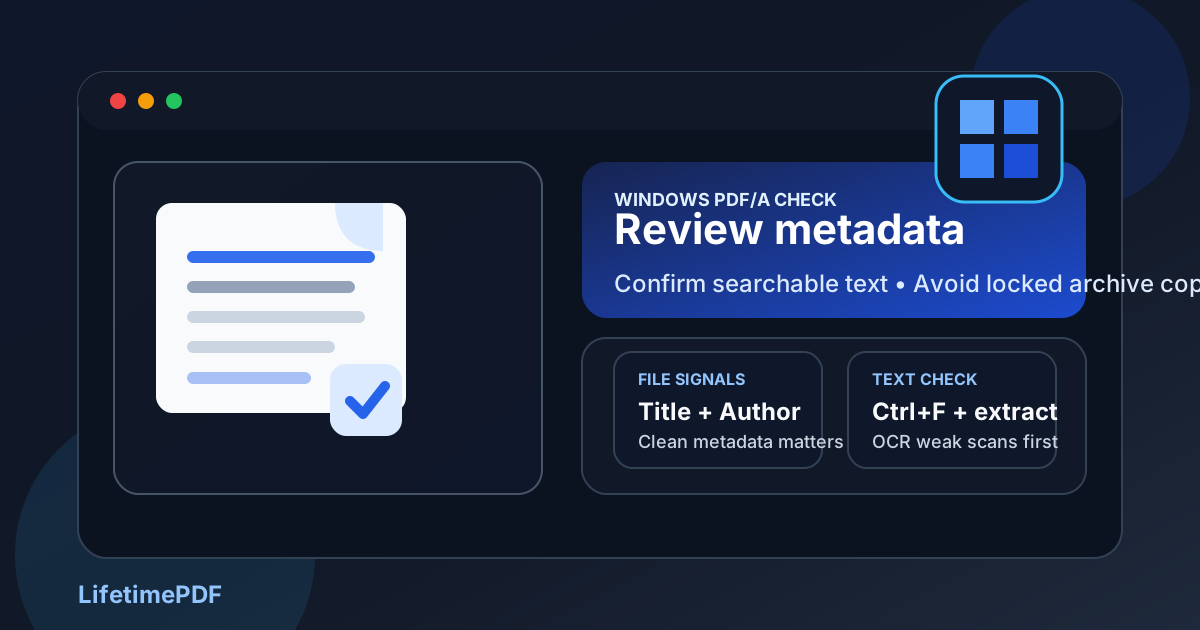
Table of contents
- Quick start: check archive readiness on Windows in a few minutes
- The easiest Windows workflow for checking PDF/A readiness
- What PDF/A actually means in practical terms
- Step-by-step: check a PDF from Explorer, Outlook, Teams, or cloud storage
- Fast warning signs that the PDF is not archive-ready
- When to OCR first and when to rebuild the source
- When the Windows check is enough and when stricter validation is still smart
- Related LifetimePDF tools and guides
- FAQ (People Also Ask)
Quick start: check archive readiness on Windows in a few minutes
If you mainly need a quick answer before saving a document into long-term storage, this is the practical order:
- Move the exact file from Outlook, Teams, OneDrive, or Downloads into one obvious folder in File Explorer.
- Open PDF Metadata Editor and make sure the title and author fields are intentional instead of empty or inherited nonsense.
- Search for a visible word in Edge and test the file in PDF to Text so you know whether the document is actually searchable.
- If the file is a scan or the text layer is weak, run OCR PDF and test it again.
- If the preservation copy is password-protected or heavily restricted, treat that as a warning sign and create a cleaner archive version.
- If your records policy requires a formal pass or fail decision, finish with a PDF/A-aware validator instead of guessing from surface behavior alone.
The easiest Windows workflow for checking PDF/A readiness
On Windows, the biggest mistake is checking one version and archiving another. A PDF gets previewed in Outlook, opened in Edge, synced again through OneDrive, and then renamed in a project folder that is not actually the copy going into storage. By the time someone says, “It opened fine on my PC,” they may not be talking about the preservation copy at all.
A cleaner workflow is simple: keep one final copy in File Explorer, review the metadata once, test whether the text is really there, and question anything that behaves like a locked or image-only document. That sequence catches common archive failures quickly without pretending Windows is a magic compliance oracle.
| What you see on Windows | What it usually means | Best next move |
|---|---|---|
| Clean title and author metadata | The file is easier to identify later in a real archive | Keep the metadata intentional before final storage |
| Search and extraction work | The PDF has a usable text layer instead of being only a picture | Move forward or OCR only if some pages still fail |
| Password or permission prompts block normal use | The file may be wrong for a preservation copy even if it is fine for short-term sharing | Create a separate archive version without unnecessary restrictions |
| The file looks like a scan and search fails | The archive copy is visually preserved but operationally weak | Run OCR, then retest before you store it long term |
In plain English: checking PDF/A readiness on Windows is less about one secret badge and more about whether the file behaves like a stable record you could trust later. Clean metadata, real text, and openable long-term access matter more than vague confidence.
What PDF/A actually means in practical terms
PDF/A is the archival branch of PDF. The goal is not simply to make a document look acceptable today. The goal is to preserve a version that stays identifiable, stable, and usable in the future without relying on fragile extras or short-term sharing assumptions.
In practical day-to-day work, an archive-friendly PDF usually aims for these qualities:
- Intentional metadata: the file should be easier to identify later than "scan123-final-final.pdf."
- Usable text: if the document started as text or can be OCRed meaningfully, long-term search and retrieval become much easier.
- Stable rendering: the file should not depend on a strange, fragile workflow just to open normally.
- Long-term access: a preservation copy usually should not be locked down like a temporary distribution copy.
Important reality check
Windows can tell you a lot about whether a PDF looks healthy enough to archive. It cannot always deliver the final regulatory or records-policy verdict by itself. That is why the smart workflow is triage on Windows, strict validation when the policy truly needs it.
Step-by-step: check a PDF from Explorer, Outlook, Teams, or cloud storage
1) Start with the exact file you plan to keep
Save the PDF into one obvious folder in File Explorer first. This reduces version confusion and makes retesting possible. If a file matters enough to preserve, it matters enough to stop checking random previews.
2) Review the metadata before anything else
Open the file in PDF Metadata Editor. Confirm that the title, author, and related properties are useful rather than blank, generic, or inherited from a draft export. Weak metadata does not automatically prove failure, but it is a strong sign the archive copy still needs care.
3) Confirm the PDF is searchable
Search for a word you can clearly see on the page in Edge, then run the file through PDF to Text when you want a stronger answer. If the PDF behaves like a photo, the archive may preserve appearance but still be painful to retrieve, quote, or review later.
4) OCR the file if the content is scan-based
If the file came from paper scans, copier output, photographed pages, or a phone scanning workflow, use OCR PDF before you pretend the archive copy is healthy. After OCR, repeat the same search and extraction tests. The retest matters more than the promise.
5) Question passwords and heavy restrictions
A distribution copy can be protected for email or portal delivery. A preservation copy usually benefits from being openable and durable. If the file is password-protected or permission-locked, decide whether you are looking at the wrong copy for long-term storage.
6) Decide whether Windows triage is enough
For many small-team or practical archive workflows, the Windows review tells you enough to catch obvious problems. If the record belongs to a formal legal, government, compliance, or policy-driven archive, finish with a stricter PDF/A-aware validator instead of assuming the desktop check answered the whole question.
Recommended Windows sequence: save one final copy, review metadata, test text extraction, OCR weak scans, then separate the archive copy from any protected sharing copy.
Fast warning signs that the PDF is not archive-ready
- The metadata is empty or embarrassing. Draft titles, generic scanner names, or random inherited author fields are easy red flags.
- Search fails on visible text. That usually means the file is image-based or the text layer is too weak to trust.
- The file is a locked sharing copy. That can be fine for delivery, but it is often wrong for preservation.
- Only some pages extract correctly. Mixed native-and-scan PDFs are common and deserve a page-level spot check.
- You are relying on how nice the preview looks. A visually crisp page can still be a poor archive record underneath.
None of those warning signs automatically means the document is worthless. They do mean you should stop before calling it your final preservation copy.
When to OCR first and when to rebuild the source
OCR and source repair solve different archive problems. OCR helps when the PDF is basically a picture of text. Source repair helps when the PDF has text already but still carries bad metadata, weak exports, or unnecessary restrictions.
Use OCR first when
- the PDF came from paper, a copier, or a phone scan,
- search and extraction fail on obvious text,
- the archive would be much more useful if someone could search inside it later.
Rebuild or re-export the source when
- the file came from Word, Excel, PowerPoint, or another editable source,
- metadata is clearly inherited from a messy draft workflow,
- the preservation copy is being confused with a password-protected sharing copy,
- you can make a cleaner final archive file in a few minutes instead of patching symptoms.
When the Windows check is enough and when stricter validation is still smart
Many teams do not need a dramatic compliance ceremony for every single PDF. If you are archiving routine internal records and your goal is to keep the file stable, searchable, and clearly labeled, the Windows workflow can catch the practical problems that matter most.
But some archives live inside formal rules. Court records, regulated industries, government workflows, or strict retention policies may require a real pass or fail result from a PDF/A-aware validator. In those cases, the Windows check is still useful because it helps you avoid feeding a messy file into the final validation step.
| Situation | Windows check alone | Better next step |
|---|---|---|
| Internal archive of ordinary team records | Usually enough for practical triage | Clean metadata, confirm searchability, keep one stable copy |
| Scanned backfile or old paper archive | Useful first pass | OCR first, then decide whether stricter validation is worth it |
| Legal, government, or regulated retention workflow | Helpful but not final | Use a formal PDF/A-aware validator before final storage |
| Messy draft export with weak metadata and restrictions | Enough to spot the problem | Rebuild the final preservation copy instead of forcing the draft into the archive |
Related LifetimePDF tools and guides
FAQ
How do I check if a PDF is PDF/A compliant on Windows?
Save the final PDF in File Explorer, review its metadata, confirm the text is searchable, and make sure the archive copy is not password-protected. If the file still looks uncertain or your policy needs a strict pass or fail decision, finish with a PDF/A-aware validator before you store it long term.
Can Windows alone prove that a PDF is PDF/A compliant?
No. Windows is excellent for practical triage, but not always the final authority for strict compliance. Use it to catch weak metadata, image-only scans, and locked files quickly, then use a stricter validator when policy requires formal confirmation.
Can a scanned PDF still be PDF/A compliant?
Yes. A scanned PDF can still become a good archive copy, especially after OCR adds a usable text layer and the metadata is cleaned up. What matters is whether the final preservation copy is stable, searchable, and not blocked by restrictions that fight long-term access.
Does password protection break PDF/A compliance?
In many archival workflows, it is at least a serious warning sign. A preservation copy is usually meant to stay openable and durable over time, not tightly locked like a short-term sharing copy.
What should I fix first if the archive copy looks weak on Windows?
Start with the biggest risk: add OCR if the PDF is just a scan, clean the metadata if the hidden fields are messy, and remove unnecessary protection from the preservation copy. If the original source still exists, rebuilding a cleaner final PDF is usually better than patching a weak archive copy repeatedly.