How to Check if a PDF Has Fillable Fields on iPhone: Spot Real Mobile Forms Before You Start Typing
To check if a PDF has fillable fields on iPhone, save it in Files, tap inside obvious boxes, and watch for a keyboard, insertion point, checkbox state, or picker that behaves like a real form control.
If tapping only zooms the page, nothing accepts input, or the boxes act like printed artwork, the PDF is probably scanned, flattened, or only pretending to be interactive.
That is the short answer. The useful part is knowing how to test the exact copy you received in Mail, Messages, Safari, or a portal, how iPhone previews can make a static form look perfectly healthy, and what to do next when the file turns out to be dead on arrival. On a small screen, it is especially easy to confuse “looks neat” with “actually works.”
Fastest practical path: save one copy to Files, tap a likely field, test one short value, then move to the next field or checkbox before you trust the form.
In a hurry? Jump to quick start: tell if a PDF is fillable on iPhone in under 3 minutes.
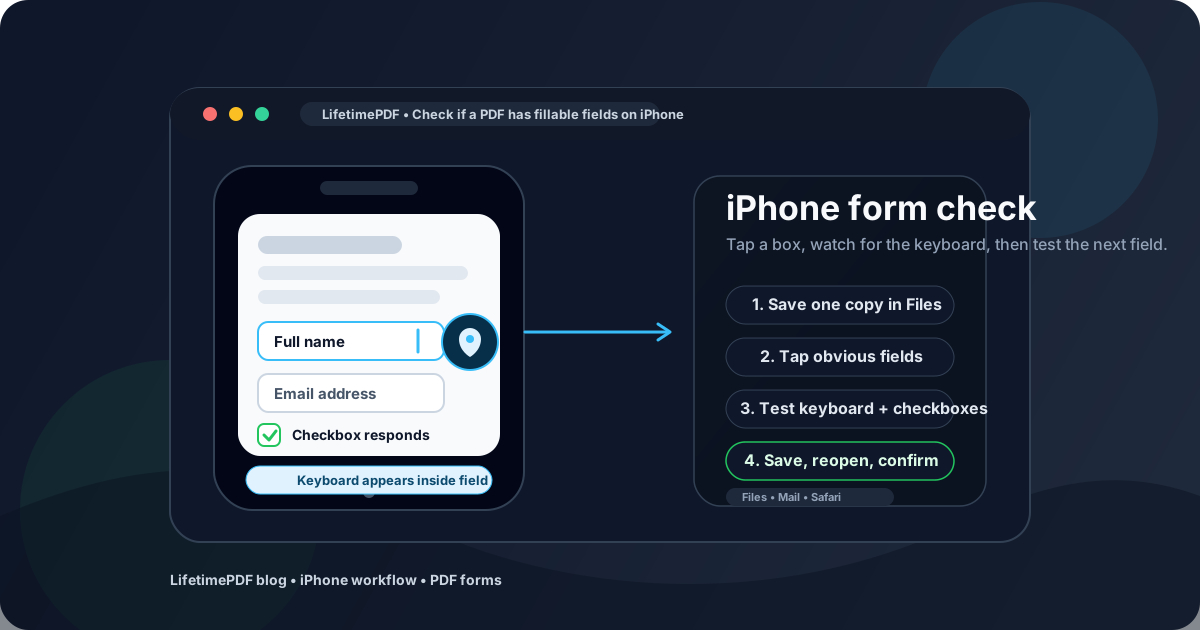
Table of contents
- Quick start: tell if a PDF is fillable on iPhone in under 3 minutes
- What counts as a real fillable field on iPhone
- Step-by-step: check a PDF for fillable fields on iPhone
- Files vs Mail preview vs Safari on iPhone
- iPhone signals that tell you what kind of PDF you have
- Signs the PDF is not really fillable
- What to do if the file is scanned, flattened, or locked
- Related LifetimePDF tools for smoother iPhone form work
- FAQ
Quick start: tell if a PDF is fillable on iPhone in under 3 minutes
If you want the shortest route to a dependable answer, use this sequence:
- Save the PDF from Mail, Messages, Safari, or a portal into one clear folder in Files.
- Open the file and tap a place that should obviously be a field, such as a name box, date line, checkbox, or initials area.
- See whether the keyboard appears, a cursor lands inside the box, or a checkbox actually changes state.
- Test one more control by tapping the next field or using a next button if the viewer exposes one.
- If nothing responds, switch to PDF Form Filler or OCR PDF instead of fighting the same dead file.
What counts as a real fillable field on iPhone
On iPhone, people often mistake any blank line or box for a working form field. That assumption causes most of the frustration. A real fillable PDF usually reveals itself in a few concrete ways:
- The keyboard appears when you tap inside a text field.
- A cursor or insertion point lands inside the box instead of the page just zooming.
- Checkboxes react to taps instead of behaving like printed symbols.
- Dropdowns, date pickers, or selectors respond if the form includes them.
- Your text stays inside the field rather than floating like loose markup.
- The file can be saved and reopened with the test value still sitting in the right place.
A PDF can still be usable even if it is not truly fillable. It just needs a different workflow. The goal here is not to judge the file. The goal is to identify what kind of form you actually have before you commit to finishing it on your phone.
Interactive PDF form
Text boxes, checkboxes, dropdowns, and signature areas respond to taps like real controls.
Flattened PDF form
The layout still looks like a form, but the controls are dead. You may still need to place text manually.
Scanned PDF form
The page behaves like an image. OCR can help with text recognition, but it does not automatically create working form fields.
Step-by-step: check a PDF for fillable fields on iPhone
Here is the workflow that works best when you want a reliable answer instead of guessing from the preview.
Step 1: Save the exact file you plan to use
On iPhone, PDFs often open from a Mail preview, a Safari tab, a portal viewer, a Messages attachment, or an older copy in Files. That is how people test one version, edit another, and submit a third. Save the form into a clearly named folder in Files first so the document you are checking is the same document you plan to complete.
Step 2: Zoom enough to avoid misreading the tap result
Mobile screens create a special kind of confusion: a missed tap can make you think the form is dead when you really just hit the wrong spot. Zoom in until the field edges are obvious, then tap inside the center of the box rather than the border line. This matters most for small date boxes, initials zones, and checkboxes.
Step 3: Tap the spots that should clearly be interactive
Start with the easiest targets: full name, date, address, yes/no checkbox, and signature box. If the PDF is truly fillable, at least one of those areas should respond quickly. If every tap only scrolls, zooms, or highlights the page without opening a live control, that is an early warning sign.
Step 4: Test one value and one move to the next control
Use a harmless sample like Test, 123, or a single checkbox tap. Then move to the next field by tapping it directly or using a next control if the viewer offers one. A genuine form usually makes the second interaction easier, not harder. If the first input seems to work but the next field does not, the document may be partially broken rather than fully interactive.
Step 5: Save, close, and reopen if the form matters
If the document is important, do one extra pass: save the PDF, close it, then reopen it from Files. This confirms whether the value remains attached properly. Some viewers let you type on-screen but fail when the file is reopened, exported, or handed off to someone else.
Best next move after the test: if the form works, fill it normally. If it does not, move straight to the correct repair path instead of retrying the same dead file.
Files vs Mail preview vs Safari on iPhone
Different iPhone viewing paths create different assumptions. None of them are a guarantee that the form underneath is truly interactive.
| iPhone view | Best for | Where it can mislead you |
|---|---|---|
| Files | Testing the exact saved copy you plan to keep or send | A clean preview can still come from a static or flattened PDF |
| Mail preview | Quick first look at the form | It is easy to trust the preview and forget you have not tested the saved copy yet |
| Safari or portal viewer | Checking whether the downloaded file behaves similarly in-browser | Some portals show a nice wrapper or preview that hides the fact the underlying PDF has dead fields |
| Messages or chat attachment | Fast access when someone sends the file directly | You may end up testing a temporary copy and later editing a different one from Files |
In practice, Files is the safest place to verify fillable fields because it reduces version mix-ups. Use Mail or Safari previews for convenience, but do not trust them as your only proof.
iPhone signals that tell you what kind of PDF you have
This table is the fastest way to interpret what your iPhone is showing you.
| What you see on iPhone | What it usually means | Best next step |
|---|---|---|
| The keyboard appears inside a box | The PDF probably contains a real text field | Type one short test value and check a second field |
| A checkbox or picker responds cleanly | At least part of the form is interactive | Test another control before you trust the whole form |
| Tapping only zooms or scrolls the page | The file is likely static, flattened, or poorly authored | Use a form filler instead of repeated tap attempts |
| The page behaves like one big image | The PDF is probably scanned | Run OCR, then retest the form behavior |
| One field works but the next one does not | The form may be partially broken or exported badly | Save the file, reopen it, and consider manual form filling |
| Your input disappears after reopen | The viewer workflow is unreliable or the field handling is weak | Switch to a dedicated PDF form tool before completing the real document |
Signs the PDF is not really fillable
These warning signs usually tell you the document only looks interactive:
- The boxes look perfect, but no keyboard ever appears.
- Every tap just selects the page, zooms the view, or opens generic markup instead of a field.
- Checkboxes look clickable but never change state.
- The entire page feels like one image or a photo of a form.
- You can only add free-floating text, not text anchored inside real fields.
- After saving, your test value vanishes or moves out of place.
None of that means the document is useless. It only means the right workflow is probably manual placement, OCR, or field repair rather than normal form entry.
What to do if the file is scanned, flattened, or locked
Once you know the form is not behaving like a real interactive PDF, the next move depends on the reason.
If the PDF is scanned
A scanned form is usually just a picture inside a PDF container. Run OCR PDF if you need searchable text, then retest the file. If you only need to complete and send it back, use PDF Form Filler to place your answers neatly over the page.
If the PDF is flattened
A flattened form keeps the appearance of a form after the live fields are gone. In that case, the quickest route is often manual placement with a form filler. If you own the document and want a proper reusable form, rebuild the controls with PDF Field Editor instead of forcing everyone to annotate the page forever.
If the PDF is locked or badly exported
Sometimes the fields exist, but the mobile workflow is blocked by restrictions or weak export choices. Save, reopen, and test again from Files first. If the form still behaves badly, ask for a cleaner original or rebuild the fields if the form belongs to you. Repeatedly tapping the same broken mobile preview almost never fixes the underlying problem.
Related LifetimePDF tools for smoother iPhone form work
These are the most useful follow-up pages when your iPhone form check leads to action.
If you want a broader explanation of what makes a form genuinely interactive before you narrow down by device, the generic guide How to Check if a PDF Has Fillable Fields is the best companion read.
FAQ
How do I check if a PDF has fillable fields on iPhone?
Save the PDF to Files, tap inside likely fields, and watch for the keyboard, cursor, checkbox response, or picker behavior. If your input stays inside the box and another field also responds, the PDF probably has real fillable fields.
Why can't I type into a PDF form on iPhone even though it looks like a form?
Because many PDFs are only visual layouts. They may be scanned pages, flattened forms, or static exports with printed lines and boxes that never behave like real interactive controls.
What is the fastest iPhone test for a fillable PDF?
Save one copy in Files, tap a likely field, type one short value, and then test a second field or checkbox. That quick sequence tells you far more than staring at the preview and guessing.
Can Mail or Safari preview a PDF that is not really fillable?
Yes. iPhone previews can look polished even when the underlying PDF is only a scan or a static form layout. A clean preview is not proof that the document has live fields.
What should I do if the PDF is scanned or flattened?
Use OCR if the page behaves like an image, then use a PDF form filler to place answers manually. If you control the document, repair or rebuild the form with a field editor so future users get real interactive fields.
Bottom line: on iPhone, do not judge a form by the preview. Trust what happens when you tap, type, move to the next control, save, and reopen.