How to Check if a PDF Has a Text Layer on Windows: Fast Edge, Notepad, and OCR Tests
To check if a PDF has a text layer on Windows, open the file, press Ctrl+F for a visible word, then highlight and copy one short line into Notepad.
If Windows cannot find obvious text, the page behaves like one big image, or the pasted line comes out messy, the PDF has a weak or missing text layer and probably needs OCR.
That is the fast answer. The more useful answer is knowing how to test the exact copy you plan to keep, how to spot the difference between a clean text layer and broken OCR, and how to avoid running extra steps on a PDF that is already ready for extraction, summarization, or search.
Fastest path: save one local copy, test Ctrl+F, select one sentence, paste it into Notepad, then use PDF to Text or OCR only if the result looks weak.
Want the short route? Jump to the 60-second Windows check.
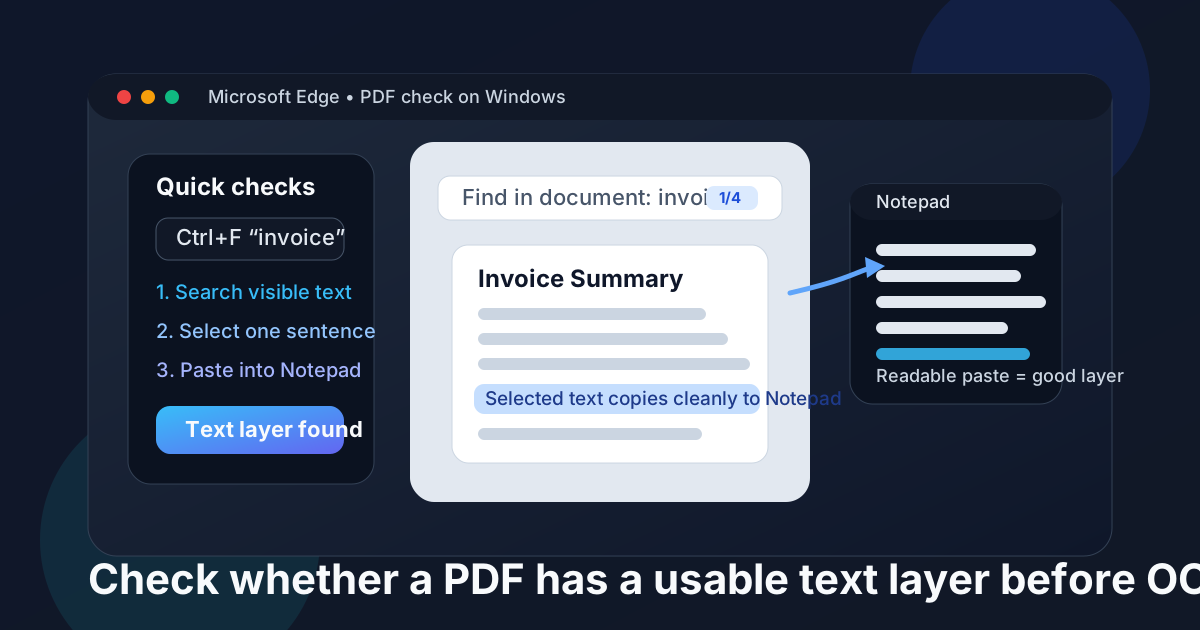
Table of contents
Quick start: the 60-second Windows check
If you do not want theory, do this in order:
- Save the PDF locally so you are not testing a preview pane, attachment thumbnail, or stale cached copy.
- Open it in Edge and press Ctrl+F for a word you can clearly see.
- Select one sentence with your mouse.
- Copy it into Notepad and see whether the pasted line stays readable.
- Repeat on a second page if the PDF mixes scans, forms, photos, or inserts.
If all five checks behave normally, the PDF has a usable text layer. If they fail completely, the file is probably image-only. If they sort of work but the copied text looks broken, the PDF has a text layer, but not a trustworthy one.
What “text layer” means on Windows
A text layer is the machine-readable text stored underneath the visible page. It is what lets Windows and browser-based PDF viewers search for words, highlight real characters, copy sentences into other apps, and hand usable content to extraction or AI tools.
A PDF can look perfectly crisp on your screen and still have no useful text layer at all. That happens when the file is really just a scan, a screenshot, a phone photo saved as PDF, or a flattened export with text turned into pixels.
Clean text layer
Search works, selection feels normal, copy-paste stays readable, and extraction tools usually behave well.
Weak text layer
Search partly works, but copy-paste breaks spacing, order, punctuation, or table structure. This is often poor OCR rather than no OCR.
No text layer
The page behaves like a picture. Search fails, text is hard or impossible to select, and copy-paste gives you nothing useful.
The 5 fastest checks in Edge and Notepad
1. Save the exact PDF you plan to use
This sounds basic, but it prevents half the confusion. If you test a Teams preview, Outlook attachment pane, OneDrive web preview, or older file in Downloads, you can diagnose the wrong copy and fix nothing.
Put the PDF in one folder, then test that exact file.
2. Search for a word you can plainly see
Open the PDF in Microsoft Edge and press Ctrl+F. Search for a heading, name, invoice number, or repeated word that is definitely visible.
- If the word is found instantly, that is a strong positive signal.
- If it fails on obvious text, the page may be image-only.
- If it works on some pages but not others, the document is probably mixed.
3. Select one full sentence
Drag across a line as if you were going to quote it. Real text selection usually follows the words naturally. A missing text layer feels different: you drag across the page like it is one flat image.
This test is useful because some PDFs can technically search one or two words while still feeling clumsy to select and reuse.
4. Copy the sentence into Notepad
Notepad is a great reality check because it strips away most formatting. If the pasted sentence stays readable, the text layer is probably usable. If letters scramble, spaces disappear, words reorder themselves, or every line breaks awkwardly, you are dealing with weak OCR or bad underlying structure.
5. Run PDF to Text if the answer is still fuzzy
Some PDFs pass quick tests but still fall apart when you try to extract more than a line. That is where PDF to Text helps. It gives you a more realistic preview of whether the file is ready for downstream work like summarization, question answering, or translation.
How to read the results correctly
Result A: everything works cleanly
Good. You usually do not need another OCR pass. Move on to the real task: extract the text, summarize the PDF, ask questions about it, or archive it as-is.
Result B: search works, but copied text is ugly
The PDF has a text layer, but it is weak. You may still be able to search it, but extraction quality is unreliable. This is common with low-resolution scans, crooked pages, old OCR, and dense tables.
Result C: nothing works
Treat the file as image-only and run OCR first. After OCR, repeat the same Windows tests instead of assuming the fix worked just because the new PDF looks readable.
Why some Windows PDFs only partly work
Mixed PDFs are one of the biggest traps. A common packet might contain:
- a native Word export with real text,
- a scanned signature page,
- a photographed receipt,
- and a flattened appendix from another system.
The first page may search perfectly while the third page behaves like a photograph. That is why testing only the first page can give you a false sense of confidence.
Common Windows false positives
- Edge finds a word in one section, so you assume the whole PDF is searchable.
- Copy-paste works for headings but breaks on tables, footnotes, or two-column layouts.
- The file came from a scanner that added OCR years ago, but the hidden text no longer matches the visible page well.
- A rotated or skewed scan technically has text, but the reading order is too messy for real extraction.
What to do next: OCR, re-export, or keep working
Once you know the state of the text layer, the next move is usually obvious:
If your end goal is not just checking but actually using the content, the usual Windows workflow is:
- Check the text layer.
- Run OCR only if needed.
- Extract or summarize the cleaned file.
- Ask questions about the PDF only after you trust the underlying text.
Practical next step: if the text layer looks good, skip extra repair steps and move straight into the tool that matches the real job.
FAQ
How do I check if a PDF has a text layer on Windows?
Use Ctrl+F in Edge for a visible word, then highlight and copy one sentence into Notepad. If those tests work cleanly, the PDF has a usable text layer. If they fail, the file likely needs OCR.
What if search works but the copied text is messy?
That usually means the PDF has a text layer, but it is weak. Search alone is not enough proof that extraction, summarization, or AI tools will read the file cleanly.
Can a PDF have a text layer on only some pages?
Yes. Mixed PDFs are common on Windows, especially when native pages, scans, screenshots, and inserted appendices all end up in one file.
Should I run OCR on every PDF just to be safe?
No. If the text layer is already clean, extra OCR can waste time and sometimes make a good file worse. Test first, then OCR only when the evidence points that way.
Why does this matter before summarizing or asking AI questions about a PDF?
Because a bad text layer leads to bad downstream results. AI and extraction tools work far better when the PDF already has readable, logically ordered machine text underneath the page image.