How to Add Page Numbers to a PDF on Windows: Start on Page 2, Skip Covers & Save a Clean Copy
To add page numbers to a PDF on Windows, open a browser-based PDF Page Numbers tool in Edge or Chrome, upload the file from File Explorer, choose the position and numbering style, then export the numbered copy.
If the cover should stay blank, start numbering on page 2 and set the visible starting number to 1.
That is the short answer. The useful part is knowing how to keep Windows workflows clean when the PDF came from Outlook, Downloads, OneDrive, or a shared folder; how to avoid ugly footer collisions; and how to save a numbered copy without creating three confusing versions of the same document.
Fastest path: open LifetimePDF's PDF Page Numbers tool in Edge or Chrome, upload the file from File Explorer or Downloads, choose the start page and number format, then save the finished PDF back to your Windows PC.
In a hurry? Jump to Quick start: add page numbers on Windows in 3 minutes.
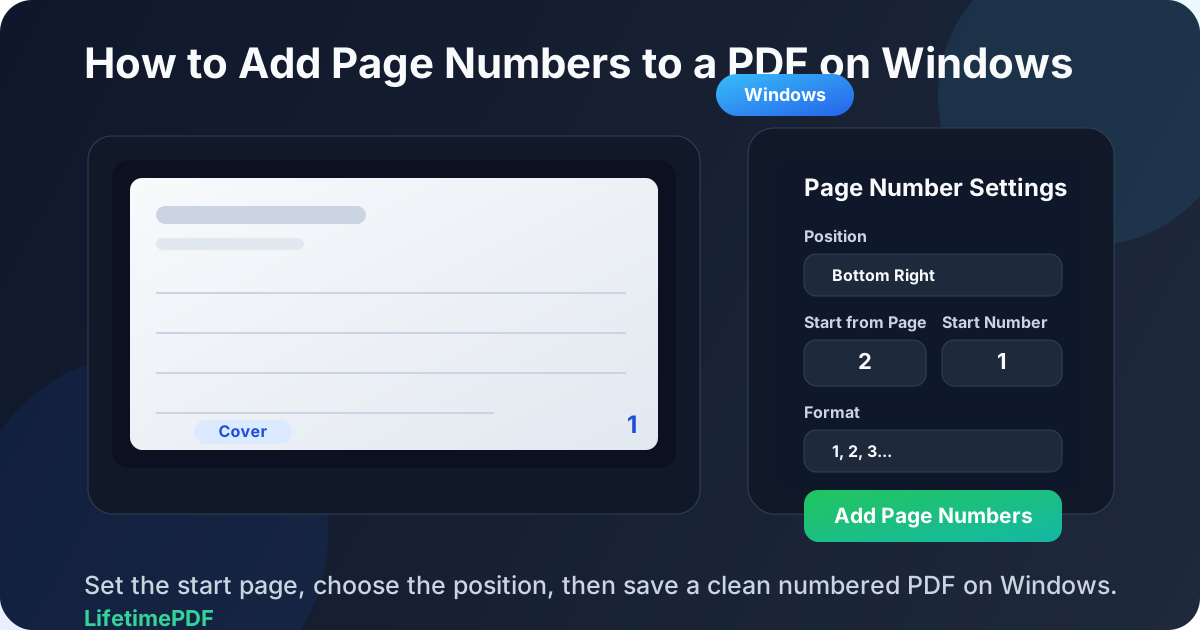
Table of contents
- Quick start: add page numbers on Windows in 3 minutes
- The easiest Windows workflow for numbering PDFs
- Step-by-step: add page numbers in Edge or Chrome
- Microsoft Edge vs a dedicated page numbering tool
- Common Windows page numbering setups
- Common Windows problems and quick fixes
- Related LifetimePDF tools for smoother document workflows
- FAQ (People Also Ask)
Quick start: add page numbers on Windows in 3 minutes
If you already have the final PDF and just need neat numbering, use this workflow:
- Open PDF Page Numbers in Edge or Chrome.
- Choose the file from Downloads, Desktop, Documents, OneDrive, or another folder in File Explorer.
- Pick the page number position that fits the layout: top-right, bottom-center, bottom-right, or another clean option.
- Select the numbering style: regular digits, roman numerals, or the format that fits the document.
- Set Start from Page and Start Number.
- If you want the cover page blank, use Start from Page = 2 and Start Number = 1.
- Download the finished PDF and open it once to confirm the numbers are aligned and starting where you expected.
The easiest Windows workflow for numbering PDFs
Windows users usually try one of three things first: whatever basic PDF viewer is already open, a browser-based page numbering tool, or a clumsy print-and-reexport workaround that creates more confusion than progress.
The browser workflow is usually the cleanest because it handles the actual numbering job directly. You upload the PDF, choose the numbering rules, export the new file, and then do one quick visual review. That is faster than juggling extra desktop apps, and it is much easier to repeat when you need the same setup again next week.
| Method | Best for | Where it struggles |
|---|---|---|
| Basic PDF viewer | Opening the final file, checking the footer area, and doing a quick review before you share it | Precise start-page controls, consistent number placement, and repeatable numbering jobs |
| Edge or Chrome with LifetimePDF | Adding page numbers, setting page 2 as visible page 1, choosing numbering styles, and exporting a clean new copy | You still need a final review before sending the document out |
| Manual print or re-export workarounds | Rare cases where you are improvising with whatever is already on the PC | Slow, messy, easy to mis-save, and likely to create duplicate versions |
Step-by-step: add page numbers in Edge or Chrome
Here is the practical Windows workflow most people actually need.
1) Make sure the PDF is truly final first
Before numbering anything, check whether the document still needs cleanup. If you still have blank pages, sideways scans, or extra appendix pages you do not want, fix those first. Page numbering usually belongs near the end of the workflow so you do not have to repeat it after later edits.
2) Open PDF Page Numbers in Edge or Chrome
Go to LifetimePDF PDF Page Numbers. On Windows, a browser-based workflow is often faster than trying to force a general PDF viewer into a job it does not handle gracefully.
3) Upload the PDF from File Explorer, Downloads, or Outlook
Choose the PDF from wherever it already lives. If the file came from Outlook, save the attachment first so you are working from a clear location. That small habit prevents one of the most common Windows mistakes: editing the right document, then attaching the original unnumbered version by accident.
4) Choose placement that fits the page layout
Page number placement should match the document instead of fighting it. Reports often look better with footer numbering, but a document with signatures, disclaimers, or a crowded footer may need a top corner instead.
- Bottom center: classic for reports, handbooks, and proposals
- Bottom right: common for business documents and clean internal packets
- Top right: helpful when the footer already contains dates, signature blocks, or notes
5) Set the numbering style and start-page logic
Standard digits work for most PDFs, but front matter and appendices sometimes need something else. If you want page 2 to display as page 1, set the physical start page to 2 and the visible starting number to 1.
6) Export the PDF, then review the first, middle, and last numbered pages
After exporting, check three spots: the first numbered page, one page somewhere in the middle, and the final page. That quick review catches almost everything that matters: overlap with existing footers, an off-by-one start setting, or a numbering style that looked fine in theory but feels wrong in the actual document.
Clean Windows workflow: use the browser to add the numbering, then do one quick desktop review before you upload or send the file.
Microsoft Edge vs a dedicated page numbering tool
Microsoft Edge is useful because it makes PDFs feel easy to open and review on Windows. The problem is that opening a PDF is not the same thing as managing a clean numbering workflow. If you need specific controls, the dedicated tool wins.
When a basic viewer is enough
- You want to review the finished numbered PDF before sending it out.
- You need to check whether the numbers overlap the footer, signature area, or existing text.
- You just want a quick visual confirmation that the exported file looks right.
When the browser workflow is better
- You need page numbering to begin on page 2 or page 3.
- You want roman numerals or another numbering style.
- You need a repeatable workflow for school packets, proposals, reports, manuals, or internal docs.
- You want to avoid version confusion from workaround-heavy desktop methods.
In plain English: use the viewer to confirm the PDF looks right. Use the dedicated page numbering tool to actually control how the numbers get added.
Common Windows page numbering setups
These are the setups people run into most often on Windows.
Start numbering on page 2
This is the classic cover-page workflow. Set Start from Page = 2 and Start Number = 1 so the cover stays unnumbered while the second sheet becomes visible page 1.
Start numbering on page 3
Use this when page 1 is a cover and page 2 is a title page, contents page, or instruction sheet that should stay clean. Set Start from Page = 3 and Start Number = 1.
Keep the visible numbers aligned with physical page count
Some compliance, legal, or internal filing workflows want the second physical page to display as 2 rather than 1. In that case, keep the same start page but make the visible starting number match the physical page count.
Use roman numerals for front matter
If the opening pages should use i, ii, iii and the main body should switch to regular digits, the cleanest workflow is usually to split the PDF, number each section separately, then merge the files back together.
Clean blank pages before you number the file
If the PDF contains divider sheets, accidental blank pages, or scanner junk, remove them first with Delete Pages. Numbering a clean document is easier than numbering a messy one and trying to fix it afterward.
Common Windows problems and quick fixes
The page numbers overlap my existing footer
Move the numbers to another position, reduce the size slightly, or crop oversized margins first. The goal is not just to add numbers. The goal is to make them look intentional.
The wrong page got numbered first
Recheck the difference between Start from Page and Start Number. Most numbering mistakes are logic mistakes, not tool failures.
The PDF is a messy scan
Fix the orientation or margins before you number the pages. Use Rotate PDF for sideways sheets and Crop PDF if giant scanner borders make the footer area awkward.
The PDF is locked
If you are authorized to edit it, unlock the file first with PDF Unlock, add the page numbers, then protect the finished copy again with PDF Protect if needed.
The file is too large after numbering
Once the content is right, reduce the size with Compress PDF. That is usually much faster than rebuilding the entire document just to satisfy an upload limit.
I keep attaching the original version instead of the numbered one
Save the finished file with a clear name and put it somewhere obvious before you upload it or attach it in Outlook. On Windows, good filenames solve more document confusion than people expect.
Related LifetimePDF tools for smoother document workflows
Page numbering usually sits inside a bigger PDF workflow. These tools pair well with it:
- PDF Page Numbers — add numbering with controls for position, style, start page, and visible start number.
- Merge PDF — combine multiple files before numbering a final packet.
- Split PDF — separate front matter and body if you need different numbering styles.
- Delete Pages — remove blanks or extra pages before numbering.
- Rotate PDF — fix sideways scans before you number them.
- Crop PDF — clean up borders so footer numbering looks more deliberate.
- PDF Protect — lock the final numbered file before sharing it onward.
Best order for most Windows users: clean the PDF, add page numbers, review the result once, then protect or share the final file.
FAQ: How to add page numbers to a PDF on Windows
How do I add page numbers to a PDF on Windows without Adobe Acrobat?
Open a browser-based PDF page numbering tool in Edge or Chrome, upload the PDF from File Explorer, choose the position and number format, set the start page, export the file, and review the finished copy once before you share it.
Can I start page numbers on page 2 on Windows?
Yes. Set the physical start page to 2 and the visible starting number to 1 if you want the cover page blank while the second page displays as page 1.
Is Microsoft Edge enough for every PDF page numbering job?
Not really. Edge is useful for opening and reviewing PDFs, but a dedicated page numbering workflow is usually better when you need precise placement, numbering styles, or clean start-page controls.
What if I need roman numerals first and regular numbers later?
Split the PDF into sections, number the front matter with roman numerals, number the body with standard digits, and merge the files back together. That is usually cleaner than forcing mixed numbering into one pass.
What should I do if the page numbers overlap the footer or signature area?
Move the numbers to another position, reduce the size, or clean the PDF first by cropping margins, deleting blank pages, or rotating awkward scans. Then review the export again before sending it onward.