How to Add Bookmarks to PDF on Mac: Build a Clickable Outline Without Mangling the File
To add bookmarks to PDF on Mac, the cleanest method is to start from a document with real headings, export it back to PDF, and then check the outline in Preview or Acrobat.
If the PDF is all you have, convert it to Word first, rebuild the section structure, and export a cleaner file instead of trying to patch navigation into a flat layout.
That is the short answer. The useful Mac answer is knowing which route fits the file on your screen. A Pages file, a Word draft, a scanned packet, and a PDF somebody AirDropped five minutes before a meeting do not want the same fix. Good bookmarks are not decoration. They save time, reduce hunting, and make long PDFs feel intentional instead of improvised.
Fastest reliable path: if the source file still exists, repair the headings there and export again. If the PDF is all you have, convert it to Word first, fix the structure, then verify the outline before sharing.
In a hurry? Jump to Quick start: add bookmarks to a PDF on Mac in about 8 minutes.
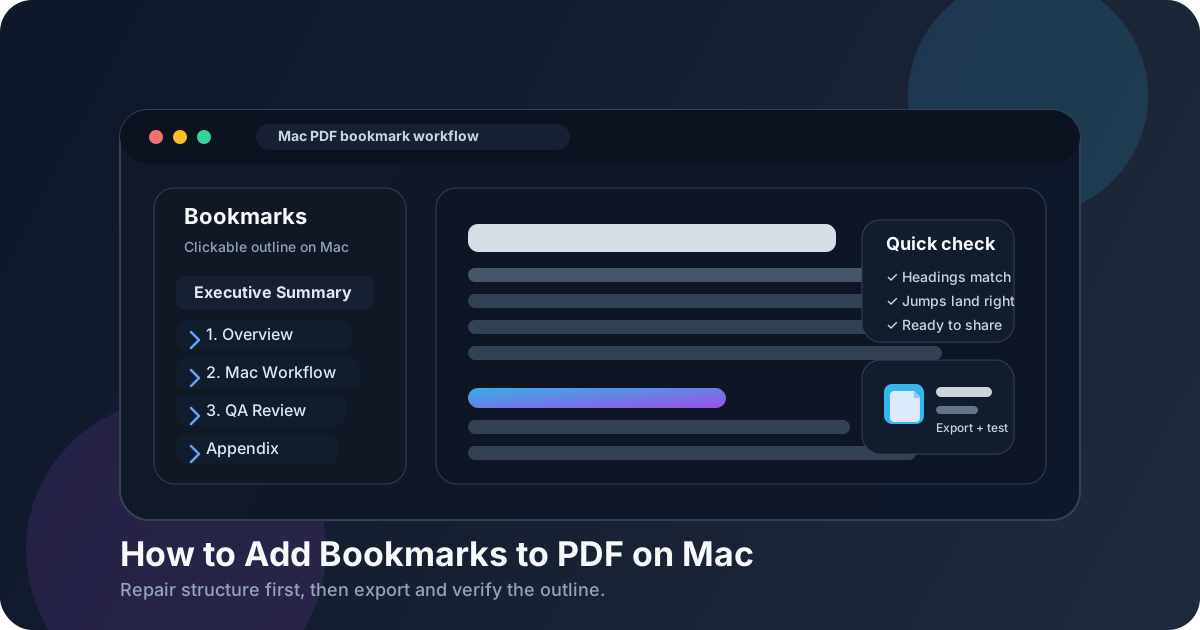
Table of contents
- Quick start: add bookmarks to a PDF on Mac in about 8 minutes
- Choose the best Mac route for the file you have
- Step-by-step: when the original Pages, Word, or editable source still exists
- Step-by-step: when the PDF is all you have
- Scanned PDFs on Mac: OCR first or waste time later
- What makes bookmarks actually useful
- Common Mac mistakes that create bad PDF bookmarks
- Final QA before you share the file
- Related LifetimePDF tools and guides
- FAQ (People Also Ask)
Quick start: add bookmarks to a PDF on Mac in about 8 minutes
If your goal is simply make this Mac PDF easier to navigate without turning the job into a weekend project, use this order:
- If the document still exists in Pages, Word, Keynote, or HTML, use that source instead of editing a finished PDF blindly.
- Make sure the major sections use real heading levels and clear section names.
- If the only file you have is a PDF, run it through PDF to Word so you can rebuild the structure properly.
- If the file is scanned and text selection does not work, run OCR PDF before you do anything else.
- Export the repaired document back to PDF with Word to PDF or HTML to PDF.
- Open the finished file in Preview or Acrobat, show the sidebar or bookmarks pane, and click the important entries to confirm they land correctly.
Choose the best Mac route for the file you have
The right answer depends on what kind of file you actually have, not what you wish you had. This is the part that saves the most time.
| Starting point | Best Mac workflow | Why it works |
|---|---|---|
| Pages, Word, or editable document | Clean the headings there, then export back to PDF | Real heading structure gives you the cleanest outline and the least cleanup later |
| Finished PDF only | Convert with PDF to Word, rebuild sections, then export again | It is easier to repair structure in an editable file than in a frozen page layout |
| Scanned PDF | Run OCR first, then repair structure if needed | Image-only files look like documents but behave like pictures until OCR happens |
| HTML or web content | Use proper H1, H2, and H3 structure, then convert to PDF | Clean semantic structure travels better into navigation than ad hoc formatting |
My practical take: if the source file still exists, stay there as long as possible. The more structure you repair before the final export, the less time you spend fighting a PDF that is already behaving like a finished artifact.
Step-by-step: when the original Pages, Word, or editable source still exists
This is the easiest version of the job and the one Mac users should prefer whenever possible.
- Open the document in Pages, Word, Keynote, or the editable app where it still behaves like a normal document.
- Apply real heading levels to the major sections instead of using larger bold text that only looks like structure.
- Rename fuzzy sections so the future bookmark labels make sense on their own.
- Trim noisy subsections. Not every paragraph deserves a bookmark.
- Export the cleaned file with Word to PDF and review the outline in Preview or Acrobat on Mac.
This route is cleaner because the bookmark sidebar reflects real hierarchy instead of guesswork. Reports, manuals, policy documents, onboarding packets, investor decks, course packs, and proposal PDFs all benefit from this.
Best-case workflow: repair the hierarchy once in the source file, export once, then do a quick click-through instead of endlessly patching the final PDF.
Step-by-step: when the PDF is all you have
This is the common real-life scenario: the original file is gone, the PDF is already circulating, and somebody still expects a cleaner version before lunch. In that case, do not romanticize editing the PDF directly. Recover an editable source first.
- Convert the file with PDF to Word.
- Repair the heading hierarchy so the document has clear top-level sections and sensible subsections.
- Rename sections that would make weak bookmark labels, such as Notes, Section 2, or Other.
- If the packet is too large or chaotic, break it into manageable parts with Split PDF before rebuilding the final version.
- Export the improved file with Word to PDF and test the outline again on Mac.
It may feel indirect, but this is usually faster than wrestling with a fixed-layout PDF and hoping a good navigation layer appears by sheer will. A repaired source gives you better bookmarks, clearer text flow, and a cleaner file for the next person too.
Scanned PDFs on Mac: OCR first or waste time later
If your file came from a scanner, copier, phone camera, or old records archive, the visible text may not be real text at all. It may simply be page images. That matters because useful bookmark workflows depend on readable structure.
Signs the file needs OCR
- You cannot highlight words normally.
- Search does not find text that is clearly visible.
- The PDF behaves like a folder of pictures instead of a document.
- The source came from scans, faxes, or photographed pages.
The right order for scanned PDFs
- Run OCR PDF.
- Check whether the recognized text is accurate enough to work with.
- Convert to Word if you need to repair or rebuild structure.
- Export back to PDF after the hierarchy is cleaned up.
- Open the outline on Mac and test the important jumps.
If your broader goal is making the file easier to search later, this is also where the work pays off twice. OCR improves both navigation and findability.
What makes bookmarks actually useful
Plenty of PDFs technically have bookmarks and still feel annoying to use. Good bookmarks are not just present. They are clear, selective, and trustworthy.
Use names a rushed reader can scan quickly
Executive Summary, Scope of Work, Appendix B, and Signature Page are useful. Info, Section, and Misc are not.
Keep the hierarchy shallow enough to understand
Two or three levels is enough for most documents. If the sidebar turns into a collapsing forest of tiny entries, people stop trusting it.
Only bookmark what saves real time
Good outlines help somebody jump to the parts they are most likely to revisit. They do not mirror every single micro-heading in the file.
Make the PDF internally consistent
If the visible heading says Appendix D but the bookmark still says Appendix C, the file feels stale immediately. Navigation quality is a trust signal, even when people cannot explain why it bothers them.
Common Mac mistakes that create bad PDF bookmarks
Assuming Preview can invent structure from scratch
Preview is great for checking a PDF quickly, but it is not magic. If the underlying file has weak headings, messy page order, or no real structure, the bookmark result will be weak too.
Using fake headings
Bigger bold text is not the same as real structure. If the source document treats headings like ordinary paragraphs with styling tricks, the exported PDF often inherits that confusion.
Skipping the click-through test
A bookmark list can look convincing and still land on the wrong page. Click the summary, the first major chapter, a middle section, and the appendix or signature page before you call the job done.
Over-bookmarking the document
More entries do not automatically make the PDF easier to use. Dense outlines are often just visual noise with better intentions.
Ignoring page-order problems after merges
If the PDF was merged from multiple sources, the bookmark targets may drift after pages get inserted, moved, or deleted. Fix page order before you trust the final navigation layer.
Final QA before you share the file
Before the PDF leaves your Mac, run this short review:
- Do the top-level bookmarks match the actual major sections of the document?
- Do the labels make sense without extra explanation?
- Do the important entries jump to the correct page?
- Does the outline still make sense after recent merges, edits, or page deletions?
- Does the file need page numbers, compression, or password protection before delivery?
If the answer is yes to the first four questions, the navigation layer is probably doing its job. Finish the rest of the workflow only after that: compress the file if it is heavy, protect it if it is sensitive, and add page numbers if reviewers will be discussing exact sections.
Calm final sequence: fix structure → export PDF → open the sidebar → test key jumps → then handle delivery extras like page numbers or security.
FAQ (People Also Ask)
How do I add bookmarks to a PDF on Mac?
Start from an editable source such as Pages, Word, or HTML if possible, use real heading levels, export back to PDF, then open the sidebar in Preview or Acrobat and test the important jumps. If the PDF is all you have, convert it to Word first so you can rebuild the structure properly.
Can I add PDF bookmarks on Mac without Adobe Acrobat?
Yes. A practical route is to repair the structure in Pages, Word, or another editable source, export it back to PDF, and verify the outline in Preview. That workflow is often simpler than trying to force a finished PDF to behave like a source document.
What if my PDF is scanned?
Run OCR first. If the file is image-only, the text is much harder to organize, so bookmark work becomes slower and less reliable until the document is searchable.
Can Preview show PDF bookmarks on Mac?
Yes, Preview is a convenient place to confirm whether the outline appears and whether the key jumps land on the correct sections. It is a good final check before you share the file.
What is the biggest bookmark mistake on Mac?
Trying to create a useful outline from a messy or image-only PDF without first fixing the underlying structure. Good bookmarks are usually the result of clean source hierarchy, not cosmetic last-minute patching.
Published by LifetimePDF — Pay once. Use forever.