Translate PDF to German: OCR Scans First, Catch Formality and Terminology Issues Early, and Rebuild a Clean German PDF
To translate a PDF to German, upload a text-based PDF to LifetimePDF's Translate PDF tool, choose German, then review the wording before you export or rebuild the final file.
If the PDF is scanned, run OCR first; that is usually the difference between a clean German translation and a frustrating cleanup job.
Most people searching for this are not chasing perfect machine translation in the abstract. They are trying to understand a contract, localize a product sheet, prepare onboarding paperwork, translate a manual, or send a German version of a report without creating new confusion. The practical win comes from using the right order: readable source text first, translation second, then a short review for German-specific details like formality, terminology, dates, and number formatting.
Fastest practical path: translate clean text PDFs directly, OCR scanned files first, then rebuild the final German PDF only if the output needs cleaner formatting or safer external sharing.
In a hurry? Jump to the quick answer and workflow.
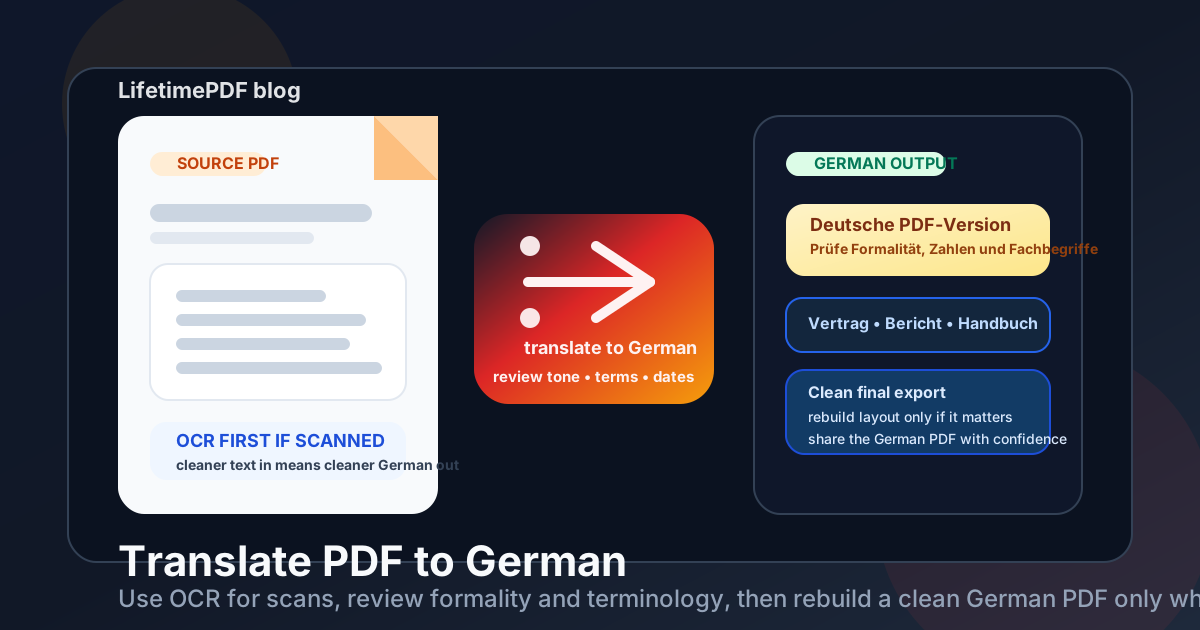
Table of contents
- Quick answer: the cleanest way to translate PDF to German
- When direct PDF translation works well
- Scanned PDFs: why OCR comes first
- Step-by-step: translate a PDF to German with LifetimePDF
- German review checklist before you trust the output
- What to do with tables, forms, and layout-heavy files
- How to rebuild a clean final German PDF
- Privacy and document handling before sharing
- Related LifetimePDF tools and pages
- FAQ (People Also Ask)
Quick answer: the cleanest way to translate PDF to German
If your real goal is simply translate this PDF into German without wasting time, use this order:
- Open Translate PDF.
- Choose German as the target language.
- Upload the PDF if the text is already selectable.
- If the file behaves like images, run OCR PDF first.
- Review names, titles, dates, decimal commas, formality, and technical or legal terms before you forward the result.
- If layout matters, rebuild the translated content into a fresh PDF instead of forcing the old layout to survive automatically.
When direct PDF translation works well
Direct translation works best when the PDF already contains real text and the page structure is not chaotic. In those cases, the tool can focus on language instead of trying to guess what each page says.
Direct translation usually works well for
- Contracts and policies that are text-heavy and organized into normal paragraphs.
- Reports, handbooks, and manuals where accurate meaning matters more than design polish.
- Invoices, notices, shipping paperwork, and internal docs that mostly need clear wording rather than perfect layout preservation.
- Research or reference PDFs when your first goal is understanding the content quickly in German.
Direct translation becomes less reliable when
- The PDF is scanned and each page is really just an image.
- The file is layout-heavy with columns, design blocks, floating labels, or brochure-style placement.
- The document mixes tables, stamps, signatures, and handwritten notes that need context, not just word replacement.
- The language is high-stakes such as legal, medical, compliance, or technical content that deserves a human review.
That does not make the translation useless. It just means your workflow should shift from one-click export to translate, review, then rebuild the final file cleanly.
Scanned PDFs: why OCR comes first
A scanned PDF can look readable to a person and unreadable to a translation engine. If you cannot highlight the words, search the file, or copy a sentence, the translator probably does not have real text to work with. That is why OCR matters.
OCR adds a searchable text layer so the translation workflow can work from actual words instead of page images. It also gives you an early warning if the source scan is too noisy, crooked, low-contrast, or badly photographed to trust without cleanup.
OCR is especially important for
- Signed forms and scanned applications
- Old manuals, certificates, receipts, or archived paperwork
- Camera-made PDFs from phones or office scanners
- Documents with faint print, stamps, handwritten notes, or uneven backgrounds
If OCR output still looks messy, fix the source pages before trusting the German translation. Better source text almost always means better translated output.
Step-by-step: translate a PDF to German with LifetimePDF
This workflow is fast enough for everyday use and careful enough for documents you actually care about.
- Start with the best source PDF you have. Use the original export if possible. Native PDFs beat screenshots, printouts, and rescans.
- Check whether the file is searchable. If text selection works, translate directly. If it does not, OCR first.
- Open Translate PDF. Choose German and upload the file.
- Read the output for meaning, not just grammar. Confirm that the translation still reflects the original intent, warnings, obligations, and instructions.
- Decide whether the translated text itself is enough. For comprehension, raw translated text may be fine. For client-facing or shareable delivery, rebuild the final German PDF neatly.
German review checklist before you trust the output
Translation problems rarely show up as obvious nonsense. More often, the result looks plausible while small details drift just enough to create risk. A short review pass catches most of the important issues.
Check these items first
- Formality: make sure the tone fits the audience. Business, legal, HR, and customer communication often need formal German rather than casual phrasing.
- Names and product terms: people, companies, brands, software labels, and product UI terms often should stay unchanged or only partly translated.
- Dates and numbers: confirm date order, decimal commas, thousand separators, percentages, quantities, and currency values.
- Instructions and obligations: words like must, may, not, within, and before carry real consequences.
- Regional expectations: Germany, Austria, and Switzerland can prefer different wording, punctuation, or conventions even when the core meaning is the same.
You do not need to become a professional translator to do this well. You just need to review the lines where wrong wording would change a decision, confuse a recipient, or make the document feel unreliable.
What to do with tables, forms, and layout-heavy files
Layout is where many translation workflows get messy. A plain text contract may translate cleanly, while a multi-column brochure, form packet, or table-heavy report can fall apart even when the German wording itself is decent.
For tables
Check whether row labels, totals, footnotes, and headers still line up logically. If they do not, it is usually faster to pull the translated content into a cleaner format than to fight the original layout.
For forms
Be careful with labels, instructions, dropdown choices, signature blocks, and compliance statements. A translated form that looks polished but changes the meaning of a field is worse than a simpler version that stays faithful.
For brochures and design-heavy PDFs
Expect to rebuild. German can create longer words, denser compounds, and different line breaks than English. A design built around one language does not always survive in another without manual cleanup.
How to rebuild a clean final German PDF
If the translated text is good but the document looks rough, rebuild the final version instead of forcing the source layout to behave. That gives you more control over readability, spacing, and final polish.
- Text to PDF is great when you want a clean German document from reviewed translated text.
- Word to PDF works well when you want more editing control before export.
- HTML to PDF helps when the final German version needs structured sections, tables, or custom styling.
For many teams, that rebuild step is the difference between machine-translated draft and something you can actually send with confidence. It also gives you room to shorten headings, fix spacing, and keep important information visually obvious.
Need a cleaner deliverable? translate first, then move the reviewed German text into a fresh export instead of struggling to preserve every layout quirk from the source file.
Privacy and document handling before sharing
Translation is not just a language task. It is also a document-handling task. Contracts, employee files, medical paperwork, customer records, and financial PDFs often contain data you should not move around casually.
Before you share the translated German file, ask whether it needs the full original content, whether personal data should be removed, and whether the final file should be protected. Sometimes the safest workflow is translating only the necessary pages or the necessary text, then creating a trimmed final PDF instead of passing the entire source along.
- Use OCR and translation only on files you are allowed to process.
- Remove unnecessary pages before sharing the final version.
- Protect the final file with PDF Protect when the audience or distribution channel requires it.
- Keep a clear original copy if you may need to compare wording later.
Related LifetimePDF tools and pages
Translating a PDF to German usually works best when you combine the translation step with one or two cleanup tools:
- Translate PDF for the actual language conversion.
- OCR PDF when the source is scanned or image-only.
- Text to PDF for rebuilding a clean German deliverable.
- Word to PDF when you need a review-and-export workflow.
- PDF Protect for safer sharing.
- Translate PDF for broader translation workflows beyond German.
- Translate PDF to Spanish for another language-specific workflow.
- Translate PDF to Korean Online if your multilingual workflow also includes East Asian document handoffs.
Want the low-friction version? use Translate PDF for clean text files, OCR scanned PDFs first, then rebuild the final German document only when formatting or external sharing actually matters.
FAQ (People Also Ask)
How do I translate a PDF to German?
Upload the PDF to a translation tool, choose German as the target language, and review the result before you export it. If the PDF is scanned or image-only, OCR it first so the translation is based on readable text instead of pictures.
Can I translate a scanned PDF to German?
Yes, but the best workflow is usually OCR first, then translation. That gives the translation engine real text to work with and usually produces much cleaner German output.
Will the translated German PDF keep the original layout?
Sometimes, but not perfectly. Text-heavy PDFs often stay readable, while forms, brochures, multi-column pages, and table-heavy files usually need a rebuild step if you want a polished final German PDF.
How do I make the translation sound more natural in German?
Review formality, terminology, dates, number formatting, and audience tone. A short human review catches the details that make the translation feel trustworthy instead of merely understandable.
What should I check before sending a German business or legal PDF?
Recheck names, amounts, dates, obligations, definitions, and whether the formal or informal tone fits the audience. Those details matter more than perfect visual formatting.