Translate PDF to Filipino: OCR Scans First, Review Filipino and Tagalog Wording, and Export a Clean Final PDF
To translate a PDF to Filipino, upload a text-based PDF to LifetimePDF's Translate PDF tool, choose Filipino, then review names, dates, headings, and mixed English-Filipino wording before you export or rebuild the final file.
If the PDF is scanned, run OCR first; Filipino output improves fast when the translator works from real text instead of page images.
Most people searching for this are not trying to create a perfect literary translation from a messy PDF in one click. They need a document they can understand, share with family, send to a school or office, use in a customer-facing workflow, or rebuild into a cleaner final version without wasting time on broken formatting. In practice, the biggest wins come from starting with searchable text, checking names and short high-risk lines carefully, and deciding early whether the job needs a quick readable translation or a polished final Filipino PDF.
Fastest practical path: translate readable PDFs directly, OCR scanned files first, then do a short review for names, dates, labels, and mixed Filipino, Tagalog, and English wording before sending the final file.
In a hurry? Jump to the quick answer and workflow.
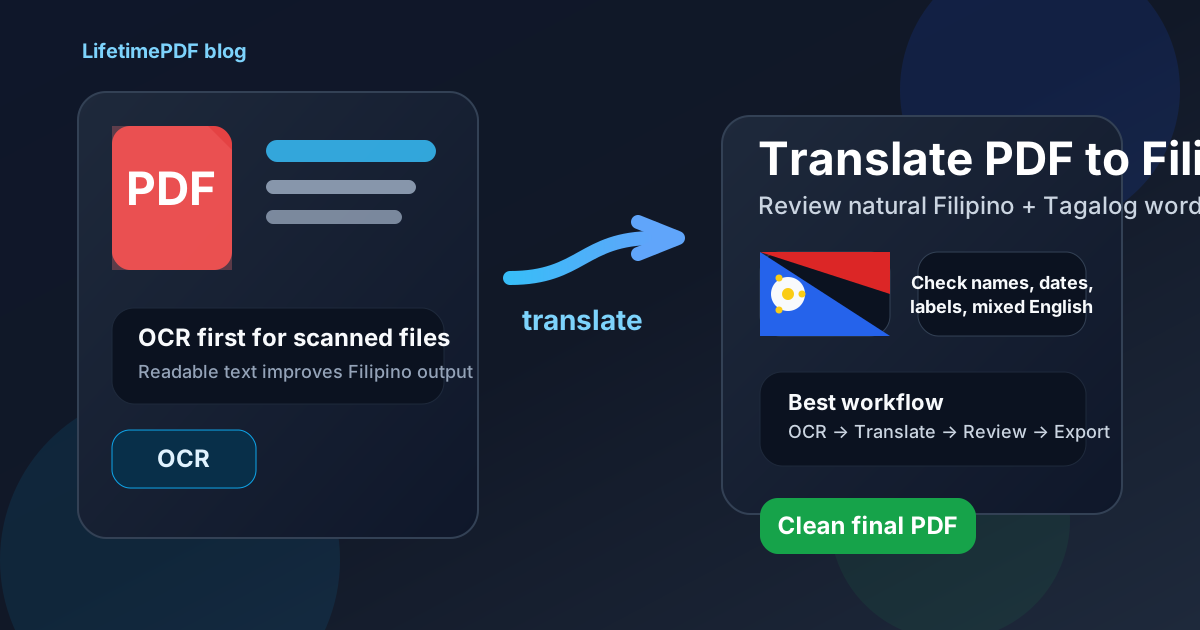
Table of contents
- Quick answer: the cleanest way to translate PDF to Filipino
- When direct PDF translation works well
- Why Filipino needs a careful review pass
- Scanned PDFs: why OCR comes first
- Step-by-step workflow with LifetimePDF
- How to create a clean final Filipino PDF
- Before you share: privacy and final checks
- Helpful tools and related Filipino pages
- FAQ
Quick answer: the cleanest way to translate PDF to Filipino
If the PDF already contains selectable text, the fastest reliable workflow is simple:
- Open Translate PDF.
- Choose Filipino as the target language.
- Upload the PDF.
- Review names, dates, headings, numbers, labels, and lines where English and Filipino naturally sit together.
- Copy the output, export it, or rebuild a cleaner final Filipino PDF if presentation matters.
When direct PDF translation works well
Direct translation works best when the source PDF is text-heavy and structurally simple. School notices, invoices, onboarding packs, travel instructions, support documents, internal reports, contracts, forms with readable labels, and customer communication usually translate more cleanly than dense brochures or heavily designed layouts.
Good candidates for a quick Filipino translation
- Letters and notices: mostly paragraphs, headings, and short lists.
- Invoices and operational documents: readable text plus a short review of dates, totals, and company names.
- Education and support content: especially if the source file uses plain language and a simple page structure.
- Customer and family communication: useful when the goal is understanding and sharing rather than pixel-perfect preservation of the original layout.
Where people usually get stuck
- Scanned PDFs: bad OCR creates bad translation inputs.
- Tables and forms: translated Filipino text can become longer and wrap differently.
- Mixed-language files: English product names, software labels, school terms, and workplace wording often stay partly in English and should not always be forced into fully localized phrasing.
- Formal wording: HR, school, finance, healthcare, legal, and public-sector documents often need a quick human review.
Why Filipino needs a careful review pass
Filipino translation is often easy to understand when the source text is clear, but small details still matter. A document can be broadly correct while still feeling unready because of a few awkward labels, tone mismatches, or mixed English-Filipino wording in the places readers notice first.
What to review first
- Names and spellings: customer names, employee names, school names, government offices, streets, and city names should match the real-world record you are working from.
- Dates and numbers: invoice dates, deadlines, contract dates, reference numbers, totals, and IDs need exact accuracy, not approximate meaning.
- Headings and short labels: these are where awkward phrasing feels most obvious to readers.
- Filipino and Tagalog tone: many readers expect practical, natural wording rather than stiff literal phrasing, especially in notices, family instructions, and customer-facing lines.
- Mixed English terms: product names, software buttons, school terms, branded language, and workplace vocabulary may read better when the familiar English term stays visible beside the Filipino wording.
- Short action lines: instructions, warnings, field labels, and customer-facing prompts should read naturally and leave no room for hesitation.
This does not mean every translated Filipino PDF needs a professional linguist. It means the final two or three minutes of review often matter more than another tool setting. If the document is customer-facing, academic, financial, healthcare-related, legal, or operational, that short review is the difference between "good enough to understand" and "safe to send."
Scanned PDFs: why OCR comes first
If your PDF behaves like a stack of page photos, the translator cannot do much with it until the text becomes searchable. OCR adds that text layer. Once the source is readable, Filipino translation quality improves immediately.
Two quick tests
- Selection test: try to highlight a sentence. If you cannot select words, the page may just be an image.
- Search test: use
Ctrl + ForCmd + Fand search for a visible word. If nothing is found, OCR is probably required.
Use OCR PDF first, then send the extracted text into Translate PDF. If the scan is crooked, low-contrast, or full of stamps, signatures, or handwritten notes, expect a little extra cleanup afterward.
Step-by-step workflow with LifetimePDF
1) Start with the smallest useful file
If the original PDF has appendices, blank pages, duplicate pages, signatures, or sections that do not need translation, trim it first. Smaller source files usually mean faster processing and less clutter in the Filipino result.
- Extract Pages for only the relevant section
- Split PDF for large files
- Compress PDF if upload size is the real problem
2) Translate into Filipino
Open Translate PDF, choose Filipino, and upload the source file. If it is scanned, OCR first. If it already has searchable text, translate directly.
3) Review the output where mistakes matter most
Do not reread every sentence equally. Start with the pieces that readers actually act on: names, dates, totals, addresses, field labels, section headings, instructions, short warnings, and any line where English and Filipino may look inconsistent. Those are the places where a small mismatch causes outsized confusion.
4) Decide whether plain output is enough
If your goal is understanding, an extracted translation may already be enough. If the document needs to be forwarded, archived, printed, or shared externally, rebuild it into a cleaner PDF instead of forcing a messy export to carry the whole job.
5) Protect the final file if the content is sensitive
Once the Filipino version is ready, use PDF Protect if the file contains private, HR, financial, legal, medical, academic, or operational information.
How to create a clean final Filipino PDF
Many people do not actually need the original formatting preserved line for line. They need a Filipino PDF that is easy to read and presentable enough to send. Rebuilding from translated text is often the cleanest route.
Use the rebuild path that matches the job
- Text to PDF for quick clean documents from translated text.
- Word to PDF if you want better control over spacing, headings, lists, or tables.
- HTML to PDF if you are assembling a more structured or styled Filipino handout.
This approach is especially useful for brochures, application packs, worksheets, forms, multi-column layouts, and anything with captions or dense tables. Once the meaning is correct, a deliberate rebuild gives you a cleaner Filipino deliverable than a rough auto-preserved layout usually can.
Before you share: privacy and final checks
Before sending a translated Filipino PDF to a customer, colleague, school office, public institution, vendor, parent, or family member, do one short review focused on risk rather than style.
- Confirm names, addresses, dates, totals, and identifiers.
- Check that mixed English, branded, or technical terms were not translated into something confusing.
- Review short warnings, payment instructions, policy statements, or action steps.
- Make sure no irrelevant appendix pages or comments slipped into the final export.
- Protect the PDF if the contents are sensitive.
That final pass is boring, but it prevents the most expensive mistakes. Most Filipino PDF translation problems are not dramatic machine-translation failures; they are ordinary human oversights in the last minute before a file gets shared.
Helpful tools and related Filipino pages
If you are building a repeatable workflow rather than solving a one-off document, these pages and tools are the most relevant next stops:
- Translate PDF for the main translation step
- OCR PDF for scanned files
- Text to PDF for a quick clean Filipino export
- PDF Protect before sharing sensitive files
- Translate PDF to Filipino Online for the broader browser-based workflow
- Translate PDF to Filipino Without Monthly Fees for the pay-once angle
- Translate PDF to English for a high-volume related workflow
- Translate PDF to Indonesian for another regional translation guide
Ready to do it now? Start with the translator, OCR first if needed, then rebuild or protect the final file only if the document actually needs it.
FAQ
How do I translate a PDF to Filipino?
Upload a text-based PDF to a translation tool, choose Filipino, review names, dates, headings, and mixed English-Filipino wording, then export or rebuild the final file. If the source is scanned, OCR it first so the translation runs on real text.
Can I translate a scanned PDF to Filipino?
Yes. OCR should come first. Once the scan becomes searchable text, Filipino translation is much cleaner and easier to review.
Is Filipino the same as Tagalog in this workflow?
They are closely related, and many users search with either term. In practice, the useful habit is reviewing the output for tone, audience fit, and lines where English and Filipino naturally mix.
Will the translated Filipino PDF keep the original formatting?
Sometimes partly, but not perfectly. Text-heavy PDFs often stay readable, while forms, brochures, tables, and multi-column layouts usually need a rebuild step for a clean final Filipino PDF.
What should I review before sharing a Filipino PDF externally?
Check names, dates, totals, addresses, headings, action steps, legal wording, and any mixed English-Filipino phrasing that matters to the reader. Then protect the file if the contents are private or high-stakes.