Rotate PDF 270 Degrees: Fix Sideways Pages, Wide Tables, and Misread Scan Orientation Cleanly
To rotate a PDF 270 degrees, open LifetimePDF's Rotate PDF tool, select the sideways page or pages, apply a 270° turn, and download the corrected file.
Use 270° when that direction makes the page upright, especially for wide tables, scanner flips, or mixed-orientation packets where one page opens sideways while the rest read normally.
That is the short answer, but the useful part is knowing when 270 degrees is the right move and what to do after the page is upright. Some PDFs only need one landscape spreadsheet fixed. Others contain a scanned appendix, a sideways contract exhibit, or a slide deck export that looks fine in one viewer and wrong in another. The goal is not just to twist a page around. The goal is to make the document readable, clean, and ready to share without rebuilding the whole file.
Fastest path: rotate only the affected pages first, then crop, OCR, or compress the finished PDF only if the corrected file still needs cleanup.
In a hurry? Jump to Quick start: rotate a PDF 270 degrees in 3 minutes.
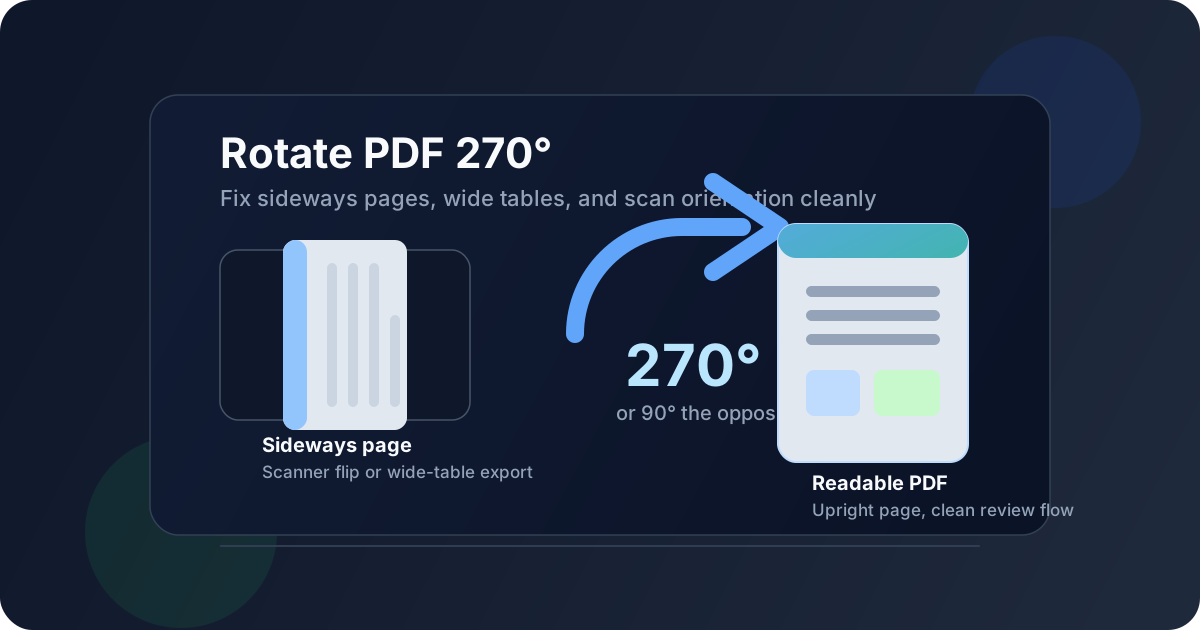
Table of contents
- Quick start: rotate a PDF 270 degrees in 3 minutes
- When 270-degree rotation is the right fix
- 270 degrees vs 90 degrees: what actually changes
- Step-by-step: the cleanest 270-degree workflow
- Rotate one page vs the whole document
- Best use cases for 270-degree rotation
- How to rotate a PDF 270 degrees on mobile
- What to do after the page is upright
- Common mistakes that waste time
- Related LifetimePDF tools and guides
- FAQ (People Also Ask)
Quick start: rotate a PDF 270 degrees in 3 minutes
If you just want the cleanest dependable workflow, use this:
- Open Rotate PDF.
- Upload the file with the sideways page, wide table, or misoriented scan.
- Select the one page, page range, or full document that actually needs correction.
- Apply 270° rotation and download the corrected PDF.
- Open it once to confirm the reading direction is right before you send, print, or archive it.
When 270-degree rotation is the right fix
People usually search for this keyword because something in the PDF is visibly wrong, not because they are thinking about geometry. A landscape spreadsheet page may be sideways. A scanned receipt packet may include one page that opens in the wrong direction. A contract exhibit may have been inserted from a scanner that guessed the orientation badly. A presentation handout may look correct in one export step and sideways in the final PDF.
- Wide tables exported sideways from Excel or reporting tools
- Scanned pages that a copier or phone scanner guessed incorrectly
- Mixed packets where one appendix breaks the reading flow
- Landscape inserts inside otherwise portrait documents
- Presentation pages that should read upright when shared as PDF
- Evidence bundles where orientation errors slow down review
- The page is upright but covered by huge scanner borders
- The text is unreadable because the original scan is weak
- You only need part of the file rather than the whole packet
- The problem is file size rather than orientation
In those cases, rotation may still help, but you will probably also need Crop PDF, OCR PDF, or Compress PDF.
That is why the exact phrase rotate PDF 270 degrees matters. It describes a specific correction that people often see in the interface of the tool they are using. They do not want a broad explanation of rotation. They want the page to read properly again.
270 degrees vs 90 degrees: what actually changes
This confuses people more than it should. In practice, a 270-degree turn often lands in the same final position as a 90-degree turn in the opposite direction. What matters is not the math. What matters is whether the page ends up upright in the viewer and workflow you care about.
| Question | What to watch for | Best decision |
|---|---|---|
| The page is sideways to the right | One turn direction will make it upright; the other will make it worse | Use the direction that restores normal reading immediately |
| The tool labels turns as 90° and 270° | The wording may match clockwise vs counterclockwise behavior | Preview once instead of guessing from the label alone |
| Only one inserted page is wrong | You do not want to disturb the rest of the packet | Rotate only the affected page |
| The whole scan job is wrong | Every page opens in the same bad orientation | Rotate the full document, then review edges and OCR |
Step-by-step: the cleanest 270-degree workflow
1) Start with the finished PDF, not a screenshot workaround
If the document already exists as a PDF, rotate the PDF itself. Do not print the page, take screenshots, or rebuild the file in another format unless you have a separate editing problem. Rotation is usually the fastest clean fix.
2) Identify exactly which pages are wrong
Some documents only contain one sideways spreadsheet or scanned insert. Others have every page misoriented because the original scan job went wrong. Knowing that up front stops you from rotating pages that were already correct.
3) Apply the turn that restores natural reading
Open Rotate PDF, choose the affected pages, and use 270° when that direction makes the page upright. If you are working with a wide table, look at the column headers after rotation. If you are fixing a scan, look at paragraph direction and page numbers.
4) Download and review the corrected copy once
This step matters. A page can be technically rotated yet still feel wrong because the wrong pages were selected, the table should have stayed landscape, or the file also needs cleanup around the edges. One review pass saves back-and-forth later.
5) Only do follow-up cleanup if the finished PDF needs it
If the page is upright and everything looks fine, stop there. If you still see scanner borders, unreadable text, or an oversized file, then bring in the next tool.
Best starting point: rotate first, review once, then move to OCR, crop, or compression only if the corrected PDF still has a real problem.
Rotate one page vs the whole document
This is one of the most important choices in practice. People often overcorrect by rotating the whole file when only one inserted page is wrong.
Rotate one page when:
- A single exhibit, receipt, chart, or appendix is sideways
- The rest of the document already reads normally
- You want to preserve mixed orientation intentionally in other sections
Rotate the full document when:
- The scanner or export made every page wrong in the same direction
- The entire PDF was created from a landscape source that now reads sideways
- You have a consistent orientation error across the whole packet
Best use cases for 270-degree rotation
The keyword sounds narrow, but the real-world uses are common.
Wide tables and spreadsheets
Finance packs, reports, budgets, and exported spreadsheets often land sideways in the final PDF. Rotating the relevant page 270 degrees can restore a natural reading flow without touching the rest of the packet.
Scanner mistakes
Multi-page scans are notorious for including one or two pages that the scanner guessed incorrectly. Rotation fixes the orientation problem quickly, especially before archiving, emailing, or sending a packet through a portal.
Contracts, exhibits, and evidence bundles
In legal, compliance, HR, or support contexts, orientation errors are more than cosmetic. A sideways exhibit slows down review and makes the packet feel sloppy. Correcting that one page improves readability immediately.
Presentation handouts and inserts
Slide exports, speaker notes, or handout pages sometimes need an extra turn to read properly after conversion. A targeted 270-degree correction is cleaner than rebuilding the deck.
How to rotate a PDF 270 degrees on mobile
This workflow works well on phones and tablets because rotation is a simple browser task. If you are fixing a PDF from email, cloud storage, or a scanner app, the easiest path is usually to open Rotate PDF directly in your mobile browser.
- Open the PDF from your phone or tablet.
- Upload it to Rotate PDF.
- Apply the 270-degree turn to the affected page or pages.
- Download the corrected copy and preview it once.
Mobile is especially useful when the problem came from a scanner app, a shared drive, or a document someone just sent you for approval. You can fix the orientation before forwarding the file instead of waiting to get back to a desktop.
What to do after the page is upright
Rotation solves orientation, but some PDFs still need one more cleanup step. The right follow-up depends on what the page looks like after the turn.
Use Crop PDF if the page has ugly scanner borders
If the page is upright but still framed by dark edges, empty margins, or scanner noise, run it through Crop PDF. This is common with receipts, copied forms, and flatbed scans.
Use OCR PDF if the page is readable but not searchable
Rotation does not turn a scan into selectable text. If you want to search names, dates, invoice numbers, or copy text later, use OCR PDF after the page is correctly oriented.
Use Compress PDF if the corrected file is too large
Large scans and image-heavy appendices often become awkward to email or upload even after the orientation is fixed. In that case, finish with Compress PDF rather than rebuilding the file from scratch.
Use Extract Pages if only part of the packet needs to leave your hands
Sometimes the real problem is not the turn itself. It is that you only need to send one corrected exhibit or one upright receipt page. Extract Pages helps you separate what matters from the full packet.
Common mistakes that waste time
- Rotating the whole PDF when only one page is wrong and then having to undo it
- Guessing between 90° and 270° without previewing the corrected page once
- Using screenshots as a workaround instead of rotating the original PDF
- Skipping review before sending a corrected document to a client, portal, or team
- Forgetting OCR when the page is upright but still behaves like an image
The pattern behind all of these mistakes is the same: solving the visible symptom without checking the finished document from the reader's point of view. One quick review pass usually catches the issue.
Related LifetimePDF tools and guides
Rotation is often one step in a small cleanup workflow. These are the most useful follow-ups and companion reads:
- Rotate PDF for the actual 270-degree fix
- Crop PDF for scanner edges and oversized margins
- OCR PDF for searchable text after orientation is corrected
- Compress PDF for upload-ready file sizes
- Extract Pages if you only need the corrected section
- Rotate PDF 270 Degrees Online for the browser-first angle
- Rotate PDF 270 Degrees Without Monthly Fees if subscription fatigue is the main concern
If the page is sideways, fix that first. Most PDF cleanup gets easier once the document is finally facing the right direction.
FAQ
How do I rotate a PDF 270 degrees?
Upload the PDF to a rotation tool, choose the affected page or pages, apply a 270-degree turn, then download and review the corrected file once before sharing it.
When should I use 270 degrees instead of 90 degrees?
Use 270 degrees when that turn makes the page upright in the tool and viewer you are using. In practice, 270° often matches 90° in the opposite direction, so the preview matters more than the label alone.
Can I rotate one page instead of the whole PDF?
Yes. That is one of the most common real-world cases. A single sideways spreadsheet, exhibit, or scanned insert often needs correction while the rest of the document should stay exactly as it is.
Will rotating a PDF reduce quality?
No. Rotation itself should not make the PDF blurry. If the page still looks rough, the real issue is usually the original scan quality, extra borders, or the need for OCR after the page is upright.
What should I do after rotating a scanned PDF page?
Crop messy edges if needed, run OCR if you want searchable text, and compress the final file only if it is still too large for email, chat, or form uploads.