Rotate PDF 180 Degrees Online Without Monthly Fees: Fix Upside-Down Pages Fast in Your Browser
Yes — you can rotate a PDF 180 degrees online without monthly fees by uploading the file to a browser-based rotator, selecting the upside-down page or pages, and applying a 180° turn before downloading the corrected copy.
This is the clean fix when a scan, receipt, form, ID page, or merged packet opens fully inverted rather than sideways, and it usually takes less than two minutes.
This is one of those tiny document problems that becomes annoying out of proportion to its size. The file is basically fine. The content is there. The formatting may even be done. But one page is upside down, or the whole PDF was exported inverted, and now the document feels careless, unreadable, or impossible to upload confidently. A browser-first workflow solves that fast without turning a one-minute orientation fix into another monthly software bill.
Fastest path: use Rotate PDF to flip the page 180 degrees, then continue with crop, OCR, or compression only if the corrected file still needs cleanup.
Need the short version? Jump to Quick start: rotate an upside-down PDF in under 2 minutes.
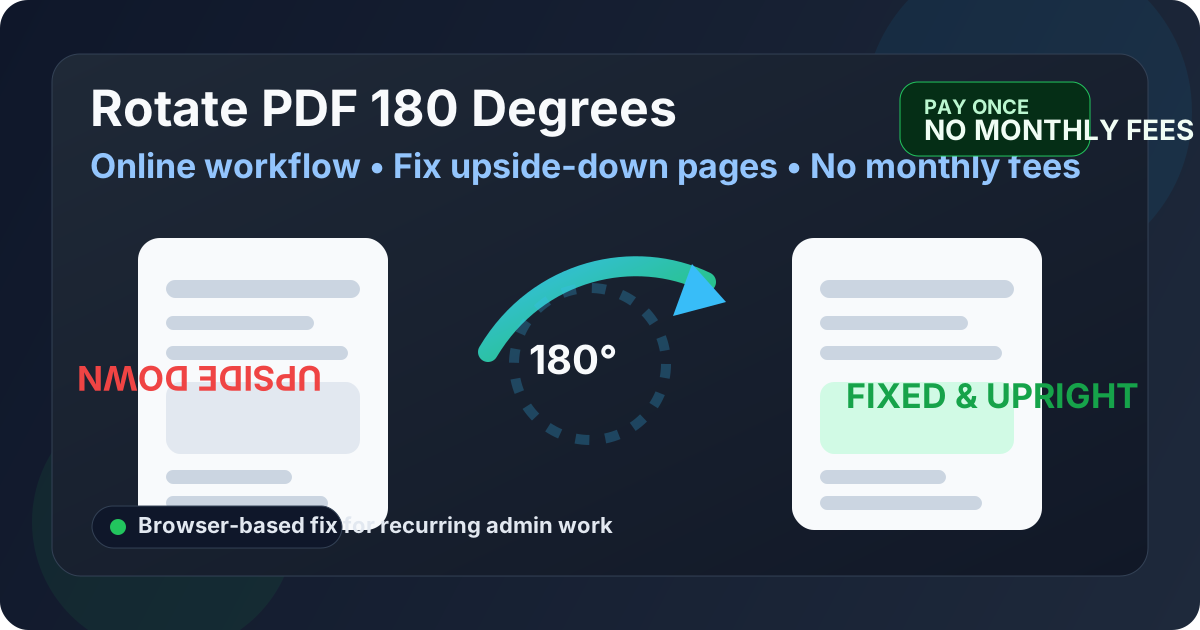
Table of contents
- Quick start: rotate an upside-down PDF in under 2 minutes
- Why 180 degrees is the right fix for this problem
- 180 degrees vs 90 degrees: choose the correct turn
- Step-by-step: rotate the PDF in your browser
- Rotate one page vs the whole document
- Receipts, duplex scans, forms, and mixed packets
- How to rotate a PDF 180 degrees on mobile
- What to do after rotation: crop, OCR, compress, protect
- Why “online without monthly fees” is the clean fit here
- Related LifetimePDF tools and helpful reading
- FAQ (People Also Ask)
Quick start: rotate an upside-down PDF in under 2 minutes
If your actual goal is simply make this PDF readable again right now, this is the fastest reliable workflow:
- Open Rotate PDF.
- Upload the file with the upside-down page or pages.
- Select the affected pages, or choose all pages if the whole document is inverted.
- Apply a 180° rotation.
- Download the corrected copy and open it once to confirm the reading direction is now normal.
Why 180 degrees is the right fix for this problem
A lot of PDF rotation issues are really sideways-page issues. This one is different. A page that needs 180 degrees is not leaning left or right. It is fully inverted top-to-bottom. That matters because trying 90 degrees first just turns an upside-down page into a sideways page. The right angle saves time.
Common situations where 180 degrees is the correct move
- Scanner feeder mistakes: the sheet was inserted the wrong way around, so the output is fully inverted.
- Duplex scan batches: alternating back-side pages end up upside down.
- Receipt and invoice captures: narrow paper documents often get saved end-for-end.
- Merged packets: one appendix, exhibit, or ID page enters the final PDF backwards.
- Phone scan exports: a document looks fine in the capture app but lands upside down in the final PDF.
This is why the keyword is so specific. People searching it usually already know what is wrong. They are not shopping for a full PDF editor. They want the exact fix for an upside-down page, and they want it online so the job is over quickly.
180 degrees vs 90 degrees: choose the correct turn
The most common mistake is choosing the wrong angle. Use the orientation of the page itself as your test, not the fact that the document is unreadable.
Use 180° when:
- the top of the page is pointing toward the bottom of your screen
- the text is fully upside down, not sideways
- you would physically turn a printed copy all the way around to read it
Use 90° or 270° when:
- the page is leaning left or right
- landscape pages are opening on their side
- the top of the page is pointing toward the left or right edge of the screen
This sounds small, but it matters in real workflows: admissions forms, HR packets, reimbursement receipts, customer support attachments, school submissions, and legal exhibits often need to be corrected fast with as little rework as possible.
Step-by-step: rotate the PDF in your browser
1) Open Rotate PDF
Start with LifetimePDF Rotate PDF. A browser-based workflow is ideal here because this is usually a quick repair, not a major editing session.
2) Upload the file and identify the bad pages
Once the file loads, check whether the orientation problem affects one page, several selected pages, or the whole document. This is especially useful for scanner batches where only every second page came in inverted.
3) Apply the 180-degree turn
Choose 180° for pages that are upside down. That flips the page into its correct upright reading direction without changing the rest of the document unnecessarily.
4) Download and verify once
Open the corrected file one time before you send, upload, or archive it. If the page is now upright but still messy around the edges, the next step is usually crop or OCR, not more rotation.
Best low-friction sequence: identify the bad pages, rotate once, review once, then move on.
Rotate one page vs the whole document
Not every upside-down PDF needs a full-document fix. Often the best result comes from correcting only the pages that are actually wrong.
Rotate one page when:
- one receipt or signature page was scanned backwards
- one inserted exhibit breaks the flow in an otherwise normal packet
- only the back side of a duplex scan is inverted
- a merged PDF contains one problem source file
Rotate the whole document when:
- every page opens upside down in the same direction
- the original scanner or export flipped the entire file
- the source document is consistently inverted from page 1 onward
This matters because a clean PDF workflow is about touching only what is broken. You should not have to rebuild a complete file just because one page or one section came in inverted.
Receipts, duplex scans, forms, and mixed packets
A 180-degree rotation sounds narrow until you notice how often it shows up in everyday work. It is common anywhere documents are captured quickly, merged from several sources, or scanned in batches.
| Document type | Typical issue | Best first move |
|---|---|---|
| Receipts and invoices | Long narrow page saved upside down | Rotate 180° |
| Duplex scan batches | Alternating back-side pages inverted | Rotate selected pages |
| Application forms and ID packets | One attachment inserted backwards | Rotate only the bad page |
| Archive or book scans | Image-based pages upside down | Rotate, then OCR if needed |
| Merged case or contract files | One source PDF inverted before merge | Rotate affected section, then re-share |
Once you think in terms of document capture mistakes instead of “mystery PDF errors,” the fix becomes very straightforward. The file usually does not need to be recreated. It just needs its orientation corrected cleanly.
How to rotate a PDF 180 degrees on mobile
This job often happens on a phone because the file arrived through email, WhatsApp, Drive, or iCloud and needs to be resent immediately. That is exactly why an online workflow matters.
- Open Rotate PDF in your mobile browser.
- Upload the file from local storage or cloud storage.
- Tap the pages that need correction.
- Apply a 180° turn.
- Download and share the corrected PDF immediately.
This is especially useful for expense claims, school paperwork, travel documents, signed forms, and support attachments where the only real issue is that the page is upside down.
What to do after rotation: crop, OCR, compress, protect
Rotation fixes the orientation problem. It does not have to solve every other document issue at the same time. After the page is upright, use the next tool only if the file still needs help.
- Crop PDF — remove dark scan borders, oversized margins, or rough edges.
- OCR PDF — make an image-based scan searchable after it is facing the right direction.
- Compress PDF — shrink large corrected files for email or upload portals.
- Extract Pages — isolate only the pages you need to send.
- PDF Protect — secure the final file before sharing sensitive content.
This is the practical reason people want the task online and subscription-free: rotation is often just one small step inside a larger document-cleanup routine.
Why “online without monthly fees” is the clean fit here
Rotating a PDF 180 degrees is a classic utility task. You do not want a membership for it. You want the page fixed so you can move on. But routine PDF jobs have a way of getting wrapped in recurring plans, usage limits, or premium gates even when the job itself is tiny.
That is why this keyword has real search intent. People who type online without monthly fees are usually looking for a low-friction workflow they can reuse whenever receipts, forms, scans, or admin packets get messy again. They want the convenience of doing it in a browser, but they do not want to rent a basic orientation fix forever.
Pay once. Use forever. A one-time PDF toolkit makes more sense when rotation, crop, OCR, compression, and protection keep reappearing as small operational tasks.
Related LifetimePDF tools and helpful reading
Rotating an upside-down PDF is often one step in a broader cleanup workflow. These tools and related reads pair well with it:
- Rotate PDF — fix upside-down or sideways pages quickly
- Crop PDF — remove extra margins and scan borders
- OCR PDF — recover searchable text after rotation
- Compress PDF — make the corrected file easier to upload and send
- Extract Pages — send only the corrected section
- PDF Protect — password-protect sensitive documents before sharing
Suggested internal blog links
- Rotate PDF 180 Degrees Online
- Rotate PDF 180 Degrees Without Monthly Fees
- OCR PDF Without Monthly Fees
- Compress PDF Without Monthly Fees
- Rotate PDF Online Free
FAQ (People Also Ask)
How do I rotate a PDF 180 degrees online without monthly fees?
Upload the PDF to an online rotator, choose the upside-down page or pages, apply a 180° turn, and download the corrected copy. For a file that is inverted rather than sideways, that is usually the fastest clean fix.
When should I use 180 degrees instead of 90 degrees?
Use 180 degrees when the page is fully upside down. Use 90 or 270 degrees when the page is sideways. If the top of the page points toward the bottom of the screen, 180 degrees is the right choice.
Can I rotate just one page in a PDF by 180 degrees?
Yes. That is often the best workflow when one inserted page, one receipt, or one back-side scan is inverted inside an otherwise normal document.
Will rotating a PDF 180 degrees reduce quality?
Normally no. Rotation changes orientation, not the intent of the page. If the corrected file still feels too large or rough, crop or compress it as a separate step.
What should I do after rotating an upside-down scanned PDF?
The best order is usually Rotate → Crop → OCR → Compress. Once the page is upright, text extraction and visual cleanup are usually easier.
Ready to fix an upside-down PDF in your browser?
Best workflow: identify the upside-down pages → rotate 180° once → review once → continue with crop, OCR, or compression only if needed.
Published by LifetimePDF — Pay once. Use forever.