Read PDF: Open, Search, Summarize, and Understand Any PDF Faster
To read a PDF well, open the file, check whether the text is searchable, run OCR if it is a scan, then use the right next step for your goal: summary for overview, Q&A for exact answers, or text extraction for notes and reuse.
If the PDF is long, scanned, or dense, the fastest reading workflow is not just opening the file. It is making the document searchable first, then using tools that help you understand it without getting lost page by page.
That is the short answer. The part that actually saves time is knowing when a plain viewer is enough, when a scan needs OCR before anything else will work properly, and when you should stop trying to “read harder” and switch to a smarter workflow for summaries, exact questions, or clean text extraction. A good PDF reading process is not about staring at more pages. It is about moving from raw pages to understanding with less friction.
Fastest path: test whether the PDF has real text, OCR it if needed, summarize first for orientation, then ask targeted questions or extract text only when you need more detail.
In a hurry? Jump to Quick start: read a PDF in a few minutes.
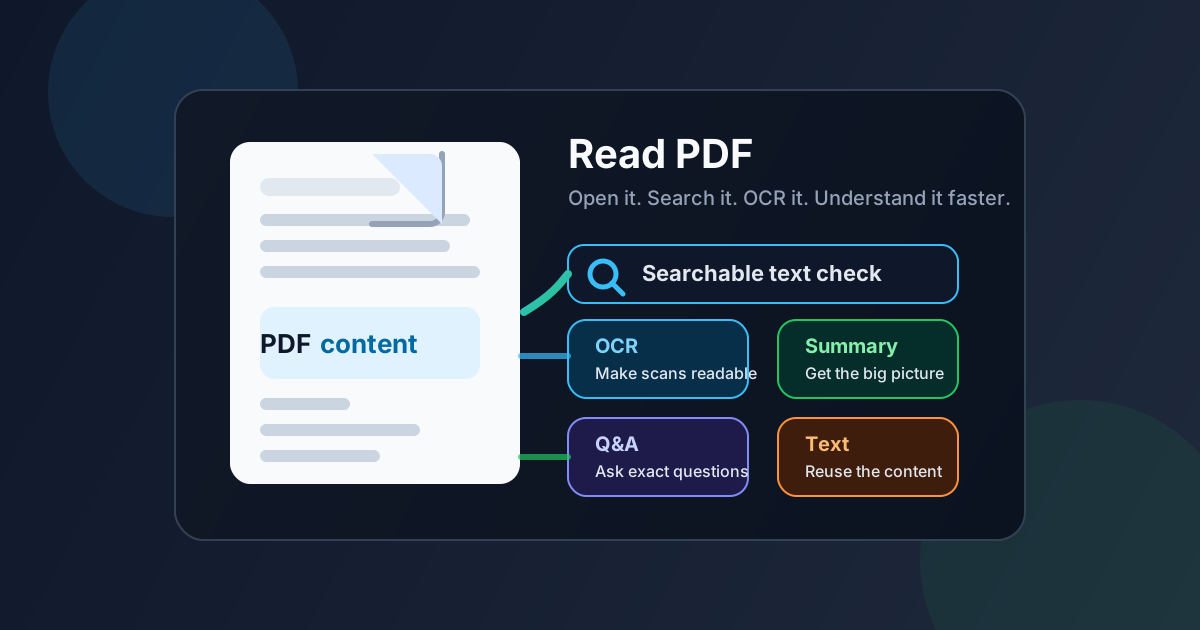
Table of contents
- Quick start: read a PDF in a few minutes
- What “read PDF” usually means in real work
- The best workflow for reading PDFs without wasting time
- What to do when the PDF is scanned or image-only
- How to handle long PDFs without losing the thread
- Which LifetimePDF tool fits your reading goal
- Common mistakes that make PDFs harder to read
- Related LifetimePDF tools and guides
- FAQ (People Also Ask)
Quick start: read a PDF in a few minutes
If your real goal is simply understand this document quickly without missing the important parts, this is the reading sequence that works for most PDFs:
- Open the PDF and try searching for a visible word or highlighting one sentence.
- If that fails, run OCR PDF first so the file becomes searchable.
- If the document is long, use PDF Summarizer to get the big picture before you dive into details.
- If you need exact answers like dates, clauses, totals, or action items, move to AI PDF Q&A.
- If you need quotes, notes, translation, or content you can reuse, extract the text with PDF to Text.
What “read PDF” usually means in real work
People say they need to read a PDF, but that request usually hides a more specific job. Maybe you need to review a contract before signing, skim a research paper, pull deadlines out of a policy packet, check totals in a report, or understand a scanned letter that does not behave like normal text.
That matters because the best way to read a PDF depends on the document and the outcome you want. A two-page text-based file can be handled in a normal viewer. A 90-page scanned report cannot. A dense manual is easier when summarized first. A legal document is safer when you can ask direct questions about payment terms, dates, and obligations instead of manually hunting for them page by page.
In other words, opening the file is not the same thing as understanding it. The strongest reading workflow begins with one question: what kind of PDF am I dealing with right now?
| If your PDF is... | Best first move | Why it helps |
|---|---|---|
| short and text-based | Open and search it normally | You probably only need a viewer and a few quick searches. |
| scanned or photographed | Run OCR first | Search, summary, and extraction work much better once the text layer exists. |
| long or repetitive | Summarize before reading line by line | You get the structure and major points before committing time to the whole file. |
| full of specific details you need fast | Use PDF Q&A | It is faster to ask for exact answers than to scroll through dozens of pages blindly. |
| something you need to reuse elsewhere | Extract the text | Useful for notes, translation, study guides, text-to-speech, or drafting replies. |
The best workflow for reading PDFs without wasting time
A lot of PDF frustration comes from staying in the wrong mode too long. People keep scrolling even when the file is clearly better suited to OCR, summary, or extraction. A cleaner workflow looks like this:
1) Check whether the PDF already has a usable text layer
Try the simplest test first: search for a visible word or highlight a short phrase. If it works, you are dealing with a text-based PDF and most reading tasks will be easier. If it fails, do not fight the file. Switch to OCR.
2) Decide whether you need overview or precision first
If the PDF is long, start with orientation. A summary helps you see the sections, the point of the document, and the areas worth reading closely. If the PDF is short but you need one exact answer, skip the broad summary and go straight to targeted Q&A.
3) Break the document down when it is too large or messy
Many PDFs become easier the moment you stop treating them as one giant block. If appendices, exhibits, or repeated sections are slowing you down, split the file or extract only the pages you actually need. Smaller reading units are easier to summarize and easier to verify.
4) Keep the source PDF as the final authority
Smart reading tools help you move faster, but for anything important you should still verify dates, names, money amounts, citations, or legal wording against the original page. The goal is not to replace the document. The goal is to reach the important parts faster and more reliably.
Need the fastest reading workflow right now? Start with a summary, then narrow down with exact questions or extract the text for notes and reuse.
What to do when the PDF is scanned or image-only
Scanned PDFs are the point where normal reading workflows usually break down. The text may look clear to your eyes while remaining invisible to search, copying, highlighting, or summarization tools. That is why OCR matters so much.
OCR adds a text layer behind the visible page. Once that layer exists, the file becomes much easier to search, summarize, quote, translate, and review. It also reduces the temptation to manually retype lines from the document, which is slow and easy to mess up.
Signs your PDF needs OCR
- You cannot highlight or copy visible text.
- Search finds nothing even though the words are right there on the page.
- The whole page behaves like one flat image.
- Summaries or text extraction come back weak, incomplete, or unusable.
What to do before OCR if the scan is messy
If the pages are sideways, heavily bordered, or cluttered with irrelevant pages, fix that first. A cleaner source PDF gives OCR a better chance of producing readable output. For especially long files, trimming the document down before OCR can also speed up the whole workflow.
Use OCR PDF first, then go back to summary, Q&A, or text extraction once the scan becomes searchable.
How to handle long PDFs without losing the thread
Long PDFs create two problems at once: they take time to read, and they make it easier to forget what you already passed ten pages ago. That is why a good reading workflow for long documents usually starts with structure, not detail.
Start wide, then go narrow
Begin with a summary so you know what is in the document and where the important sections live. Once you have that map, return to the parts that actually matter. This is much more efficient than giving every page equal attention from the start.
Ask specific questions as you read
Once you know the document's shape, use targeted questions to pull out what matters most. Ask for dates, deadlines, parties, obligations, risks, totals, definitions, or decisions. This turns a long PDF from a scrolling problem into an answer-finding problem.
Extract text when you need to work with the content
Reading alone is not always enough. If you need notes, a brief, a study sheet, a translated version, or text-to-speech later, pull the content into a reusable text format. That keeps you from reopening the same PDF five times for five slightly different jobs.
Which LifetimePDF tool fits your reading goal
The easiest way to read PDFs faster is to stop using one tool for every kind of reading. Match the tool to the question you are trying to answer.
If you want the main idea fast
Use PDF Summarizer. This is the best first step when the file is long, unfamiliar, or dense and you want orientation before you invest more time.
If you need one exact answer
Use AI PDF Q&A. It works well for focused questions such as payment terms, due dates, names, section references, definitions, or required actions.
If the document is a scan
Use OCR PDF first. Summary and Q&A become much more useful once the file has a searchable text layer.
If you need reusable content
Use PDF to Text. That is the strongest option for study notes, quotes, drafting, translation, and read-aloud workflows.
If the file is longer than it needs to be
Use Extract Pages or Split PDF so you can work with the sections that matter instead of dragging appendices and filler sections through every step.
Common mistakes that make PDFs harder to read
Most PDF reading problems are not caused by the words themselves. They come from avoidable workflow mistakes.
Trying to summarize a scanned PDF before OCR
If the file is image-only, summary quality will usually suffer. Add the text layer first.
Scrolling through a long file without a plan
Long PDFs are easier when you know the structure first. Start with summary or split the file into sections.
Using a summary when you really need exact wording
Summaries are for orientation, not final legal or financial verification. When the exact wording matters, go back to the source page.
Reopening the PDF for every small task
If you need notes, quotes, or read-aloud support later, extract the text once instead of repeating the same reading work from scratch.
Keeping irrelevant pages in the workflow
Appendices, covers, duplicate scans, and extra pages create noise. Splitting or extracting the relevant pages often makes the whole document easier to understand.
Related LifetimePDF tools and guides
Reading a PDF well often turns into a second task right after the first one. These tools and guides help with the next step:
- PDF Summarizer for fast overviews of long documents
- AI PDF Q&A for exact answers inside contracts, reports, manuals, and research
- OCR PDF for scanned documents that need a searchable text layer
- PDF to Text for notes, translation, quotes, and reusable content
- Read PDF Online Free for a free-browser workflow
- View PDF Properties if you need to inspect metadata before sharing a document
FAQ (People Also Ask)
How do I read a PDF properly?
Open the file, check whether the text is searchable, run OCR if it is scanned, then use a summary for overview, PDF Q&A for exact answers, or PDF to Text when you need reusable content. That gives you a faster and cleaner workflow than relying on a simple viewer alone.
What should I do if a PDF is scanned and hard to read?
Run OCR first. Once the scan has a searchable text layer, it becomes much easier to search, summarize, quote, highlight, and extract for later use.
Is it better to summarize a PDF or read it page by page?
For long PDFs, summarize first so you understand the structure and major points, then read the important sections closely in the original file. That is usually faster and less mentally draining than treating every page as equally urgent.
Can I read a PDF and listen to it later?
Yes. Once the file has searchable text, you can extract the content and move it into your preferred notes or text-to-speech workflow.
What is the fastest way to understand a long PDF?
Start with a summary, follow up with targeted questions about the details you care about, and extract text only when you need reusable content. That sequence is usually much faster than scrolling through the whole document from start to finish.
Published by LifetimePDF — Pay once. Use forever.