ODT to PDF Online Free: Convert LibreOffice and OpenOffice Files Without Layout Surprises
To convert ODT to PDF online free, upload the .odt file to a browser-based converter, export the PDF, and review fonts, page styles, tables, and images once before sharing.
If the document came from LibreOffice or OpenOffice, PDF is usually the safer handoff because recipients can open it without accidentally reinterpreting your layout.
That is the short answer. The useful part is knowing why some ODT files glide into PDF cleanly while others push a table onto a new page, swap a font, or make a calm invoice look improvised on someone else's device. A good online workflow turns an editable open-document file into a final version you can email, upload, print, or sign without wondering how the next computer will reinterpret it.
Fastest path: clean the ODT file once, convert it once in the browser, review the PDF once, then compress, sign, or protect it only if the next step actually needs it.
In a hurry? Jump to Quick start: convert ODT to PDF online free in a few minutes.
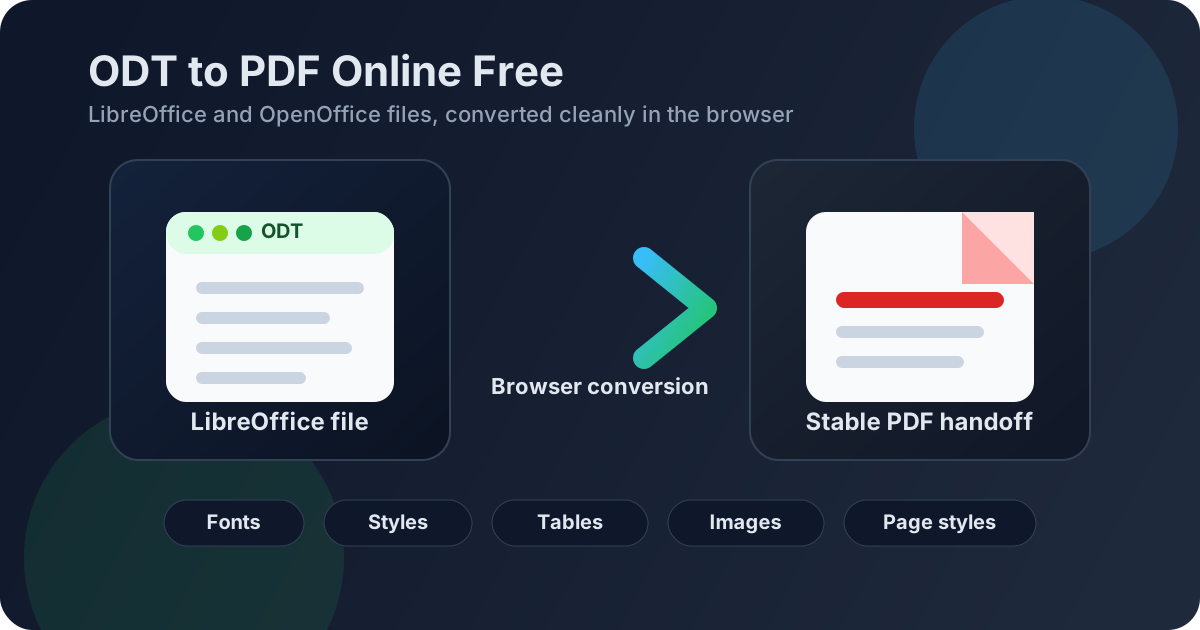
Table of contents
- Quick start: convert ODT to PDF online free in a few minutes
- Why people search ODT to PDF online free instead of plain Word to PDF
- Step-by-step: the cleanest browser workflow
- How to keep LibreOffice and OpenOffice formatting stable
- ODT to PDF online free on phone, tablet, Mac, Windows, and Linux
- Common ODT-to-PDF problems and fixes
- What to do after converting
- When free is enough and when repeated work needs more than a one-off converter
- Related tools and companion guides
- FAQ
Quick start: convert ODT to PDF online free in a few minutes
If the document is already finished and you just need a dependable PDF, the workflow is simple:
- Open LifetimePDF Word to PDF.
- Upload the .odt file from LibreOffice or OpenOffice.
- Convert it to PDF and download the finished file.
- Check fonts, page styles, headers, footers, tables, images, and page breaks once.
- If needed, compress, sign, merge, or protect the PDF after the layout looks right.
The conversion itself is easy. What matters is making sure the final PDF still looks deliberate when it reaches someone who has never touched LibreOffice, does not have your fonts, and only wants a file that opens cleanly.
Why people search ODT to PDF online free instead of plain Word to PDF
ODT is not just "another document format." It is the editable open-document file used by LibreOffice and OpenOffice for reports, invoices, school work, proposals, contracts, forms, manuals, and internal documents. Searchers using this keyword usually already know the file type, already know they want a PDF, and usually want to do it in the browser without installing anything extra.
- They have an .odt file, not a DOCX.
- They want a final PDF that opens consistently on other devices.
- They need a quick browser workflow from email, cloud storage, or mobile.
- They want something free for the immediate conversion task.
- They do not want the recipient to edit the original open-document file.
- Layout stays steadier across devices and operating systems.
- Printing is more predictable for contracts, forms, and school submissions.
- Casual editing is reduced compared with sending the ODT directly.
- Upload portals and signature workflows usually expect PDF.
- PDF feels like the final version instead of a live working file.
In plain terms: Word to PDF is the broad workflow. ODT to PDF online free is the open-document, browser-friendly version of it. It deserves its own page because LibreOffice and OpenOffice files have their own layout habits, page-style quirks, and compatibility risks.
Step-by-step: the cleanest browser workflow
1) Clean the source file before you convert anything
ODT files can look finished while still hiding the usual troublemakers: duplicated blank pages, comments, awkward page styles, floating images, tables that barely fit, or signature sections held together by manual spacing. Before you convert the document online, decide whether the ODT file is actually final. If it still says "close enough," it probably wants one more pass.
2) Use the browser tool that matches the job
Open Word to PDF. The tool name is broader than the keyword, but the workflow is the right match in practice: it supports ODT, DOC, and DOCX when the goal is a stable PDF for sharing.
3) Upload the real final file
This sounds obvious, but it prevents more confusion than people expect. If your Downloads folder contains proposal-final, proposal-final-2, and proposal-final-actually-final, rename the correct file before you upload it. The cleanest online workflow still falls apart if the wrong source document enters the converter.
4) Convert, download, and review the risky spots once
You do not need a forensic audit. Give deliberate attention to the sections where layout changes actually create friction:
- page styles and page breaks
- fonts and heading wraps
- headers, footers, and page numbering
- tables, totals, and wrapped cells
- screenshots, diagrams, and logos
- signature lines or form-like sections
5) Only add the next PDF step if the document needs it
If the file is too large, use Compress PDF. If it needs approval, use Sign PDF. If it contains private information, use PDF Protect. If it belongs in a packet, use Merge PDF. The smart sequence is conversion first, not random extra steps before you know the layout survived.
Reliable simple sequence: ODT → PDF → review → compress / sign / protect if needed.
How to keep LibreOffice and OpenOffice formatting stable
Most ODT-to-PDF problems are not mysterious. They usually come from the way the source document was built. A calmer ODT file produces a calmer PDF.
Use real styles instead of spacing tricks
Repeated spaces, manual tabs, and improvised blank lines still make documents fragile. If you want the browser-converted PDF to behave, rely on proper paragraph styles, sensible margins, actual page breaks, and tables where tables belong.
Pay attention to page styles
LibreOffice and OpenOffice users often underestimate how much of the document depends on page styles. First pages, appendix sections, landscape tables, restarts in numbering, and different header or footer setups can all shift if the source file is messy. Review those transitions before and after conversion.
Images and tables deserve more suspicion than body text
Oversized screenshots, pasted charts, and wide tables are common reasons a perfectly ordinary ODT file becomes a bulky or awkward PDF. If the document matters, check the pages where those elements appear. If they are larger than they need to be, fix them in the source file before you convert.
Fonts still matter even in online workflows
ODT is portable, but unusual fonts can still change line wraps and page flow. If the file is going to a client, a school portal, a printer, or a signature workflow, dependable fonts are usually the smart choice.
| Problem | What usually causes it | Best response |
|---|---|---|
| Text wraps differently | Font substitution or inconsistent styles | Use dependable fonts and recheck the page styles and page breaks |
| Blank space appears in odd places | Manual spacing or weak page control | Replace spacing hacks with real paragraph spacing and proper breaks |
| Tables split awkwardly | Columns are too wide or rows contain too much content | Reduce table complexity and review the risky pages after conversion |
| PDF becomes too large | Oversized images or screenshots inside the ODT file | Shrink image bloat first, then compress the finished PDF |
My practical rule is simple: if the ODT file already feels improvised, fix the document first and convert second. Online conversion is convenient, but it does not magically rescue weak document structure.
ODT to PDF online free on phone, tablet, Mac, Windows, and Linux
One reason people specifically search for an online free workflow is flexibility. They are not always at the same desk with the same office suite open. Sometimes the file is sitting in email, cloud storage, or a messaging app and just needs to become a dependable PDF quickly.
On phone or tablet
Upload the ODT file from your device, convert it in the browser, and download the PDF. This is especially useful for school submissions, resumes, invoices, letters, or forms that need to be sent before you are back at a computer. Just preview the result once, because smaller screens make it easier to miss subtle layout problems.
On Mac, Windows, or Linux
Desktop users already have local software options, but a browser workflow is still handy when the file lives in cloud storage, came from another system, or needs to move directly into the rest of the PDF process. Convert first, then compress, sign, protect, or merge without hopping between several unrelated tools.
Common ODT-to-PDF problems and fixes
The PDF looks slightly different from the source file
That usually points to fonts, page styles, tables, images, or manual formatting shortcuts. If the change is cosmetic, the file may still be fine. If it affects totals, signatures, tables, or visible professionalism, fix the ODT file and convert again.
The file is too large to email or upload
Convert first, then shrink the finished file with Compress PDF. In ODT workflows, bulky screenshots and pasted diagrams are a very common reason PDFs become heavier than expected.
You need a signature after conversion
Once the PDF layout looks right, open Sign PDF. That is usually cleaner than trying to preserve a signature block inside an editable office file all the way through the workflow.
You need a private or locked final copy
Use PDF Protect when the file contains HR, legal, academic, client, or financial information. If something must be removed permanently rather than visually covered, use redaction instead of relying on password protection alone.
The ODT file is only one piece of a larger packet
Convert it first, then combine it with supporting files using Merge PDF. That is especially useful for proposals, submission packets, contract bundles, onboarding documents, and multi-file reports.
What to do after converting
For most people, conversion is only the first step. The real workflow usually looks like this:
- Need a smaller file? Use Compress PDF.
- Need approvals or signatures? Use Sign PDF.
- Need restricted access? Use PDF Protect.
- Need one final packet? Use Merge PDF.
- Need to edit again later? Keep the original ODT file and treat the PDF as the distribution version.
This is why PDF is usually the better delivery format while ODT remains the better editing format. You do not have to choose one forever. You just need to know which one belongs to which stage of the document's life.
Best simple sequence: ODT → PDF → review → compress / sign / protect → send.
When free is enough and when repeated work needs more than a one-off converter
The word free matters because sometimes you really do just need one fast browser conversion. That is a perfectly normal use case. But if ODT-to-PDF becomes part of your regular work, the question changes from can I do this once for free? to can I finish the whole PDF workflow without friction every week?
- you have one finished ODT file and just need a stable PDF
- the layout is simple and not image-heavy
- you do not need follow-up steps like signing or protection
- you are doing an occasional personal or school task
- conversion is only step one of a broader PDF workflow
- you regularly compress, protect, sign, or merge the result
- you work with client, HR, academic, or operational documents often
- subscription fatigue is more annoying than the conversion itself
That is the real practical distinction. Free conversion is great when it solves the job in front of you. A pay-once toolkit becomes more attractive when document work keeps repeating and you do not want every useful next step hidden behind a separate monthly plan.
Related tools and companion guides
If this ODT-to-PDF task is part of a broader document workflow, these are the most relevant next steps:
- Word to PDF for the core conversion step
- Compress PDF when the result is too large for upload or email
- Sign PDF when the final file needs approvals or signatures
- PDF Protect for password protection
- Merge PDF for combining the finished file with supporting documents
- ODT to PDF for the broader exact-match guide
- ODT to PDF Online Without Monthly Fees for the pricing-oriented companion angle
- Word to PDF for the broader office-document workflow
- DOCX to PDF for the Microsoft Word companion page
- TXT to PDF if your next step starts from plain text instead
FAQ
How do I convert ODT to PDF online free?
Use an ODT to PDF converter in the browser, upload the .odt file, convert it, and download the finished PDF. Check fonts, page styles, tables, images, and page breaks once before you share or print the result.
Will ODT to PDF online free keep my formatting?
Usually yes, especially when the original ODT file uses clean styles, common fonts, sensible margins, and stable tables or images. Most layout changes come from font substitution, improvised spacing, or crowded pages in the source file.
Is ODT to PDF different from Word to PDF?
ODT to PDF is the open-document part of the broader Word to PDF workflow. The destination is still PDF, but ODT files usually need more attention to page styles, cross-suite compatibility, and LibreOffice or OpenOffice layout habits.
Can I convert ODT to PDF online free on my phone?
Yes. You can upload an ODT file from your phone or tablet, convert it in the browser, and download the PDF. It is still worth previewing the final document before sharing it with anyone else.
Should I share the ODT file or the PDF?
Keep the ODT file for editing, but share the PDF when you want a more stable version for review, printing, upload portals, signatures, approvals, or archiving.
Published by LifetimePDF — Pay once. Use forever.